How to Combine JPG Side by Side Online (Fast & Free)

Learn how to combine two JPG images side by side online without any software. Use our free tool to merge photos horizontally with high quality in seconds.
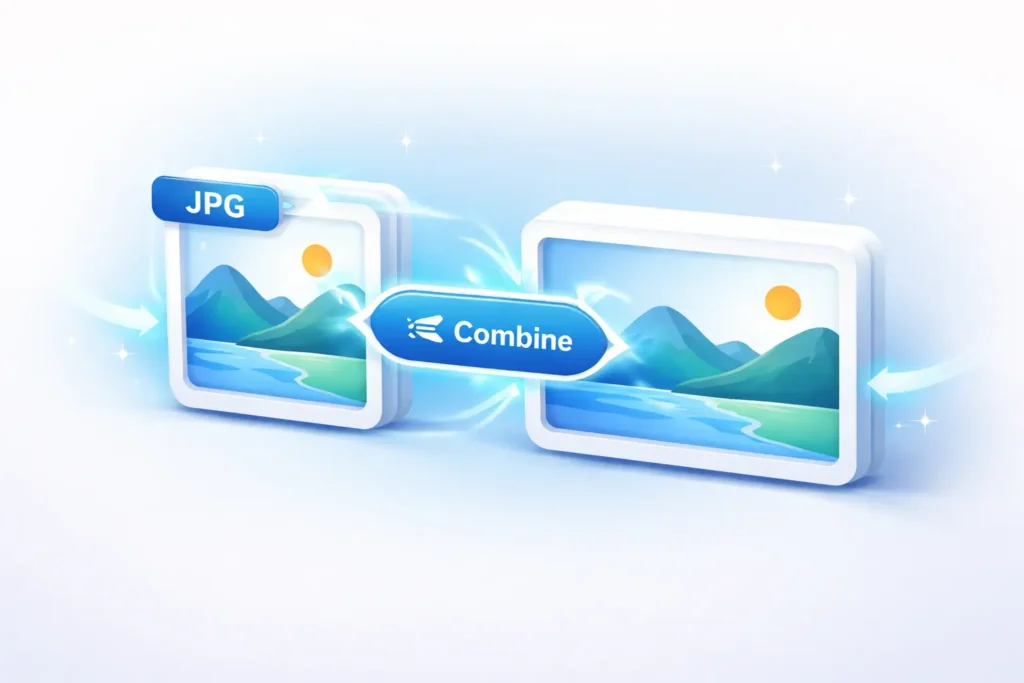
Do you want to create a side-by-side comparison or a photo collage? Combining JPG files horizontally is a common task for social media, professional presentations, and personal projects. While heavy softwares like Photoshop can do this, they are often slow and complicated. In this guide, we will show you the easiest way to merge JPG images side by side using our free online tool at CombineJPG.com.
Why Combine JPG Side by Side?
There are many reasons why you might need a horizontal merge:
- Before and After Photos: Perfect for fitness, makeup, or home renovation results.
- Product Comparisons: Showcase two similar products for your customers.
- Social Media Collages: Create unique posts for Instagram or Facebook.
- ID Card Scanning: Join the front and back of an ID card on a single page.
How to Merge JPG Side by Side (Step-by-Step)
Using our tool is simple and requires no registration. Follow these quick steps:
- Upload Your Images: Go to CombineJPG.com and click the “Upload” button to select the two or more images you want to join.
- Choose Horizontal Layout: Once uploaded, select the “Horizontal” or “Side-by-Side” option. This will align your images in a single row.
- Adjust the Order: You can drag and drop the images to make sure the right photo is on the left or right side.
- Combine and Download: Click the “Combine” button. Our tool will process the images instantly in your browser. Finally, hit “Download” to save your new merged JPG.
Benefits of Using CombineJPG.com
- No Quality Loss: Unlike other online compressors, we keep your pixels sharp.
- Privacy First: Your images never leave your computer. All the merging happens right in your browser.
- 100% Free: No hidden charges, no watermarks, and no signups required.
- Mobile Friendly: You can use it on your Android or iPhone just as easily as on a PC.
Comparison: CombineJPG.com vs MergeJPG.com
Many users wonder which tool is best for merging images. Here is a quick comparison between our platform and others like mergejpg.com:
| Feature | CombineJPG.com (Ours) | MergeJPG.com |
| Processing Speed | Ultra-Fast (Browser Based) | Standard (Server Based) |
| Privacy | 100% Secure (Files don’t leave your PC) | Files uploaded to Server |
| Side-by-Side Mode | Dedicated One-Click Feature | Manual Adjustment |
| User Interface | Modern & Ad-Free Experience | May contain heavy ads |
| Mobile Usage | Fully Optimized for Smartphones | Basic Mobile Support |
Also Read:
- 🔗 How to Combine Multiple JPGs into One File – Learn how to merge and organize more than two images into a single file easily.
- 🔗 Mastering JPG to JPG Merging Online – Discover the best techniques to merge images online without using any complex software.
Frequently Asked Questions (FAQs)
How many JPGs can I combine side by side?
You can combine two or more JPG images horizontally. Our tool allows you to add multiple files and arrange them in a single row easily.
Will the quality of my photos decrease after merging?
No! CombineJPG.com ensures that your images are joined without extra compression, maintaining the original clarity and sharpness of your photos.
Is it safe to upload my private photos?
Absolutely. Unlike other sites like mergejpg.com, our tool processes everything inside your web browser. Your images are never uploaded to any server, making it the most private way to merge photos.
Can I use this tool on my iPhone or Android?
Yes, our website is fully responsive. You can upload photos directly from your phone’s gallery and download the merged result in seconds.
Do I need to install any software or extension?
No installation is required. It is a 100% web-based tool that works on Chrome, Safari, Edge, and Firefox.
Conclusion
Combining JPG files side by side doesn’t have to be a headache. With CombineJPG.com, you can create professional-looking horizontal merges in just a few clicks. Try it today and see how easy it is!