
📝 Image to Text Converter
Extract text from photos, scans, screenshots – 100% free. No signup required.
Image to Text Converter: Free Online OCR for Any Image
Upload any image and get editable text in seconds. This free OCR tool works on JPG, PNG, screenshots, scanned pages, and handwritten notes no account needed, no file limits, no watermarks. Just clean, accurate text you can copy, edit, or download.
Whether you need to convert JPG to text, JPEG to text, or handle a blurry photo to text conversion, our tool is optimized for high performance and global language support.
How to Extract Text from an Image (3 Steps)
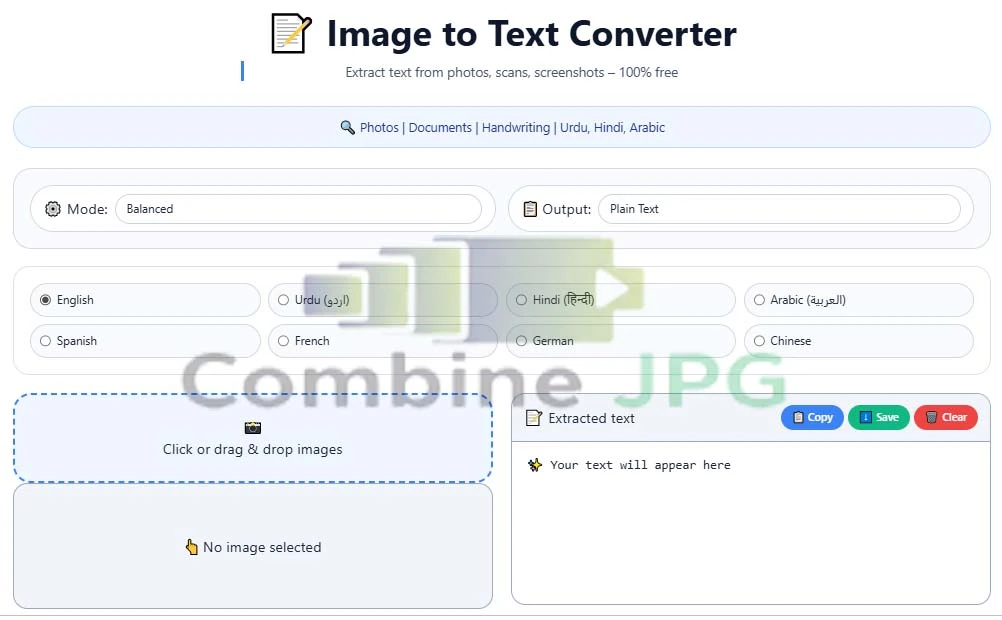
Step 1 — Upload your file
Drag and drop any JPG, PNG, WEBP, or GIF onto the tool, or click to browse your device. You can also upload multiple images at once for batch processing.
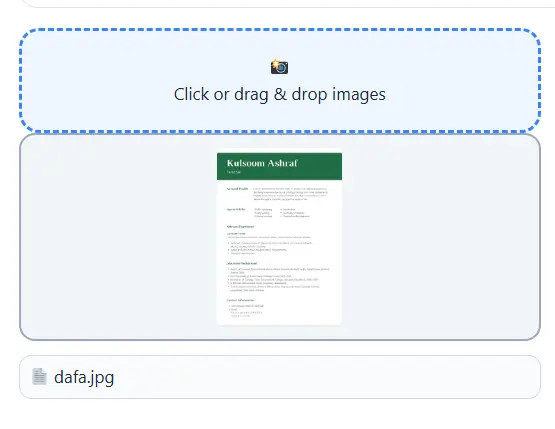
Step 2 — Choose your OCR mode
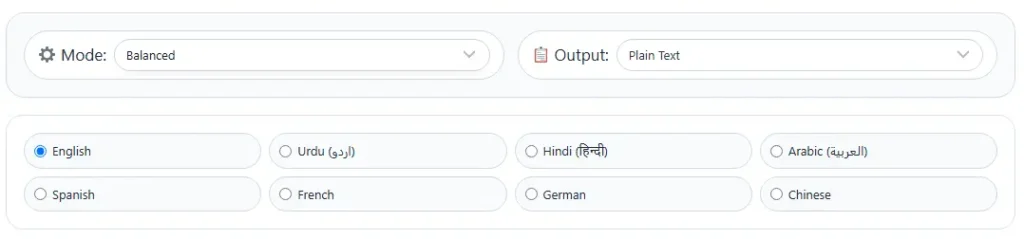
Select Fast for quick results, Balanced for everyday use, or Accurate when working with small fonts, low-resolution scans, or complex layouts.
Step 3 — Copy or download your text
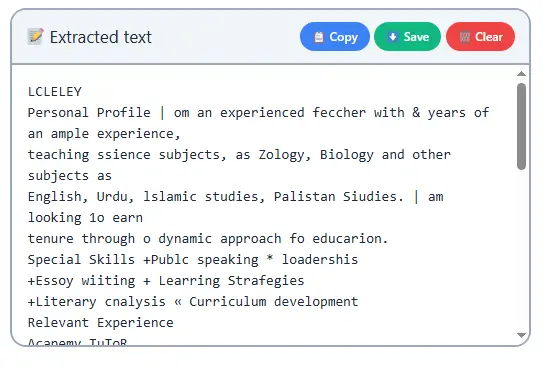
Once extraction is done, copy the text directly to your clipboard or download it as a .txt or .docx file. That is all there is to it.
Extract Text from Screenshots in One Click
If someone sends you a screenshot of a document, an error message, or a chat you cannot select or copy that text. Upload the screenshot here, and this tool pulls out every word as editable text within seconds.
This works for:
- Windows and Mac screenshots
- Phone screen captures
- WhatsApp, Instagram, and Facebook screenshots
- Error messages and system notifications
- Code snippets shared as images
Convert Handwritten Notes to Digital Text
Students, teachers, and professionals use this tool to digitise handwritten notes from notebooks, whiteboards, and sticky notes. Upload a clear photo of your handwriting, and the OCR engine converts it to typed text you can paste into Word, Google Docs, or any notes app.
For best results with handwriting: use good lighting, hold the camera steady, and make sure the text fills most of the frame.
Extract Text from Invoices, Receipts, and Business Documents
Instead of manually retyping numbers and names from a paper receipt or scanned invoice, upload the image and copy the data directly. This is useful for:
- Expense tracking and accounting
- Filling spreadsheets with receipt data
- Digitising printed contracts and forms
- Extracting product details from labels or packaging
The Accurate OCR mode handles dense text, small fonts, and low-contrast documents better than Fast mode for this kind of work.
JPG to Text, PNG to Text, and More — Supported Formats
This tool accepts JPG, JPEG, PNG, WEBP, GIF, BMP, and TIFF files. Whether your image came from a phone camera, a scanner, a WhatsApp download, or a website, just upload it as-is.
If you have a scanned PDF, take a screenshot of the page and upload that. The OCR process is identical.
Urdu, Arabic, and Hindi OCR with RTL Support
Most OCR tools break Right-to-Left text the words come out in the wrong order, or the sentences are reversed. This tool has dedicated support for Urdu, Arabic, Hindi, and Farsi, maintaining correct RTL alignment throughout.
Full language list: English, Urdu, Arabic, Hindi, Spanish, French, German, Chinese, Japanese, Russian, Portuguese, Italian (12 languages total).
Image to Text vs. Typing It Yourself
| Features | OCR Tool | Manual Typing |
|---|---|---|
| Speed | 2–5 seconds | 10–30 minutes |
| Accuracy | 98%+ | Prone to typos |
| Effort | Upload and copy | Tedious, tiring |
| Cost | Free | Your time |
For a single word it does not matter. For a full page of text — or fifty receipts — the difference is significant.
Key Features
- Free with no daily limits or hidden costs
- No signup or email registration required
- 3 OCR modes: Fast, Balanced, Accurate
- Batch upload process multiple images at once
- Image enhancement tools: sharpen, denoise, adjust contrast, auto-rotate
- Output formats: Plain Text, DOCX, JSON, hOCR, TSV
- RTL language support for Urdu, Arabic, Farsi
- Files deleted automatically after 60 minutes
- Works on mobile — iPhone, Android, any browser
Frequently Asked Questions
Is this image to text converter really free?
Yes. There are no daily limits, no file size paywalls, and no subscription required. Upload as many images as you need.
How accurate is the text extraction?
Accuracy depends mostly on image quality. Clear, well-lit images of printed text come out at 98%+ accuracy. Blurry or very small text may need the Accurate mode and some manual correction.
Can I extract text from a blurry or low-resolution image?
Switch to Accurate mode and use the Sharpen or Denoise filters before running the extraction. This improves results noticeably on poor-quality scans.
Does it work for handwritten text?
It works best on neat, clearly spaced handwriting in good lighting. Cursive or very compact handwriting may not extract perfectly printed text always gives cleaner results.
Is my data private and secure?
All uploaded images are processed securely and deleted from the server within 60 minutes. No files are stored or shared.
Can I use this on my phone?
Yes. The tool is fully browser-based and works on iPhone and Android without installing any app. Take a photo and upload it directly.
Does it support Urdu and Arabic text?
Yes, with correct Right-to-Left alignment. Select Urdu or Arabic from the language dropdown before extracting for the best results.
What image formats does it accept?
JPG, PNG, WEBP, GIF, BMP, and TIFF. Most images from phones, scanners, and screenshots will work without any conversion.
Can I download the extracted text?
Yes as a plain .txt file or a .docx Word document. There is also a one-click copy button if you just need to paste the text somewhere.
Is there a character or page limit?
No. You can extract text from full-page documents, long receipts, or image-heavy files without hitting any limit.
Tips for Better OCR Results
- Use a steady camera — blurry images are the most common cause of extraction errors. Rest your phone on a flat surface if needed.
- Shoot in good light — natural daylight works well. Avoid direct flash on glossy paper, which creates glare.
- Crop the image before uploading to remove backgrounds and borders. Less noise means cleaner output.
- Choose the right mode — Fast is fine for clear, high-contrast images. Use Accurate for anything with small text, low contrast, or faded print.
- Straighten the image — if your document is at an angle, use the Auto-rotate feature or straighten it before uploading.
“Need to combine multiple images after extracting text? Use the Merge JPG tool to join them into one file.”