
PDF to JPG Converter
Extract PDF Pages as High Quality Images
Drag & drop PDF or click to select
PDF file only — Max 100MBFree PDF to JPG Converter — 100% Private, No Server Upload
You want to convert a PDF to JPG without downloading any app, without creating an account, and without worrying about your file sitting on some stranger’s server. That is exactly why thousands of people use CombineJPG’s free PDF to JPG converter every single day. This tool runs entirely inside your browser — your PDF file never travels to any server at all. Upload, convert, download. That is the whole process. Private, instant, and completely free.
How to Convert PDF to JPG — 3 Simple Steps
Converting a PDF to JPG with this tool takes about 30 seconds. No technical knowledge needed, no software to install, no learning curve whatsoever.
Step 1 — Upload Your PDF File
Click the upload box above or drag your PDF file directly into it. If your PDF is password-protected, a password input field will appear automatically — enter it and the tool handles the rest.

Step 2 — Choose Your Settings
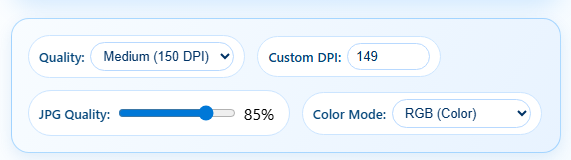
Decide whether you want to convert all pages or just specific ones. Use the page selector to pick individual pages or a range like pages 3 to 7. Then choose your output quality Low at 72 DPI works well for web and social media, Medium at 150 DPI is the best choice for everyday use, and High at 300 DPI is what you need for printing or professional documents. The JPG quality slider is set at 85 by default, which gives you an excellent balance between file size and image sharpness.
Step 3 — Convert and Download
Hit the Convert button. Within seconds every selected page becomes a separate JPG image. Check the preview thumbnails to confirm the output looks right, then download all files at once as a single ZIP or save individual pages one by one.

How CombineJPG Compares to Other PDF to JPG Converters
Most people pick the first tool they find on Google without comparing what they are actually getting. Here is an honest side-by-side comparison of CombineJPG against the most commonly used alternatives so you can make an informed decision.
COMPARISON TABLE:
| Feature | CombineJPG | ILovePDF | Smallpdf | Adobe Acrobat Online | PDF2JPG.net |
|---|---|---|---|---|---|
| Price | Free forever | Free (limited) | Free (limited) | Free (2 tasks/day) | Free |
| File Upload to Server | NO — browser only | YES | YES | YES | YES |
| Signup Required | NO | NO | YES (for full use) | YES | NO |
| Watermark on Output | NO | NO | YES (free version) | NO | NO |
| Daily Usage Limit | NO LIMIT | 2 files/day | 2 files/day | 2 tasks/day | Limited |
| Select Specific Pages | YES | YES | YES | YES | NO |
| DPI / Quality Control | YES (72–600 DPI) | NO | NO | NO | NO |
| JPG Quality Slider | YES (1–100) | NO | NO | NO | NO |
| Password-Protected PDF | YES | YES | YES | YES | NO |
| Batch ZIP Download | YES | YES | NO | NO | NO |
| Preview Before Download | YES | NO | NO | NO | NO |
| Grayscale / Color Mode | YES | NO | NO | NO | NO |
| Custom DPI Input | YES | NO | NO | NO | NO |
| Works Offline After Load | YES | NO | NO | NO | NO |
| Mobile Friendly | YES | YES | YES | YES | Partial |
| No Ads | YES | NO | NO | NO | NO |
What this table tells you:
CombineJPG is the only free tool in this comparison that processes your file entirely on your device without any server upload. Every other tool including well-funded products like Smallpdf and Adobe’s online converter sends your file to their servers to do the work. For anyone handling sensitive documents, that is a meaningful difference.
On features, CombineJPG also leads the group. DPI control from 72 to 600, a JPG quality slider, grayscale mode, page-specific selection, preview before download, and no daily limits are all things you either will not find or will have to pay for on competing tools.
The only category where some competitors have an edge is brand recognition — iLovePDF and Smallpdf are older, more established names. But name recognition does not protect your documents. Technical architecture does.
Tool Features — Everything This Converter Can Do
Before you start converting, here is a full breakdown of every feature available in this tool so you know exactly what you are working with.
1. Browser-Based Processing — Your File Never Leaves Your Device
This is the single most important feature and the one that separates CombineJPG from almost every other online converter. When you load a PDF here, the file stays in your browser’s local memory. JavaScript processes it directly on your device. Nothing is sent to any server. This is not a privacy policy promise — it is how the tool is technically built.
2. Selective Page Conversion
You do not have to convert an entire PDF if you only need certain pages. The page selector lets you check individual pages or enter a range. Need only page 1 and pages 5 through 8? Select exactly those. Only those pages get converted and downloaded.
3. DPI Control from 72 to 600
Three quick-select presets cover most needs — 72 DPI for screen and web use, 150 DPI for general documents and sharing, 300 DPI for professional printing. A manual input field lets you type any value from 72 to 600 for specialized workflows in design, prepress, or archiving.
4. JPG Quality Slider (1 to 100)
DPI controls resolution. The quality slider controls JPG compression. Higher values mean sharper images and larger files. Lower values mean smaller files with some compression artifacts. The default of 85 is the practical sweet spot — excellent visual quality at a reasonable file size. The live file size estimate updates as you move the slider so you know exactly what you are getting before you download.
5. Preview Before Downloading
After conversion, every page appears as a thumbnail preview. Zoom into any thumbnail to check sharpness, verify the right pages were selected, and confirm the output meets your needs before committing to the download. This saves the frustration of downloading a full ZIP only to find out a setting was wrong.
6. Batch ZIP Download
When multiple pages convert, each becomes a separate JPG file. Downloading 20 or 50 individual files one by one is tedious. The ZIP download button packages every converted page into a single archive file that downloads in one click.
7. Drag and Drop Upload
Click to browse or drag a PDF file from your desktop directly onto the upload zone. On mobile, tapping the upload area opens your device’s file picker. Both methods work equally well and the upload zone is large enough to be easy to target even on small screens.
8. Password-Protected PDF Support
Many important documents are password-protected HR files, legal agreements, financial reports. This tool detects a password-protected PDF automatically and displays a password input field. Enter the correct password and conversion proceeds exactly as it would for an unprotected file.
9. Grayscale Output Option
Need a black and white version? Toggle on grayscale mode before converting. This is useful for scanned text documents where color adds no value, for reducing file size, or for meeting specific printing requirements where color ink is not needed.
10. Full Mobile Compatibility
The tool is fully responsive and tested on Android and iOS. Buttons are touch-sized, the upload zone responds to taps, preview thumbnails are swipeable, and the download flow works smoothly on every major mobile browser. Approximately 40 percent of users come from phones and tablets the mobile experience here matches desktop quality completely.
Why People Switch From Other Tools and Stay Here
This is a fair question worth answering honestly. Dozens of free PDF to JPG converters exist online. Some of them are well-known names with millions of users. So what makes CombineJPG worth using?
The answer is privacy, and it is not a marketing slogan here it is a technical reality.
When you upload a PDF to almost any other online converter, your file physically travels to their server. They process it there, then send the result back to you. Most of them say they delete your file after an hour or after 24 hours. Maybe they do. But your tax documents, business contracts, medical reports, bank statements, or legal agreements were on their server for that window of time. That is a level of trust most people do not think about until something goes wrong.
On CombineJPG, that situation does not exist. The conversion happens inside your browser using JavaScript. Your device does the work. Our server delivers the tool’s code to your browser and then its job is done your file never appears in any request log, never touches any storage, never gets seen by any process outside your own machine. This is called client-side processing, and it is the most private way to handle sensitive documents online.
Beyond privacy, the tool is genuinely simple to use. There are no upgrade prompts, no popup banners asking you to try Pro features, no email capture forms before you can download your file. You come here to convert a PDF. That is what happens.
Real Situations Where People Need PDF to JPG Conversion
Understanding why people convert PDFs to JPEG images helps you decide whether this is the right tool for your situation.
Presentations and Slide Decks
Inserting a PDF page directly into PowerPoint or Google Slides is unreliable — formatting breaks, fonts shift, and the result rarely looks clean. The reliable approach is converting the PDF page to a JPG first, then inserting it as an image. The result looks exactly like the original and scales perfectly across different screen sizes.
Social Media and Content Creation
LinkedIn, Instagram, Facebook, and Twitter all accept JPG images but do not support PDF uploads in posts. If you want to share an infographic, a document summary, a certificate, or any PDF content on social media, converting pages to JPG first is the only clean path.
Website and Blog Use
Embedding a PDF on a webpage requires extra plugins or iframes and creates slow load times. Converting PDF pages to JPG images lets you display document content directly on any webpage as a standard image element fast to load, compatible with every browser, and easy to resize for mobile layouts.
Email Attachments
A JPG image displays inline inside most email clients — the recipient sees it immediately without downloading anything. A PDF requires a separate application to open. When you need someone to quickly see content without any friction, JPG is the better format to send.
Image Editing
Photoshop, GIMP, Canva, and virtually every image editor can open a JPG file but cannot directly edit a PDF page as an image layer. Converting PDF to JPG first gives you a proper image file that you can crop, resize, recolor, add text to, or composite with other visuals.
Record Keeping
Submitted a government form online? Got a PDF confirmation of a job application or university admission? Converting that PDF to JPG gives you a visual record you can view instantly on any device without needing a PDF reader.
Print Shop Submissions
Many local print shops and online printing services prefer JPG files over PDF for individual image prints, photo books, and poster printing. A 300 DPI JPG from this converter meets professional print quality standards for most standard print sizes.
How DPI Settings Affect Your Output Quality
DPI stands for Dots Per Inch. It controls how much detail is packed into every inch of the converted image. Higher DPI means sharper image and larger file size. Lower DPI means smaller file with less detail.
- 72 DPI — Screen display standard. Images look sharp on monitors and phones. Small file size, fast to share. Not suitable for printing.
- 150 DPI — The practical middle ground. Text stays fully readable, graphics look clean, file size stays manageable. Best choice for email, messaging apps, and presentations.
- 300 DPI — Professional print standard. Business cards, brochures, certificates, and reports all use 300 DPI. Text looks razor sharp even under magnification. File sizes are larger but quality is uncompromised.
- Custom (72–600 DPI) — For design professionals, prepress workflows, and archiving projects that require a specific resolution not covered by the presets.
Device and Browser Compatibility
Windows — Chrome, Firefox, Edge, Opera — fully supported. Mac — Safari, Chrome, Firefox — full functionality. Android — Chrome browser — complete feature access. iPhone and iPad — Safari and Chrome — works perfectly on iOS. Linux — Firefox and Chromium — no issues. Chromebook — Chrome — excellent compatibility.
No plugins, no reader software, no special settings required. Just a modern browser and an internet connection.
Privacy and Security — What Actually Happens to Your File
When you load a PDF into this tool, the file goes into your browser’s local memory. JavaScript reads that file, renders each page into image data, and packages the output for download. At no point does any data travel over the internet. There is no upload request, no server-side rendering, no temporary storage, no deletion timer to trust.
No account is required because there is nothing to store. No email is collected. No advertising system analyzes your document content. These are not policy statements — they are technical facts about how this tool is built. If you work with confidential documents of any kind, this is the converter that handles them without compromise.
FAQ
Is this PDF to JPG converter really free?
Yes, completely free with no hidden charges, no daily limits, no watermarks, and no signup required. Every feature described on this page is available at no cost.
Does my PDF file get uploaded to a server?
No. This tool processes everything locally inside your browser. Your file never leaves your device and never touches any external server.
Can I convert only specific pages instead of the whole PDF?
Yes. The page selector lets you choose individual pages or a custom range. Only the pages you select get converted.
What is the best DPI setting for my use case?
Use 72 DPI for web and social media, 150 DPI for general sharing and presentations, and 300 DPI for anything that will be printed.
Will the converted JPG have a watermark?
No. Every JPG file you download from CombineJPG is completely clean — no watermarks, no branding, no logos added anywhere.
Can I convert a password-protected PDF?
Yes. Upload the file and a password input field appears automatically. Enter the correct password and the conversion proceeds normally.
How many pages can I convert at once?
There is no fixed page limit. Very large PDFs may take longer because your device handles the processing, but there is no artificial restriction on page count.
Does this work on my phone?
Yes. The tool is fully mobile-friendly and tested on Android and iPhone. It works in Chrome and Safari without any issues.
Can I download all converted pages as one file?
Yes. Use the ZIP download button to package every converted JPG into a single archive file that downloads in one click.
Does converting PDF to JPG reduce image quality?
Quality depends on the DPI you choose. At 150 DPI and above, text stays sharp and images look clean. At 300 DPI the output meets professional printing