
Image to Excel Converter
Extract Table Data from Images → Excel / CSV
Drag & drop image here or click to select
JPG, PNG, WebP, BMP (Max 5MB)Image to Excel Free – Extract Tables from Photos & Screenshots Instantly
You took a photo of a price list. You received an invoice as a JPEG. You have a screenshot of a report table that your manager sent in a chat. The data is right there visible but you cannot sort it, filter it, or run a formula on it. It is trapped inside pixels.

That is the exact problem this tool solves. Upload your image, and within seconds you get a clean Excel spreadsheet with rows and columns in the right place ready to open in Microsoft Excel, Google Sheets, LibreOffice, or any other spreadsheet software you use.
No account. No subscription. No file sent to any server. Everything runs inside your browser.
How to Convert an Image to Excel — Three Steps
Step 1 — Upload your image
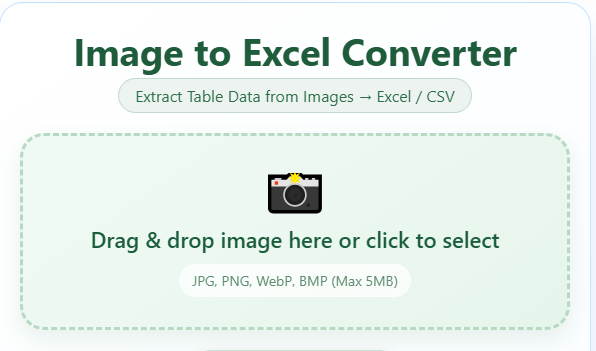
Drag and drop the file onto the upload area, or click to browse. JPG, PNG, WebP, and BMP formats are all supported. Files up to 10MB work fine — that covers most phone photos, screenshots, and scanned documents.
Step 2 — Let OCR do the reading
The tool uses Optical Character Recognition technology that runs directly in your browser. It scans the image, reads every character, detects the table structure, and separates the data into rows and columns. This happens entirely on your device no file transfer to any external server.
Step 3 — Download Excel or CSV
Once the table appears on screen, review it and download. Choose .xlsx if you are working in Microsoft Excel or Google Sheets. Choose .csv if you need to import the data into another application accounting software, a CRM, a database, or any tool that accepts comma-separated files.
What Types of Images Work Best
Not every image produces the same result. Knowing what converts cleanly saves you time.
Screenshots give the best output.
When you take a screenshot of a table from a website, a dashboard, a PDF, or any software interface, the text is pixel-perfect. There is no camera distortion, no shadow, no angle. The OCR reads it with the highest accuracy. If you have the option to take a screenshot instead of a photo, always do that.
Scanned documents are a close second.
A document scanned at 300 DPI with a flatbed scanner produces clean, evenly lit images. Printed invoices, statements, old register pages, and forms scanned this way convert very reliably. Most modern office printers include a scan-to-JPEG or scan-to-PNG function use that output directly.
Phone photos of printed documents work well with a few conditions.
Place the document flat on a solid surface. Use natural daylight or bright overhead light. Hold the camera directly above the document not at an angle. Tap on the text area to focus properly before taking the shot. A well-taken phone photo of a printed table gives good results in most cases.
Low-quality images need a quick review.
Blurry photos, dark lighting, heavy shadows, and severe angles all reduce accuracy. The tool will still extract what it can, but expect to correct a few cells in those situations.
Who Uses an Image to Excel Converter
This tool gets used across a wide range of jobs and situations. Here are the most common ones.
Accountants and bookkeepers
- Photograph receipts, supplier invoices, and purchase orders throughout the month. Converting those images to spreadsheets makes expense tracking, month-end reporting, and tax preparation significantly faster than typing each figure manually.
Finance professionals
Receive bank statements as image-based PDFs or scanned files. Converting them to Excel lets them run calculations, compare months, spot irregularities, and feed the data into financial models without manually re-entering every transaction.
Small business owners
Fften deal with printed stock lists, handwritten delivery notes, and paper-based price catalogs. Digitizing those records into Excel makes inventory management, reordering, and pricing updates far easier to handle without hiring extra staff.
Students and researchers
- Come across tables in textbooks, academic papers, and reports that cannot be copied as text. Photographing those tables and converting them to Excel saves hours of manual transcription when building datasets for assignments, projects, or analysis.
Sales and operations teams
- Deal with lead lists on paper, attendance sheets, event registration tables, and whiteboard data from meetings. Turning those into spreadsheets means the data is searchable, sortable, and shareable immediately.
HR and administrative staff
- Handle scanned forms, printed employee records, and paper checklists that need to go into digital systems. Converting them to Excel or CSV is often the first step before importing into HR software or databases.
Data analysts and IT professionals
- Frequently need to extract table data from screenshots of legacy systems, old database interfaces, or software that does not support data export. Converting those screenshots to Excel is the fastest workaround available.
Excel vs CSV — Which Format Should You Download
Both formats open in Excel and Google Sheets, but they serve slightly different purposes.
Excel (.xlsx) preserves the column widths and is the right choice when you plan to work on the spreadsheet directly — adding formulas, sorting, filtering, or formatting the data. It is the format most people are familiar with, and it opens with a double-click in Microsoft Excel without any setup.
CSV (Comma-Separated Values) is plain text. It has no formatting, no colors, no formulas — just the data separated by commas. That makes it universally compatible. Any database, CRM, accounting platform, analytics tool, or custom application can import a CSV file. If your goal is to push the data into another system rather than work on it manually, CSV is the better pick.
When in doubt, download both. The tool provides both options at no extra cost.
Your Data Never Leaves Your Device
This matters more than most tools admit. When you upload a file to most online converters, that file travels to a server somewhere, gets processed, and sits in storage until it is deleted — sometimes minutes later, sometimes days.
This tool works differently. The OCR process runs inside your browser using local computing resources. The image you upload never gets sent to any external server. It stays on your device from the moment you upload it to the moment you download the result.
That means you can safely use this tool with:
- Bank statements and financial records
- Client invoices and contracts
- Internal business data
- Medical records and lab reports
- Any document that contains information you would rather not share with a third-party server
Tips for Getting Accurate Results
A few small habits consistently improve the output quality.
- Crop the image before uploading. If your image contains a table surrounded by large margins, headers, logos, or other text, cropping to just the table area helps the OCR focus on what matters. Most phones and computers have a basic crop tool built in.
- Use the highest resolution available. When you have the option to export a scan or screenshot at different quality levels, choose the higher one. More pixels means the OCR has more information to work with.
- Straighten skewed images. If a photo was taken at a slight angle, rotating or straightening the image before uploading usually improves column alignment in the output.
- Check the result before downloading. The extracted table appears on screen before you download anything. Take ten seconds to scroll through it and confirm the rows and columns look correct. Catching a misread cell on screen is faster than fixing it in Excel.
Frequently Asked Questions
Does this tool work on mobile phones and tablets?
Yes. The tool runs in any modern mobile browser — Safari on iPhone, Chrome on Android, and others. You can upload an image directly from your phone gallery or take a photo during the upload step on most devices.
Can it read handwritten text?
Clear block handwriting in good lighting often extracts with reasonable accuracy. Cursive writing and heavily stylized handwriting are harder to read reliably. For handwritten tables, a quick review of the output is always recommended.
What if the columns come out misaligned?
This usually happens when the original image has inconsistent spacing or no visible column borders. Cropping tightly to the table and uploading a higher-quality version often fixes it. The downloaded Excel file is fully editable, so fixing a few cells manually takes less than a minute in most cases.
Is there a limit on how many conversions I can do?
No daily limit, no account required. Use the tool as many times as you need.
Can I convert a screenshot of a website table?
Yes, and screenshots tend to give the cleanest results of any image type. Take the screenshot, upload it, and the table data should come through with high accuracy.
Does it work with tables inside PDF files?
If your PDF is a scanned image (a photo of a document saved as PDF), take a screenshot of the relevant page and upload that. If the PDF has selectable text, you may be able to copy the table data directly without needing a converter.
Can I use this for non-English text?
The OCR engine processes text in multiple Latin-alphabet languages. English gives the highest accuracy. Results for other languages will vary depending on character complexity and image quality.