
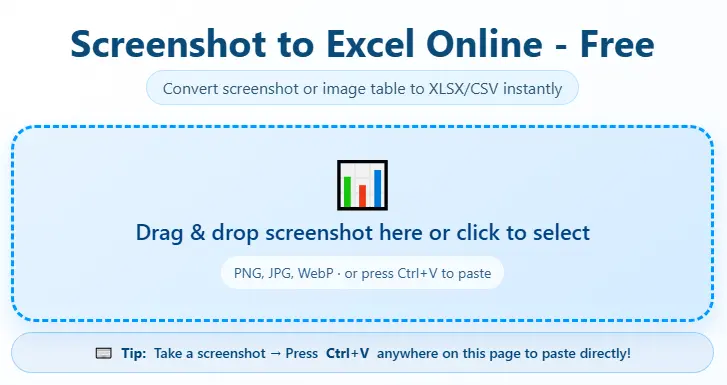
Screenshot to Excel Online – Free
Convert screenshot or image table to XLSX/CSV instantly
Drag & drop screenshot here or click to select
PNG, JPG, WebP · or press Ctrl+V to pasteSelected Screenshot
Try Our Professional Free Image Tools
Screenshot to Excel Free — Paste & Convert to XLSX Instantly
Most data we look at every day never started life inside a spreadsheet. It shows up as a screenshot a table from a website, a chart shared in a WhatsApp group, a bank statement someone forwarded as an image, a price list pasted into a chat. The numbers are right there in front of you, but you can’t sort them, can’t add a formula, can’t filter a column. This tool exists for exactly that moment: you have a picture of data and you need it back as real, editable rows and columns. Drop the screenshot in, and within seconds you get back an Excel file you can actually work with.
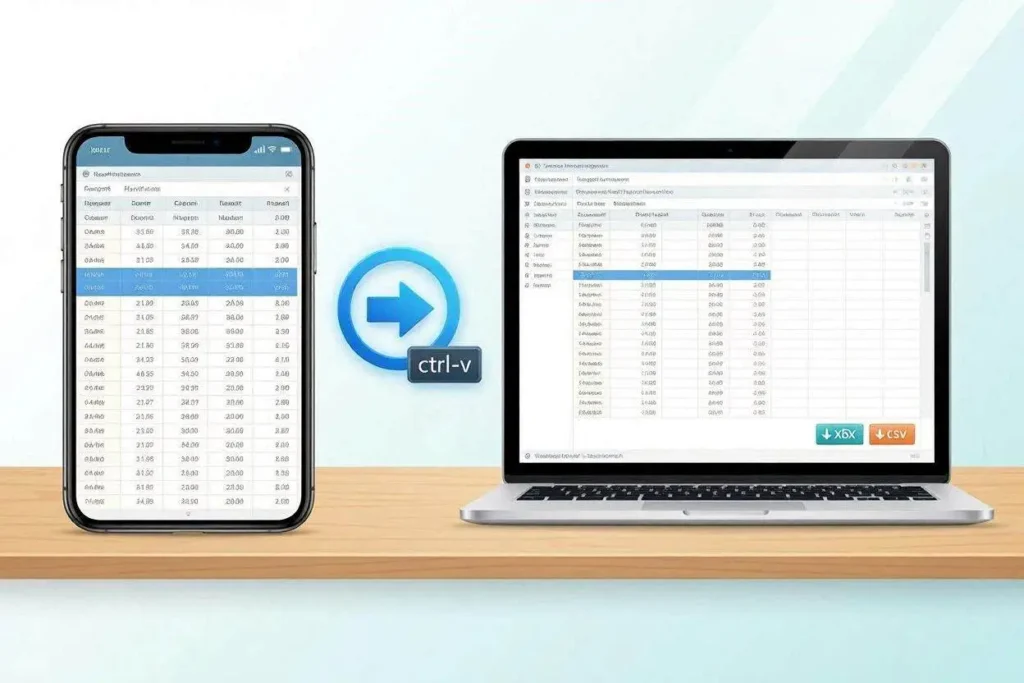
There’s no software to install and no account to create. The page reads the table structure in your image rows, columns, headers and rebuilds the same layout inside a spreadsheet, instead of dumping every word into a single messy column the way basic text extraction does.
What this tool actually does
Reads table structure, not just text. A row stays a row. A column stays a column. Numbers land in their own cells instead of running together with the label next to them.
Works straight from your clipboard. Take a screenshot, press Ctrl+V on this page, and the image is already loaded — no saving the file to your downloads folder first.
Gives you a choice of output. Download as an .xlsx file if you want to keep working in Excel or Google Sheets, or as .csv if you’re feeding the data into another tool or database.
Shows a preview before you download. The extracted table appears on the page first, so you can check the numbers match the screenshot before saving anything.
Handles messy, real-world screenshots. Phone photos of printed pages, low-resolution crops, and screenshots taken at an angle are all readable, not just clean app exports.
How to convert a screenshot to Excel
- Get your screenshot. Use your phone’s screenshot shortcut, Windows Snipping Tool, macOS Cmd+Shift+4, or any screen capture method. Crop it so the table is the main thing visible.
- Add it to the tool. Drag the image into the upload box, click the box to choose a file, or simply press Ctrl+V if it’s already on your clipboard.
- Press Convert to Excel. The page reads the rows and columns in the image and lays them out as a table.
- Check the preview. A table appears showing exactly what was found — compare it against your original screenshot.
- Download your file. Choose .xlsx for Excel or Google Sheets, or .csv if you need a plain comma-separated file.
Why convert a screenshot instead of retyping it
Retyping a table is slow: A table with 40 rows and 6 columns is 240 cells of manual typing. Most screenshots are converted in well under a minute.
Manual entry invites mistakes: Transposed digits and skipped rows are common when copying numbers by eye. Reading the image directly removes that step.
Source files often don’t exist: A chart from a PDF report, a table inside a presentation, or data from an app with no export button a screenshot may be the only version you have access to.
No software, no signup: Nothing to install, no account, no email address requested. Open the page, add an image, get a file back.
Common things people convert
| Screenshot type | Why people convert it |
|---|---|
| Bank or card statement screenshots | Track spending in a spreadsheet instead of re-reading the banking app every time |
| Price lists or rate cards shared as images | Compare suppliers or build a quote without retyping every line |
| Tables from PDFs or presentations | Reuse data when the original file is locked or unavailable |
| Stock, crypto, or trading app screenshots | Keep a personal log of positions or prices over time |
| WhatsApp or chat-shared tables | Recover data that was only ever sent as a picture, never as a file |
| Attendance sheets or timetables | Move printed or photographed schedules into an editable format |
| Survey results or forms shown as images | Pull responses into a spreadsheet for sorting and counting |
Excel (.xlsx) or CSV — Which should you pick
| Title | .xlsx (Excel) | .csv |
|---|---|---|
| Opens directly in | Excel, Google Sheets, Numbers | Excel, Google Sheets, text editors, databases |
| Keeps column formatting | Yes | No — plain text only |
| Best for | Working in a spreadsheet right away | Importing into another app, script, or database |
| File size | Slightly larger | Smaller, plain text |
Frequently Asked Questions
Is this screenshot to Excel converter actually free?
Yes. There’s no signup, no trial period, and no limit on how many screenshots you convert. The tool runs entirely in your browser tab.
Can I paste a screenshot directly instead of uploading a file?
Yes. Once you’ve copied a screenshot (most screenshot shortcuts copy to the clipboard automatically), just press Ctrl+V anywhere on this page and the image loads without needing to save it first.
What image formats are supported?
PNG, JPG/JPEG, and WebP all work. Most screenshot tools save in PNG by default, which this tool reads without any conversion needed first.
Does it work if my screenshot doesn’t have visible grid lines?
Yes. Many tables especially ones from websites or apps have no visible borders at all. The layout is read from spacing and alignment, not from lines, so plain or borderless tables convert fine.
Will the column order match my original screenshot?
It’s read left to right, top to bottom, the same way you’d read the original image, so the column order should match. Always check the preview table against your screenshot before downloading, especially with unusual layouts.
Can I convert a photo taken with my phone, not just a screen capture?
Yes. A clear phone photo of a printed table, whiteboard, or document works the same way as a screen capture, as long as the text is readable and not too blurry or at a steep angle.
Is there a limit on rows or columns?
There’s no fixed row or column cap, but very large or dense tables are easier to read accurately when split into smaller screenshots rather than one extremely long capture.
What happens to my screenshot after conversion?
The image is processed to extract the table and isn’t stored after that. Avoid uploading screenshots containing sensitive personal or financial information you wouldn’t want processed by an online tool, the same caution you’d use with any web-based converter.
Why is this better than typing it into Excel myself?
For a short table, typing it yourself is fine. For anything beyond a handful of rows, retyping is slow and error-prone digits get transposed, rows get skipped. This tool reads the table once and reproduces it in seconds.
Can I edit the file after downloading it?
Yes, completely. Once downloaded, the .xlsx or .csv file is a normal spreadsheet file open it in Excel, Google Sheets, or any spreadsheet app and edit it like any other file you created from scratch.