
✨ Image to Base64 Converter
Drag & drop image here or click to browse
Supports JPG, PNG, WebP, GIF, SVG (max 15MB)Image to Base64 Converter — Encode Any Image Instantly
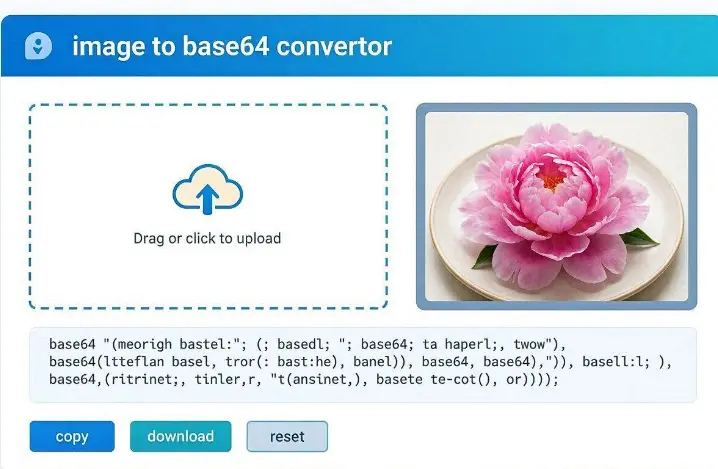
Convert any image to a Base64 string in seconds no upload required, no sign-up, completely free. Just drop your image and get the encoded output instantly. Everything runs inside your browser, so your files never leave your device.Supports JPG, JPEG, PNG, WebP, GIF, and SVG — up to 10MB
What Is Base64 Encoding?
Base64 is a method of converting binary data like an image file into a plain text string made up of letters, numbers, and symbols. This encoded string can be embedded directly inside HTML, CSS, JavaScript, JSON, email templates, and API requests without needing a separate image file or URL.
Instead of this:
html

<img src="photo.jpg">
You write the image as a self-contained string:
html

<img src="data:image/jpeg;base64,/9j/4AAQSkZJRgAB...">
The browser reads the string and renders the image without making a separate server request. This is why Base64 encoding is widely used in web development, email design, and API integrations.
Who Uses This Tool?
- Web Developers embed small icons, logos, and background images directly into CSS or HTML to eliminate extra HTTP requests.
- Email Template Designers use Base64 because many email clients (Gmail, Outlook) block external image links. Embedding images as Base64 ensures they always display correctly.
- Mobile App Developers send images through REST APIs or store them in databases using Base64 format.
- AI & Machine Learning Engineers pass images to vision APIs (OpenAI GPT-4V, Google Gemini, Claude) as Base64 strings.
- No-Code Builders on platforms like Webflow, Bubble, and Make (Integromat) use Base64 to handle images in automated workflows.
How to Convert Image to Base64 — Step by Step
Using this tool is straightforward. Here’s how it works:
Step 1 — Upload Your Image
Click the upload area or drag and drop your image directly onto the page. The tool supports JPG, JPEG, PNG, WebP, GIF, and SVG files. There’s no strict file size limit, though larger images will take a moment to process.
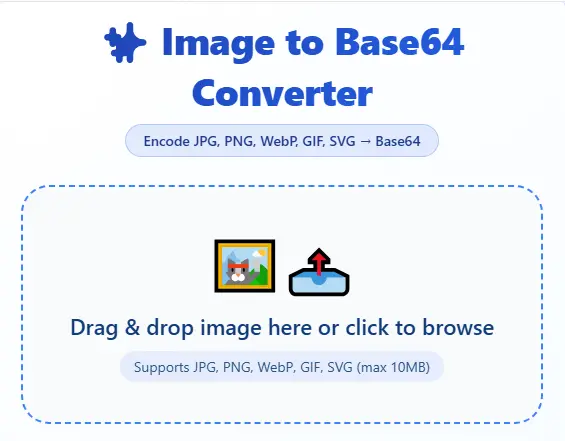
Step 2 — Choose Your Output Format
Once your image loads, you’ll see two format options:
- Data URL — This gives you the full string starting with
data:image/jpeg;base64,...— ready to paste directly into HTML or CSS. - Raw Base64 — This gives you just the encoded string without the prefix. Useful for APIs, databases, and backend systems that add the prefix themselves.
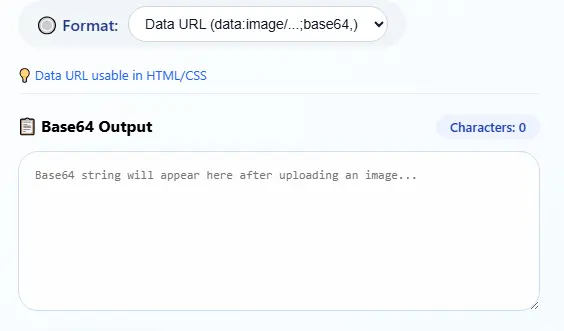
Pick whichever one matches your use case.
Step 3 — Copy or Download
Hit the Copy to Clipboard button to grab the Base64 string instantly. Or click Download .txt to save it as a file. The tool also tells you the character count and approximate Base64 size so you know what you’re working with.
Step 4 — Use It Anywhere
Paste it into your code, API request, email template, or wherever you need it.
Data URL vs Raw Base64 — Which Format Should You Choose?
| Use Case | Format to Use |
|---|---|
HTML <img src=""> | Data URL |
CSS background-image: url() | Data URL |
| Email template | Data URL |
| REST API body (JSON) | Raw Base64 |
| Python / Node.js backend | Raw Base64 |
| Database storage | Raw Base64 |
| OpenAI / Gemini Vision API | Raw Base64 |
Rule of thumb: Use Data URL when pasting into HTML/CSS directly. Use Raw Base64 when sending to an API or backend.
Why Use This Tool Instead of Others?
- ✅ 100% Client-Side Processing Your image is converted entirely inside your browser using the FileReader API. Nothing is sent to any server. Your files stay private.
- ✅ No File Size Hard Limit Most competing tools cap you at 2MB or 5MB. This tool handles files up to 10MB.
- ✅ Multiple Output Formats Get Data URL or Raw Base64 — whichever your project needs.
- ✅ No Ads, No Registration, No Watermarks Open the page, convert, done. No account required.
- ✅ Works on All Devices Fully responsive. Works on desktop, mobile, and tablet — on Chrome, Firefox, Safari, and Edge.
JPG to Base64 | PNG to Base64 | WebP to Base64
This tool handles all major image formats. Here’s what each format produces:
- JPG/JPEG to Base64 →
data:image/jpeg;base64,... - PNG to Base64 →
data:image/png;base64,... - WebP to Base64 →
data:image/webp;base64,... - GIF to Base64 →
data:image/gif;base64,... - SVG to Base64 →
data:image/svg+xml;base64,...
The MIME type is detected automatically — you don’t need to select it manually.
How to Use Base64 in HTML
Once you have your Base64 string, here is how to use it:
As an image:
html

<img src="data:image/png;base64,YOUR_BASE64_STRING_HERE" alt="My Image">
As a CSS background:
css

.banner {
  background-image: url("data:image/jpeg;base64,YOUR_BASE64_STRING_HERE");
}
Inside a JSON API request:
json

{
  "image": "YOUR_RAW_BASE64_STRING_HERE"
}
Common Questions About Image to Base64 Conversion
Does Base64 increase file size?
Yes. Base64 encoding increases data size by approximately 33%. A 100KB image becomes around 133KB as a Base64 string. For small images like icons and logos, this trade-off is acceptable. For large photos, compress the image first.
Can I convert a PNG with transparency to Base64?
Yes. PNG transparency (alpha channel) is fully preserved when converted to Base64. The transparency will display correctly when you use the Data URL in HTML or CSS.
Is Base64 encoding the same as encryption?
No. Base64 is encoding, not encryption. It transforms binary data into readable text, but it does not protect or hide the data. Anyone with the Base64 string can decode it back to the original image.
Can I decode Base64 back to an image?
Yes. Base64 is fully reversible. If you need to go from a Base64 string back to an image file, use a Base64 to Image decoder tool.
What is the maximum image size this tool supports?
This tool handles images up to 10MB. For larger files, compress your image first using our Compress JPG tool, then convert.
Does this tool work on mobile?
Yes. The tool is fully responsive and works on iPhone, Android, iPad, and all modern mobile browsers.
What formats are supported?
JPG, JPEG, PNG, WebP, GIF, and SVG. For HEIC files (iPhone photos), convert to JPG first using our HEIC to JPG Converter.
Is my image uploaded to your server?
No. The entire conversion happens inside your browser. Your image is never sent to any server. It never leaves your device.
Tips for Getting Better Results
- Compress Before Converting — Large images produce very long Base64 strings. Compress your image first with Compress JPG for faster results.
- Use WebP Format — WebP images are 25–35% smaller than JPG or PNG at the same visual quality. Converting a WebP to Base64 gives you a shorter string.
- Test Your Output — After copying the Data URL, paste it into your browser’s address bar. If the image loads, the Base64 string is valid.
- For SVGs — SVG files can be used as inline XML in HTML without Base64 encoding. But if your workflow requires Base64, this tool handles SVGs perfectly.