
Merge PDF Online Free
Combine multiple PDF files into one PDF document — no signup required
Drag & drop PDF files here or click to select
Only PDF files acceptedMerge PDF Online – Free PDF Merger Tool
If you’ve ever had five different PDFs for one job a resume, a cover letter, a portfolio, references and had to attach them one by one to an email, you already know why this tool exists. Merge PDF takes all your separate PDF documents and stitches them into a single file, in the order you upload them, right inside your browser.
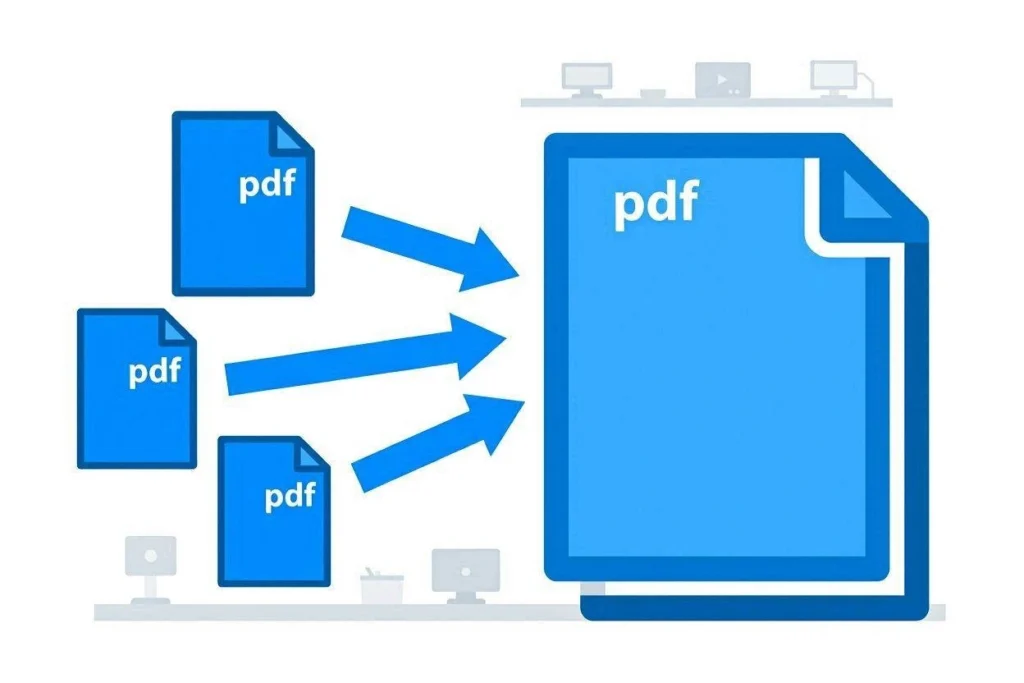
No account. No file limit set by us. No watermark stamped across your pages. And unlike most “free” merge tools online, your files are never sent anywhere the merging happens on your own device using your browser’s memory, not on a server sitting somewhere else.
What Actually Happens When You “Merge” a PDF
A lot of people confuse merging with printing. If you’ve ever tried the old Windows trick of selecting multiple PDFs, right-clicking, and choosing “Print” to combine them you’ve probably noticed it doesn’t really work the way you’d expect. That method sends files to a print queue, not a real merge process, and it often reorders pages, strips formatting, or fails outright on larger files.
A real merge tool reads the internal structure of each PDF its pages, fonts, and embedded content and copies that structure page-by-page into one new file. That’s what this tool does using a PDF-processing library that runs directly in your browser tab, not on a remote server.
Why People Actually Need This
Job applications
resume, cover letter, and certificates as one attachment instead of three
Freelancers and small business owners
combining a month’s worth of invoices into a single file before sending it to an accountant
Teachers
merging separate question papers, answer keys, and instructions into one packet for printing
Students
joining scanned assignment pages into a single submission
Property and rental documents
lease agreement, ID copy, and proof of income bundled together for a landlord or agent
Developers
pulling together separate documentation chapters into one reference file
How to Merge PDF Files (Step by Step)
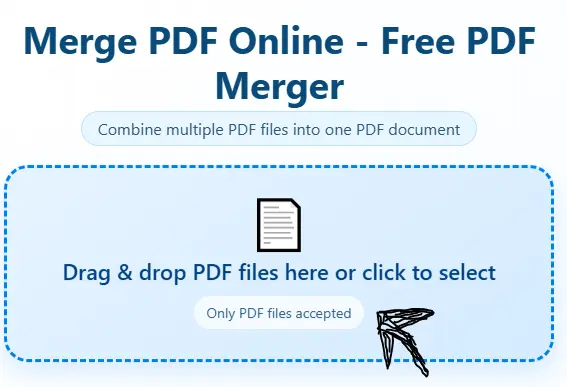
Add your PDFs. Drag and drop them into the box, or click to browse your device. You can select several at once.
- Check the order. The files merge in the order they appear in your list the order you selected or dropped them in. If sequence matters (like a report with a cover page, then chapters), select your files in that exact order from the start, since there’s no drag-to-reorder step here. A quick trick: rename your files 01-, 02-, 03- before uploading, so your file picker sorts them correctly on its own.
- Remove anything you don’t need. Added the wrong file? Tap the ✕ next to it and pick again no need to start over.
- Hit Merge. Your browser processes everything locally and prompts a download the moment it’s done. Nothing is uploaded in the background.
Need to start fresh? Use “New Merge” to clear the list and combine a completely different set of files.
On Mobile (No App Needed)
Open this page in Chrome or Safari on your phone, tap the upload area, and choose “Files” or your document storage app. Select your PDFs, tap Merge, and the combined file saves straight to your device. No app store download required it works the same on iPhone and Android.
Things Worth Knowing Before You Merge
Most tools don’t tell you this part, so here it is straight:
- Password-protected PDFs won’t merge as-is. If a PDF has an open-password on it, you’ll need to remove that protection first (in whatever program you used to lock it) before this tool — or any browser-based merger — can read its pages.
- Digital signatures don’t survive a merge. If one of your PDFs has a legally signed digital signature, merging it into a new file breaks that signature’s validity, because the file itself changes. For signed contracts, merge everything before the signing step, not after.
- Bookmarks and internal links may not carry over. If your source PDFs have a table of contents with clickable jump-links, those links are tied to that specific file. After merging, some may point to the wrong page in the new combined document. Fine for most use cases, worth checking if you’re building something like a long report.
- Very large batches depend on your device, not us. Since merging happens in your browser rather than a distant server, combining 200+ page PDFs works best on a device with reasonable memory. On an older phone with many tabs open, a huge merge might run slowly — closing other tabs usually fixes it.
- Quality is never touched. Merging doesn’t recompress, resize, or flatten anything. Every page comes out exactly as it went in.
Merge PDF vs. Other Online Tools
| Features | This Tool | Typical Cloud-Based Mergers |
|---|---|---|
| Where files are processed | Your own browser | Uploaded to their server |
| File retention | Nothing stored, ever | Often “deleted after 1 hour” |
| Daily limit | None set by us | Usually capped on free plans |
| Signup | Never required | Sometimes required after a few uses |
| Watermark | None | Common on free tiers |
| Works offline once loaded | Yes, after the page loads | No, needs a live connection |
The biggest difference isn’t speed most merge tools are fast. It’s that your PDFs, which might contain IDs, financial statements, or signed contracts, never leave the device they’re already sitting on.
Frequently Asked Questions
Is there a limit on how many PDFs I can merge at once?
No fixed number is enforced by the tool itself. The practical limit is your device’s available memory a phone might struggle past a very large batch of huge files, but a normal laptop handles dozens without issue.
Will merging reduce my PDF’s quality?
No. The tool copies each page as-is; there’s no recompression or resizing involved.
Can I merge scanned PDFs?
Yes, as long as they’re standard PDF files (even scanned ones saved as PDF), they’ll merge the same way as any other PDF.
Can I combine PDFs with JPG or PNG images directly on this page?
This particular tool merges PDF files only. If you need to add photos into a PDF, convert them first using the JPG to PDF tool, then merge the resulting PDF here with your other documents.
Do I need to sign up or install anything?
No. Open the page, upload your files, merge, download. That’s the entire process.
Is it actually private, or just marketed that way?
It’s genuinely private in a technical sense the merging library runs inside your browser tab. Your files are read into your browser’s memory, combined there, and offered back to you as a download. They’re never transmitted to any server as part of this process.
What happens to the original files?
Nothing. Your original PDFs stay untouched on your device. Only a new, separate merged file is created.
Can I later split the merged PDF back into separate files?
Yes, using a PDF splitter tool merging doesn’t delete or alter your originals, so you always have the option to start over or split differently later.
Merge PDF vs Combine JPG to PDF — which one should I use?
The Merge PDF tool joins multiple PDF files into a single PDF document — it’s meant for people who already have PDF files (reports, scanned documents, invoices) and want to combine them into one file. The Combine JPG to PDF tool converts images (JPG/PNG) into a single PDF file — it’s meant for people who have photos or scanned images and want to save them in PDF format.