
Combine Driving License Front and Back – Merge Both Sides
Combine driving license front & back into one JPG or PDF file – free & instant
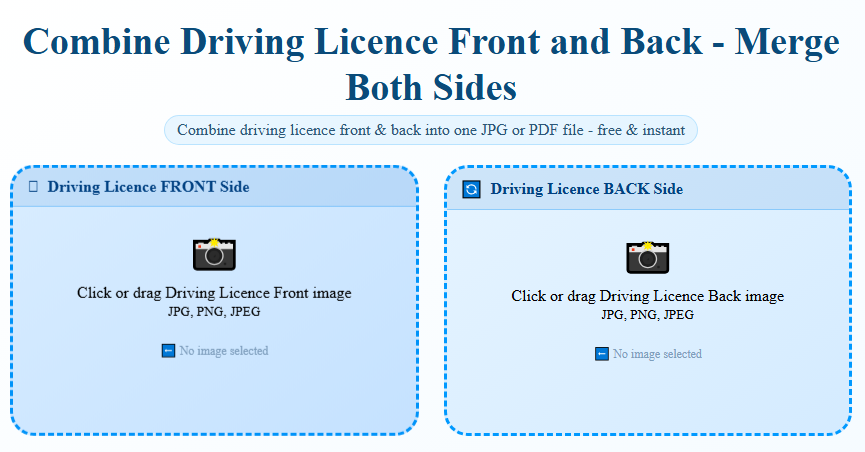
Click or drag Driving License Front image
JPG, PNG, JPEGClick or drag Driving License Back image
JPG, PNG, JPEG🔍 Preview: Merged Driving License
Combine Driving License Front and Back in One File
Almost every driving license has important information split across two sides. Your name, photo, and license number sit on the front. Your address, restrictions, and issue details usually sit on the back. The problem starts when a form, a website, or an office only lets you attach one file. You end up cropping screenshots, pasting images into Word, or emailing two attachments and hoping someone puts them together on their end. This tool skips all of that. Upload the front, upload the back, pick a layout, and you get one file with both sides visible.
How to Combine Driving License Front and Back
Step 1: Add the front side. Click the front upload box and choose a photo or scan of your licence. A clear phone photo works fine as long as the text is readable and there’s no glare across the surface.
Step 2: Add the back side. Do the same for the back. Once both images are in, you’ll see small previews so you can double-check you picked the right files and that neither one is upside down.
Step 3: Pick your layout and download. Choose Vertical if the two sides need to sit one above the other, or Horizontal if you want them side by side. Then download as a JPG or a PDF, whichever the person asking for it actually wants.
Most people are done in under a minute, including the time it takes to find their licence and take the photos.
Why People Need Their Driving Licence Merged
This isn’t a niche request. It comes up constantly, across very different situations:
- Renting a car or bike. Rental companies almost always want to see both sides of your licence before handing over the keys, and their upload forms rarely accept two files.
- Filing an insurance claim. After an accident, insurers ask for proof that the driver held a valid licence at the time. A single combined file moves the claim along faster than two separate attachments.
- Licence renewal or replacement. Transport departments and licensing authorities often want a merged copy as part of the renewal paperwork, especially when applying online.
- Signing up as a driver. Ride-hailing apps, delivery platforms, and courier services all run identity checks during onboarding, and their verification systems usually expect one combined image or PDF, not two.
- Applying for a visa. Some embassies accept a driving licence as supporting ID and specifically ask for both sides on a single page.
- General ID verification. Banks, co-working spaces, gyms, and plenty of other services ask for a licence copy as proof of address or identity, and a merged file is just easier for everyone to file away.
Vertical or Horizontal — Which Layout Should You Pick
There’s no universal right answer here; it depends on what the file is for.
Vertical (front on top, back below) works well when the file needs to be printed. It fits naturally on an A4 or Letter page, and most official forms that ask for “both sides on one page” are picturing this format.
Horizontal (front and back side by side) is easier to scan at a glance on a screen. If you’re uploading to a website or sending it over email for someone to review on a laptop, this layout tends to look cleaner.
If you’re not sure which one the other party wants, vertical is the safer default since it’s closer to how a printed page would look.
JPG or PDF — Which One to Download
JPG makes sense when you’re sharing the file casually, over WhatsApp, email, or a chat app. It’s a smaller file, loads fast, and every device on the planet can open it without asking any questions.
PDF is the better choice for anything official. Government portals, banks, and rental companies tend to expect a PDF, not a photo. It also looks more like a “document” and less like a random image, which matters more than it should when someone’s reviewing your paperwork.
You don’t have to choose in advance — merge once, and you can download either format from the same result.
Why This Tool and Not Something Else
Nothing gets uploaded anywhere. The merge happens directly in your browser. Your licence images never touch a server, which matters a lot given that a driving licence carries your name, photo, address, and a government-issued ID number.
- No watermark on the result. A lot of free tools stamp a logo across the output, which makes it unusable for anything official. This one doesn’t touch the image beyond combining it.
- No account, no email, no sign-up wall. Open the page, upload, download. That’s the entire process.
- Works on a phone just as well as a desktop. If you’re doing this on your phone right after taking the photos, the layout adjusts and everything still works the same way.
- No quality loss. The merge keeps your original resolution, so the text on your licence stays sharp instead of turning into a blurry mess after processing.
A Few Tips Before You Upload
- Take both photos in daylight or under a normal room light. Flash usually creates a glare that hides part of the text, especially on the laminated surface.
- Lay the licence flat on a plain surface. A slight curve or angle can distort the card edges once it’s resized.
- Try to keep the same distance and angle for both the front and back shot. It makes the final merged file look more consistent.
- Check both previews before hitting merge. It’s a lot faster to fix a blurry photo now than to redo the whole thing after downloading.
Frequently Asked Questions
Is it safe to merge my driving license here?
Yes. Everything happens locally in your browser. The images aren’t sent to a server, stored anywhere, or seen by anyone but you.
Can I get the merged file as a PDF instead of an image?
Yes, just select PDF as the output before downloading. It comes out print-ready.
What file types can I upload?
JPG, JPEG, and PNG all work fine.
Will there be a watermark or logo on my downloaded file?
No. The output is a clean copy with nothing added.
Does this work for licences from any country?
Yes. The tool just merges two images together, so it doesn’t matter which country issued the licence or what format it’s in.
Can I use this from my phone?
Yes, it works the same way on mobile browsers as it does on desktop.
Is there a limit on how many times I can use this?
No. Use it as many times as you need, for free.