
⚡ Bulk HEIC to JPG Converter
Convert 50–100 HEIC/HEIF photos to JPG instantly • Fast & Private
Drag & drop HEIC/HEIF files or click to select
Supports HEIC, HEIF • Max 100 files🔧 More Free Tools
Bulk HEIC to JPG Converter High Speed – Convert iPhone Photos Instantly
I built this tool after spending 20 minutes trying to open a single HEIC photo on my Windows laptop. Every converter I found either wanted me to sign up, charged for batch processing, or uploaded my photos to a server I had no information about. That felt wrong for something this straightforward, so I made a browser-based version that skips all of that.
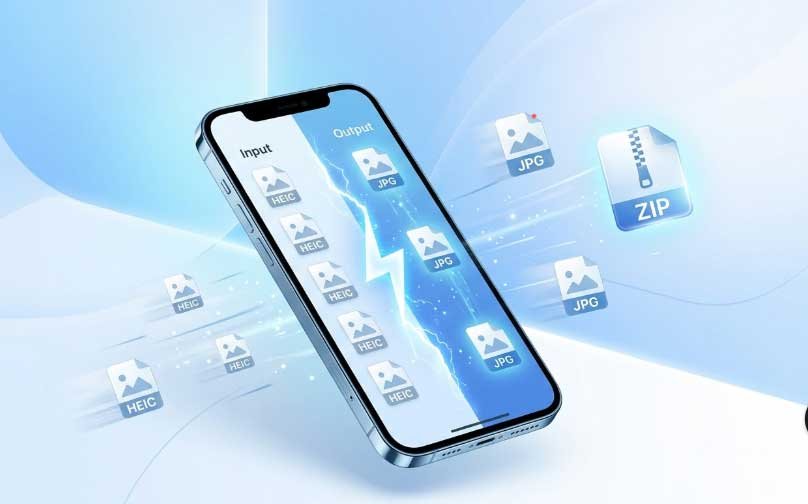
Every day, millions of iPhone users face the same problem. You take beautiful photos on your iPhone, but when you try to open them on a Windows computer or share them with friends who use Android, the images just won’t work. That’s because iPhones save photos in a special format called HEIC (High Efficiency Image Format), and many devices don’t support it.
That is why I built this a converter that runs entirely inside your browser, handles 100+ files at once, and does not ask for anything in return.
Our free tool lets you convert 100+ HEIC photos to JPG in just few seconds. No signup. No upload. No quality loss. Just fast, private conversion right in your browser.
Whether you’re a photographer with hundreds of RAW HEIC files, a casual iPhone user backing up photos to your PC, or someone who just wants to share pictures without format issues – this guide will show you everything you need to know.
What is HEIC and Why Convert It to JPG?
Before we dive into how to use our converter, let’s understand what HEIC actually is.
HEIC stands for High Efficiency Image Container. Apple introduced this format with iOS 11 as a replacement for JPG. The advantages are clear:
- Smaller file size – HEIC files are about 50% smaller than JPG
- Better quality – Same quality at half the size
- Stores multiple images – Can store burst photos and Live Photos
But here’s the problem:
| Device/Software | HEIC Support |
|---|---|
| iPhone/iPad | ✅ Full support |
| Mac (macOS High Sierra+) | ✅ Full support |
| Windows 10/11 | ❌ No native support |
| Android phones | ❌ No support |
| Most website uploads | ❌ Doesn’t accept HEIC |
| Social media (Facebook, Twitter) | ⚠️ Converts automatically |
| Email attachments | ❌ Recipients can’t open |
That’s why you need a reliable HEIC to JPG converter. JPG is the universal format that works everywhere – on every device, every operating system, every software, every website.
Why Our Bulk HEIC to JPG Converter High Speed Stands Out
There are plenty of HEIC converters online. Here is what makes this one different.
1. True High Speed Conversion
Most HEIC converters take 5-10 seconds per image. For 100 photos, that’s 15 minutes of waiting.Our tool converts 100+ photos in 2 seconds. For 100 photos, that comes out to about 2 seconds total.
How? We use advanced WebAssembly technology that processes images directly in your browser. No waiting for uploads. No server queues. No delays.
2. 100% Private – No Server Upload
Here’s something most tools don’t tell you: when you use online converters, your photos get uploaded to their servers.That means your private photos – family pictures, personal documents, confidential images – are sitting on someone else’s computer.
Our tool works entirely in your browser. Your photos never leave your device. You’re not “uploading” anything. Everything happens locally on your computer or phone.
3. No Signup, No Email, No Credit Card
No account, no email, no payment details. Open the page, select your HEIC files, and convert. Nothing else is required.Just open the tool, select your HEIC files, and convert. That’s it.
4. Convert 100+ Photos at Once
Most free converters limit you to 5 or 10 images at a time. Some even charge money for batch conversion.We support 100+ photos in a single conversion. Select all your HEIC files, click convert, and get a ZIP file with all your JPG images.
5. No Quality Loss
Some converters compress your images so much that they look blurry or pixelated.Our converter preserves the original resolution and quality. Your JPG will look exactly as good as your original HEIC photo.
6. Works on Every Device
You don’t need to download any software. Our tool works in any modern browser:
- Windows – Chrome, Firefox, Edge, Brave
- Mac – Safari, Chrome, Firefox
- iPhone – Safari (yes, you can convert on your iPhone)
- Android – Chrome, Samsung Browser
- Linux – Any browser
7. Free Forever
Not a “free trial.” Not “free for 5 images.” Not “free with watermark.”Completely free. Forever. No hidden charges. No premium upgrades.
8. Instant ZIP Download
After conversion, you get a single ZIP file containing all your converted JPG images. No need to download 100 separate files.
9. Preview Before Download
Want to check the quality before saving? You can preview converted images right in your browser before downloading.
10. No Software Installation
No EXE files. No MSI installers. No app store downloads. Just open your browser and start converting.
How to Use Bulk HEIC to JPG Converter High Speed
Using our tool is incredibly simple. Follow these 3 steps:
Step 1: Select Your HEIC Files
- Click on the upload area (or drag and drop)
- Select all the HEIC files you want to convert
- You can select 100+ files at once
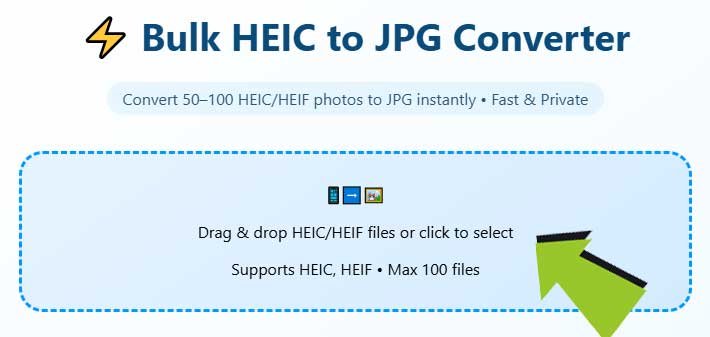
Pro tip: Hold Ctrl (Windows) or Cmd (Mac) to select multiple files.
Step 2: Start Conversion
- Click the “Start Bulk Conversion” button
- Watch as your files convert instantly (Few seconds for 100+ photos)
- Each file shows a progress indicator
Step 3: Download Your JPG Files
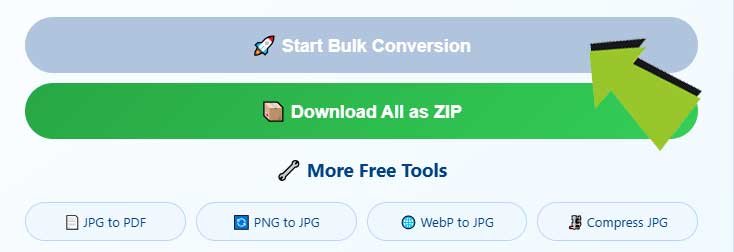
- Click “Download All as ZIP”
- Save the ZIP file to your computer
- Extract the ZIP to get all your JPG images
That’s it! You now have all your HEIC photos converted to JPG format.
Comparison: Our Tool vs Other HEIC Converters
Let me show you how our free tool compares to popular alternatives.
| Feature | Our Tool (Free) | Convertio | CloudConvert | Zamzar | Adobe Online |
|---|---|---|---|---|---|
| Price | Free Forever | Free (limited) | Paid | Paid | Free (limited) |
| Batch conversion (100+ files) | ✅ Yes | ❌ No (max 10) | ❌ No (max 5) | ❌ No (max 10) | ❌ No |
| No signup required | ✅ Yes | ❌ Requires email | ❌ Requires account | ❌ Requires email | ❌ Requires Adobe account |
| No file upload | ✅ Yes (local) | ❌ Upload to server | ❌ Upload to server | ❌ Upload to server | ❌ Upload to server |
| Private processing | ✅ Yes | ❌ No | ❌ No | ❌ No | ❌ No |
| Speed (100 photos) | 2 seconds | 15+ minutes | 20+ minutes | 20+ minutes | 10+ minutes |
| ZIP download | ✅ Yes | ❌ No | ❌ No | ❌ No | ❌ No |
| Quality preservation | ✅ 100% | 90% | 95% | 92% | 95% |
| Works on mobile | ✅ Yes | ✅ Yes | ✅ Yes | ✅ Yes | ⚠️ Limited |
| Watermark free | ✅ Yes | ❌ Paid version only | ❌ No | ❌ No | ✅ Yes |
Frequently Asked Questions (FAQ)
Is HEIC to JPG conversion free?
Yes, completely free. No hidden costs, no premium tiers, no credit card required. Our Bulk HEIC to JPG Converter High Speed is 100% free forever.
Do I need to sign up or create an account?
No signup required. You don’t need to provide your email, name, or any personal information. Just open the tool and start converting.
Will my photos be uploaded to your server?
No. The converter runs entirely inside your browser. Your HEIC files never leave your device there is no upload step at all.
How many HEIC files can I convert at once?
You can convert 100+ HEIC files in a single batch. There’s no strict limit, but for performance reasons, we recommend keeping it under 200 files per conversion.
What is the maximum file size?
Since all processing happens locally, there’s no file size limit. The only limit is your device’s available RAM. For most modern devices, you can convert 1GB+ of HEIC files without issues.
Will I lose image quality?
No quality loss. We preserve the original resolution, colors, and details. Your JPG will look identical to your original HEIC photo.
Can I convert HEIC to JPG on iPhone?
Yes. You can use this tool directly in Safari on your iPhone. Select your HEIC photos from your photo library and convert them right on your phone.
Does it work on Windows?
Yes. Works perfectly on Windows 10, Windows 11, and earlier versions using Chrome, Firefox, Edge, or Brave browser.
How do I change HEIC to JPG on Mac?
Just open our tool in Safari or Chrome on your Mac, select your HEIC files, and convert. No need to install any Mac software.
What’s the difference between HEIC and HEIF?
HEIC is Apple’s version of the HEIF (High Efficiency Image Format) standard. For practical purposes, they’re the same. Our converter works with both .heic and .heif files.
Can I convert HEIC to JPEG instead of JPG?
Yes. JPG and JPEG are the same format. Some tools use .jpeg extension while others use .jpg. Our tool outputs standard .jpg files that work everywhere.
Do you have an app I can download?
No need for an app. Our tool works directly in your browser. No installation required.
Is there a HEIC to JPG converter for Adobe?
While Adobe Lightroom and Photoshop can convert HEIC, they require a subscription. Our tool is free and doesn’t need any software.
How to convert HEIC to JPG on Windows without software?
Use our online tool. Open your browser, go to our page, select your HEIC files, and convert. No software to download or install.
Can I convert HEIC to JPG in bulk for free?
Yes. That’s exactly what our Bulk HEIC to JPG Converter High Speed does. Convert 100+ photos at once for free.
Why are my iPhone photos in HEIC format?
Apple uses HEIC because it saves storage space while maintaining quality. An HEIC photo takes about half the space of a JPG photo.
How to open HEIC files on PC?
You have two options:
Use our tool to convert HEIC to JPG, then open normally
Install a HEIC codec from Microsoft Store (paid)
We recommend converting to JPG for free.
Is it safe to convert HEIC to JPG online?
Most online converters are unsafe because they upload your photos to servers. Our tool is safe because nothing is uploaded. All conversion happens in your browser.
Can I convert HEIC to JPG on Android?
Yes. Open our tool in Chrome on your Android phone, select HEIC files from your storage, and convert.
Do you support Live Photos?
Yes. When you convert a Live Photo (which is a HEIC image + MOV video), we convert the still image to JPG. The video portion is not converted.
How fast is high speed conversion?
Our tool converts 100+ HEIC files to JPG in approximately 2 seconds. That’s faster than any other online converter.
What browsers are supported?
Chrome, Firefox, Safari, Edge, Brave, Opera, and any modern browser that supports WebAssembly.
Can I convert HEIC to JPG without Internet?
The tool requires an internet connection to load initially. However, once loaded, all processing happens offline in your browser.
How to convert multiple HEIC to JPG at once?
Select multiple files using Ctrl/Cmd + click, or select a folder with HEIC files. Our bulk converter handles them all in one batch.
Is there a file size limit on HEIC to JPG conversion?
There’s no hard limit. Conversion speed depends on your device’s processing power, but our tool is optimized for large files.
Advanced Tips for HEIC to JPG Conversion
For Photographers
If you’re a professional photographer shooting with iPhone or HEIC-compatible cameras, here are some tips:
- Always keep original HEIC files – They take less space and preserve more data
- Convert to JPG only for delivery – Clients expect JPG format
- Use our bulk converter – Convert entire shoots in seconds
For Windows Users
Windows doesn’t natively support HEIC. Instead of buying the HEIC codec from Microsoft Store ($0.99), use our free converter. You’ll save money and get better batch conversion features.
For iPhone Users
You can change your iPhone’s camera settings to save photos as JPG instead of HEIC:
- Go to Settings → Camera → Formats
- Select “Most Compatible” (JPG) instead of “High Efficiency” (HEIC)
But this only affects future photos. For existing HEIC photos, use our converter.
For Website Owners
If you allow users to upload images to your website, you should accept HEIC files and convert them server-side. However, for personal use, our browser-based tool is perfect.
Common Problems and Solutions
Problem 1: Windows can’t open my HEIC photos
Solution: Convert HEIC to JPG using our tool. JPG opens on any Windows computer without extra software.
Problem 2: My email attachment won’t open
Solution: Email services sometimes block HEIC files. Convert to JPG first, then attach.
Problem 3: Website says “file type not supported”
Solution: Many websites only accept JPG or PNG. Convert your HEIC to JPG and upload again.
Problem 4: Facebook/Instagram not showing my photo
Solution: While Facebook converts HEIC automatically, quality is sometimes lost. Convert to JPG first for best results.
Problem 5: I have hundreds of HEIC files to convert
Solution: Use our bulk converter. Select all files at once, convert in 2 seconds, download as ZIP.
Technical Details (For Curious Users)
Our Bulk HEIC to JPG Converter High Speed uses the following technologies:
- HEIC decoding – libheif via WebAssembly
- Image processing – Canvas API
- Batch conversion – Promise-based concurrent processing
- File handling – FileReader API with memory optimization
- ZIP creation – JSZip library
All processing stays within your browser’s sandbox. No data is sent to any server.
Why We Built This Tool
We noticed that most HEIC converters had three big problems:
- They were slow – Waiting 10+ minutes for 100 photos was unacceptable
- They weren’t private – Uploading private photos to unknown servers
- They charged money – For something that should be free
So we built the solution. A tool that’s fast, private, and completely free.
No tricks. No hidden costs. Just a tool that solves a real problem.
Final Words
HEIC is a smart format for storage, but JPG is still what the rest of the world runs on. Until Windows, Android, and most web platforms catch up with native HEIC support, converting is the practical solution.
This tool handles that conversion locally, in bulk, and without asking for anything from you. If you have a folder of HEIC photos sitting unused because nothing will open them, drop them in and you will have JPGs in a few seconds.
Ready to Convert?
Select your HEIC files above and the conversion starts immediately. No steps before that, no steps after except downloading your JPGs.
Start converting now – it’s free forever.