
Merge PAN Card Front and Back – Combine Both Sides
Merge front & back of PAN card into one JPG or PDF file
Click or drag Front image
JPG, PNG, JPEGClick or drag Back image
JPG, PNG, JPEG🔍 Preview: Merged PAN Card
Merge PAN Card Front & Back Side Online
Almost every bank form, demat account opening, or income tax e-filing step asks for the same thing: your PAN card, front and back, in a single file. Keeping two separate photos never quite works one gets missed, one gets rejected for size, and the whole submission bounces back. This tool solves that in one go. Upload both sides, pick a layout, and get a clean JPG or PDF ready to attach anywhere, without installing anything or creating an account.
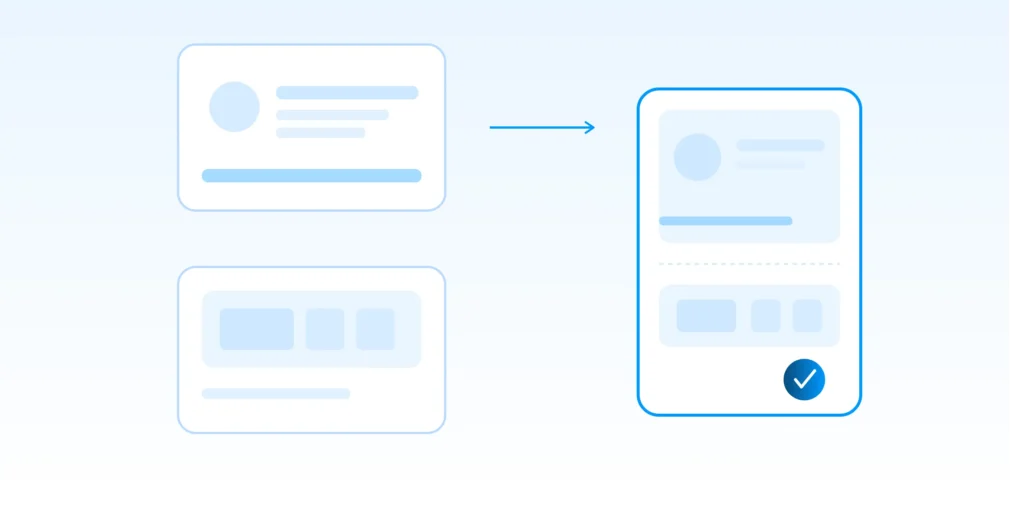
How PAN Card Merging Works Here
1. Add the front photo. Tap the first box and choose the side with your photograph, name, and PAN number. It shows up as a preview right away so you can check it’s readable.
2. Add the back photo. Same step for the reverse side, which usually carries your father’s/guardian’s name and QR code on newer cards. Both previews sit side by side so you can spot a blurry shot before merging.
3. Pick layout and format, then download. Choose stacked (vertical) or side-by-side (horizontal), then export as JPG for quick uploads or PDF for formal submissions. The finished file downloads straight to your device.
Where a Merged PAN Card Is Actually Required
Income Tax e-Filing
ITR portals and CA offices often ask for both sides in one PDF while verifying identity for refunds or assessments.
Demat & Trading Accounts
Zerodha, Groww, Upstox and similar platforms need a single PAN file during KYC, not two loose images.
Bank Account Opening
Branches and net-banking KYC forms usually reject two separate attachments and want one combined document.
Loan & Credit Card Applications
NBFCs and banks processing personal loans or credit cards ask for merged PAN proof alongside address proof.
Mutual Fund & Insurance KYC
AMC portals and insurance onboarding forms both list “PAN card front and back” as a single required upload.
GST Registration
Business owners registering for GST or updating proprietor details often need this as one supporting file.
Vertical or Horizontal — Which PAN Layout Should You Pick?
- Vertical (stacked): front on top, back below. This is the safer default for PDF submissions, printing on A4, and any portal that says “upload one page with both sides.”
- Horizontal (side by side): both sides in one wide frame. Useful when a form displays documents in landscape or when you want both sides visible without scrolling on a laptop screen.
You can flip between the two before downloading using the Preview button, so there’s no guessing which one the receiving portal expects.
PG or PDF – Which Should You Download?
Go with JPG when you’re sending the file over WhatsApp, email, or uploading to a portal that only accepts image formats and has a small size limit. Go with PDF for anything formal income tax filings, bank KYC, or demat onboarding since most institutions specifically list PDF as the accepted format for identity proof.
Why Use This PAN Card Merger
Nothing leaves your device
Your PAN number, photo, and signature stay on your phone or computer. There’s no server upload involved at any step.
No watermark, no branding
The downloaded file is plain and clean — safe to submit to a bank or government portal without editing it further.
No sign-up, no limit
There’s no account wall and no cap on how many times you merge a card. Use it once or fifty times, same experience.
Works on any device
Phone, tablet, or desktop — Chrome, Safari, or Firefox — the tool opens and runs the same way everywhere.
Your PAN Details Stay Private
A PAN card links your full name, date of birth, and a permanent tax identification number to your photograph not something you want sitting on a random server. This tool merges the images using your browser’s own processing, so the files never travel anywhere. Close the tab and there’s nothing left behind to worry about.
Frequently Asked Questions
Can I merge my PAN card front and back for free?
Yes, there’s no charge, no watermark, and no limit on how many times you use it.
Do I need to sign up or install an app?
No. Open the page, upload both sides, and download — no account or app required.
Is it safe to merge PAN card images here?
Yes. The merging happens inside your own browser, so your PAN photos are never sent to a server.
Which format do banks usually accept — JPG or PDF?
Most banks and government portals prefer PDF for formal KYC, but many also accept a clear JPG under their size limit. Check the specific form if unsure.
Can this merge an old PAN card and a new PVC PAN card?
Yes, it works with both the old laminated PAN and the newer PVC card version, as long as the photos are clear.
What if my two PAN photos are different sizes?
That’s fine — the tool aligns and merges them automatically regardless of size differences between the front and back photo.
Does it work on mobile phones?
Yes, it’s fully responsive and works the same way on Android and iPhone browsers.
Tips for a Cleaner Merged PAN Card
- Shoot both sides in daylight and skip the camera flash laminated PAN cards glare badly under flash.
- Lay the card flat on a plain surface so the text doesn’t warp or blur at the edges.
- Keep the camera at the same distance for both shots so the merged result looks even.
- Check the preview before downloading to make sure the PAN number and name are fully legible.
- Pick PDF for anything going to a bank or government portal it reads as more official.