JPG to PDF vs JPG to JPG – Which Saves Time & Quality?

Struggling to choose between merging your images into a PDF or a single JPG? You’re not alone. Let’s settle this once and for all.
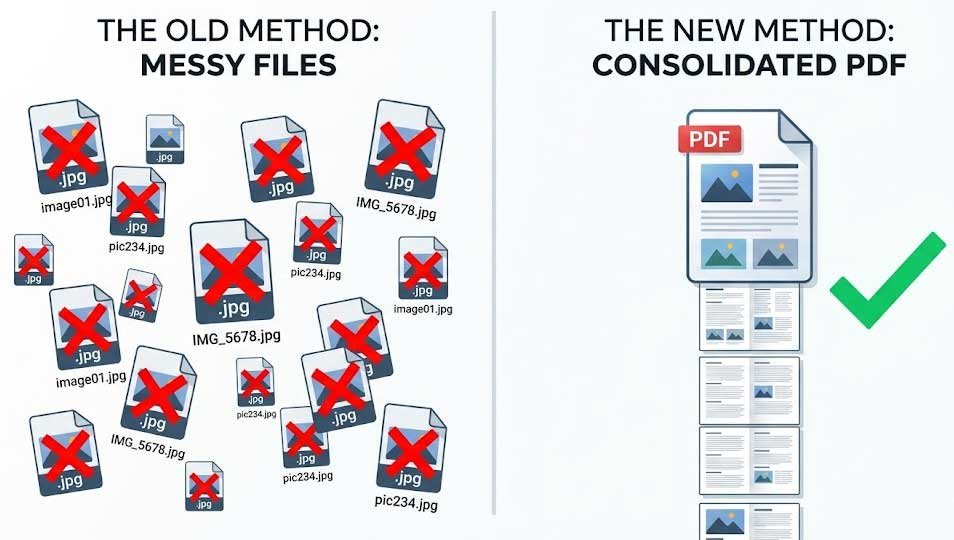
You just scanned 15 pages of a contract. Or maybe you took 20 photos of a wedding event. Now you need to send them as one file. But here comes the confusion should you merge JPG to PDF or combine them into a single JPG?
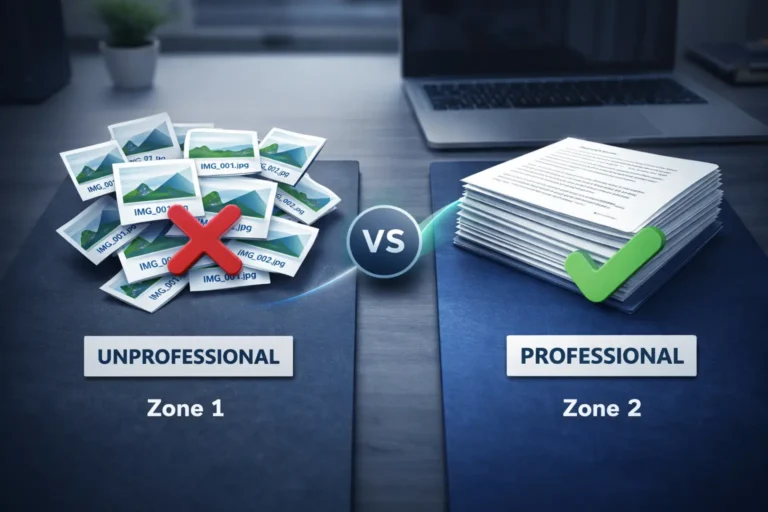
Both options let you pack multiple images into one file. But they work very differently. One saves time. The other kills quality. One keeps your pages separate. The other smashes everything into a single flat image.
In this guide, I’ll compare both formats side by side. You’ll learn exactly when to use PDF, when (almost never) to use merged JPG, and how to get the job done in seconds using a reliable tool like Combine JPG. We’ll also look at the best JPG to PDF converter options and walk through how to combine JPG to PDF step by step.
Let’s dive in.
The Core Question: What Does “Merge” Actually Mean?
Before comparing, let’s clarify the two merging methods.
Merging JPG to PDF means each JPG becomes one page inside a PDF document. Page 1 = first image. Page 2 = second image. You flip pages like a book. The resolution stays intact. Text remains sharp. You can even make it searchable with OCR.
Merging JPG to JPG means stitching images together horizontally or vertically into one long JPG. All image data combines into a single flat picture. There are no pages. You just scroll.
At first glance, merging to JPG sounds simpler. But as you’ll see, simplicity often comes at a heavy cost.
Side-by-Side Comparison: PDF vs Merged JPG
| Feature | Merge to PDF | Merge to Single JPG |
|---|---|---|
| Page separation | Yes (each image = separate page) | No (all images glued into one) |
| Image quality | Preserved (lossless) | Degraded (recompressed + resized) |
| File size | Small to medium | Often massive |
| Print friendly | Yes (perfect for documents) | No (weird aspect ratios) |
| Text selectable | Yes (if OCR enabled) | Never |
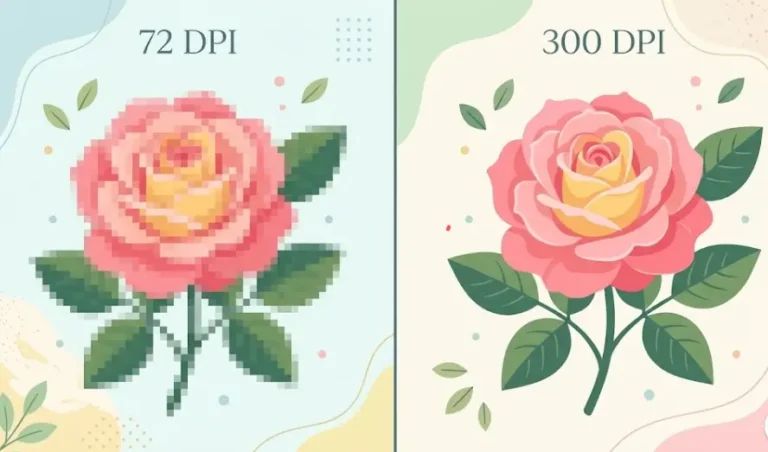
| Zoom without pixelation | Yes (vector-like behavior) | No (pixelates quickly) |
| Professional look | High (standard for business) | Low (looks amateur) |
| Editing later | Can extract original JPGs | Impossible to separate back |
Verdict so far: PDF wins 8 out of 8 categories.
But let’s go deeper. Because real life isn’t just about features it’s about your specific use case.
When Should You Merge JPG to PDF? (Almost Always)
PDF is the right choice for 95% of people. Here are real scenarios where PDF saves both time and quality.
1. Sending Documents to Clients or Colleagues
Imagine emailing a contract, invoice, or report. You attach one PDF. They open it. It looks perfect on phone, tablet, or desktop. They can print it without losing quality.
Now imagine sending a single JPG of that same contract. They zoom in text is blurry. They try to print it stretches across three pages. They ask you to resend. You waste time. They get frustrated.
Time saved with PDF: Zero back-and-forth emails.
2. Creating a Portfolio or E-book
Artists, photographers, and designers often share work as a PDF. Each image stays crisp. Colors remain accurate. You can add a cover page, captions, and even clickable links.
A single JPG portfolio? Unprofessional. The viewer has to pinch and zoom. They can’t enjoy the flow.
Quality saved with PDF: Each image retains its original resolution.
3. Scanning and Archiving Receipts
You scan 20 receipts for tax filing. Combine them into a PDF. Now you have one searchable file (if you use OCR). The accountant thanks you.
Merge them into one JPG receipts become unreadable. The text gets squished. Good luck explaining that expense to the IRS.
4. Sharing Vacation Photos with Family
You took 50 photos of your trip. Merge them into a PDF. Each photo gets its own page. Grandma can click through easily on her iPad.
A single stitched JPG would be 50 photos tall. That’s 50,000 pixels high. No app opens it smoothly. Grandma gives up.
When Should You Merge JPG to JPG? (Rare, But Valid)
I promised a fair comparison. So here are the only two cases where merging to JPG makes sense.
Case 1: Long Screenshot for Social Media
You have a Twitter thread or WhatsApp chat. You want to share it as one image. Stitching screenshots into a single vertical JPG works perfectly here.
But note this is not “merging random JPGs.” This is stitching a continuous scroll. Different use case.
Case 2: Creating a Simple Infographic Strip
You have 3–4 simple icons or banners. You want them side by side in one horizontal JPG for a website header. Merging to JPG is fine because:
- No text to remain readable
- Low resolution is acceptable
- You don’t need to extract them later
Outside these two scenarios, merging JPG to JPG causes more problems than it solves.
Time Analysis: Which Format is Faster?
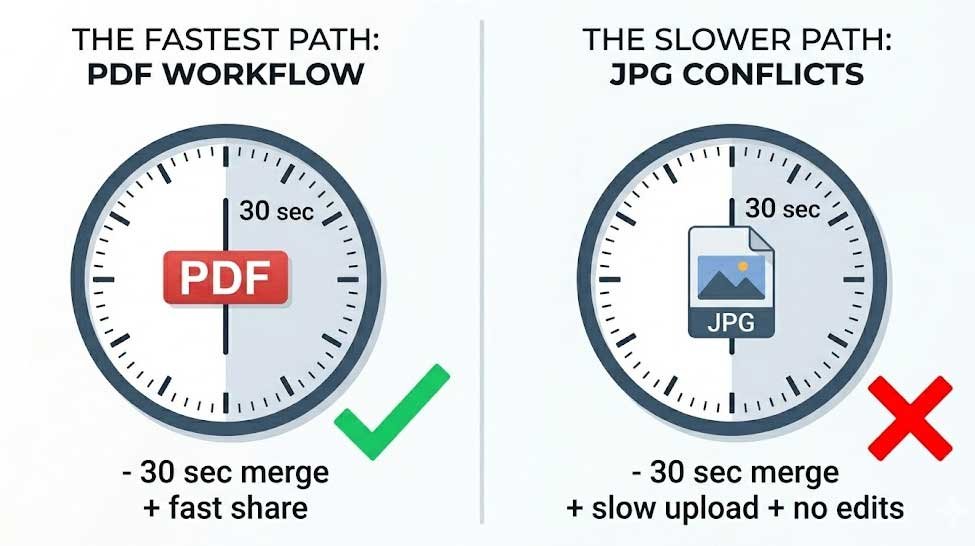
Let’s talk about time because the title asks which format saves time.
Time to Merge (The Act Itself)
- Merge to PDF: 10–30 seconds (using a good tool)
- Merge to JPG: 10–30 seconds (similar speed)
So merging time is almost identical. No winner here.
Time to Share / Upload
- PDF: Small file size → uploads fast
- JPG: Large file size (if many images) → uploads slow
Winner: PDF (saves upload time)
Time for Recipient to View
- PDF: Opens instantly, pages load on demand
- JPG: May take time to load fully if huge; scrolling is laggy
Winner: PDF (saves recipient’s time)
Time to Fix Mistakes
You sent the wrong file. Or you need to remove page 5.
- PDF: Use a PDF editor to delete one page (10 seconds)
- JPG: You cannot remove part of a flat JPG. You must re-merge from scratch.
Winner: PDF (saves rework time dramatically)
Overall Time Verdict: PDF saves more time in sharing, viewing, and editing.
Quality Analysis: Which Format Preserves Better Quality?
Now let’s be ruthless about quality.
Image Resolution
- PDF: Each JPG stays at its original resolution (e.g., 3000×2000 pixels)
- JPG: The merging tool resizes all images to fit together. If one image is portrait and another landscape, the tool squashes or crops. You lose data permanently.
Winner: PDF
Text Readability
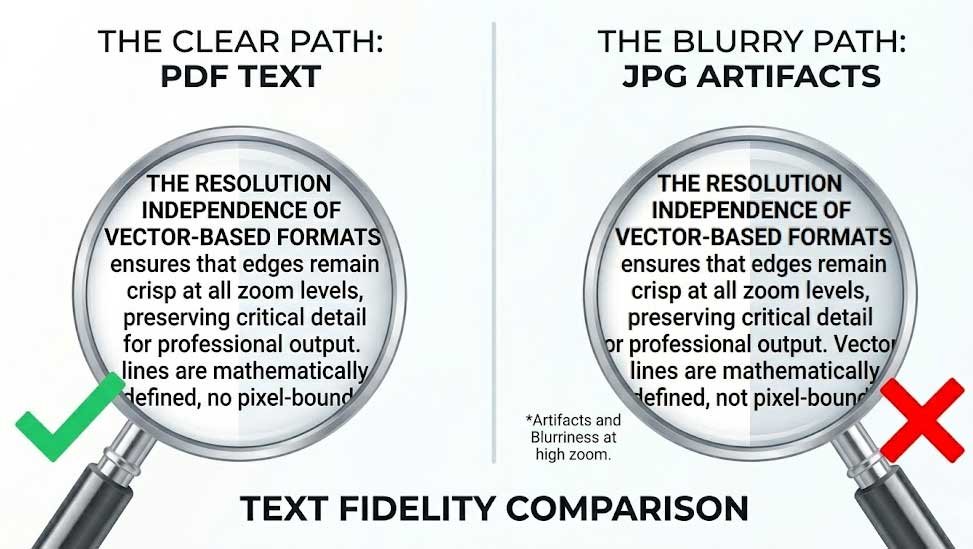
- PDF: Text in scanned documents remains sharp. You can zoom 500% and still read.
- JPG: Text becomes pixelated after 150% zoom. Small fonts become unreadable blobs.
Winner: PDF
Color Accuracy
- PDF: Supports CMYK for printing, RGB for screens. Colors stay true.
- JPG: Uses compressed RGB. Color banding appears after merging multiple images.
Winner: PDF
Reusability
- PDF: You can extract any original JPG later using free tools.
- JPG: Once merged, you cannot get back the original separate images. They are gone forever.
Winner: PDF
Quality Verdict: PDF wins every single round. No contest.
Common User Mistakes (And How to Avoid Them)
I’ve seen thousands of users make these errors. Don’t be one of them.
Mistake 1: Merging Important Documents to JPG
Why it’s bad: You lose the ability to search, select text, or print cleanly.
Fix: Always use combine JPG to PDF for documents.
Mistake 2: Using Low-Quality Merging Tools
Why it’s bad: Free shady tools reduce resolution, add watermarks, or even inject malware.
Fix: Use a trusted platform like Combine JPG. It’s free, secure, and preserves quality.
Mistake 3: Merging Different Aspect Ratios Without Checking
Why it’s bad: Portrait + landscape images stitched into one JPG look awful.
Fix: PDF handles mixed orientations perfectly. Each page keeps its own orientation.
Mistake 4: Not Knowing How to Combine Properly
Why it’s bad: Users drag and drop in wrong order, then have to redo.
Fix: Learn how to combine JPG to PDF correctly before starting. Arrange images first, then merge.
Step-by-Step: How to Merge JPG to PDF (The Right Way)
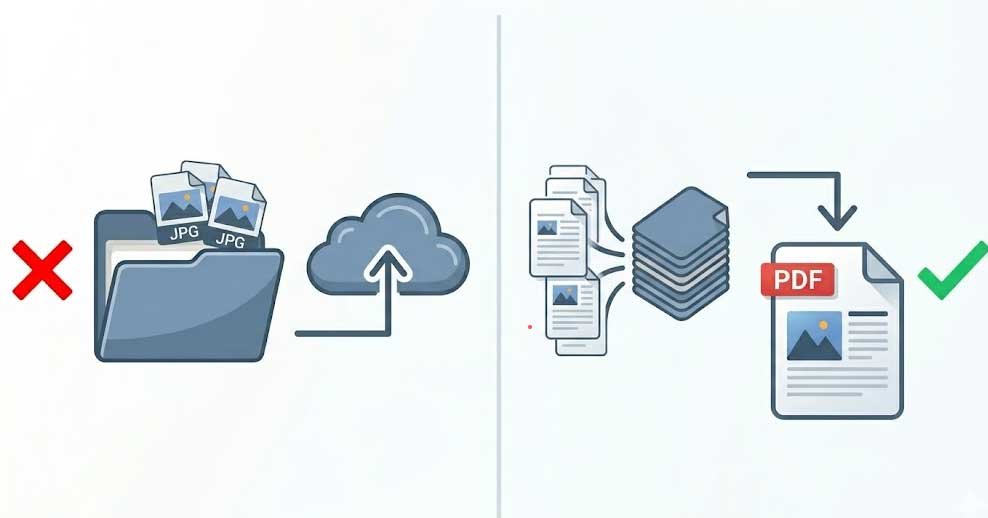
Here’s a simple 4-step process using any reliable tool. For the best experience, use the best JPG to PDF converter recommended by experts.
Step 1: Gather and Name Your Images
Put all JPGs in one folder. Name them in order (01, 02, 03…). This prevents sorting issues later.
Step 2: Upload to a Merger Tool
Go to your chosen tool’s website. Drag and drop all images. Most tools let you reorder by dragging thumbnails.
Step 3: Adjust Settings (Optional)
- Choose page size (Letter, A4, or fit to image)
- Set orientation (auto, portrait, landscape)
- Enable OCR if you need searchable text
Step 4: Merge and Download
Click “Merge” or “Combine.” Wait 10–20 seconds. Download your new PDF. Check that all pages appear correctly.
That’s it. You’ve successfully merged JPG to PDF.
Why Combine JPG is the Smart Choice for This Task
While there are many tools online, Combine JPG stands out for three reasons:
- No quality loss — your images stay at original resolution
- No watermarks — even in the free version
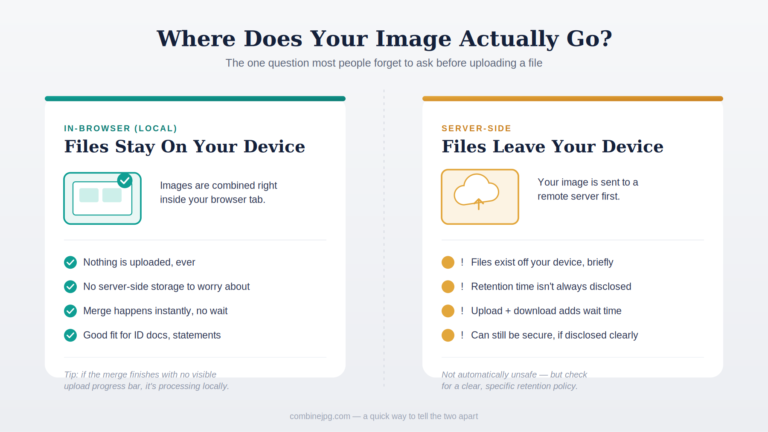
- No upload delays — processes directly in your browser
You can also explore their best JPG to PDF converter guide to find alternative tools for specific needs (batch processing, OCR, compression).
If you’re new to this, read their detailed tutorial on how to combine JPG to PDF — it includes screenshots and troubleshooting tips.
Frequently Asked Questions (FAQs)
Does merging JPG to PDF reduce image quality?
No if you use a good tool. PDF can store JPGs without recompression. Avoid tools that “optimize” images unless you want smaller file size at quality’s expense.
Can I merge 100 JPGs into one PDF?
Yes. Most tools support hundreds of images. However, very large PDFs may load slowly. Consider splitting into multiple PDFs if you exceed 200 pages.
Is merged JPG ever better than PDF?
Only for continuous scroll images (long screenshots, chat threads) or very simple graphic strips. For documents, photos, scans, or portfolios — PDF is always better.
Can I convert merged JPG back to separate JPGs?
No. That’s the fatal flaw. Once you merge images into a single JPG, you cannot recover the originals. PDF allows extraction. JPG does not.
Which is faster for email attachment?
PDF, because file size is smaller. A 10-page PDF might be 2 MB. The same 10 images stitched into one JPG could be 15 MB.
Final Verdict: Which Format Saves Time & Quality?
Let’s answer the title question directly.
| .. | Merge JPG to PDF | Merge JPG to JPG |
|---|---|---|
| Saves time? | ✅ Yes (sharing, editing, reusing) | ❌ No (slow uploads, no edits) |
| Saves quality? | ✅ Yes (lossless, text sharp) | ❌ No (pixelation, color loss) |
| Winner | CLEAR WINNER | Avoid for most uses |
The bottom line:
If you have more than 2 images, or any image contains text, or you care about professionalism — merge JPG to PDF.
Only merge to JPG if you are creating a continuous screenshot or a simple graphic strip with no text.
For 99% of real-world tasks (scanning documents, sharing photos, creating portfolios, archiving receipts), PDF is the faster, higher-quality choice.