Why JPG is Better Than PNG? (And When You Should Use JPG for Faster Websites)

If you are confused between JPG and PNG? So from today you will know about both formats,In begging i always also confused these jpg and png and try to search online why JPG is better than PNG for web speed, storage, and SEO.
Before that you have ever saved a photo from Photoshop, Canva, or your phone, you have faced the ultimate question: JPG or PNG? So i am going to explain each format which is best and when it to use on different situation.
Both formats are excellent, but they serve very different purposes. If you run a blog, an e-commerce store, or a portfolio, choosing the wrong format can slow down your website drastically.
In this blog post, we will scientifically break down why JPG is better than PNG for specific scenarios, how it impacts your Google rankings, and how tools like CombineJPG can help you manage your JPG files efficiently.
Technical Differences Between PNG and JPG (Simple Explanation)
To understand the debate, in simple words i will explain these.
- PNG (Portable Network Graphics): Uses Lossless compression. This means it keeps every single pixel of data. The result? Perfect quality but very large file sizes.
- JPG (Joint Photographic Experts Group): Uses Lossy compression. It removes tiny details your eye barely notices. The result? Slightly lower perfection but drastically smaller files.
The Verdict on Quality
If you are drawing a logo with sharp lines or text, PNG is better (no blurry edges).
But if you are displaying a photograph, a real-life image, or a complex scene, JPG is better. You cannot tell the difference in quality with the naked eye, but your website loading speed will feel the difference immediately.
Why JPG Wins for Website Speed (Core Web Vitals)
Google officially uses Core Web Vitals (LCP, FID, CLS) as ranking factors. The largest element on most pages is usually an image.
Why JPG is better than PNG for SEO:
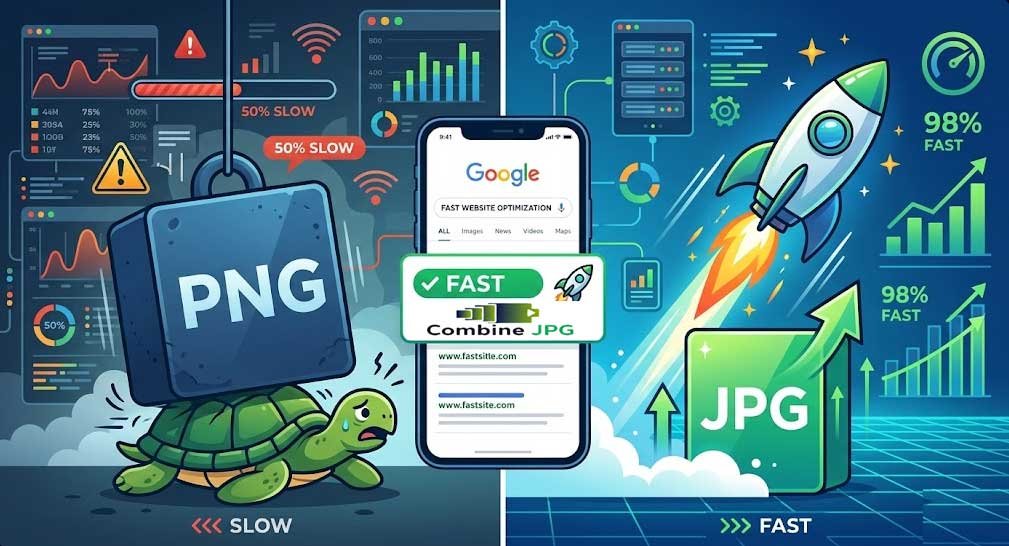
- Smaller Footprint: A high-res PNG can be 3MB. The same image as a JPG is often 300KB. That is a 90% size reduction.
- Faster LCP (Largest Contentful Paint): Smaller files load faster. If you use PNGs, Google will mark your site as “Slow.”
- Bandwidth Savings: If you have 10,000 visitors a month, using JPGs saves gigabytes of bandwidth, saving you hosting costs.
Example: An e-commerce product page with 10 PNG images might take 8 seconds to load on mobile. The same page with optimized JPGs takes 1.5 seconds. Which one makes a sale? Exactly.
When Should You Use JPG vs. PNG?
To help you decide, use this simple rule book:
Use JPG when:
- You are uploading real estate photos.
- You are posting travel blog images.
- You are uploading social media graphics with gradients.
- You need to scan documents (JPG is standard for scanners).
- You are creating a large gallery.
Stick to PNG only when:
- You need a transparent background (e.g., a logo on a colored header).
- You have screenshots with small text (PNG keeps text sharper).
- You are editing an image and haven’t saved the final version yet.
For 95% of website images, JPG is the superior choice.
The Problem with Managing JPG Files
While JPG is better for performance, there is one headache: File Management.
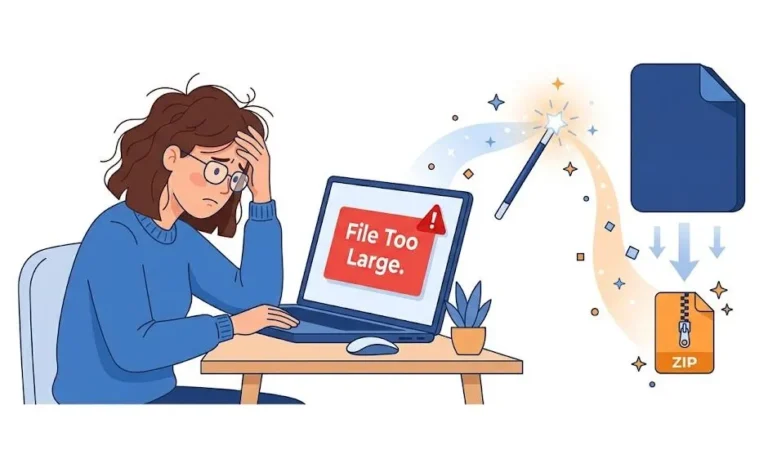
Often, you take 10 photos of a product, but your CMS only lets you upload one image block. Or you scan 20 pages of a document and need to send them as a single file.
Manually opening Photoshop or Preview to merge images takes forever. This is where online tools come to the rescue.
How to Combine Multiple JPGs into One
Instead of sending 15 separate attachments to your client, you can merge them into one single JPG file. This keeps your workflow clean.
If you need to merge photos horizontally for a panoramic view, you should check out the dedicated tool to Combine JPG Side by Side. This is perfect for creating before/after images or banners.
Special Use Cases (Advanced)
Let’s look at specific scenarios where JPG dominance is clear.
1. The “WebP vs. JPG” Scenario
You may have heard that WebP is the new standard. However, many older browsers and CMS systems struggle with WebP. JPG is universally supported. If you want the best of both worlds (JPG size + modern compression), you might want to convert your heavy WebP files to standard JPG using the WebP to JPG converter available on our platform.
2. High-Quality Merging
A common myth is that merging JPGs reduces quality. This is false if you use the right tool. You can perform High-Quality JPG Merging without losing the original resolution. This is vital for architects or designers who need to submit portfolios.
3. Text Extraction
Sometimes, you have a JPG of a receipt or a document, and you need the text inside it. Instead of typing it manually, you can use the Image to Text tool to extract the words directly from the JPG. This saves hours of manual typing.
How to Optimize JPGs for Google Images
To rank on Google Images, you need more than just a small file size.
- Rename the file: Do not upload
IMG_5932.jpg. Rename it tored-rose-jpg-vs-png.jpg. - Add Alt Text: Describe the image using keywords like “Comparison of JPG vs PNG file sizes.”
- Compress further: Even a JPG can be compressed. If you have a large JPG, run it through a Compress JPG tool before uploading to your post.
Step-by-Step Guide to Merging JPGs on CombineJPG
Now that you know JPG is the king of speed, here is how you manage your library without installing software.
Step 1: Go to CombineJPG.com.
Step 2: Click on “Combine Multiple JPG into One.”
Step 3: Upload the images you want to merge (e.g., Page 1, Page 2, Page 3 of a scanned book).
Step 4: Arrange the order.
Step 5: Click “Merge” and download.
Pro Tip: If you need to convert a PNG logo into a JPG to save space, you can use the PNG to JPG converter first, then merge the files.
The Environmental Impact (Bonus Reason)
Did you know that smaller files save energy?
1MB JPG requires less electricity to transfer across the internet than a 5MB PNG. By switching to JPG and merging your files properly, you are reducing your website’s carbon footprint. It’s a small step for a greener internet.
Conclusion: Make the Switch Today
So, why is JPG better than PNG?
- For Photography: JPG wins.
- For Web Speed: JPG wins.
- For Storage: JPG wins.
- For Transparency: PNG wins (but for everything else, JPG).
Large, messy PNG files can really hurt your site’s speed and Google rankings. For standard images, it’s much better to use JPGs. If you ever need to merge scanned photos or JPGs into one clean document, CombineJPG is the fastest way to do it. It iss free, secure, and you don’t have to download any annoying software to get the job done.
Frequently Asked Questions (FAQ)
Does merging JPGs reduce quality?
No. If you use the High-Quality JPG Merging tool, the pixels are preserved exactly as they were.
Can I mix PNG and JPG when merging?
Yes, but the output will likely be a JPG. You can also convert first using the Combine JPG to PNG tool if you need transparency later.
Is it safe to use online JPG tools?
Yes, CombineJPG uses automatic file deletion. Your documents are removed from the server immediately after you download them.