How to Compress Image for Email – Gmail, Outlook, Yahoo (2026 Guide)

Why Your Email Keeps Getting Rejected
You’ve typed out the perfect message. You hit “send.” And then—bam—a red alert pops up:
“File too large. Attachment exceeds server limit.”
Frustrating, right? You’re not alone.
Whether you’re sending a work presentation, a family vacation photo, or a design proof to a client, oversized images are the #1 reason emails get stuck in your outbox. In 2026, email providers like Gmail, Outlook, and Yahoo still enforce strict file size limits. But here’s the good news: you don’t need expensive software or a degree in tech to fix this.
In this guide, I’ll show you exactly how to compress image for email without losing quality. Plus, I’ll introduce you to a couple of free, browser-based tools from CombineJPG that make the whole process take less than 30 seconds.
Let’s dive in.
Why Image Compression Matters in 2026
Before we get into the step-by-step, let’s talk about why compression is still relevant. You might think internet speeds have improved so much that file sizes don’t matter. Not quite.
Email Providers Still Have Limits
- Gmail: 25MB total (including text and attachments)
- Outlook: 20MB for attachments (34MB with OneDrive integration)
- Yahoo Mail: 25MB per email
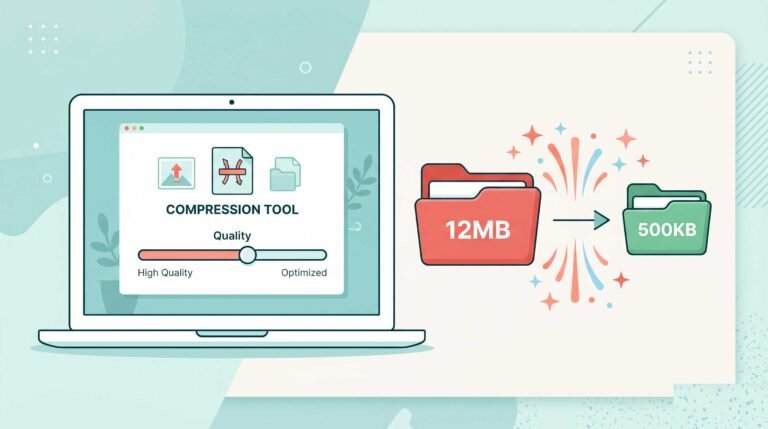
If you send a single 12MB photo, you’ve already used up half your limit. Send three or four high-res images from a modern smartphone, and you’ll blow past 25MB instantly.
Your Recipient’s Inbox Matters Too
Even if your email goes through, the person on the other end might be trying to open it on a slow connection or a mobile device with limited storage. Compressing your images shows respect for their time and bandwidth.
Email Deliverability Improves
Yes, file size actually affects whether your email lands in the main inbox or the spam folder. ISPs (Internet Service Providers) flag unusually large emails as suspicious. Smaller files = better deliverability.
How to Compress Image for Email: The Simple Method (Any Device)
You don’t need Photoshop. You don’t need to download sketchy software. The best way in 2026 is to use an online image compressor that works in your browser.
Here’s the universal method that works for Gmail, Outlook, Yahoo, and any other email service:
Step 1: Find Your Image
Locate the photo or graphic you want to send. Right-click and check its properties (on Windows) or Get Info (on Mac). If it’s over 1MB, you should compress it. If it’s over 5MB, you absolutely must compress it.
Step 2: Open a Reliable Image Compressor
Head over to CombineJPG’s Compress Tool. This is a free, no-signup-required tool that runs entirely in your browser. Nothing gets uploaded to a server—it all happens locally on your device, so your privacy is protected.
Step 3: Upload and Adjust
Drag and drop your image into the tool. You’ll see a slider that lets you control the compression level. For email:
- 90% quality = barely noticeable change, huge file reduction
- 80% quality = still looks great for most photos
- 70% quality = good for thumbnails or previews
Step 4: Download and Attach
Click “Compress,” download the new file, and attach it to your email. That’s it.
Let me show you how this works for each major email platform.
Platform-by-Platform Guide: Gmail, Outlook, Yahoo
How to Compress Image for Gmail
Gmail is the most popular email service in the US, but its 25MB limit can be tricky. Here’s the smart workflow:
- Check attachment size first. Gmail shows you the total size at the bottom of the compose window.
- Compress images over 5MB using the CombineJPG compress tool.
- Still too large? Gmail will automatically offer to insert images via Google Drive. That’s fine, but many recipients prefer direct attachments. Compress first, then attach.
Pro tip: Gmail compresses images slightly when you insert them into the email body instead of as attachments. But you lose quality control. Better to compress beforehand.
How to Compress Image for Outlook
Outlook (both desktop and web) has a tighter limit: 20MB. If you’re sending images to corporate clients or using an Office 365 account, you’ll hit this limit fast.
Outlook-specific advice:
- Outlook desktop has a built-in “compress pictures” feature under Format > Compress Pictures. But it’s buried in menus.
- For speed and consistency, use CombineJPG instead. You get predictable results every time.
- After compressing, attach files normally. Outlook will show you the new, smaller size in the attachment line.
How to Compress Image for Yahoo Mail
Yahoo still has a loyal user base, especially for personal and legacy accounts. Its 25MB limit matches Gmail, but the interface is different.
Yahoo workflow:
- Yahoo doesn’t offer native compression like Outlook. You must use an external tool.
- Compress your JPG to under 20MB to be safe (Yahoo can be glitchy near the limit).
- Use the compress tool , then drag and drop into Yahoo’s compose window.
What If You Need an Extremely Small File?
Sometimes email attachments need to be tiny. Think legal documents, logo files for signatures, or thumbnails. The standard compressor works, but there’s a dedicated tool for this.
If you need to compress a JPG down to 20KB or less, don’t guess. Use the specialized tool:
👉 How to Compress JPG to 20KB Online
This guide walks you through reducing file size aggressively while keeping the image legible. It’s perfect for profile pictures, email signatures, and small icons.
My Personal Compression Settings for Common Email Scenarios
After years of sending images daily, here’s what actually works:
| Scenario | Original Size | Target Size | Compression Setting |
|---|---|---|---|
| Vacation photo to family | 6-12MB | 1-2MB | 85% quality |
| Product image for client | 15MB | 2-3MB | 80% quality |
| Logo for email signature | 500KB | 20-30KB | 60% quality |
| Screenshot for IT support | 2MB | 200KB | 75% quality |
| Thumbnail gallery | 8MB | 50KB per image | 50% quality |
Stick to these numbers and you’ll never hit an email limit again.
Batch Compression: Sending Multiple Images
What if you need to send 10, 20, or 50 photos? Compressing one by one is boring. Here’s the shortcut:
CombineJPG is famous for merging images, but its compression tool works on multiple files at once. You can:
- Select several JPGs
- Compress them all simultaneously
- Download a ZIP folder of compressed images
Then attach the ZIP file to your email. This keeps your attachments organized and under the size limit.
Important: Always name your ZIP file clearly (e.g., Family_Photos_Compressed.zip) so the recipient knows what’s inside.
Common Mistakes People Make (And How to Avoid Them)
I see these errors constantly. Don’t be that person.
Mistake #1: Compressing a PNG Instead of Converting to JPG
PNG files are great for screenshots and logos, but they’re heavy. Convert PNG to JPG first, then compress. JPG was designed for photographs and real-world images.
Mistake #2: Over-Compressing Until It’s a Blurry Mess
Pushing quality down to 20% makes images look like pixelated garbage. Stay above 70% for anything a human needs to see clearly.
Mistake #3: Forgetting to Rename Files
“image_compressed_compressed_final_v3.jpg” looks unprofessional. Rename your file before attaching.
Mistake #4: Sending Raw Camera Files (HEIC, RAW, etc.)
Your iPhone shoots in HEIC. Your DSLR shoots in RAW. Email providers hate these formats. Convert to JPG, then use the compress tool .
Privacy and Security: Why Online Compressors Are Safe in 2026
Some people worry: “If I upload my image to a website, does someone else see it?”
Fair question. Here’s the reality with CombineJPG:
- Client-side processing. The tool runs in your browser. Your image never travels to a server.
- No upload, no storage. Unlike free stock photo sites that keep your data, CombineJPG processes everything locally.
- No signup required. You don’t give an email address, credit card, or any personal info.
For sensitive business documents or private family photos, this is the safest approach. Never use a random “free compressor” that asks for email signup or cloud storage permissions.
What About Microsoft Outlook’s Built-In Compressor?
Outlook has a hidden feature: File > Save Attachments > Compress Pictures. But honestly? It’s clunky.
Here’s why I still recommend an online tool:
- The Outlook desktop feature changes resolution unpredictably.
- It doesn’t work well on the web version of Outlook (Office 365).
- You can’t see the file size before attaching.
Third-party tools give you control. You know exactly how many KB you’re attaching before you hit send.
Email Deliverability and Attachment Size: The 2026 Update
This is the part most blogs skip. But it matters.
In 2026, Google and Microsoft use AI scanning on incoming emails. Large attachments get flagged for deeper inspection. That means:
- Delayed delivery (email sits in queue longer)
- Higher spam score (size = suspicious)
- Mobile crashes (recipient’s phone struggles to download)
By compressing images to under 2MB each, you avoid all three problems. Your email lands faster, looks more professional, and won’t annoy the person waiting for it on their iPhone at a coffee shop.
Alternative Method: Cloud Storage Links (When Compression Isn’t Enough)
Sometimes you genuinely need to send an original 50MB high-res image. In that case, compression won’t cut it. Use cloud storage:
- Google Drive: Attach as link (Gmail does this automatically for large files)
- OneDrive: Built into Outlook
- Dropbox: Works with any email provider
But here’s the catch: many recipients won’t click external links. They prefer direct attachments. So try compression first. Only fall back to cloud links when the image absolutely must stay at original quality (e.g., print-ready artwork).
Final Checklist: Sending Compressed Images by Email
Before you hit send, run through this quick list:
- Image is under 5MB (ideally under 2MB)
- File format is JPG (not HEIC, not PNG unless necessary)
- You’ve tested the compression quality by opening the file
- The filename is clean (no weird characters or “final_final”)
- You’ve attached the compressed version, not the original by accident
- On Outlook, you confirmed total email size is under 20MB
- On Gmail/Yahoo, confirmed under 25MB
Do this checklist once, and you’ll never have to re-send a “sorry, here’s the smaller file” email again.
Conclusion: Stop Letting File Size Ruin Your Emails
You now know exactly how to compress image for email on Gmail, Outlook, and Yahoo. No technical skills required. No software installation. Just a free browser tool and 30 seconds of your time.
Remember: keep images under 5MB (2MB is better), always use JPG format for photos, and test one email to yourself before sending to a client or boss.
In 2026, email isn’t going away. But oversized attachments? Those should be a thing of the past. Start compressing today, and your recipients will thank you.
Got a specific image that’s still too large after compression? Drop a comment below (or try the 20KB tool for drastic results). Happy emailing!