How to Combine JPG Files Into One PDF — Free Online Tool (No Signup 2026)


You have 5 scanned documents saved as JPG. You need to send them as one PDF. Here’s the fastest free way.
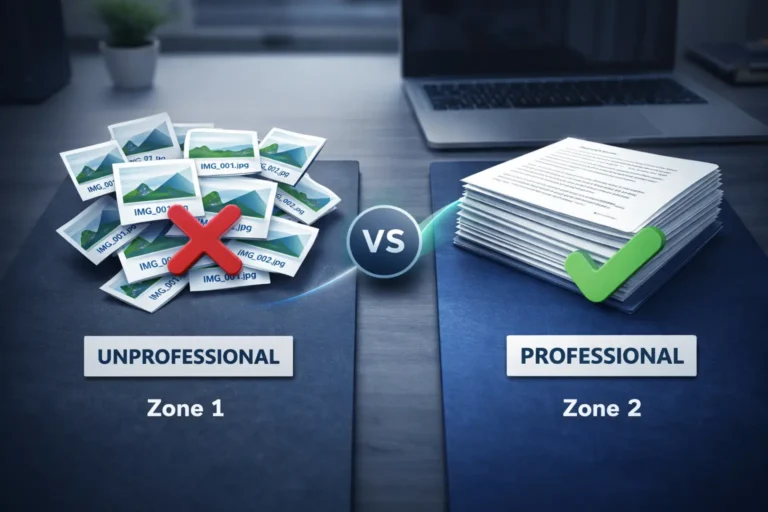
We have all been there. You just scanned a contract, but your scanner saved each page as a separate JPG file. Or maybe you took 15 photos of handwritten notes in a meeting. Now, your email attachment list looks like a mess: image_001.jpg, image_002.jpg… all the way to image_015.jpg.
Sending loose images is frustrating for the person receiving them. They have to download a zip folder or click “save as” on every single picture just to view your document. Fortunately, there is a better way.
The solution is to combine JPG files into one PDF. A single PDF file is clean, professional, and opens instantly on any device.
In this guide, we will show you the best free online tool to merge images into PDF without signup, watermarks, or limits. Plus, we will cover built-in methods for Windows, Mac, and mobile devices.
Why Convert JPG to PDF?
Before we get to the step-by-step instructions, it helps to understand why PDF is the superior format for sharing multiple images. Many users ask for a “jpg to pdf multiple pages” converter because they instinctively know a single file is better, but here is exactly why.
Professional Document Sharing
If you are applying for a job, sending an invoice, or submitting a school project, sending 10 separate pictures looks unprofessional. It suggests disorganization. When you merge images into PDF, you present a single, cohesive document. It shows attention to detail and makes it easy for the recipient to read, print, or forward your work.
Preserves Layout and Quality
Have you ever sent a photo from your iPhone to a friend with a Windows PC, only to have it appear sideways or blurry? JPG files rely on the operating system to display them, which can cause rotation or compression issues. A PDF locks the layout. What you see on your screen is exactly what the other person will see, whether they are on a Mac, Android, or Linux machine. Our tool specifically preserves the original DPI and resolution so you don’t lose quality.
Universal Format — Opens Everywhere
PDF is the universal standard for documents. Government agencies, courts, banks, and insurance companies all prefer PDFs over image files. When you convert multiple jpg to pdf, you ensure your file can be opened legally and easily by any official system, often with built-in accessibility features that standard images lack.
How to Combine Multiple JPG Files Into One PDF — Step by Step
There are several ways to solve this problem. While your operating system has built-in tools, they are often slow or limited. We recommend Method 1 for most users because it is browser-based, works on any device, and requires no software installation.
Method 1: CombineJPG Online Tool (Recommended)
This is the fastest way to combine jpg files into one pdf free without installing anything. It works perfectly on Windows, Mac, iPhone, and Android.
- Go to the tool: Open your web browser and navigate to the dedicated combine JPG to PDF page.
- Upload your images: Click the upload area or simply drag and drop your JPG files from your computer folder. You can also upload PNG or HEIC files—the tool accepts them all.
- Arrange the order: Once uploaded, you will see thumbnail previews. If a page is out of order, just click and drag the thumbnail to the correct position. This is vital for contracts or step-by-step guides.
- Adjust settings (Optional): You can choose between Portrait (vertical) or Landscape (horizontal) orientation. You can also add margins if needed.
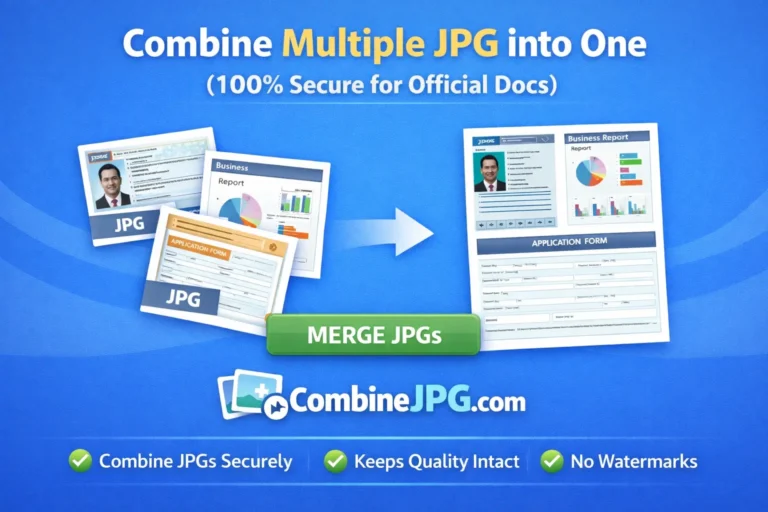
- Merge and Download: Click the “Merge JPG to PDF” button. The high-speed server processes your files in 2–3 seconds. Then click “Download” to save your new single PDF file.
That is the entire process. No signup, no watermark, and no daily limits. You can merge 50+ images into one PDF in under 30 seconds.
Method 2: On Windows (Built-In Print to PDF)
Windows 10 and 11 have a feature called “Microsoft Print to PDF.” While it works, it is clunky and often slower than the online method.
- Select all the JPG files you want to combine.
- Right-click and select Print. (Note: The order here is tricky; you usually have to select them one by one in the print dialog).
- In the printer selection dropdown, choose Microsoft Print to PDF.
- Click Print and choose where to save your new PDF.
Downside: You have very little control over margins, and it often does not handle mixed orientations well. For a convert multiple jpg to pdf task with high quality, the online tool is superior.
Method 3: On Mac (Preview App)
Mac users have a built-in tool called Preview. It is actually quite powerful.
- Open all your JPG files in Preview. (Select them all and double-click).
- In the sidebar, make sure the thumbnails are visible. Drag to reorder them if necessary.
- Go to File > Print.
- Use the PDF dropdown menu in the bottom-left corner and select Save as PDF.
Downside: If you have 50 images, Preview can slow down or crash. The free online tool handles large batches much more efficiently.
Method 4: On iPhone/Android (Mobile)
You do not need a computer to merge images as pdf pages. You can do this right from your phone’s browser.
- Open Safari (iPhone) or Chrome (Android) and go to CombineJPG.com.
- Tap the upload button and select “Photo Library.”
- Select the images from your camera roll.
- Tap “Merge” and then “Download.” The PDF will save to your Files app or Downloads folder.
This is the easiest way to turn receipts, whiteboard notes, or whiteboard notes into a single document while you are on the go.
How to Arrange the Order of JPG Files in Your PDF
One of the biggest frustrations users face when they merge images into pdf is the order. You upload 20 files, but they come out scrambled. Here is how to fix that.
Using the Online Tool (Best Method):
When you upload files to our jpg to pdf converter free tool, you will see a visual grid of thumbnails. You can click and drag these thumbnails left or right to rearrange the pages exactly as you want them. Page 1 will be at the top, page 2 below it, and so on.
Pro Tip for Naming Files:
If you want the tool to automatically sort your files correctly, rename them numerically before uploading. For example:
01_Cover.jpg02_Chapter_1.jpg03_Chapter_2.jpg
Most sorting algorithms read the numbers first, ensuring your document flows correctly from start to finish.
How to Compress the Final PDF After Creating It
Sometimes, after you combine jpg files into one pdf, the file size is very large. This is usually fine, but if you need to email it or upload it to a portal with a 5MB limit, you will need to compress it.
Since you are already using high-quality tools, consider using a dedicated compression tool. If your PDF is too large, you can use a service that specifically reduces file size without ruining the visual quality.
For related tasks, you might also find these guides helpful:
- If you need to place images side-by-side (like a before/after photo), check out how to merge photos side-by-side online free.
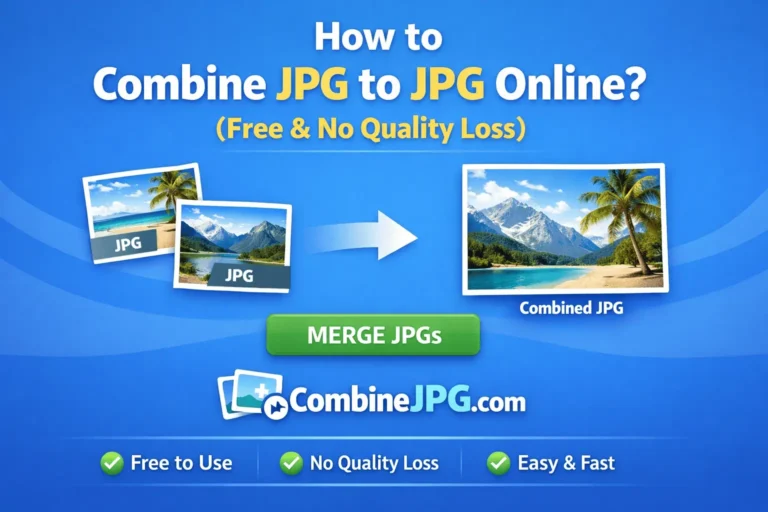
- If you just want to join two photos into a single JPG, see this guide on how to combine two photos into one JPG online.
Use Cases — When to Use JPG to PDF
To understand why you need a photo to pdf combiner, here is a quick look at common scenarios where this tool saves the day.
| Use Case | Why PDF is Better | Example |
|---|---|---|
| Students | Submitting handwritten notes or scanned textbook pages as loose images is messy. A single PDF looks organized. | “Combine pictures of history notes into one PDF to submit to professor.” |
| Real Estate | Sending 30 house photos individually clogs an inbox. A PDF allows clients to flip through photos like a booklet. | “Combine JPG files of property listing into one PDF for the buyer.” |
| Legal/Travel | Visa applications or court evidence often require one file upload. You need to merge receipts, photos, and signatures. | “Merge passport photo and bank statement into one PDF for visa application.” |
| E-commerce | Sellers need to create digital catalogs or product sheets. A PDF looks more professional than a zipped folder. | “Turn 10 product photos into one catalog PDF for wholesale buyers.” |
| Insurance | After a car accident, you take multiple photos of the damage. One PDF is easier for the adjuster to review. | “Combine photos of car damage into one PDF for insurance claim.” |
Frequently Asked Questions (FAQ)
Here are the most common questions users ask when they want to combine jpg files into one pdf free.
Can I add more images to an existing PDF?
Yes. If you have already created a PDF but forgot a page, you can simply go back to the tool. Upload the original PDF along with the new JPG images. The tool will merge them all together into a new, updated PDF.
Will the PDF look the same as the JPG?
Yes, when using a high-quality tool like ours. We use a lossless conversion algorithm. This means we preserve the original DPI, resolution, and color profile. Your PDF will look sharp and clear. It will not be blurry like a bad photocopy.
How many JPGs can I combine?
You are only limited by your browser and device memory. Practically speaking, you can combine 50, 100, or even 200 JPGs into one PDF. Our jpg to pdf multiple pages tool has no artificial “daily limit” or “file count limit” like many competitors (e.g., Smallpdf limits you to 2 per day).
Can I combine PNG and JPG into one PDF?
Absolutely. The tool automatically accepts JPG, JPEG, PNG, and even HEIC files (iPhone photos). You can mix all of these formats in a single document. If you want to understand the best practices for this specific format, read our dedicated guide on the best JPG to PDF converter.
Is it safe to use an online JPG to PDF merger?
Yes, if you use a trusted site. CombineJPG.com uses end-to-end SSL encryption (the padlock in your browser bar). Furthermore, all files are automatically deleted from our servers within 60 minutes. Nobody else sees your images, and we do not sell your data.
Do I need to create an account?
No. You do not need to provide an email address, name, or phone number. There is no “signup wall” or “free trial” to navigate. You simply upload, merge, and download.
Can I use this on my phone without downloading an app?
Yes. Because it is a web-based tool, you do not need to install an app that takes up storage space. Just open your mobile browser (Chrome, Safari, or Firefox) and go to the website. It is fully responsive and works perfectly on iOS and Android.
Conclusion
You no longer need to send chaotic email attachments full of loose JPG files. You do not need to pay for expensive software like Adobe Acrobat, and you do not need to tolerate the limits of sites like Smallpdf or iLovePDF.
The fastest, safest, and freest way to combine jpg files into one pdf is to use a dedicated, privacy-first online tool.
Whether you are a student organizing a project, a real estate agent preparing a listing, or just someone trying to send receipts to your accountant, the solution is simple:
- Go to CombineJPG.com.
- Upload your images.
- Click merge.
- Download your single, professional PDF.
It takes 30 seconds, and there is no signup required.
Ready to clean up your files? If your final PDF is too large to email, don’t forget to check out our recommended file compression tool to shrink it down without losing quality.