How to Merge Photos Side by Side Online — Free, No App Needed (2026)

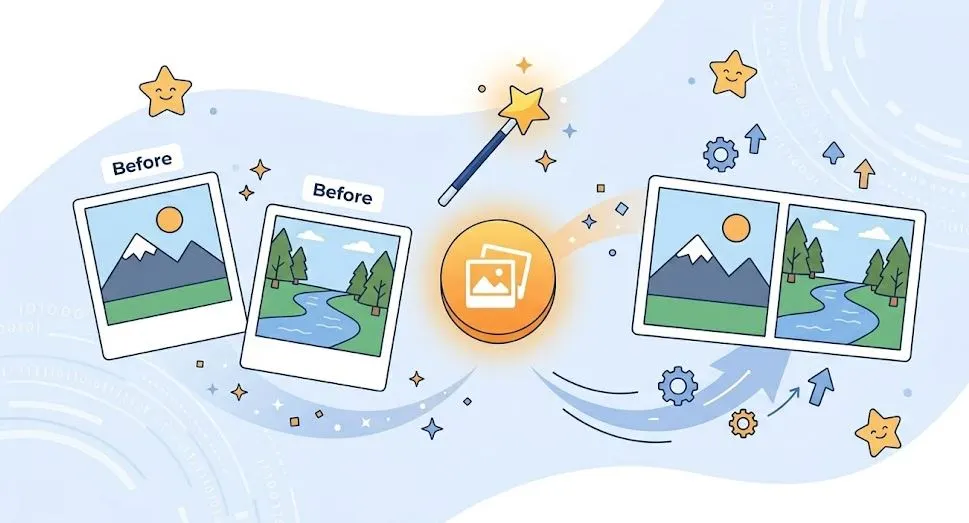
Before and after? Progress photos? Product comparisons? Two selfies you want side by side?
We’ve all been there. You have two perfect photos that belong together — but they’re separate files. Your email only lets you attach one image. Your social media post needs a single, clean graphic. Or you’re trying to show a client a transformation, and flipping back and forth between two tabs feels clumsy.
What you need is a side-by-side photo merge.
Not Photoshop. Not a confusing app. Not a watermark-covered mess.
Here’s the good news: Merging photos side by side online takes less than 30 seconds when you use the right tool. No download. No signup. No technical skills.
In this guide, I’ll show you exactly when to use side-by-side photos, how to merge them for free, and pro tips to make your merged image look flawless — whether you’re on iPhone, Android, or a computer.
Let’s put those photos next to each other.
When Would You Need Side-by-Side Photos?
Before we get to the “how,” let’s talk about the “why.” Side-by-side images are everywhere once you start noticing them. Here are the most common situations where merging photos horizontally is the perfect solution.
Before & After Transformations (Fitness, Home Renovation, Hair)
This is the most popular use case — and for good reason.
A side-by-side comparison tells a story instantly. No explanation needed. The viewer sees the “before” on the left and the “after” on the right, and the transformation speaks for itself.
Who uses this:
- Fitness coaches showing client progress (weight loss, muscle gain, posture improvement)
- Home renovation contractors displaying room makeovers
- Hair stylists demonstrating color or cut transformations
- Dermatologists and aestheticians showing skin treatment results
- Weight loss journey posts on Instagram or Reddit
Pro tip: Keep lighting and angles consistent between both photos for the most powerful comparison.
Product Comparison Photos for Ecommerce
If you sell products online, you know that customers want to see options side by side.
A single merged image showing “Size Small vs Size Large” or “Blue vs Black vs Red” helps shoppers decide faster than scrolling through five separate product pages.
Who uses this:
- Etsy sellers showing different color variants of the same item
- Amazon product listings displaying scale comparisons
- Clothing brands showing the same shirt on different body types
- Electronics resellers comparing two models (iPhone 15 vs iPhone 16, for example)
- Furniture stores showing a sofa in different fabric options
Pro tip: Label each side clearly with text (you can add text after merging, or use a simple photo editor).
Real Estate: Interior vs Exterior
Real estate agents know that a listing needs to tell a complete story. One of the most effective ways is to show an exterior shot of the property next to an interior highlight.
Who uses this:
- Real estate agents creating listing collages
- Vacation rental hosts (Airbnb, VRBO) showing the pool next to the living room
- Architecture portfolios displaying exterior and interior views of the same building
- Property managers showing before/after renovations
Pro tip: Keep the aspect ratio similar. A wide exterior shot next to a vertical interior shot can look awkward (more on fixing this below).
School Projects & Presentations
Students and teachers frequently need to merge images for assignments, posters, and slideshows.
Who uses this:
- Science fair projects showing experiment steps side by side
- History presentations comparing two historical photos
- Art portfolios displaying original vs edited versions
- Language learning materials pairing an image with its vocabulary word
Pro tip: For academic work, always cite your image sources. Merging doesn’t remove copyright obligations.
Social Media Collages & Stories
Instagram, TikTok, LinkedIn, and Facebook all reward single, engaging images over multiple attachments. A side-by-side merge keeps your audience scrolling without clicking “see more.”
Who uses this:
- Influencers creating “outfit of the day” collages
- Small business owners posting product galleries
- Photographers showing two edits of the same shot
- Travel bloggers displaying “then vs now” location comparisons
Pro tip: Each platform has different ideal dimensions. We’ll cover that in the vertical vs horizontal section below.
How to Merge Photos Side by Side — Step by Step
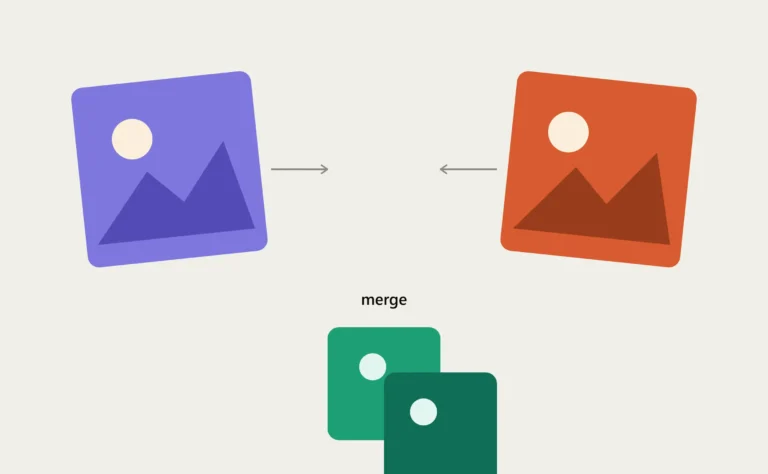
Now for the part you came for. Here’s exactly how to merge photos side by side online free using CombineJPG no app, no signup, no watermark.
Step 1: Open the CombineJPG Image Merger
Open any web browser on your computer, phone, or tablet. Go to combinejpg.com.
That’s it. No app store. No download. No “create an account” screen.
Why this tool works best:
- ✅ 100% free (no hidden “premium” features)
- ✅ No signup or email required
- ✅ No watermark on your final image
- ✅ Automatic file deletion within 60 minutes (privacy protected)
- ✅ Works on every device — iPhone, Android, Windows, Mac
- ✅ Preserves original image quality (no compression damage)
Step 2: Upload Your Two (or More) Photos
Click the upload button or simply drag and drop your images into the box.
What formats work: JPG, JPEG, PNG (all automatically convert to JPG in the final merged file)
Can you merge more than two? Yes — you can upload 3, 4, 5, or even 10+ images. The tool will arrange them all in order.
Quick tip: Upload your images in the order you want them to appear. Left to right. First image = leftmost position. You can drag thumbnails to reorder after uploading if you change your mind.
Step 3: Choose “Horizontal” Layout (Side by Side)
This is the most important step. You’ll see two layout options:
| Layout | What It Does | Best For |
|---|---|---|
| Horizontal | Places images next to each other, left to right | Side-by-side comparisons, before/after photos, product galleries |
| Vertical | Stacks images on top of each other, one per row | Scanned documents, long-form collages, mobile-optimized stories |
For merging photos side by side, select Horizontal.
Step 4: Merge and Download
Click the “Combine” or “Merge” button. The tool processes your images instantly — usually in 3 to 5 seconds.
Your browser will automatically download a single JPG file containing all your images merged side by side.
That’s it. Four steps. Less than 30 seconds. No Photoshop degree required.
Pro tip: The downloaded file is saved to your default “Downloads” folder. Rename it immediately so you can find it later (something like “before-after-merged.jpg” works better than “download_58291.jpg”).
Vertical Stack vs Side by Side — Which to Choose?
Not every merge should be horizontal. Here’s a quick decision guide based on where you’re posting or sharing.
| Orientation | Best Use Case | Social Media Platform | File Shape |
|---|---|---|---|
| Side by Side (Horizontal) | Before/after, product comparisons, real estate, two selfies | Facebook, LinkedIn, Twitter/X, website product pages | Wide rectangle (landscape) |
| Vertical Stack | Multiple screenshots, long documents, step-by-step tutorials | Instagram Reels, TikTok, Pinterest, mobile stories | Tall rectangle (portrait) |
| Square Grid (2×2 or 3×3) | Photo collages, mood boards, friend groups | Instagram grid post, WhatsApp status | Square |
For most side-by-side comparisons: Choose Horizontal. It reads naturally (left to right, just like text) and works perfectly on desktop and laptop screens.
Exception: If you’re posting primarily to Instagram Stories or TikTok, a vertical stack with images on top of each other may fill the screen better. Use your judgment based on where your audience will view the image.
How to Make Side-by-Side Photos on iPhone
You don’t need a separate app. Here’s how to merge photos side by side using only your iPhone’s browser.
Step-by-step (iPhone):
- Open Safari or Chrome on your iPhone
- Go to https://combinejpg.com
- Tap the upload button (usually says “Click to select” or shows a + icon)
- Tap “Photo Library” and grant access if asked
- Select your first image, then tap “Add”
- Repeat for your second image (the tool lets you select multiple)
- Once both images appear as thumbnails, tap “Horizontal” layout
- Tap “Combine” or “Merge”
- When processing completes, tap “Download”
- The merged image saves to your Photos app
Total time: Under 60 seconds on a standard Wi-Fi connection.
iPhone troubleshooting:
- “Images won’t upload?” – Try selecting one image at a time instead of multiple at once.
- “Download isn’t starting?” – Check that your iPhone isn’t in Low Power Mode (which can block some downloads). Turn it off in Settings > Battery.
- “The merged image looks squished?” – Your original photos likely have different heights. See the resizing section below to fix this.
How to Make Side-by-Side Photos on Android
Same process. Same tool. No Android app needed.
Step-by-step (Android phone or tablet):
- Open Chrome (or Samsung Internet, Firefox, or any browser)
- Go to https://combinejpg.com
- Tap the upload area
- Tap “Gallery” or “Photos”
- Select your first image, then tap the “Select more” option to add the second
- Tap “Done” when both are selected
- Choose “Horizontal” layout
- Tap “Merge”
- Tap “Download” – the file saves to your Downloads folder or Gallery
Android troubleshooting:
- “My Samsung Gallery won’t show the uploaded images?” – Use Google Photos or Files by Google instead. Some Samsung devices restrict browser access to the default gallery.
- “The merge button is grayed out?” – Make sure you’ve selected at least two images. The tool requires 2+ files for merging.
How to Resize Both Photos to Match Before Merging
Here’s the #1 problem people run into: Two photos with different heights or widths.
When you merge a tall vertical photo next to a wide horizontal photo, the result looks uneven. One image gets squished. White space appears. The final collage looks unprofessional.
The fix is simple: Resize both images to the same height before merging.
Option 1: Use the Same Tool for Resizing (Recommended)
The CombineJPG platform offers an image resizer (look for the resizing tool on their homepage or navigation).
Quick workflow:
- Resize both photos to the same height (e.g., make both 1000 pixels tall)
- Download both resized versions
- Upload them to the merger tool
- Merge side by side
What dimensions to choose:
- For side by side (horizontal): Match the height of both images. Width can differ — the merger will place them next to each other with their original widths intact.
- For vertical stack: Match the width of both images.
Option 2: Use a Free Online Resizer Before Merging
If you need an external tool, search for “free online image resizer” — many exist with no signup required. Just be sure to use a privacy-respecting option.
Pro tip for perfect results: Before uploading to the merger, crop both photos to the same aspect ratio. For example, crop both to 1:1 (square) or 4:3 (standard photo ratio). This prevents uneven spacing.
For before/after comparisons specifically: Take both photos at the same distance, same angle, and same lighting. Then resize them to identical heights. Your merged image will look like a professional transformation graphic.
Frequently Asked Questions
Can I merge 3 or more photos side by side?
Yes. The CombineJPG tool supports merging 2, 3, 4, 5, or more images in a single row. Upload all your images at once — they will appear left to right in the order you select.
Limit: There’s no hard limit, but very wide merges (10+ images) may result in an extremely wide final image that viewers need to scroll horizontally to see. For 5+ images, consider a grid layout (2×3 or 3×3) instead. For grid layouts, you may want to use a dedicated photo collage tool.
Will the quality be reduced after merging?
No. CombineJPG preserves your original image quality at 92-100% with no visible compression loss. Unlike many free tools that heavily compress your images to save server space, this merger maintains clarity.
What about large file sizes? If your merged image becomes very large (over 10MB), you can run it through a separate image compressor afterward. The site offers a free online image compressor with no signup and no watermark for exactly this situation.
What size should both images be before merging?
Ideal approach: Resize both images to the same height (for horizontal merges) or same width (for vertical stacks).
Recommended dimensions:
For social media: Keep the total merged width under 2000 pixels
For email attachments: Keep the final file size under 10MB
For printing: Keep original high resolution (no resizing needed)
If heights are different: The tool will automatically make all images the same height by adding white space or cropping. For best results, match them yourself beforehand.
Can I add text between photos?
The basic tool: No. The standard JPG merger combines images only — it doesn’t add text, arrows, or labels.
Workarounds:
Add text using a free online photo editor after merging (search for “add text to image online free”)
Create your text as a separate image (white background with black text, saved as JPG) and merge it as an additional “photo” between your two images
For professional before/after labels: Create a simple JPG in any free tool (Canva, Photopea, or even PowerPoint) that says “BEFORE → AFTER” and merge it as a middle image.
Can I merge photos side by side without losing the original files?
Yes. The tool creates a new merged JPG file. Your original photos remain untouched on your device. Nothing is deleted or overwritten.
Is this really free? No hidden payments?
Completely free. No “free trial.” No “premium upgrade.” No credit card asked. No watermark added. No “pay to download” screen.
CombineJPG is supported by the website owner as a free utility — the same way a calculator tool or unit converter is free to use.
How do I merge photos side by side on a Chromebook?
Same as any computer: Open Chrome browser → go to https://combinejpg.com → upload → choose horizontal → merge → download. Chromebooks work perfectly because the tool runs entirely in your browser.
Can I merge a PNG and a JPG together?
Yes. Upload any mix of JPG, JPEG, or PNG files. The tool automatically converts everything to a single JPG output. Your transparent PNG backgrounds will become white or black (JPG doesn’t support transparency).
If you need to keep transparency: You’ll need a PNG-specific merger. For most social media and document uses, JPG is perfectly fine.
What’s the difference between merging and making a collage?
Merging (this tool): Places images edge-to-edge in a straight line (horizontal or vertical). No gaps, no overlapping, no decorative backgrounds — just clean, aligned images.
Collage: Usually includes gaps, borders, decorative backgrounds, and overlapping elements. For true collages, you’d need a dedicated collage maker.
Which is better for before/after photos? Merging (side by side, no gaps) looks more professional and comparison-focused. Collages look more artistic and casual.
Your Side-by-Side Photo Is Ready — Use It Wherever You Need
You started this article wanting to put two photos next to each other. Now you have:
- ✅ A free, 30-second tool that does exactly that
- ✅ Real-world use cases for fitness, ecommerce, real estate, and social media
- ✅ Device-specific instructions for iPhone and Android
- ✅ Pro solutions for when your photos don’t match in size
- ✅ Answers to every question about merging quality, limits, and text
The merge photos side by side online free tool you needed is waiting at CombineJPG. No app. No signup. No frustration.
Here’s your final checklist before you go:
- Both original photos are ready on your device
- You’ve considered resizing them to match heights (optional but recommended)
- You know the order — left image first, right image second
- You’ve decided whether horizontal (side by side) or vertical (stacked) works better for your platform
Now go merge those photos. Your before/after comparison, product gallery, or social media post is only 30 seconds away.
Ready to merge your photos right now?
→ Merge photos side by side for free at CombineJPG.com ←
No signup. No watermark. No app download. Works on every device.
Need to merge more than two photos into a single file? Check out our guide to combine multiple JPG into one for batch projects.
Already merged but need a smaller file size for email or upload? Use the free image compressor (no signup, no watermark) to shrink your merged image.
Want to combine two photos into exactly one JPG with more layout control? See how to combine two photos into one JPG online for advanced tips.