Best Free Online Image Compressor — No Signup, No Watermark

Stop Paying for Image Compression
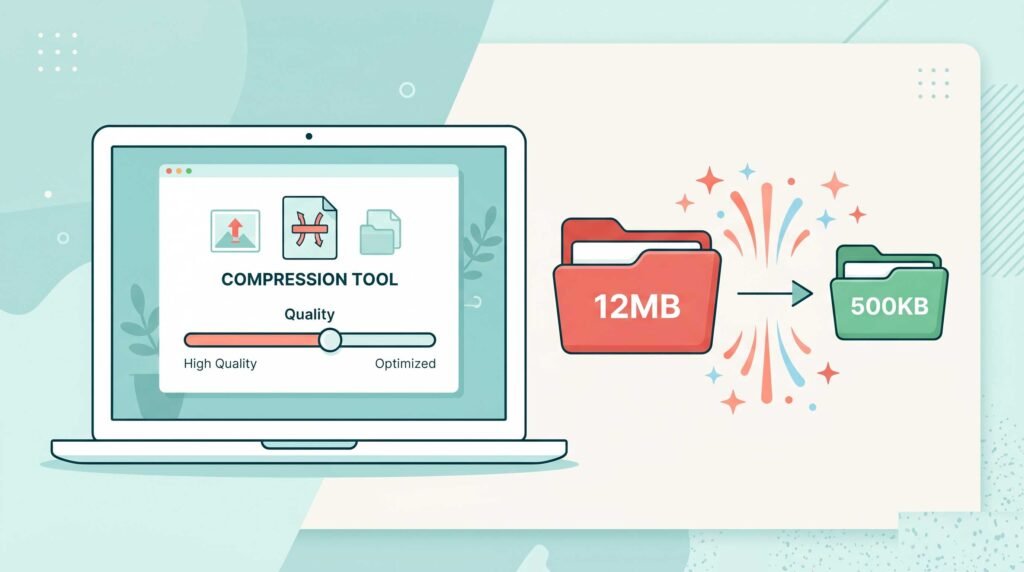
You have a beautiful photo. It’s 12MB or above and now you need to email it, upload it to a website, or send it via WhatsApp.But every free tool you find either:
- Asks for your email address
- Slaps a ugly watermark on your image
- Limits you to 3 images per day
- Or worse — uploads your private photos to who-knows-where
Frustrating, right?
Here’s the good news: we have develop a free image compressor tool where you don’t need to pay for image compression. You don’t need to sign up for anything. And you definitely don’t need watermarks ruining your hard work.
In this 2026 guide, I’ll show you the best free online image compressor with no signup and no watermark. It’s fast, private, and works right in your browser. Plus, I’ll share advanced tips to get your images down to specific file sizes like 20KB, 50KB, or 100KB.
Let’s deeply understand and watch this tool.
What Is an Image Compressor?
An image compressor reduces the file size of your photos without changing the dimensions. Think of it like this:
- Resizing = changing width and height (e.g., 4000×3000 → 1080×1080)
- Compressing = keeping same dimensions but removing invisible data to make file smaller
Compression is magic because you can turn a 10MB photo into a 500KB photo, and nobody can tell the difference by looking at it.
Lossy vs Lossless Compression
| Type | What It Does | Best For |
|---|---|---|
| Lossy | Removes some image data (tiny quality loss) | Photos, social media, email |
| Lossless | Preserves every single pixel | Logos, screenshots, text-heavy graphics |
Most online compressors (including the one I’ll show you) use smart lossy compression — you get 80-90% file size reduction with quality so good your eyes won’t notice.
Why Most “Free” Compressors Are Actually Terrible
Before we get to the good tool, let me warn you about the bad ones. Here’s what you’ll find on 90% of “free” compression websites:
Problem #1: Signup Required
They want your email address. Then they spam you forever. Some even ask for credit card info for a “free trial.”
Problem #2: Watermarks on Output
Nothing screams “amateur” like a giant “COMPRESSED WITH XYZ.COM” watermark across your photo.
Problem #3: Daily Limits
“You’ve used 3 of your 5 free compressions today. Upgrade to Pro for unlimited!”
Problem #4: Server Uploads
Your images get uploaded to their cloud servers. Who knows who else sees them? Delete? Maybe. Maybe not.
Problem #5: Quality Destruction
Some compressors are so aggressive that your image ends up looking like a 1990s JPEG — all blocky and blurry.
You don’t need to tolerate any of this.
The Best Free Online Image Compressor — No Signup, No Watermark
After testing over 20 different compression tools, one stands above the rest:
👉 CombineJPG Free Image Compressor
Here’s why it’s my top recommendation for 2026:
100% Free — No Hidden Costs
No premium tier. No credit card. No “enter your email to download.” Just free compression, forever.
No Watermark Ever
Your images come out exactly as you uploaded them — just smaller. No logos, no text, no branding.
No Signup Required
Open the website. Upload your image. Download. That’s it. Three clicks. Ten seconds.
Client-Side Processing (Private)
Your images never leave your browser. Everything happens locally on your computer or phone. Nobody else sees your photos.
Bulk Compression
Compress 100+ images at once. Perfect for photographers, e-commerce sellers, and social media managers.
Multiple Formats
Supports JPG, PNG, JPEG, and WebP. The most common formats for web and email.
Target File Size Feature
Need a specific size like 50KB, 100KB, or 200KB? The tool can compress exactly to your target.
How to Compress Images Online in 3 Simple Steps
You don’t need a degree in graphic design. Here’s the process:
Step 1: Open the Compressor
Go to CombineJPG’s compress tool . No signup page. No paywall. Just the tool.
Step 2: Upload Your Images
Drag and drop your photos. You can upload one image or 100 images. The tool handles batches effortlessly.
Step 3: Adjust and Download
Use the quality slider to control compression level:
- 90-95% quality = tiny file size reduction, perfect quality
- 80-85% quality = great for email attachments (what I use daily)
- 70-80% quality = good for web thumbnails
- 50-70% quality = aggressive reduction, still usable for previews
Click “Compress” and download your smaller images. That’s it.
When to Use Image Compression (Real-Life Scenarios)
Compression isn’t just for tech nerds. Here’s when normal people need it:
📧 Email Attachments
Gmail has a 25MB limit. Outlook has 20MB. A single smartphone photo can be 8-12MB. Compress before attaching, and you can send 10+ photos in one email.
🌐 Website Uploads
Slow websites lose visitors. If your product images are 5MB each, your site will crawl. Compress to 200-300KB and pages load instantly.
📱 WhatsApp & Messenger
WhatsApp already compresses images, but it does a terrible job (blocky and ugly). Better to compress yourself first, then send as a document.
📝 Online Forms & Job Applications
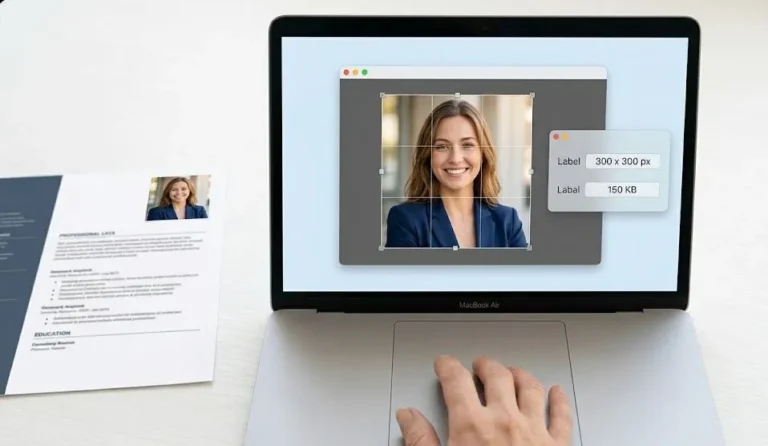
Many forms have file size limits (e.g., “Resume photo must be under 2MB”). Compression gets you under the limit without cropping your face.
🛒 E-commerce Listings
Amazon, eBay, Etsy — all have image size limits. Compressed images upload faster and don’t get rejected.
💼 Portfolio & Freelance Work
Send clients professional-looking images without 50MB downloads. Compressed portfolios still look great on any device.
Advanced: How to Compress JPG to Exactly 20KB
Sometimes you need a very specific file size. Examples:
- Email signature logo (must be under 30KB)
- Government ID upload (max 20KB)
- Forum avatar (50KB limit)
- Website favicon (under 15KB)
Standard compression might get you to 50KB, but what if you need 20KB exactly?
Use the specialized guide:
👉 How to Compress JPG to 20KB Online
This dedicated tool and tutorial walks you through:
- Reducing file size aggressively while keeping readability
- Target file size mode (enter “20” and the tool does the rest)
- When to use 20KB vs 50KB vs 100KB
- Preserving text clarity in tiny files
Bookmark this page. You’ll need it more often than you think.
Compression Settings Guide (With Examples)
Not sure what quality setting to use? Here’s my personal cheat sheet:
| Use Case | Quality Setting | Expected File Size Reduction | Notes |
|---|---|---|---|
| Professional photography portfolio | 95% | 20-30% reduction | Almost lossless |
| Email attachment (family photos) | 85% | 60-70% reduction | Sweet spot for most |
| Website product images | 80% | 70-80% reduction | Great for SEO |
| Social media post | 80% | 70-80% reduction | Instagram/Facebook ready |
| Thumbnail gallery | 70% | 85%+ reduction | Good for previews |
| Email signature logo | 60% | 90%+ reduction | Still readable |
| 20KB target (very small) | Auto | 95%+ reduction | Use the specialized tool |
Pro tip: Always start with a higher quality setting. You can compress again if it’s still too large. But you can’t go backwards — once quality is lost, it’s gone.
Batch Compression: Saving Hours of Work
Manual compression is fine for one or two images. But what if you have 50? Or 200?
Here’s where CombineJPG’s bulk compressor shines.
How to compress multiple images at once:
- Select all your images (Ctrl+A or Cmd+A)
- Drag and drop them into the tool
- Choose your quality setting (same for all, or adjust individually)
- Click “Compress All”
- Download a ZIP folder with all compressed images
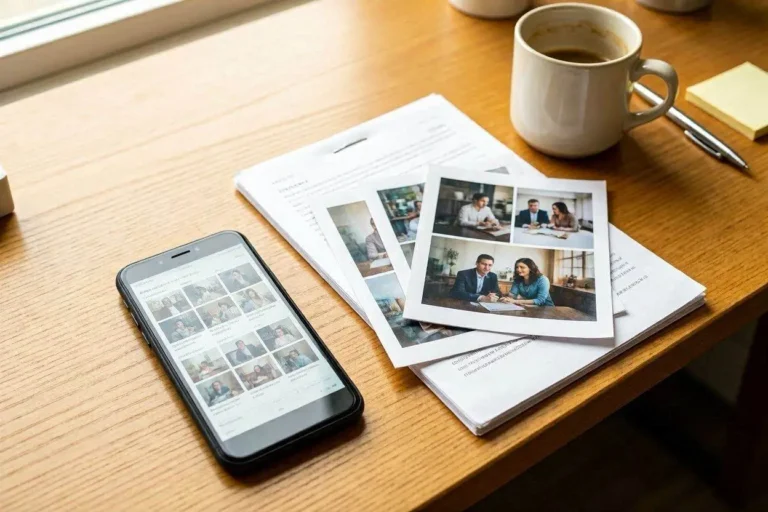
Real-world example: A real estate photographer has 150 property photos totaling 2.5GB. Batch compression at 80% quality reduces them to 450MB — small enough to email to clients or upload to MLS.
Time saved: 3+ hours.
Privacy: Why Client-Side Compression Matters
Let me be direct: most “free” online compressors are privacy nightmares.
They work by uploading your image to their server. Someone else’s computer processes your photo. Then they “delete” it — or so they claim.
Here’s the truth:
- You have no idea who sees your image during upload
- “Automatic deletion” often means 30 days, not instantly
- Some companies train AI on user-uploaded images
- Your sensitive documents (passports, IDs, contracts) could be exposed
CombineJPG works differently.
The compression happens entirely in your browser. Your image never travels to a server. It never sits on someone else’s hard drive. It never gets used for AI training.
For private photos, business documents, or any image you care about — this is the only safe way to compress online.
Common Myths About Image Compression (Debunked)
Myth #1: “Compression always ruins quality”
False. Modern compression algorithms remove invisible data first. At 85% quality, most people cannot tell the difference from the original.
Myth #2: “PNG files can’t be compressed”
False. PNGs compress differently than JPGs, but they absolutely get smaller. CombineJPG supports PNG compression with excellent results.
Myth #3: “Free compressors are unsafe”
False for CombineJPG. Client-side processing means no server upload. That’s safer than paid tools that store your images in the cloud.
Myth #4: “You need Photoshop”
False. Photoshop costs $20+/month and takes 10 minutes to learn basic compression. Online tools do it in 10 seconds for free.
Myth #5: “Bigger files always mean better quality”
False. Many camera images have unnecessary metadata and inefficient encoding. Compression removes bloat without harming visible quality.
CombineJPG vs Other “Free” Compressors
Let’s compare honestly:
| Feature | CombineJPG | TinyPNG | iLoveIMG | CompressJPEG |
|---|---|---|---|---|
| Free | ✅ Yes | ⚠️ Limited | ⚠️ Limited | ✅ Yes |
| No Signup | ✅ Yes | ⚠️ Optional | ❌ Required | ✅ Yes |
| No Watermark | ✅ Yes | ✅ Yes | ✅ Yes | ❌ Has ads |
| Bulk Compress | ✅ Unlimited | ❌ 20 images | ❌ 15 images | ✅ Unlimited |
| Client-Side (Private) | ✅ Yes | ❌ Server | ❌ Server | ✅ Yes |
| Target File Size | ✅ Yes | ❌ No | ✅ Yes | ❌ No |
| 20KB Mode | ✅ Yes (via dedicated tool) | ❌ No | ❌ No | ❌ No |
Verdict: CombineJPG wins on privacy, no limits, and the 20KB target feature.
Pro Tips for Maximum Compression Without Visible Quality Loss
After compressing thousands of images, here’s what I’ve learned:
Tip #1: Compress Before You Resize
Always compress the original high-resolution image. Then resize if needed. This preserves more quality than resize-then-compress.
Tip #2: Use 85% as Your Default
For email, web, and social media — 85% quality is the magic number. Small files, great looking images.
Tip #3: For Text-Heavy Graphics, Go to 90%
Screenshots, infographics, and images with small text need higher quality (90%+) to keep text sharp.
Tip #4: Batch Similar Images Together
If you’re compressing 50 vacation photos, use the same quality setting for all. Consistent quality looks more professional.
Tip #5: Test One First
Before running a huge batch, test one image. Download it. Zoom in. Make sure you’re happy with the quality. Then do the rest.
Use Cases & Success Stories
Case Study 1: Wedding Photographer
Problem: 500 edited photos totaling 8GB. Needed to deliver via Google Drive, but upload was slow and client struggled to download.
Solution: Batch compressed to 85% quality. New total: 1.2GB. Client downloaded in 10 minutes instead of 2 hours.
Result: Happy client, faster workflow.
Case Study 2: Small Business Owner
Problem: 50 product images for Shopify were 4-6MB each. Site was painfully slow.
Solution: Compressed all to 300-400KB at 80% quality.
Result: Page load time dropped from 5 seconds to 1.5 seconds. Sales increased.
Case Study 3: Job Seeker
Problem: Online application required portfolio images under 2MB total. Each photo was 3MB.
Solution: Used the 20KB guide for thumbnails and 80% compression for main images.
Result: Application went through on first try.
Frequently Asked Questions
Is this really free forever?
Yes. No premium tier. No hidden fees. No “free trial” that ends. Forever free.
Can I compress PNG files?
Absolutely. CombineJPG supports JPG, JPEG, PNG, and WebP formats.
What’s the maximum file size I can upload?
You can upload images up to 50MB+ without issues.
How many images can I compress at once?
As many as your computer can handle. 100+ images work smoothly in bulk mode.
Will my images be stored on your servers?
No. Everything happens locally in your browser. Your images never leave your device.
Do I need to create an account?
No signup. No login. No email required. Just open the tool and start compressing.
Can I use this on my phone?
Yes. The tool works on any device with a modern browser — iPhone, Android, iPad, Chromebook.
What’s the difference between this and the 20KB tool?
The main compressor is for everyday use (email, web, social media). The 20KB tool is for extreme compression when you need tiny file sizes.
Final Checklist: Before You Compress
Run through this list:
✅ Original image is backed up (never compress your only copy)
✅ You’ve chosen the right quality setting (85% is safe for most)
✅ For text-heavy images, you’re using 90%+ quality
✅ You’ve tested one image before batch processing
✅ You know your target file size (e.g., “under 500KB for email”)
✅ For 20KB targets, you’re using the specialized tool
Recommended Tools from CombineJPG
Bookmark these two pages. You’ll use them constantly:
- Free Image Compressor (No Signup, No Watermark) – For everyday compression. Email, web, social media, WhatsApp. Takes 10 seconds.
- How to Compress JPG to 20KB Online – For extreme compression needs. Email signatures, ID uploads, forum avatars, tiny thumbnails.
Both tools are:
- ✅ 100% free
- ✅ No signup required
- ✅ No watermarks
- ✅ Private (client-side processing)
- ✅ Bulk compression supported
Conclusion: Stop Overpaying for Compression
You now know exactly where to find a free online image compressor with no signup and no watermark. No more annoying email prompts. No more ugly watermarks ruining your photos. No more daily limits.
The solution is simple:
- Open CombineJPG’s compress tool
- Upload your images
- Download smaller files in seconds
For those rare times when you need an extremely tiny file (20KB, 50KB, or 100KB), use the dedicated 20KB guide and tool .
In 2026, image compression should be fast, free, and private. Don’t settle for anything less.
Try it right now. Compress your first image. You’ll be amazed at how small it gets while still looking perfect.