How to Merge Multiple PDF Files Into One Online (Free, No Software)

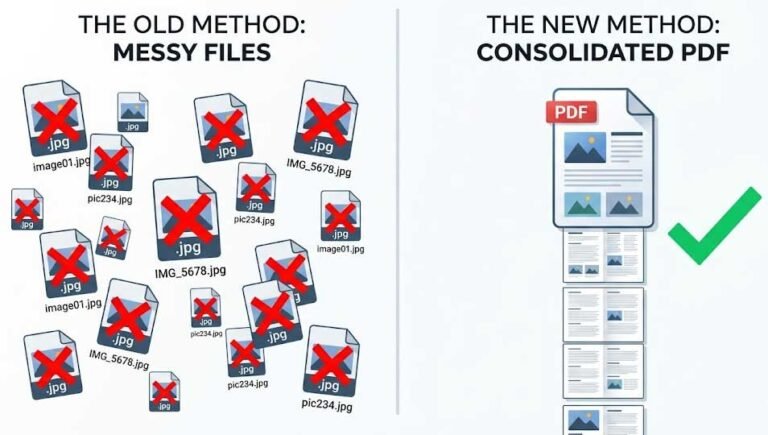
Somebody asks you to send “one PDF” and you’ve got five separate files sitting in a folder a resume, a cover letter, two certificates, and a scanned ID copy. Emailing all five separately looks messy, and most portals that ask for document uploads only accept one file per field anyway. The fix is merging them into a single PDF, and it’s a lot faster than it sounds.

Why People End Up Needing This
- Job applications. Resume, cover letter, and portfolio as one clean attachment instead of three separate files a recruiter has to open one by one.
- Bank and visa applications. Multiple scanned documents ID, bank statement, proof of address combined into a single file because that’s what most online forms actually require.
- Students and freelancers. Combining several assignment pages, invoices, or reports that were saved or scanned separately into one document for submission.
- Business and admin work. Merging contracts, signed pages, or multiple department reports into a single file before sending it out or archiving it.
In almost every one of these cases, the person doesn’t want five files. They want one, in the right order, ready to send.
What Merging Actually Does
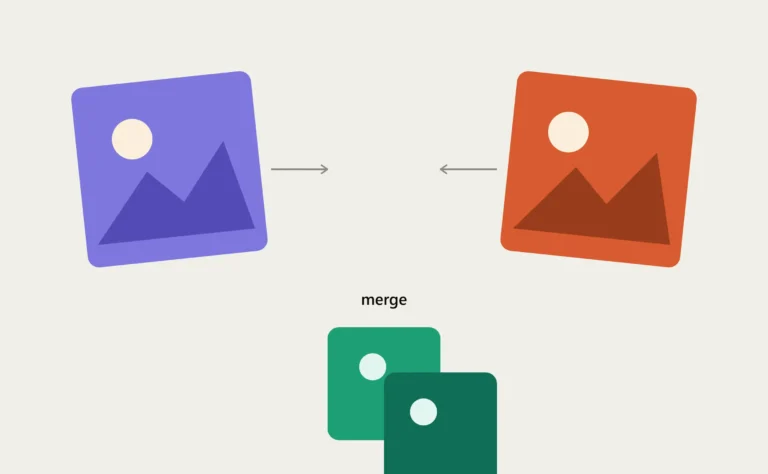
Merging takes two or more separate PDF files and stitches them together into a single PDF, page after page, in whatever order you choose. The first file you add becomes the first pages of the new document, the second file follows right after it, and so on. Nothing inside the individual pages changes text stays selectable, images stay sharp, formatting stays exactly as it was in the original files. You’re just combining the files themselves, not editing what’s on them.
How to Merge PDFs Online
- Open the Merge PDF tool on CombineJPG.
- Upload all the PDF files you want combined there’s no limit forcing you to do this two at a time.
- Arrange them in the order you want the final document to read. Drag and drop the files until the sequence is right.
- Combine them into a single PDF and download the result.
Since the tool works directly in your browser rather than uploading your files to a remote server and waiting for a queue, this takes seconds even with several documents, and nothing about your files sits on someone else’s storage in the meantime.
What If Some of Your Files Are Images, Not PDFs?
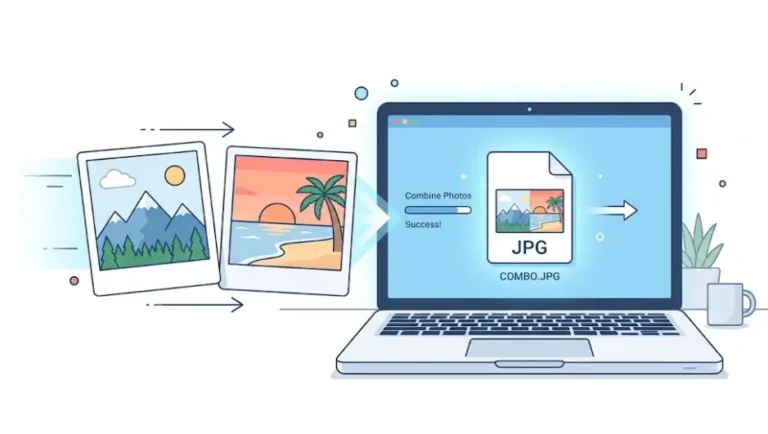
This trips a lot of people up. If part of what you need to combine is a photo a scanned ID card, a photographed certificate, a picture of a signed page that image needs to become a PDF first before it can be merged in with the rest. Trying to merge a JPG directly alongside PDF files usually just won’t work, since they’re different file types entirely.
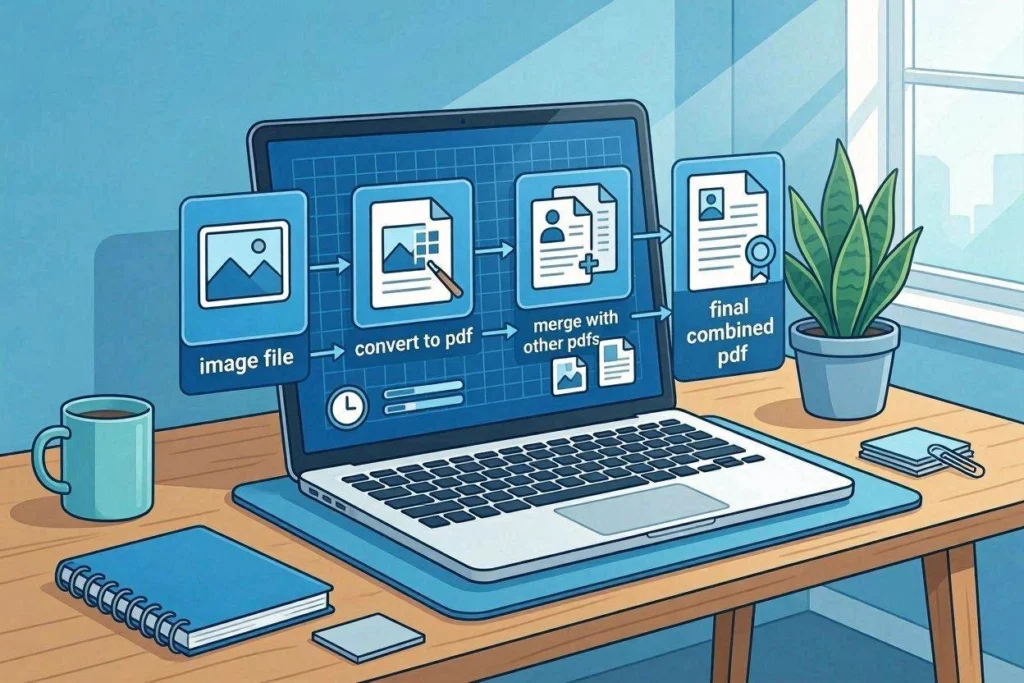
The fix is simple: convert the image to PDF first using the Combine JPG to PDF tool, then bring that converted file into the merge tool along with your other PDFs. If you’ve got several photos that all need to go in as one section say, two scans of an ID card, front and back you can combine those into a single PDF first, then merge that combined file with the rest of your documents in the right spot.
Reordering Without Starting Over
A common mistake is uploading files in whatever order they happen to be saved on your device, then realizing the sequence is wrong after the fact. Rather than re-uploading everything from scratch, check the file order in the merge tool before you finalize anything most merge tools, including this one, let you drag files into the correct position before combining, which saves you from redoing the whole process over one misplaced page.
Splitting It Back Apart Later
Occasionally you’ll go the other direction you’ve got one combined PDF and need just a couple of pages out of it, or you need those pages as images instead of a PDF. If that’s the situation, the PDF to JPG tool on CombineJPG converts PDF pages back into individual image files, which is useful if you need to pull a single page out to attach somewhere that only accepts JPG, or if you’re extracting a scanned photo that was originally embedded inside a larger PDF.
A Few Practical Tips
Check file names before uploading.
- If your files are named clearly (like “01-resume,” “02-certificate”), it’s much easier to spot the right order at a glance instead of guessing from a generic “scan001.pdf” label.
Keep an eye on page orientation
- If one of your source PDFs has pages rotated differently than the rest, it’ll carry that rotation into the merged file. Fix orientation issues in the individual file before merging rather than after.
Merge in the exact order the recipient expects
- For things like job applications or visa documents, forms often specify an expected order (ID first, then proof of address, then supporting documents). Matching that order exactly avoids back-and-forth emails asking you to resend things properly arranged.
Double-check the final file before sending.
- A quick scroll through the merged PDF takes ten seconds and catches page-order mistakes before they become someone else’s problem to point out.
Merging PDFs isn’t a complicated task, but it’s one of those small admin jobs that eats more time than it should when you’re doing it the hard way — emailing five attachments, or hunting for desktop software just to combine a couple of scanned pages. A browser-based tool that handles the whole thing in one pass, with the order fully in your control, turns a mildly annoying task into something that takes less time than writing the email you were going to send the files in.