Free JPG Merger Tools: What Actually Matters When Choosing One

Search “free JPG merger” and you’ll get dozens of tools, all promising the same thing: free, fast, no signup needed. But once you actually start using a few of them, cracks appear fast. Some quietly upload your photos to a server before doing anything with them. Some cap you at 5 or 10 images and then ask you to pay. Some compress your output more than you’d expect.
“Free” turns out to be the easy part. What actually separates a good tool from a mediocre one is in the details and most people never check those details until something goes wrong.
This guide breaks down exactly what to look for, gives you a simple checklist, and takes an honest look at where a browser-based tool like CombineJPG fits and where it doesn’t.
What to Actually Check Before Using Any JPG Merger
| What to Check | Why It Matters | How to Check It |
|---|---|---|
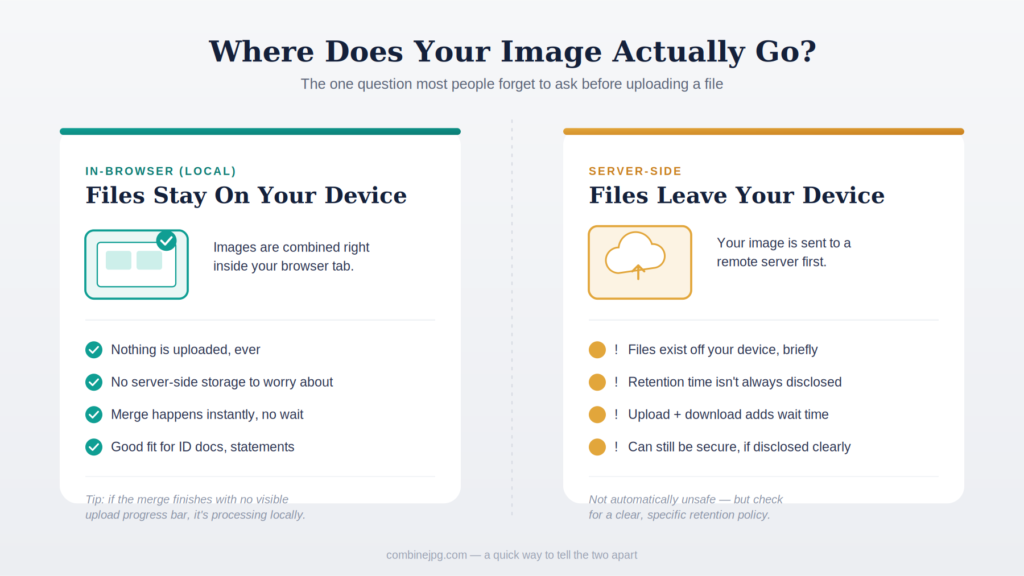
| Where processing happens | Server uploads mean your files leave your device, even briefly. Local (in-browser) tools never send files anywhere. | Watch if the merge happens instantly with no upload bar. Instant = local. |
| Real batch limit | Many tools say “unlimited” but cap you at 5–10 files before asking for signup or payment. | Try a batch bigger than you actually need — for example, 15–20 images. |
| Original resolution kept? | Some tools shrink images to fit a preset canvas, losing quality. | Compare output pixel dimensions to your original files. |
| Watermarks | Free tiers sometimes stamp a logo on your output, removable only on paid plans. | Check the actual output image — not just the “no watermark” claim on the homepage. |
| Layout options | Vertical/horizontal is standard. Grid layout is rarer and matters for collages. | Look for at least vertical, horizontal, and grid layout choices. |
| JPG + JPEG mixed uploads | These are the same format, but some tools still force you to convert one before uploading — a pointless extra step. | Try uploading a mix of .jpg and .jpeg files in one batch. |
Where the Processing Happens: The Biggest Difference You Won’t Notice at First
This is the one thing most people don’t think to check, and it’s the most important.
- Server-based tools upload your images to a remote server, process them there, and send back a result. Your files exist outside your device, even if only for a few seconds.
- Browser-based (local) tools process everything on your own device. Your images never leave your computer or phone.
For casual social media photos, this barely matters. For ID documents, financial paperwork, or anything sensitive, it matters a lot.
Is There a Real Batch Limit?
Plenty of tools advertise “unlimited” and then quietly cap you at 5 or 10 images before pushing a signup or payment wall. Before you build a workflow around a tool, test it with a slightly bigger batch than you think you’ll ever need.
Does It Keep Your Original Resolution?
Some tools scale images down to fit a preset canvas without telling you. Quick test: merge two images, then compare the output’s pixel dimensions to your originals. If the output is noticeably smaller than the layout should require, the tool is downscaling somewhere in the process.
Are Watermarks Added?
Free tiers of some tools stamp a small logo in the corner, removable only if you pay. If a tool calls itself genuinely free, this shouldn’t be a surprise you find out after the fact.
What Layout Options Does It Offer?
Vertical and horizontal merging is close to universal now. Grid layouts are less common — worth checking for specifically if you’re planning a multi-image collage rather than a simple two-image merge.
Does It Handle JPG and JPEG Together?
This should never be an issue, since they’re the same format. But a surprising number of tools still require you to convert one before uploading, which just adds an unnecessary step.
Where CombineJPG Fits — Honestly
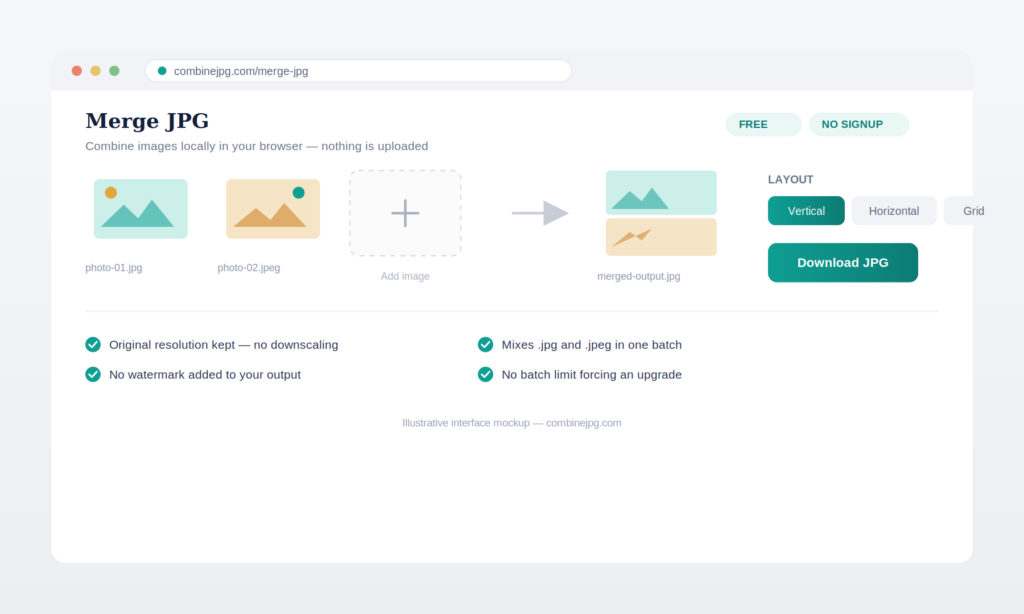
CombineJPG processes everything locally in your browser, so nothing is ever uploaded to a server. It keeps your original resolution instead of scaling to a template, supports JPG and JPEG in the same batch without conversion, and offers vertical, horizontal, and grid layouts. No watermark, no signup, no hidden batch limit.
Where it isn’t the right tool:
- If you need a paginated PDF (for example, combining scanned pages into a document that prints cleanly across multiple pages), a dedicated PDF merger is a better fit — it preserves page boundaries the way one long JPG can’t.
- If your real need is heavy photo editing — layering, masking, color correction — a merging tool isn’t a substitute for a proper image editor. It’s built to combine images cleanly, not edit them.
Quick Checklist Before Trusting Any Tool With Your Files
- Check the privacy claim against real behavior. If a site claims local processing, watch whether the merge happens instantly with no visible upload a genuinely local tool has no upload/download round-trip, so it’s fast.
- Test with disposable images first. Compare output quality and resolution to your originals before running anything important through it.
- Try a bigger batch than usual to confirm the “unlimited” claim actually holds.
- Look for a watermark on the actual output, not just a “no watermark” claim in the marketing text.
Red Flags Worth Watching For
- Vague or missing privacy language. A site that never clearly says whether files are uploaded, processed locally, or stored temporarily deserves a second look before you use it for anything sensitive. Specific privacy claims — not a generic “we care about your privacy” line — are usually a sign privacy was actually designed in, not bolted on.
- Excessive ads near the upload button. Some lower-quality tools place ads deliberately close to the real upload/download buttons, designed to look similar enough that people click the wrong one by accident. A cleaner interface is generally a decent proxy for a more trustworthy tool.
- No file retention info on server-based tools. If a tool processes files on a server, it should clearly state how long those files are kept afterward. Missing this information isn’t automatically a red flag, but it’s worth being cautious about.
Frequently Asked Questions
Is a browser-based JPG merger actually more private than a server-based one?
Generally, yes. If your files never leave your device, there’s nothing to store, secure, or accidentally expose on a server in the first place. A server-based tool can still be secure and reputable, but the upload step itself is something a local tool simply doesn’t have.
Why do some free tools ask for an email or account after a few uses?
This is usually a lead-generation tactic, not a technical requirement — merging images doesn’t actually need an account. If a tool starts requiring signup after advertising itself as free and unlimited, factor that into whether it’s worth using long-term.
Are paid JPG merger tools better than free ones?
Not necessarily. Resolution preservation, layout options, no watermarks, and reasonable batch limits — none of that requires payment to build. Paid tiers usually just remove artificial limits the free version imposed, rather than unlocking genuinely different technology.
Is it safe to merge JPGs online for sensitive documents like ID cards or bank statements?
Only if the tool processes files locally in your browser. If a tool uploads your files to a server, avoid using it for sensitive documents unless the site is explicit and specific about how long files are stored and how they’re deleted.
What’s the maximum number of images I can merge into one JPG?
This depends on the tool. Many free tools cap batches at 5–10 images despite advertising “unlimited.” Always test with a batch close to your real use case before relying on a tool regularly.
Can I merge JPG and PNG files together?
Most JPG mergers, including CombineJPG, accept common image formats together in one batch, but the final output is saved as JPG. If you need to preserve transparency (which JPG doesn’t support), a PNG-specific tool is a better choice.
The Bottom Line
Most free JPG mergers really are free no payment required. Where they differ is in the details you only notice once you’re actually using them: where your files are processed, whether “unlimited” has a hidden ceiling, and whether the output quality holds up. A quick test with a couple of throwaway images takes under a minute and tells you more than any amount of marketing copy.
Want to see how CombineJPG holds up against this checklist yourself? It’s free to test JPG Merger Tool no signup required. Run the same test on any other tool you’re considering, and pick whichever one actually holds up once you look past the homepage.