How to Remove Background From a Photo Online Free


Removing a photo background by using is time consuming and require Photoshop skills and hours of careful work. Now In 2026, the new ai technology can save your alots of time it takes about more then 10 seconds and costs nothing and output always comes according your requirements. Free AI-powered tools can cut out subjects from photos automatically accurately enough for product listings, professional headshots, and social media.In this blog guide I show you exactly how, which tools to use, and what to do after the background is removed.
When Do You Need to Remove a Background?
- Product photos for Daraz, Shopify, or Amazon mostly required white background.
- Professional headshots remove a messy room background
- Creating profile pictures for LinkedIn or business profiles
- Making stickers or cut-out images for WhatsApp or social media
- Combining a person photo with a new background for creative projects
- Passport and visa photo preparation
Best Free Tools to Remove Backgrounds Online
| Tool | Quality | Free Limit | Speed |
|---|---|---|---|
| Remove.bg | Excellent (AI) | Low-res free, HD paid | 5 seconds |
| Canva Background Remover | Very Good | Free with Canva account | 5 seconds |
| Adobe Express | Good | Limited free uses | 5 seconds |
| Photoscissors.com | Good | Limited free | Manual + Auto |
| BgRem.com | Good | Unlimited free (lower quality) | 5 seconds |
Remove.bg is the most accurate for most subjects. For product sellers who need high resolution, the paid version is worth it. For casual use, the free version is fine.
Step-by-Step: Remove Background Using Remove.bg
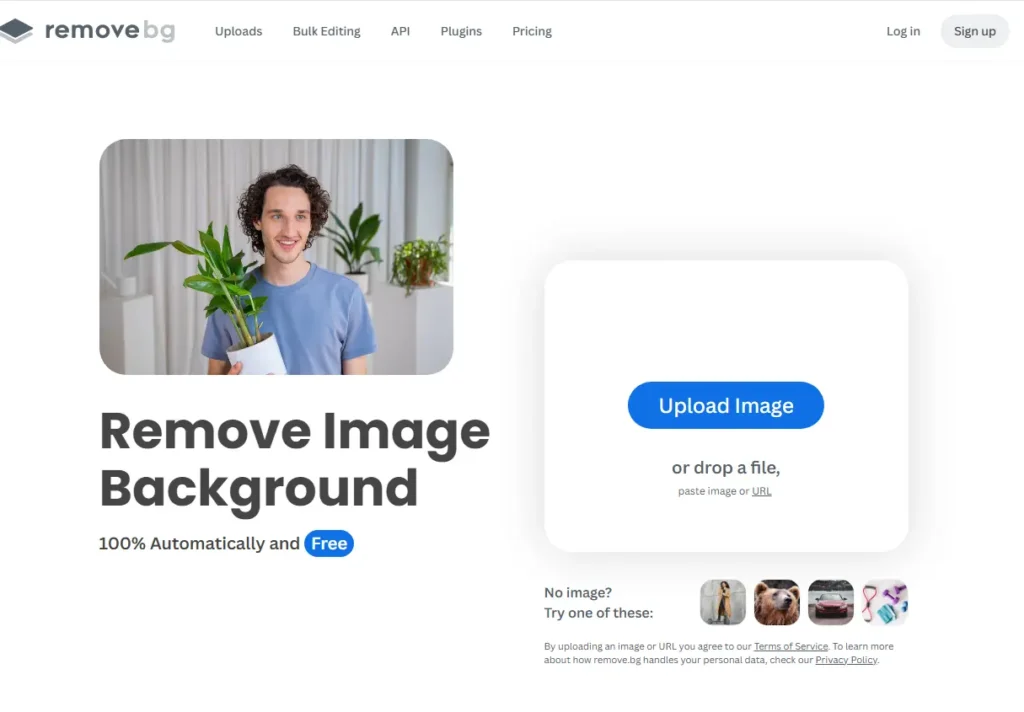
- Go to remove.bg in your browser (works on phone and computer)
- Click ‘Upload Image‘ or drag your photo onto the page
- Wait 3-5 seconds: the AI removes the background automatically
- Review the result: check edges, especially around hair
- Use the ‘Erase/Restore’ brush to fix any mistakes
- Click ‘Download’ to save the cutout as a PNG (transparent background)
For most of user, use free version of Remove.bg is plenty. However, if you are a professional seller with a large catalog, investing in the HD version (around Rs. 80-100 per image) is a huge time-saver
How to Replace a Background After Removing It
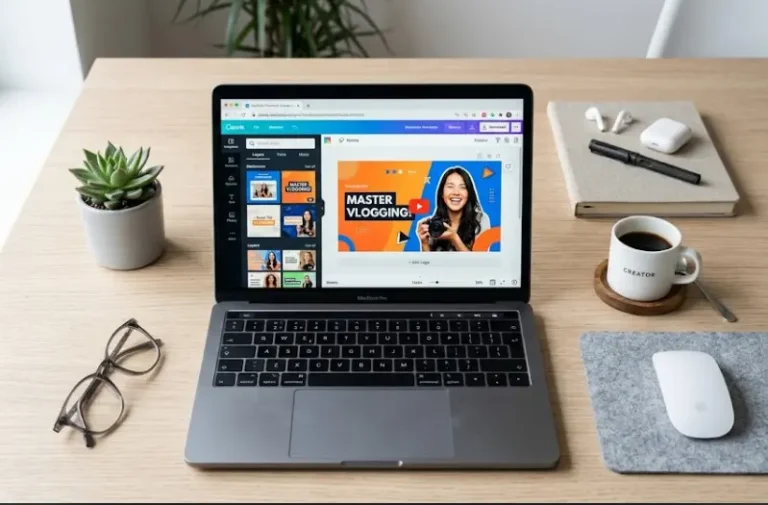
After the removing background of your image now you have a transparent PNG cutout, you can place it on any new background by using different online tools one of those best option is Canva upload your cutout, then add a colored background or a scene photo behind it.
For product photos on Daraz, the standard is a pure white background. In Canva, create a white background, upload your transparent product cutout, resize it, and download. That is a professional product photo in 3 minutes.
If you have multiple product photos with removed backgrounds and want to combine them into one image (multiple angles, color variants), use combinejpg.com to merge them into a single collage image.
Tips for Taking Photos That Are Easier to Cut Out
- Shoot against a plain, contrasting background light subject on dark background or vice versa
- Avoid backgrounds with the same color as your subject
- Use even lighting shadows at the edges confuse background removal AI
- Keep the subject away from the background if possible — create depth
- For hair/fur subjects, shoot against a uniform background — AI struggles with complex textures on busy backgrounds
Common Problems and How to Fix Them
Hair and fine edges: Most tools struggle with flyaway hair. Use the ‘Restore’ brush to bring back fine hair details. Shooting against a simple background helps a lot.
Subject partially removed: This happens when the subject blends with the background. Use the manual restore brush to bring back the parts that were incorrectly removed.
Uneven edges: Use a blur tool on the edge of the cutout to soften sharp, unnatural edges. Canva and Photoscissors both have edge refinement tools.
Final Words
Background removal is finally “solved” problem. These AI tools handle the heavy lifting so you can focus on your business. For product sellers specifically, mastering the Remove.bg to Canva workflow is the fastest way to make your listings look professional.
Frequently Asked Questions
Is remove.bg safe for ID card and document photos?
Technically it works, but we recommend not uploading sensitive documents to cloud tools. For documents, use local tools or manual methods.
Can I remove background on my phone?
Yes. Remove.bg and Canva both work in mobile browsers. Canva also has a mobile app with a background remover in the free tier.
What format does the output use after removing background?
Always PNG because PNG supports transparency. If you need JPG, you’ll need to add a background color first (transparent areas become white in JPG).
How many images can I process for free on Remove.bg?
The free version allows unlimited processing but downloads at low resolution. You get 1 free HD credit on signup. After that, HD downloads require payment.