How to Compress Photos for WhatsApp Without Losing Quality

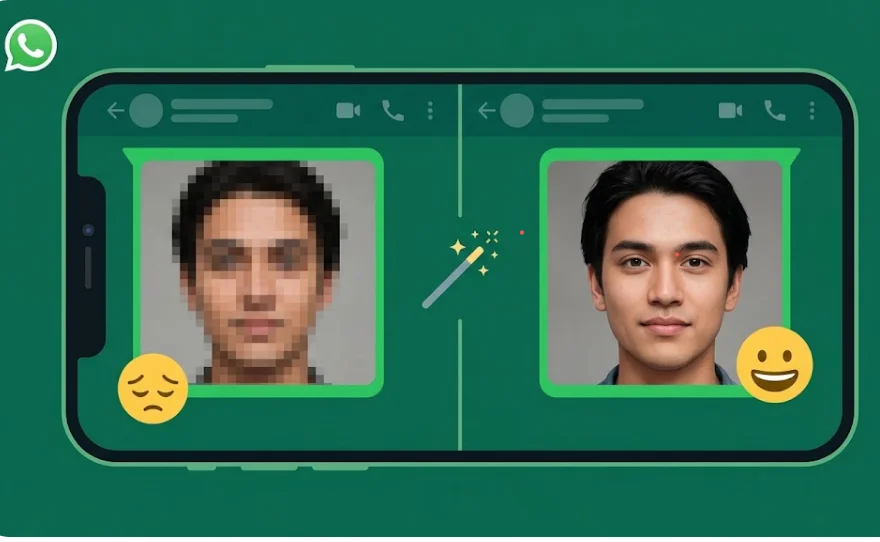
This is too much frustrating when you have a great photo and want to sent it on whatsapp to someone beloved and the the person on the other end says: “yaar, photo blur aa rahi hai.” and that time you should start solutions how to sent whatsapp photo without losing quality.
The good news is there’s a simple fix. If you compress the photo yourself before sending it, WhatsApp’s algorithm has less work to do, and your image stays sharp. This guide covers exactly how to do that
Why Does WhatsApp Compress Your Photos?
WhatsApp automatically reduces the size of every photo you send through the regular chat method. It does this to save bandwidth and make messages load faster. The result is a drop in resolution and sharpness sometimes dramatic.
The compression is aggressive. A 4MB photo from your phone camera can end up as a 200KB blurry mess after WhatsApp is done with it. WhatsApp targets around 200-300KB per image, regardless of your original quality.
There is no setting inside WhatsApp to turn this off completely but there are workarounds.
What is the Right File Size for WhatsApp Photos?
For WhatsApp images, the sweet spot is between 150KB and 500KB at around 1280px wide. Anything above that gets compressed. Anything below 150KB was already low quality.
Here’s what WhatsApp does to different file sizes:
| Original Size | After WhatsApp | Quality Impact |
|---|---|---|
| 5MB (camera photo) | ~250KB | Heavy — noticeable blur |
| 1MB | ~220KB | Moderate compression |
| 500KB | ~180KB | Light compression |
| 200KB | ~160KB | Minimal — best results |
| Under 100KB | Unchanged | Already small enough |
5 Ways to Compress Photos for WhatsApp Without Quality Loss
Method 1: Use CombineJPG.com Compressor (Best Method)
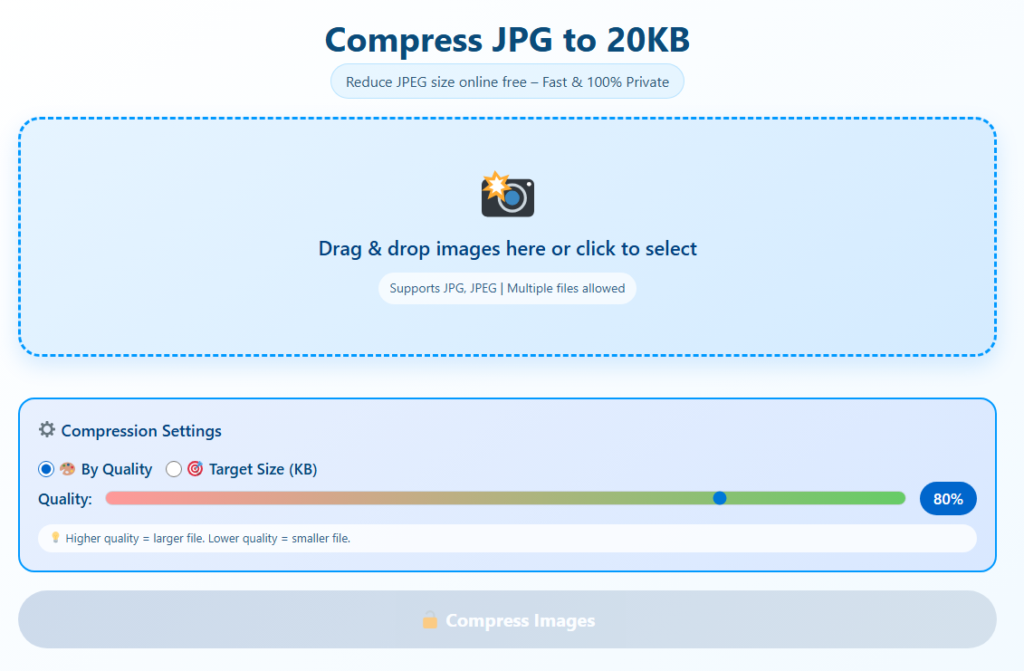
Go to combinejpg.com and use the Image Compressor tool. Upload your photo, select the compression level (medium works best for WhatsApp), and download the result. The tool lets you preview before downloading so you can see exactly what you’re getting.
This is the fastest method and works on any phone or computer no app needed, no signup required.
Method 2: Reduce Image Dimensions
Before compressing, resize your image to 1280×720 pixels or 1080×1080 (for square photos). Smaller dimensions mean smaller file size automatically. A 4000px wide photo shrunken to 1280px wide will be 60-70% smaller.
Method 3: The WhatsApp Document Trick
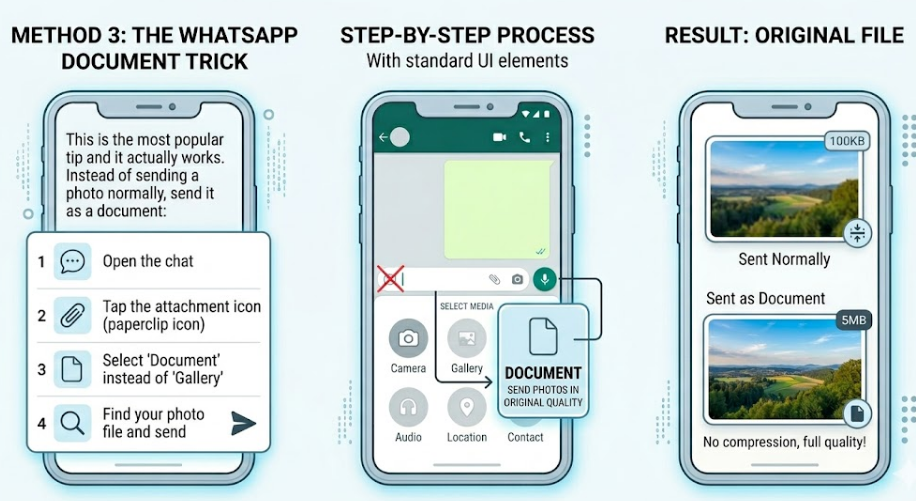
This is the most popular tip and it actually works. Instead of sending a photo normally, send it as a Document:
- Open the chat
- Tap the attachment icon (paperclip)
- Select ‘Document’ instead of ‘Gallery’
- Find your photo file and send it
WhatsApp does NOT compress files sent as documents. The receiver gets the full original quality image. Only downside: it doesn’t show as a preview photo they have to tap to open it.
Method 4: Google Photos Compression
If you use Google Photos, you can download a ‘Storage saver’ version of any photo. This applies Google’s own compression which is much better than WhatsApp’s and gives you a sharper result at a smaller file size.
Method 5: Phone Built-in Settings
Both Android and iPhone let you lower your camera resolution in settings. Taking photos at 8MP instead of 48MP means smaller files from the start, and WhatsApp has less to compress. Not ideal for important shots, but useful for everyday pictures.
Step-by-Step: Using CombineJPG.com to Compress Photos
Here’s the complete process using the online tool:
- Open your browser and go to combinejpg.com
- Click on ‘Image Compressor’ from the tools menu
- Click ‘Upload Image’ and select your photo
- Choose compression level — for WhatsApp, select Medium
- Click ‘Compress’ and wait a few seconds
- Preview the result — check if quality looks good
- Click ‘Download’ to save the compressed photo
- Send this compressed file on WhatsApp normally
The entire process takes under a minute. You can also compress multiple photos at once if you have a batch to send.
WhatsApp Status and Profile Photo — Separate Tips
Status photos: WhatsApp compresses these the most. Best size for status is 1080x1920px at under 500KB. Anything larger will look noticeably compressed.
Profile picture: WhatsApp crops it to a circle and compresses to roughly 640×640. Take a close-up photo at good lighting compression hurts distant or low-contrast photos more.
Common Mistakes to Avoid
- Sending screenshots directly screenshots are already compressed once by your phone
- Using ‘Save to Gallery’ from WhatsApp and re-sending this double-compresses your photo
- Sending photos over slow WiFi WhatsApp sometimes compresses more on slow connections
- Compressing too aggressively going below 100KB makes photos look worse than WhatsApp’s own compression
Final Word
WhatsApp’s compression is a fact of life but you don’t have to accept blurry photos. The document trick is the fastest fix for important photos. For regular sharing, compress your photos to around 300-500KB before sending using a free tool like combinejpg.com, and you’ll notice a real difference in how sharp your images look on the other end.
Frequently Asked Questions
Does sending photos as documents use more data on WhatsApp?
Yes, because the full file is sent. But the difference is usually only a few hundred KB, which is worth it for the quality you keep.
Can I compress WhatsApp photos on iPhone?
Yes. Use Safari to visit combinejpg.com, upload your photo from your Camera Roll, compress it, and save it back. Then send it through WhatsApp normally.
Why do my WhatsApp photos look sharp on my phone but blurry on the receiver’s phone?
Your own photos look sharp because your phone shows the original. The compressed version is what gets sent. The receiver sees the compressed version which is the blurry one.
What is the maximum file size WhatsApp allows?
A: WhatsApp allows images up to 16MB, but it compresses anything above its internal threshold (around 200-300KB for display quality). Videos have a 16MB limit too.