How to Convert PNG to JPG on iPhone, Android, Windows and Online (2026)

PNG files are great for logos, screenshots, and graphics that need transparency. But they have one persistent problem: file sizes can be enormous compared to JPG, and many upload forms reject them.
The simple fix is converting to JPG. Here is how to do it on every device and the differences you should know before converting.

PNG vs. JPG — When to Use Each
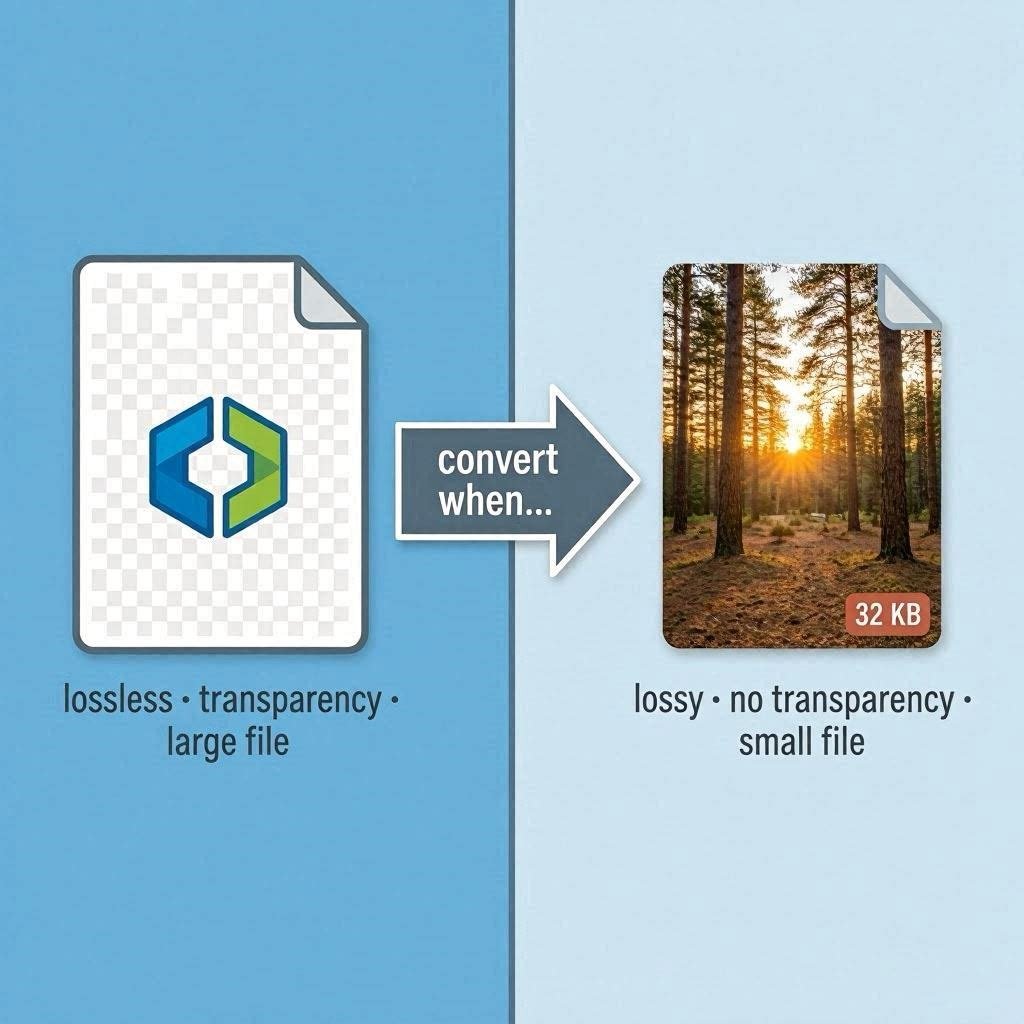
- PNG advantages: Lossless quality (no quality loss ever), supports transparent backgrounds, ideal for logos and graphics with sharp edges and text.
- JPG advantages: Much smaller file size, universally accepted, best for photographs and realistic images.
- When to convert PNG to JPG: When uploading a photo accidentally saved as PNG, to reduce file size, when a form only accepts JPG, or when you do not need transparency.
- When NOT to convert: If the PNG has a transparent background you need to keep. Converting to JPG fills transparency with white.
How to Convert PNG to JPG Online — Fastest Method
Use the free PNG to JPG converter at CombineJPG.com:
- Open the PNG to JPG tool in your browser.
- Upload your PNG file (drag and drop or click to browse).
- Set your quality preference (85-95% recommended).
- Click Convert and download your JPG.
No signup. No email. No watermark. Completely free.
How to Batch Convert Multiple PNGs to JPG at Once
When you have 10+ PNG files, converting one-by-one wastes time. Here is how to batch convert on every platform.
Online (CombineJPG — Free)
- Open the PNG to JPG tool.
- Click “Upload” and select multiple PNG files (hold Ctrl/Cmd on Windows/Mac to choose several).
- Set the same quality level for all images.
- Click “Convert All” → Download a ZIP folder containing every JPG.
On Windows (No upload required)
- Open File Explorer, select all PNGs.
- Right-click → “Convert to JPEG” (requires free PowerToys from Microsoft).
- Alternative: Use IrfanView (File → Batch Conversion → Set output format to JPG).
On Mac (No upload required)
- Select all PNGs in Finder → Right-click → Quick Actions → Convert Image → Choose JPEG → All convert instantly.
Pro tip: Batch converting preserves original file names (e.g.,
image1.png→image1.jpg).
How to Convert PNG to JPG on iPhone
Browser method (easiest)
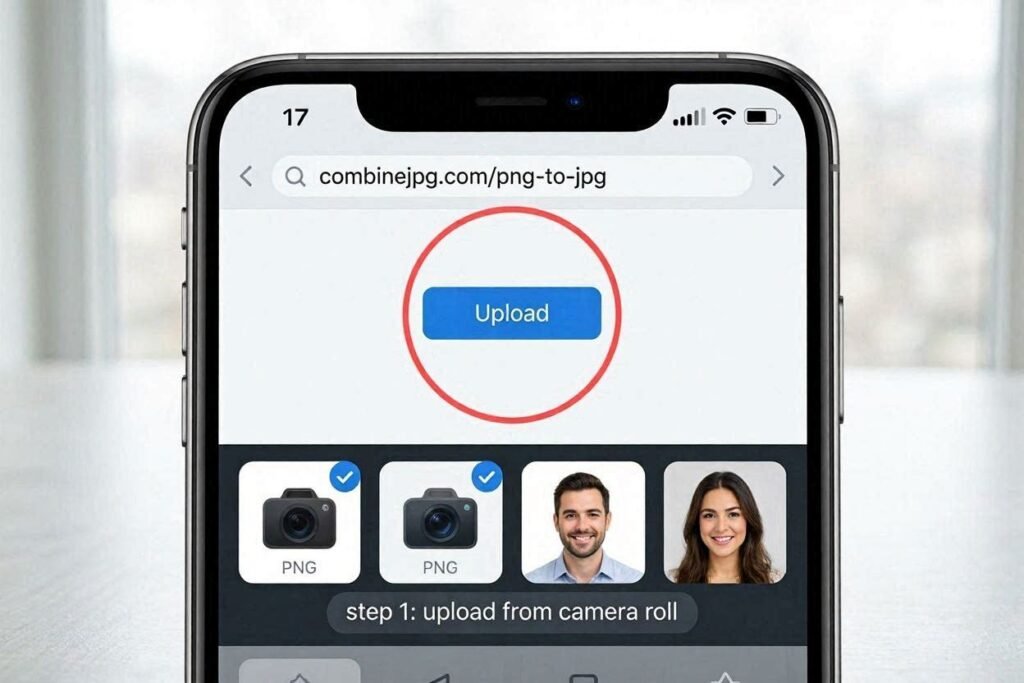
- Open Safari and go to combinejpg.com/png-to-jpg.
- Tap Upload and select Photo Library.
- Choose your PNG from Camera Roll.
- Tap Convert → Download → Save to Photos.
Shortcuts app (one-time setup, works offline)
- Open the Shortcuts app on your iPhone.
- Tap + → Add Action.
- Search for and add “Convert Image”.
- Set format to JPEG and quality to High.
- Add “Save to Photo Album” as the next action.
- Name your shortcut (e.g., “PNG to JPG”) — use it forever without internet.
How to Convert PNG to JPG on Android
- Open Chrome (or any browser) on your Android phone.
- Go to the PNG to JPG tool.
- Tap Upload → Files → Select your PNG from Gallery or file manager.
- Tap Convert → Download.
- The JPG saves to your Downloads folder.
No app needed. The entire process takes less than 30 seconds.
How to Convert PNG to JPG on Windows
Method 1: Microsoft Paint (built-in, offline)
- Right-click your PNG file → Open with → Paint.
- Click File (top-left) → Save As → JPEG Picture.
- Choose a location and name → Click Save.
Method 2: Photos app (Windows 10 and 11)
- Open the PNG in Windows Photos.
- Click the three dots (⋯) in the top-right corner.
- Select Save As → Change Save as type to JPG.
- Click Save.
Method 3: Batch convert multiple PNGs
- Install Microsoft PowerToys (free) → Enable Image Resizer → Right-click multiple PNGs → Resize with Image Resizer → Set format to JPG.
How to Convert PNG to JPG on Mac
Method 1: Preview (built-in, offline)
- Open the PNG in Preview (default Mac image viewer).
- Go to File → Export (or hold Option + Command + E).
- In the Format dropdown, select JPEG.
- Adjust quality with the slider (85%+ is recommended).
- Click Save.
Method 2: Quick Actions (fastest for single or batch)
- In Finder, locate your PNG file(s).
- Right-click the file → Quick Actions → Convert Image.
- In the popup, select JPEG as the format.
- Choose image size (Original, Large, Medium, Small).
- Click Convert — the new JPG appears next to the original.
Method 3: Batch convert multiple PNGs
- Select all PNGs in Finder → Right-click any selected file → Quick Actions → Convert Image → JPEG → All convert instantly.
How Much Smaller Will the JPG Be?
A typical PNG photo converts to a JPG that is 50 to 80 percent smaller in file size.
| Original PNG | Converted JPG (90% quality) | Reduction |
|---|---|---|
| 4 MB photo | 600 KB – 1 MB | 75-85% |
| 12 MB screenshot | 1.5 – 2.5 MB | 70-80% |
| 500 KB logo | 80 – 120 KB | 70-85% |
If you still need to reduce file size further, run it through the Compress JPG tool.
Is It Safe? Privacy & Security of Online PNG to JPG Converters
Many people ask: “Will my private photos stay private?”
At CombineJPG (and any reputable tool):
- Files are deleted from the server immediately after conversion (typically within 1 hour).
- No human ever sees your image.
- No permanent storage — we do not sell or share your data.
How to check if a PNG to JPG converter is safe:
| Red Flag (Avoid) | Green Flag (Use) |
|---|---|
| Requires email signup before download | Works instantly, no account needed |
| “Free” but watermarks output | No watermark ever |
| No privacy policy link | Clear privacy page with deletion timeframe |
| Uploads feel slow (saving to cloud) | Instant upload and download |
| Pops up ads for “premium” version | No upsells, no distractions |
For sensitive documents (passport scans, medical images, contracts):
Use offline methods instead:
Windows Paint, Mac Preview, or iOS Shortcuts app (all work without internet).
🔒 CombineJPG privacy promise: We do not log your images. Our server processes in RAM only — after your download, the file is gone forever.
Frequently Asked Questions
Does converting PNG to JPG reduce quality?
Yes JPG is a lossy format. At high quality settings (85 to 95 percent), the difference is invisible to the human eye. At 60% or lower, you will see blocky artifacts.
Can I convert without losing the transparent background?
No. JPG does not support transparency. Transparent areas become white when you convert. If you need transparency, keep the PNG format.
Can I batch convert multiple PNGs at once?
Yes. The CombineJPG tool supports multiple uploads in one session. Select all files at once, click “Convert All,” and download a ZIP folder.
My converted JPG looks blurry or blocky — why?
You set the quality too low. Always use 85% or higher for photos, 90-95% for screenshots with text. Below 70%, artifacts appear. Re-convert with higher quality.
What’s the maximum file size I can upload?
CombineJPG accepts PNGs up to 50MB per file. For larger files (e.g., 200MB PNG), use desktop software like GIMP, Paint.NET, or Photoshop.
Can I convert a PNG to JPG on my phone without internet?
Yes — but only using built-in apps:
iPhone: Use the Shortcuts app method (setup once, then works offline).
Android: No native PNG→JPG converter. Use offline apps like “Photo Converter” from the Play Store.
Do I need to install anything to use CombineJPG?
No. It runs entirely in your browser. No app, no plugin, no software download.
Summary Table — Best Method for Each Device
| Device | Fastest Method | Offline Option | Batch Convert? |
|---|---|---|---|
| iPhone | Safari + CombineJPG | Shortcuts app | No (one by one) |
| Android | Chrome + CombineJPG | Third-party app | No (one by one) |
| Windows | CombineJPG online | Microsoft Paint | Yes (PowerToys) |
| Mac | CombineJPG online | Preview or Quick Actions | Yes (Quick Actions) |
| Any device | CombineJPG online | N/A (requires browser) | Yes (ZIP download) |
Final Recommendation
For a single PNG: Use the online PNG to JPG converter it is the fastest, works on every device, and requires no installation.
- For batch conversion (10+ files): Same tool, just select multiple files and download as ZIP.
- For sensitive images (private documents): Use offline methods — Mac Preview, Windows Paint, or iOS Shortcuts.
- When you need even smaller files after converting: Use the Compress JPG tool.