How to Crop Image to Circle Online (Free, Instant, No App)

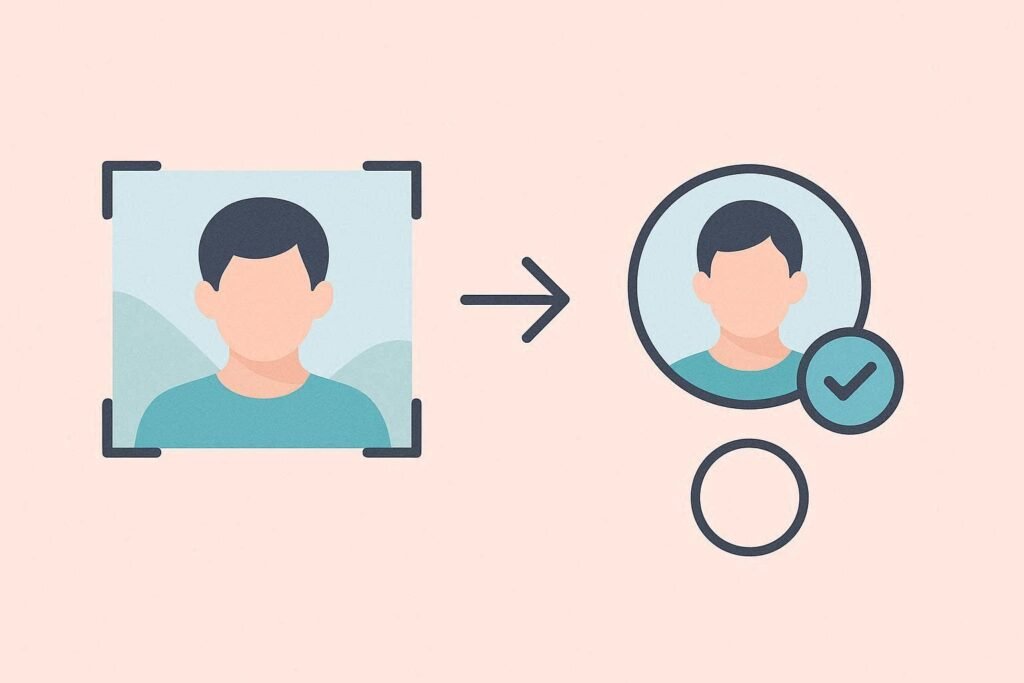
You have taken a great photo. You want to use it as a profile picture but every platform seems to show it in a circular frame and when it auto-crops, your face ends up at the edges instead of centered.
The solution is simple: crop the image yourself into a perfect circle before uploading. That way you control exactly what is centered and visible.
Why Crop to a Circle?
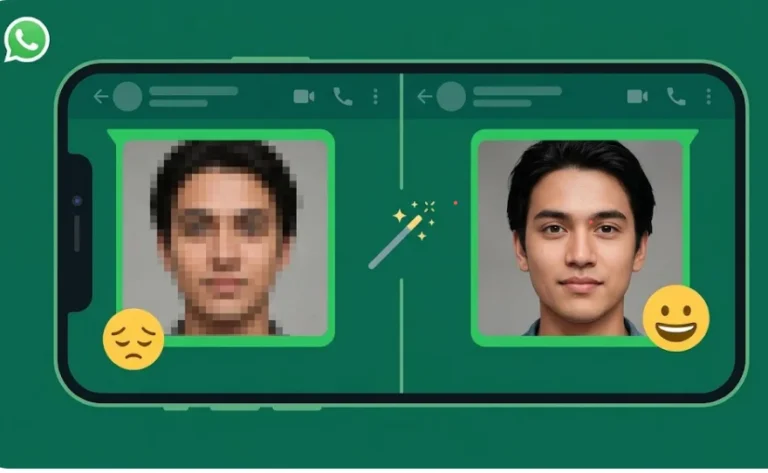
Most social platforms LinkedIn, Facebook, Twitter/X, WhatsApp, Zoom, Google Meet display profile pictures in a circular frame. If you upload a rectangular photo, the platform crops it automatically, and it almost never crops it the way you want.
When you pre-crop your image to a circle, you control which part of the photo is centered and visible. It looks more professional and intentional.
How to Crop a Photo to a Circle Shape Online
Use the free Crop Image Online tool at CombineJPG.com:
- Step 1: Go to the Crop Image tool and upload your photo.
- Step 2: Select the circular crop option from the shape menu.
- Step 3: Drag the circle over your subject and resize it to center your face or focal point.
- Step 4: Click crop and download. For a transparent circular cutout (logos, overlays), download as PNG. For solid backgrounds, JPG works fine.
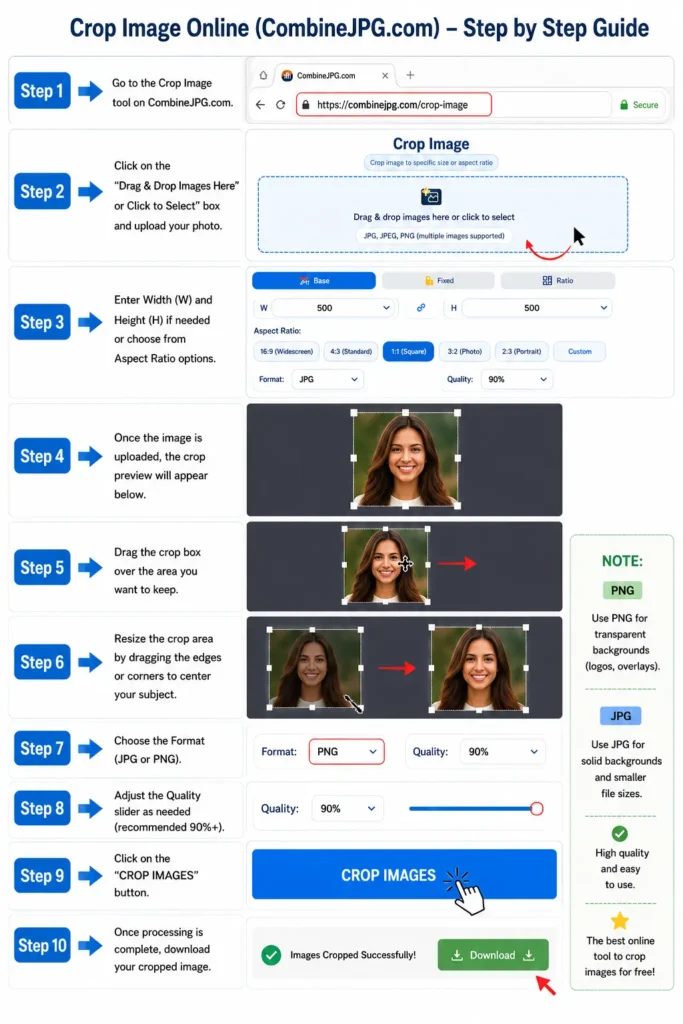
The whole process takes about 45 seconds on both desktop and mobile.
What Format to Save a Circle-Cropped Image In?
A circle crop leaves the corners of the image empty. If you save as JPG, those corners will be white (JPG does not support transparency). If you save as PNG, the corners will be transparent and the circle shape will display perfectly on any background.
- For social media profile pictures: Either format works since the platform applies a circular mask anyway.
- For logos and overlays: Use PNG with transparency. If your original is a JPG, run it through Combine JPG to PNG first to get a transparent-ready file, then circle crop and download as PNG.
Getting the Right Size for Different Platforms
After cropping, head over to the Image Resizer tool to match each platform’s recommended dimensions:
- LinkedIn profile picture: 400x400px minimum
- Facebook profile photo: Upload at 400×400+ for quality
- Instagram profile picture: Upload at 320×320+
- WhatsApp profile photo: 500x500px recommended
- Zoom / Google Meet: Upload at 400×400 for sharpness
Resizing after cropping ensures the platform doesn’t squeeze or stretch your circle unevenly when it applies its own display frame.
Tips for a Better Circle Crop
Center your subject before cropping. If cropping a headshot, aim to have your eyes in the upper third of the circle not the dead center. This looks more balanced and natural.
Use a high-resolution original. A 200x200px source photo will look soft when displayed at 400x400px. Always start with the biggest version you have.
Frequently Asked Questions
Can I crop a PNG to a circle?
Yes. The crop tool accepts JPG, PNG, and WebP inputs.
Will the background be transparent when I circle crop?
If you download as PNG, yes the corners outside the circle will be transparent.
Does cropping reduce image quality?
Cropping itself does not reduce quality. You are just removing pixels from the edges. The remaining pixels stay at full resolution.