How to Rotate Image Online Free (Fix Sideways Photos Instantly)

You photograph something quickly, holding the phone sideways. You upload the photo and it appears rotated 90 degrees. The viewer has to tilt their head to look at it.Or you scan a document and the scanner saves every page sideways. You are not going to print and rescan the whole thing.
Rotating an image takes about 5 seconds. Here is the fastest way.
Why Do Photos Come Out Rotated?
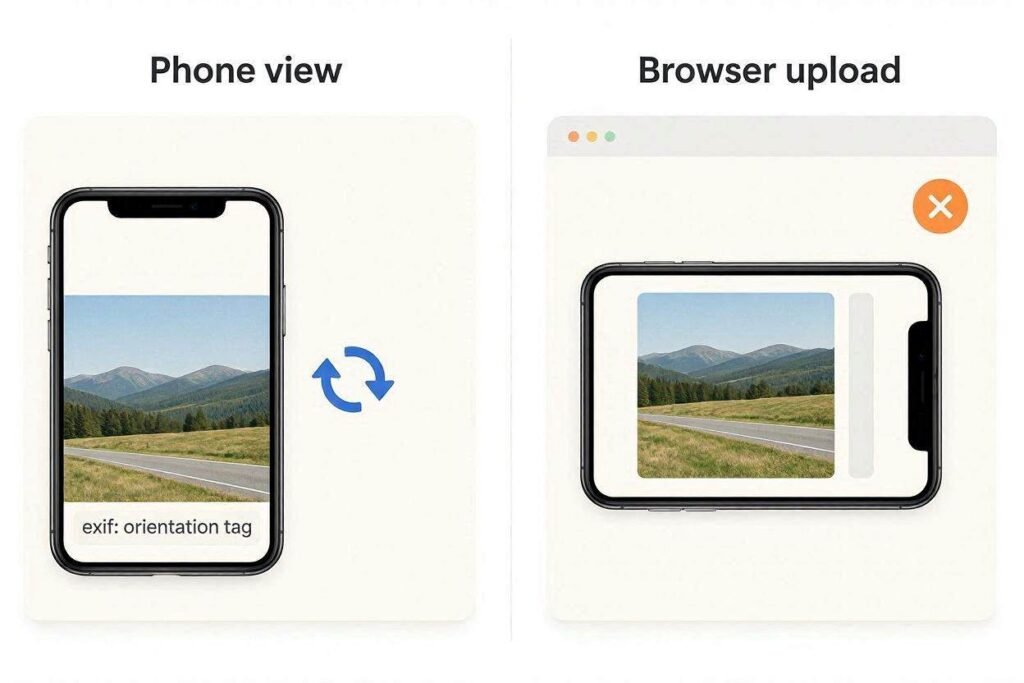
Every digital photo has hidden metadata called EXIF data. Part of this is an “orientation” tag it tells apps how to display the photo right-side up. Most phone photo viewers read this tag and auto-rotate. But many websites and forms do not read this tag. So the photo that looks fine on your phone appears sideways when uploaded.
Rotating the actual image pixels (not just the metadata tag) fixes this permanently for every platform.
How to Rotate an Image Online Free
Use the free Rotate Image tool at CombineJPG.com:
- Step 1: Upload your JPG, PNG, or WebP file.
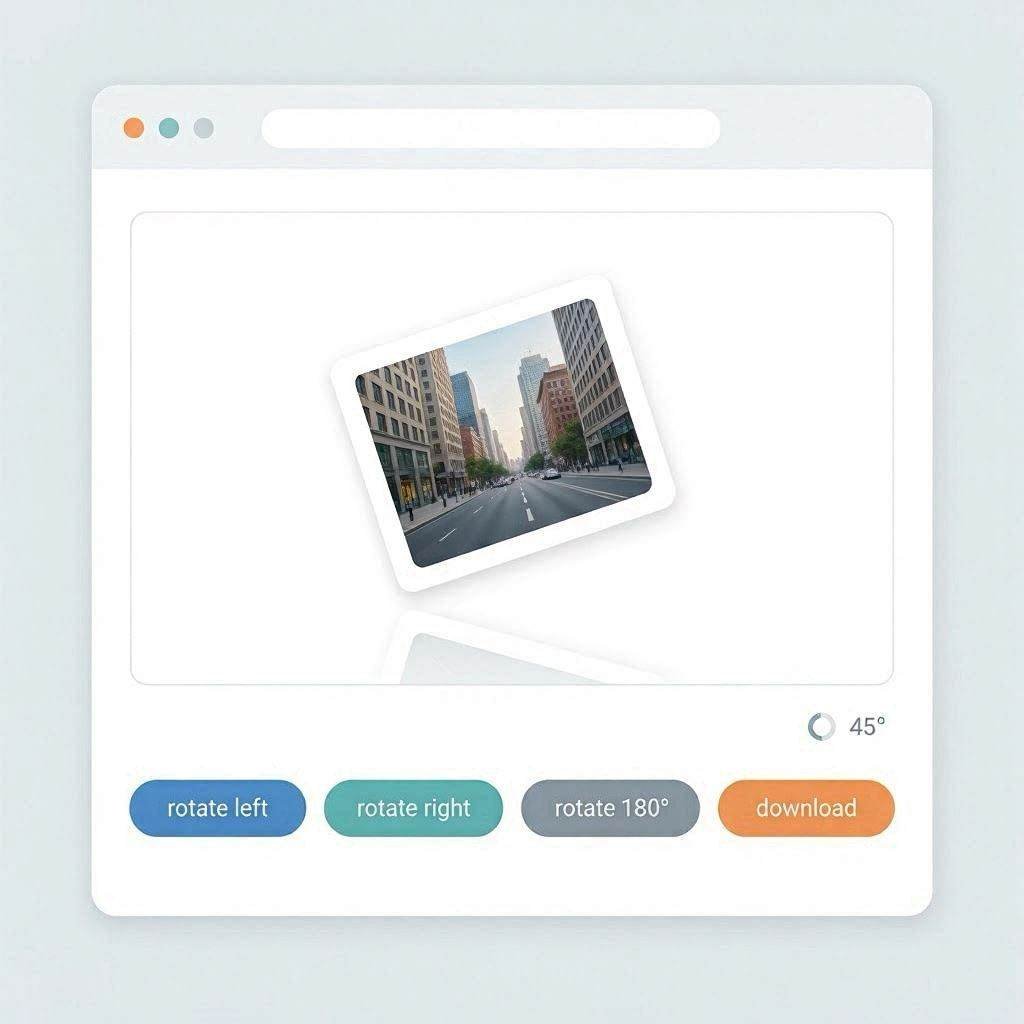
- Step 2: Click the rotation buttons — 90 degrees clockwise, 90 degrees counter-clockwise, or 180 degrees.
- Step 3: Preview the result and adjust if needed.
- Step 4: Download the corrected image. It is now rotated at the pixel level and will display correctly everywhere.
Rotate vs. Flip — What Is the Difference?
People often use these two terms interchangeably, but they produce very different results:
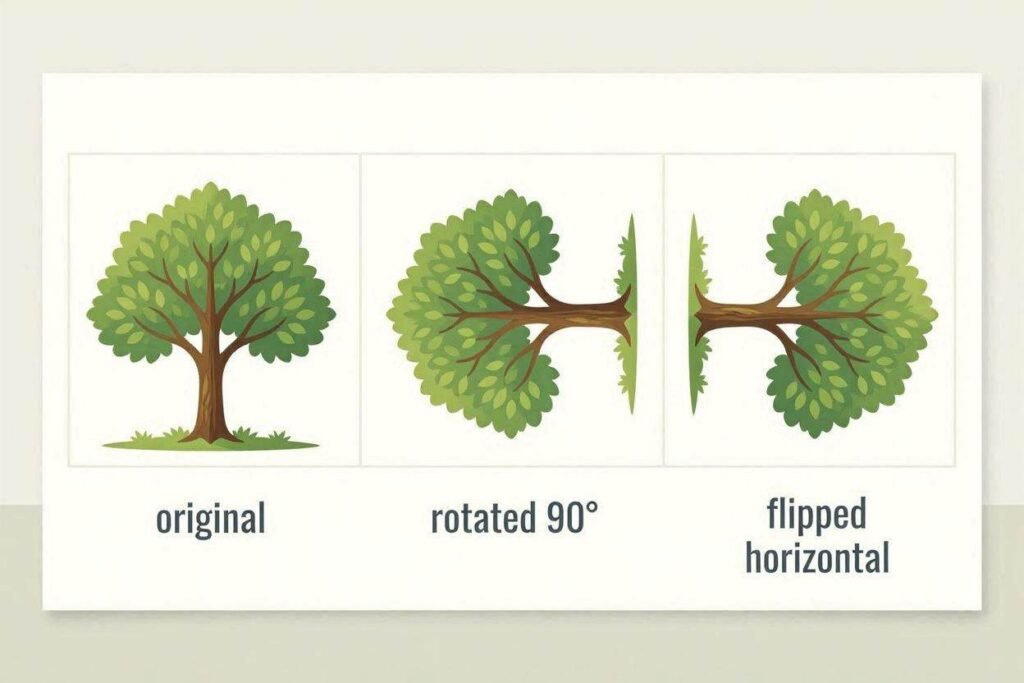
- Rotating: Turns the image clockwise or counter-clockwise — 90, 180, or 270 degrees. The image keeps its original left-right orientation, just spun around a center point.
- Flipping: Mirrors the image horizontally (left-right) or vertically (top-bottom). Useful for symmetrical designs or correcting selfie cameras, where text or watermarks can end up reversed.
Common Rotation Use Cases
- Sideways smartphone photos: Very common when photos are taken quickly without the phone oriented upright.
- Scanned documents: Scanners often produce landscape pages when they should be portrait, or vice versa.
- Profile pictures: Some upload interfaces rotate your photo unexpectedly. Rotating the source image fixes it.
- Flipped text or mirrors: Photos taken of reflective surfaces need a horizontal flip to be readable.
- Social media uploads: Some platforms strip EXIF data entirely on upload, so a photo that looked correct on your camera roll posts sideways once shared.
- Real estate and product listings: Sideways or upside-down listing photos look unprofessional and are one of the most common reasons sellers re-edit their images before publishing.
Does Rotating Reduce Quality?
Rotating by exact right angles — 90, 180, 270 degrees — does not reduce quality. The pixels are rearranged, not recompressed. Your image quality stays identical to the original.
Rotating by an odd angle (like 15 or 45 degrees) is different — that requires the software to fill in new corner pixels and can introduce slight blurring at the edges. For straightening a slightly tilted horizon, a small-angle rotation is normal and the quality impact is minimal, but for fixing a fully sideways or upside-down photo, stick to 90-degree increments for a lossless result.
Fixing Upside-Down Scanned Documents
A common frustration is scanning multiple documents and finding half came out sideways. Instead of rescanning, rotate them in a batch, then compile into one PDF using the Combine JPG to PDF tool on CombineJPG.com.
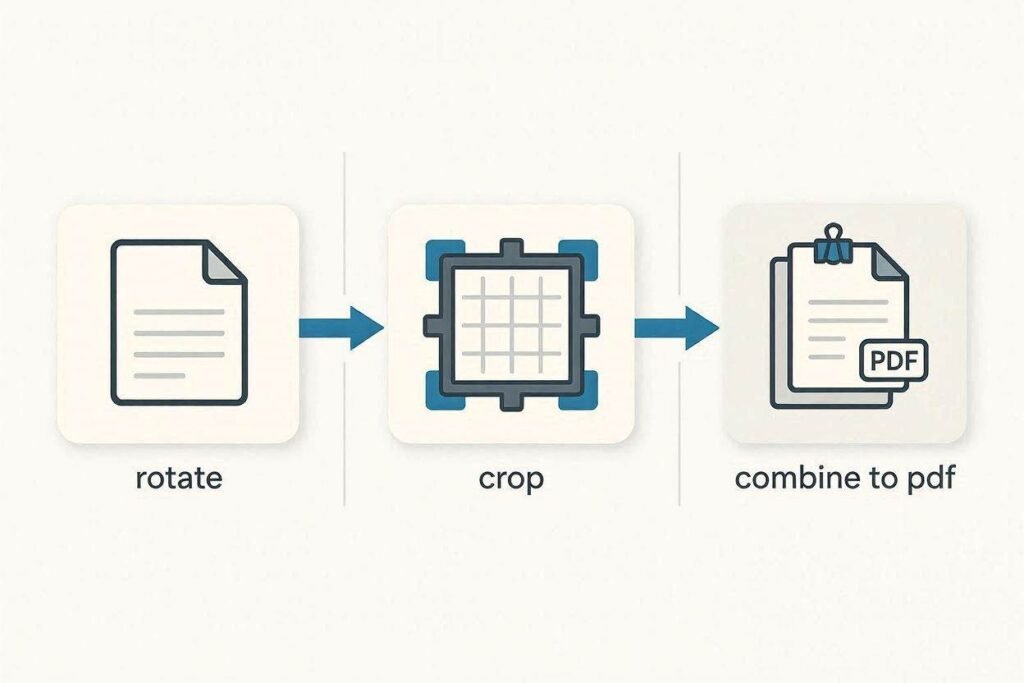
If you also need to remove unwanted margins or borders from a scanned page before combining it into a PDF, the Crop Image Online tool handles that in the same workflow — rotate first, crop second, then merge.
Frequently Asked Questions
Can I rotate a PNG?
Yes. The tool handles JPG, PNG, and WebP.
Will rotating change the file size?
Barely. A slight difference is possible but negligible.
My photo looks fine on my phone but sideways when uploaded — why?
This is the EXIF orientation issue. Rotating the actual image pixels with this tool permanently fixes it.
Do I need to install any software to rotate an image?
No. The Rotate Image tool works entirely in your browser — there is nothing to download or install, and it works on both desktop and mobile browsers.
Is it safe to upload my photos to an online rotation tool?
Reputable tools process the image and let you download the result without storing it long-term. Avoid tools that require an account or ask for unnecessary permissions if you are working with sensitive scanned documents.
Can I rotate multiple images at once?
Many online rotate tools, including CombineJPG.com, support uploading several files in one session so you are not repeating the same four steps for every page of a scanned document.
Why does my photo rotate back to sideways after I save it?
This usually happens when an app reads the EXIF orientation tag instead of the actual pixel data. Some editors save the rotation as a tag rather than physically turning the pixels, so other apps that ignore that tag display it sideways again. Using a tool that rotates the pixels directly avoids this problem for good.
What is the difference between rotating an image and resizing it?
Rotating changes the image’s orientation (which way is “up”); resizing changes its dimensions (how large or small it is). The two are unrelated — rotating a photo does not make it bigger or smaller.
Can I rotate just one photo out of a batch without affecting the others?
Yes. Most browser-based rotate tools let you select and rotate individual images independently, even when several files are uploaded together.
Sideways photos and scans are one of those small annoyances that take longer to think about than to fix. Upload, click rotate, download — and move on.