How to Merge Screenshots into One Image on Android & iPhone

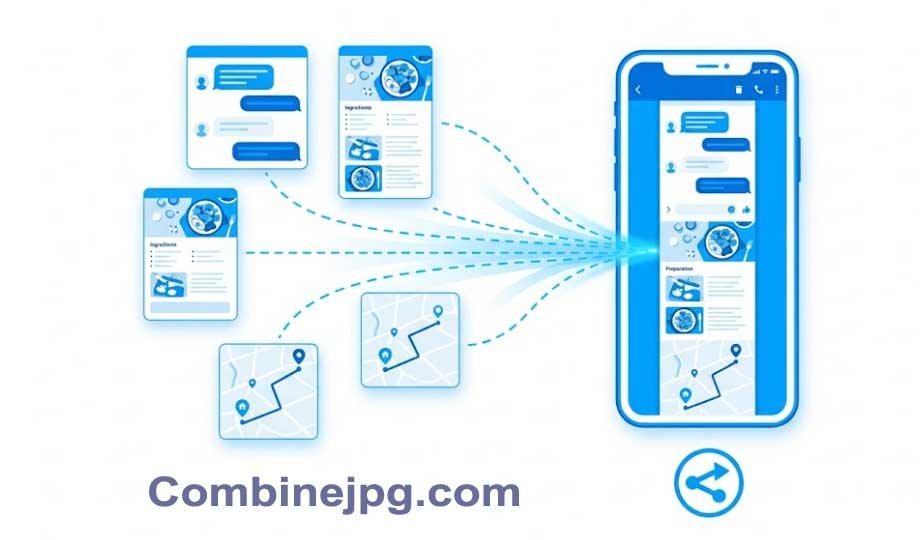
You take a screenshot. Then another. And another. Maybe it’s a long conversation, a recipe, or travel directions. Soon your camera roll has six similar images, but what you really need is one single picture to share.
Email, WhatsApp, social media most places make you upload images one by one. That’s annoying. Worse, the person on the other end has to swipe through multiple files.
The fix? Merge your screenshots into one vertical (or horizontal) image. It takes less than a minute on both Android and iPhone. You need to know the right strategy to do this.
“I’ve noticed that people often send 10 separate screenshots, which can get confusing and hard to follow. That’s why I decided to share this simple trick to make your life easier.”
Why Combine Screenshots into One Image?
Three practical reasons:
- Easier sharing – One file to send, not five. No one misses a middle screenshot.
- Cleaner storytelling – A chat thread or step-by-step tutorial makes sense only when it’s continuous.
- Saves storage – One combined image often takes less space than several separate high-resolution screenshots.
Plus, it looks more professional. If you ever share work instructions or proof of purchase, a single stitched image is clearer.
How to Merge Screenshots on Android (Step-by-step)
Android doesn’t have a built-in “stitch screenshots” button in the default Photos app. But you can use Google Photos or a free third-party app. Here’s the easiest method using Google Photos (pre-installed on most Androids):
Step 1: Open Google Photos.
Step 2: Tap and hold the first screenshot you want to merge.
Step 3: Tap each additional screenshot to select them all.
Step 4: At the bottom, tap the + (Create) button.
Step 5: Choose Collage from the menu.
Step 6: Google Photos will arrange them in a grid. For a vertical scroll (chat style), this isn’t perfect. So instead:
Better method (free app – no watermark):
Download “Stitch & Share” or “Screen Master” from Play Store.
Step 1: Open the app and tap “Vertical Stitch”.
Step 2: Select your screenshots in the order you want (top to bottom).
Step 3: Tap “Stitch” or “Combine”.
Step 4: Crop the edges if needed (apps usually auto-detect overlapping status bars).
Step 5: Tap Save.
That’s it. Your merged screenshot is now in your gallery.
How to Merge Screenshots on iPhone (Step-by-step)
iPhone also lacks a one-click “merge” button in the native Photos app. But you have two great free options: Shortcuts app (built-in) or a reliable online tool.
Using Apple’s Free Shortcuts App (No Download Needed)
Step 1: Open the Shortcuts app on your iPhone. (If deleted, reinstall from App Store — it’s free.)
Step 2: Tap “Gallery” at the bottom.
Step 3: Search for “Combine Images”.
Step 4: Tap the + (Add) next to that shortcut.
Step 5: Go back to “My Shortcuts” and tap “Combine Images”.
Step 6: Select your screenshots in the order you want.
Step 7: Choose “Vertical” as the combine mode.
Step 8: Tap “Done” — the merged image saves automatically to Photos.
The shortcut even lets you adjust spacing. Try it once, and you’ll use it forever.
Alternative (No Shortcut Setup)
If Shortcuts feels complex, use a free online tool directly in Safari. Go to combinejpg.com on your iPhone. Upload screenshots, choose vertical order, and download. Works without installing anything.
Best Free Online Tool to Merge Screenshots
You don’t always want to install another app. Maybe you’re borrowing a friend’s phone or you just prefer a website. That’s where lightweight online tools shine.
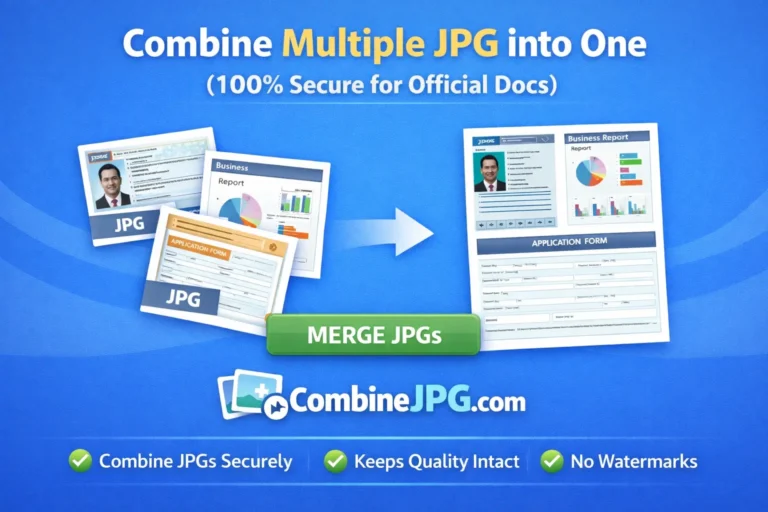
One simple option is combinejpg.com. It does one thing: merges images vertically or horizontally. No signup, no watermark, no “free trial” tricks. Upload your screenshots from camera roll, arrange them, and download the combined result in seconds. Works on both Android and iPhone browsers.
I use it mostly for long chat screenshots. The site strips out duplicate status bars automatically — a nice touch.
Tips for Best Results
Even a good merge tool can’t fix messy originals. Follow these quick tips:
- Clean your screenshots first – Crop out sensitive info (like phone numbers) before merging. Easier than editing after.
- Use consistent width – If screenshots have different widths, the merged image will look uneven. Rotate any horizontal ones first.
- Watch for repetition – When merging a scrolling web page, you often capture the same status bar or menu twice. Trim the overlap.
- Order matters – Top screenshot should be the beginning of the story. Bottom screenshot is the end.
- Check resolution – Too many huge screenshots can make a massive image. For social media, aim for width of 1080px or less.
FAQ
Does merging screenshots lower quality?
Most tools (including Google Photos collage mode and dedicated stitchers) save at original resolution. But if you use “save as JPEG” with high compression, you might see slight blur. Always select “PNG” or “maximum quality” if the option exists.
Can I merge screenshots without any app or website?
On Android and iPhone, not directly. You’d have to manually paste screenshots into a blank canvas in a photo editor (like Picsart or Photoshop Express). That takes 5–10 minutes. A dedicated tool or shortcut does it in 10 seconds.
What if my screenshots are different lengths?
No problem. Merge tools automatically stack them top to bottom. The final image becomes as tall as the sum of all screenshot heights. Just make sure their widths are the same — crop them beforehand if needed.
Merging screenshots takes less time than sending five separate files. Whether you use Google Photos, the iPhone Shortcuts app, or a simple site like combinejpg.com, your future self will thank you when you share one clean image instead of a messy album. Go ahead — try it with your last three camera roll screenshots right now.