Best Free Image Editing Tools in 2026 (No Photoshop Needed)

Have you paid before that for image editing now stop paying from today.I spent three months trying to justify paying for Adobe Photoshop and some other online tools. The monthly cost kept stopping me. Eventually I gave up and started hunting for free alternatives. What I found actually surprised me some of these tools are genuinely good. Not “good for free.” Just good.
This is what I use now, what my colleagues use, and what I have recommended to dozens of small business owners and students over the past year.
Adobe Photoshop costs between Rs. 5,000 and Rs. 8,000 every single month. For a student or someone running a small shop on Daraz, that is not a realistic option to pay each month. The question is not whether you should pay or not the question is which free tool does what you actually need.
Here is what I look for before recommending any free image editor:
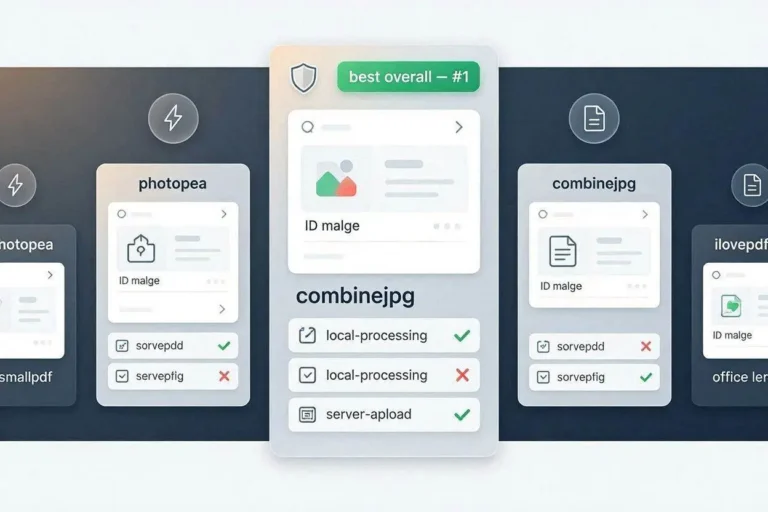
Does it actually work on a mid-range phone or a three-year-old laptop? Is the learning curve reasonable for someone who is not a designer? Does it produce output that looks clean and professional? And for anything involving documents or ID photos does it upload your files to a server somewhere?
That last one matters more than people realize. More on that below.
For Quick Tasks — CombineJPG.com
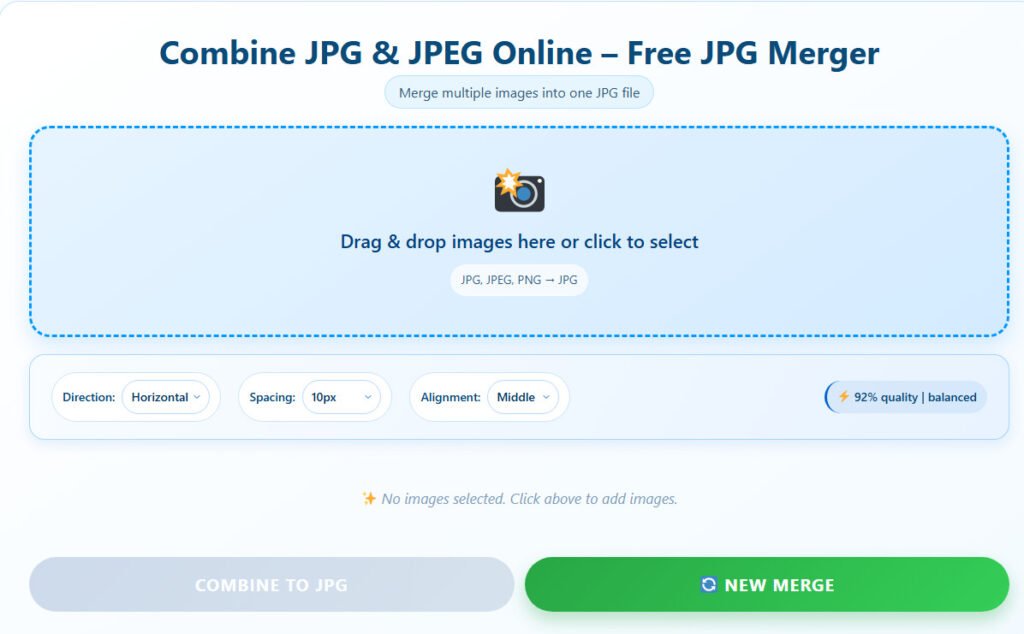
This is the tool I reach for most often. Not because it is the most feature-rich, but because it is the fastest for the things I actually do every day.
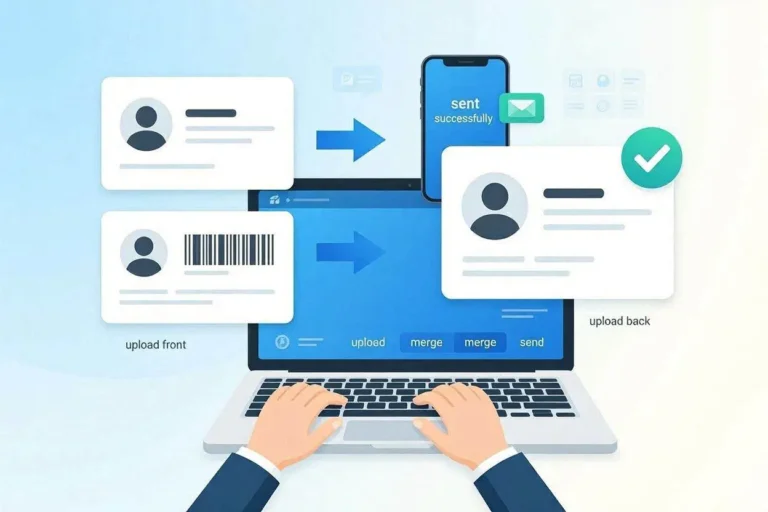
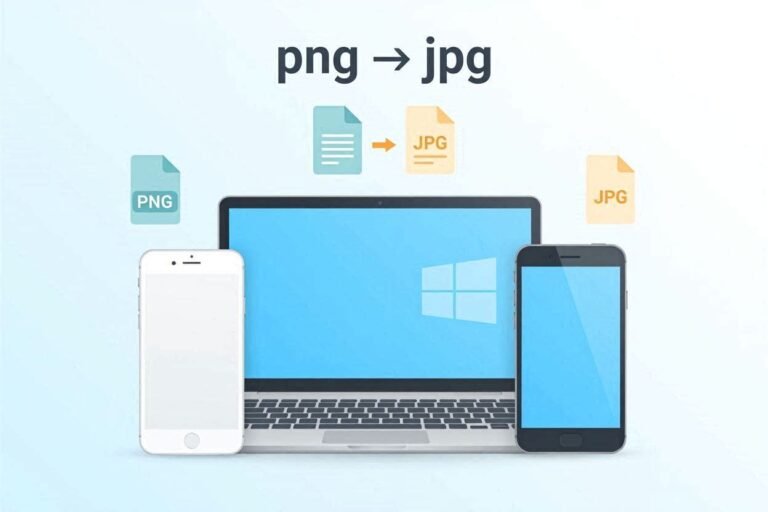
Need to compress a photo before attaching it to a job application? Done in ten seconds. Need to put the front and back of your CNIC into one image? One click. Resize a product photo for Daraz, crop something, convert a PNG to JPG all of it, no account needed, no waiting.
The part I like most: it processes everything in your browser. Your image never leaves your device. For anything sensitive documents, ID cards, business records that matters a lot.
What it cannot do: filters, text overlays, layers, creative editing. It is a utility tool, not a photo editor. Think of it as a Swiss Army knife for image tasks, not a studio.
Works on any browser, any device. Completely free.
For Design Work — Canva
Most people reading this already know about Canva which is most famous about drag and drop image editing. But I still meet small business owners who are paying a designer Rs. 500 per thumbnail when Canva’s free tier would do the same job in fifteen minutes.
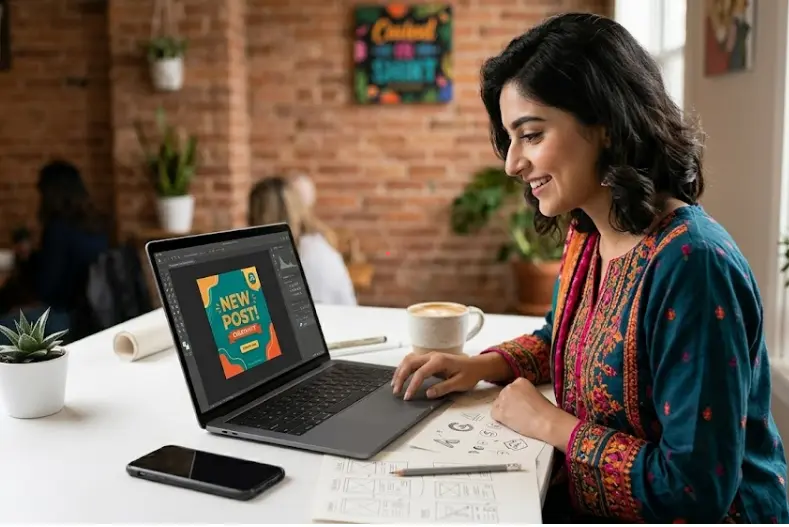
The free version gives you thousands of templates, a solid stock image library, and drag-and-drop everything. For YouTube thumbnails, Instagram posts, posters, and basic presentations it is genuinely the best free option available. I have seen professional designers use it for quick client mockups because it is simply faster than opening Photoshop for simple jobs.
The limitation some elements and fonts are locked behind the paid tier. And it is not a photo editor you cannot do serious retouching or detailed manipulation in Canva. It is a design tool.
Also important: Canva uploads your files to their servers. Do not use it for ID documents or anything private.
For Serious Editing on Desktop — GIMP
GIMP has been around since 1996 and people still underestimate it. Layers, masks, curves, advanced selection tools, RAW editing with plugins it competes with Photoshop for a surprisingly large range of tasks.
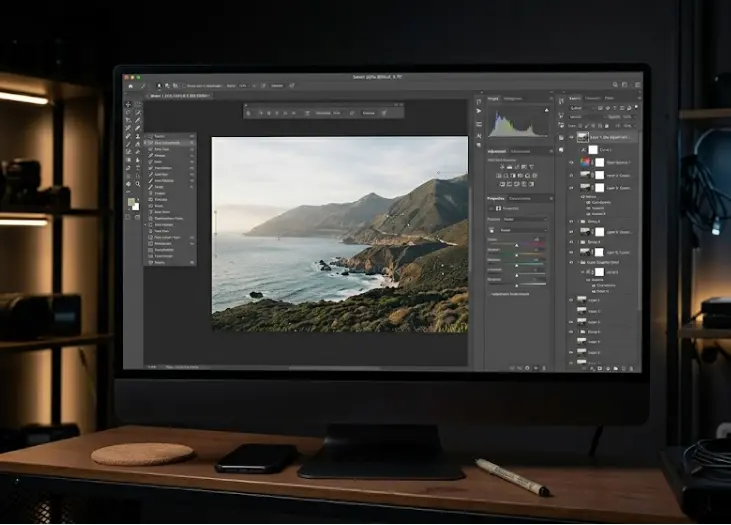
I will not sugarcoat the downside. The interface looks like it was designed in 2004 because parts of it were. The learning curve is real. If you sit down expecting Photoshop, you will be frustrated for the first week.
But if you give it time, GIMP does things that no other free tool can match. Photo retouching, color grading, compositing, removing objects from backgrounds manually all of it is possible. For anyone who needs professional-level editing and cannot pay for Photoshop, GIMP is the only real answer.
Windows, Mac, and Linux. Completely free, always will be.
For Editing on Your Phone — Snapseed
Google built Snapseed and then gave it away for free, which still seems like a strange business decision. The result is that Android and iPhone users have access to one of the best mobile photo editors ever made, at no cost.
The Selective tool is the one I use most it lets you brighten or adjust color in just one specific part of a photo without affecting anything else. The Healing brush removes unwanted objects cleanly. Full curves control is available. All of it, no subscription, no watermark.
For editing individual photos on your phone, nothing comes close at this price. The only thing it cannot do is templates and design work for that, use Canva.
Quick Reference — Which Tool for What
- Compress, merge, resize, crop a photo → CombineJPG.com
- Make a thumbnail, poster, or social media graphic → Canva
- Serious photo editing on a computer → GIMP
- Edit photos on your phone → Snapseed
- Remove a background quickly → Remove.bg
- AI-assisted editing and templates → Adobe Express free tier
A Note on Privacy
CombineJPG.com processes images locally in your browser nothing is uploaded. Safe for documents.
Canva, Adobe Express, and Remove.bg all upload your files to cloud servers. They are fine for general photos and design work. Do not use them for your CNIC, passport, or any sensitive document.
Honestly, most people need only two or three of these. CombineJPG.com and Snapseed cover almost everything for daily use. Add Canva if you do any design or marketing work. Add GIMP only if you need serious photo editing on a computer.
You do not need Photoshop. You probably never did.
FAQs
Is GIMP actually as good as Photoshop?
For retouching, color correction, and compositing — yes, it handles most of what people use Photoshop for. The one area where Photoshop is still clearly ahead is AI-powered tools like content-aware fill. But for 90% of everyday editing tasks, GIMP does the job.
Can Canva work without internet?
No. Canva needs a connection to function. If you are working offline, GIMP on desktop or Snapseed on mobile are your options both work without internet once installed.
Which tools make sense for a small business in Pakistan?
Canva for anything you are posting or printing. CombineJPG.com for product photos — combining angles, compressing for Daraz listings. Snapseed for quick edits on your phone. Those three together cover almost everything a small business needs, at zero cost.
Is it safe to edit ID documents in these tools?
CombineJPG.com is safe processing stays on your device. Cloud tools like Canva and Adobe Express upload your files to their servers, so avoid using them for anything sensitive like your national ID, passport, or financial documents.