Image File Too Large to Upload? Here’s the Instant Fix (Free Online Tool)

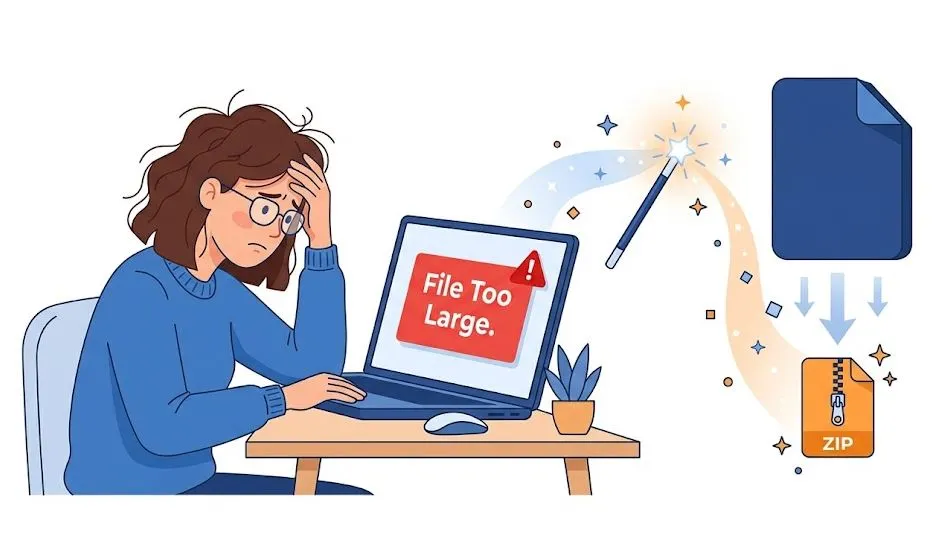
You’re in a hurry. You’ve got the perfect photo ready to go. You click “upload” — and then it hits you.
“File size exceeds limit.”
Your heart sinks. That visa application? Blocked. That email attachment? Rejected. That profile picture you’ve been trying to update for a week? Still staring at an error message.
Don’t panic. Don’t search through confusing software settings. And definitely don’t give up.
Here’s the truth: this is not your fault. Modern cameras and smartphones are designed to capture insane detail which means they create massive file sizes that most websites, email providers, and apps simply cannot handle.
The good news? Fixing this takes less than 30 seconds with the right tool. And you don’t need to download a single thing.
In this guide, you’ll learn exactly why your image is “too large,” how to fix it instantly with a free online image file too large fix online tool, and the specific file size limits for every major platform (Gmail, WhatsApp, visa applications, and more).
Let’s get that photo uploaded — starting right now.
Why Is Your Image File Too Large?
Before we fix the problem, let’s quickly understand why it’s happening in the first place. You don’t need to become a tech expert — but knowing the cause will help you avoid this issue forever.
Camera & Smartphone Photos Are Huge by Default
That new iPhone or Android phone you love? It’s secretly working against you when it comes to uploads.
A single photo taken on a modern smartphone can be 3MB to 10MB or more. High-end cameras produce RAW files that can reach 25MB to 50MB+ per image. Meanwhile, most online forms and email services have limits between 1MB and 25MB.
Why so large? Your phone captures millions of tiny dots called pixels. More pixels = more detail = larger file. A 12-megapixel camera captures 12 million individual pieces of information in every single photo.
PNG Files Are Always Larger Than JPG
If you’re trying to upload a PNG image, you’re fighting an uphill battle.
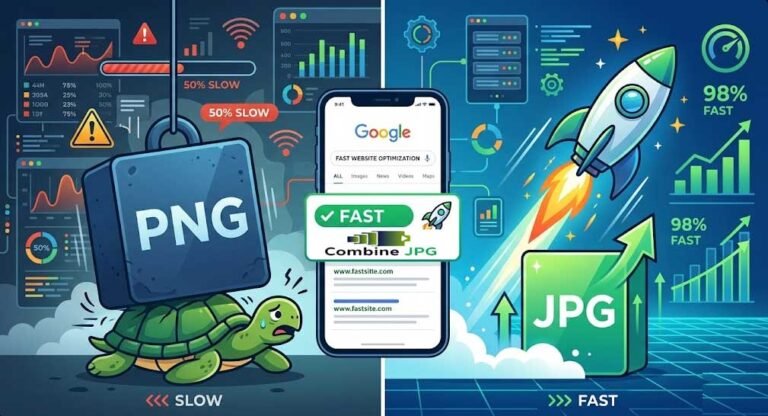
PNG is a lossless format — meaning it preserves every single pixel of data exactly as it was captured. That’s great for logos, screenshots, and graphics with text. But for photos? It’s overkill.
A PNG photo can easily be 5 to 10 times larger than the same image saved as a JPG. And most websites, email providers, and application systems are designed to accept JPG files first.
Quick rule of thumb:
- JPG = Best for photos, smaller file size, adjustable quality
- PNG = Best for graphics, transparent backgrounds, large file size
High Resolution = Large File Size
Resolution refers to the dimensions of your image in pixels. A typical smartphone photo might be 4000 x 3000 pixels — that’s 12 million pixels total.
But here’s the secret most people don’t know: You rarely need that much resolution for uploading online.
Your computer screen only displays about 1920 x 1080 pixels (around 2 million pixels). That’s 6 times less than what your phone is trying to upload. You’re essentially trying to fit an elephant through a cat door.
How to Fix ‘File Too Large’ Error in 3 Steps
Enough explaining. Let’s fix your file too large to upload problem right now.
Follow these three simple steps — no software download, no signup, no watermark.
Step 1: Open CombineJPG Image Compressor
Go to image compressor tool in any web browser (Chrome, Safari, Edge, Firefox — they all work perfectly).
Why this tool? It’s:
- Completely free — no hidden fees or “free trial” traps
- No signup required — upload immediately, no email needed
- No watermark — your image stays yours
- Privacy-focused — files are automatically deleted after processing
Step 2: Upload Your Image
Click the upload button (or simply drag and drop your image file onto the page).
The tool accepts:
- JPG and JPEG files
- PNG files (including those giant smartphone screenshots)
- Most common image formats
You’ll immediately see your current file size displayed. Don’t be shocked if it says “8.2 MB” or even “15 MB” — that’s exactly why you’re here.
Step 3: Download the Compressed File
Here’s the magic part.
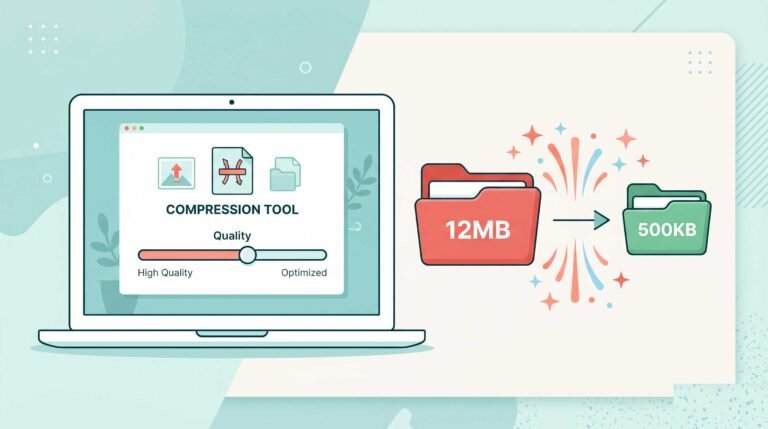
The compressor automatically reduces your file size while keeping the image looking identical to your original. In most cases, you’ll see a reduction of 60% to 80% with no noticeable quality loss.
Click the download button. Your new, smaller image saves instantly to your computer or phone.
That’s it. Three steps. Less than 30 seconds.
Now go try that upload again. No more error message.
What File Size Limits Do Popular Platforms Have?
Different websites and apps have different rules. Here’s your complete cheat sheet for image size limit exceeded errors:
| Platform / Service | Max File Size | Recommended Size |
|---|---|---|
| Gmail (attachment) | 25MB total | Under 20MB per image |
| WhatsApp (photo send) | 16MB per image | Under 12MB for reliability |
| Outlook / Hotmail | 20MB total | Under 15MB per image |
| Google Forms (file upload) | 1MB to 10MB* (*owner sets limit) | Under 1MB for forms |
| LinkedIn (profile photo) | 8MB | 500KB to 2MB |
| LinkedIn (post images) | 5MB | Under 3MB |
| Etsy (product photos) | 5MB to 10MB (*varies by category) | Under 3MB for faster loading |
| Shopify (product images) | 20MB | Under 5MB for site speed |
| eBay (listing photos) | 7MB per photo (12 photos max) | Under 5MB |
| USA Visa Application | 1MB (photo must be under 240KB total after compression) | 240KB maximum |
| UK Passport Photo | 10MB (but must meet exact pixel dimensions) | Under 2MB |
| Airbnb (listing photos) | 5MB | Under 3MB |
Pro tip: Always aim for under 1MB when possible. This guarantees your image will work on virtually any platform.
For detailed guides on specific platforms, check out our resources:
- How to Compress Image for Passport Application (USA)
- Compress Image for Email Guide
- How to Compress JPG to 20KB Online
How Much Can You Compress Without Losing Quality?
This is the question everyone asks: “If I shrink my photo file size, will it look terrible?”
The honest answer: It depends on how much you compress and the original image.
Here’s what actually happens when you compress an image:
Low Compression (80-90% quality):
- File size reduction: 40-60%
- Quality difference: Almost impossible to see, even side-by-side
- Best for: Almost everything — photos, social media, email, forms
Medium Compression (60-80% quality):
- File size reduction: 65-80%
- Quality difference: Slight softening if you zoom in 200%+, invisible at normal viewing
- Best for: Website images, email attachments, large batches
High Compression (30-50% quality):
- File size reduction: 85-95%
- Quality difference: Visible blurring, pixelation in fine details
- Best for: Thumbnails, previews, extreme file size limits (under 100KB)
For 99% of users uploading to Gmail, WhatsApp, application forms, or social media: use low to medium compression. Your image will upload instantly, display perfectly, and nobody will ever know you compressed it.
The CombineJPG tool automatically balances this for you — giving you the smallest possible file without visible quality loss.
Fix Large Image Files on iPhone, Android, Mac & Windows
The beauty of an online tool? It works identically on every device. No apps to install. No operating system restrictions.
On iPhone or iPad:
- Open Safari (or Chrome)
- Go to https://combinejpg.com/compress-jpg/
- Tap “upload” and select “Photo Library”
- Choose your image and tap “Add”
- Download the compressed version — it saves to your Photos app
On Android Phone or Tablet:
- Open Chrome (or any browser)
- Navigate to the compression tool
- Tap upload, grant photo access if asked
- Select your oversized image
- Save the smaller version to your Gallery
On Windows PC or Mac:
- Open Chrome, Edge, Firefox, or Safari
- Go to the CombineJPG compressor
- Click upload — or drag and drop your image file
- Download the compressed file to your Desktop or Downloads folder
No device-specific tricks needed. The same web tool works everywhere because it runs entirely in your browser.
Frequently Asked Questions
What is the maximum file size for email?
Gmail, Yahoo, and Outlook all have a 25MB total attachment limit per email. However, even if your image is under 25MB, many recipients’ email servers will reject messages with attachments over 10-15MB.
Safe range: Compress images to under 10MB for email. Under 5MB is even better. For sending multiple images, use our batch compression guide to reduce all files at once.
Can I compress a PNG file?
Absolutely. PNG files often compress even more dramatically than JPGs because they contain redundant data. A 5MB PNG screenshot can frequently be reduced to under 500KB with no visible change.
The CombineJPG tool handles PNG, JPG, JPEG, and other common formats automatically.
Will compression ruin my photo?
Not with modern compressors using low to medium settings.
Here’s the test you can do right now:
Compress your image using the tool above
Open both the original and compressed version on your screen
Can you tell which is which? Probably not.
For profile photos, product images, vacation pictures, or document uploads — compression is invisible at normal viewing sizes. Only if you zoom in 200-400% on a highly compressed image will you see softening.
How do I compress multiple images at once?
You have two options:
Option 1 (fastest): Use our batch compressor (no signup required) — free online image compressor no signup no watermark
Option 2: Compress one image, download it, then repeat. Each image processes in under 10 seconds.
For large batches (20+ images), use option 1 to save time
What if I need an exact file size (like under 240KB for a visa)?
Great question. Different applications have strict limits:
USA visa photo: Must be under 240KB total file size after compression
UK passport: Under 10MB with exact pixel dimensions
Many job applications: Under 1MB
Our How to Compress JPG to 20KB Online guide walks through hitting exact size targets. For 240KB or similar, use the standard compressor most images reach that target automatically.
Will the compressed image work on any website?
Yes. Compressed JPG and PNG files maintain all standard image properties — they work in browsers, email clients, application forms, social media, and document uploads exactly like the original.
The only exception is if a platform has specific dimension requirements (e.g., “profile photo must be 500×500 pixels”). In that case, you’ll need to resize after compressing. Use our image resizer tool for that.
Do I need to create an account?
No. CombineJPG requires zero signup, zero email address, and zero personal information. Upload, compress, download — done.
How long are my images stored?
Files are automatically deleted from our servers within 15-30 minutes after processing. We don’t store, share, or access your images. For absolute privacy, you can compress sensitive documents (passports, IDs, etc.) without worry.
What if my image is still too large after one compression?
Run it through the compressor a second time. Some very high-resolution images (10MB+) benefit from two compression passes. You’ll typically see an additional 30-50% size reduction on the second pass with minimal additional quality loss.
Your Image Is Ready — Go Upload It
You started this article frustrated by an error message. You now have:
- The fastest fix (30 seconds, no download)
- Complete knowledge of why your image was too large
- Platform limits memorized for every major service
- Device-specific steps for phone or computer
That image file too large fix online you needed? You just used it.
Here’s your final checklist before uploading:
✅ Image compressed to under recommended size for your platform
✅ Saved as JPG (unless you specifically need PNG transparency)
✅ Tested that it opens normally on your device
✅ Ready to upload without errors
One last tip: Next time you take a photo for uploading, consider lowering your camera’s resolution setting — but don’t worry if you forget. You know exactly how to fix it in 30 seconds.
Ready to fix your oversized image right now?
→ Compress your image free at CombineJPG.com ←
No signup. No watermark. No stress.
Need to resize dimensions or batch compress multiple files? Check our complete guide to free image tools for every situation.