How to Send ID Card Front and Back in One Image – The Easiest Free Method

You got a request from an employer, a bank, a visa office, or an online platform: “Please send both sides of your ID card in one image.” Simple enough request. But if you have never done this before, it suddenly feels more complicated than it should be.
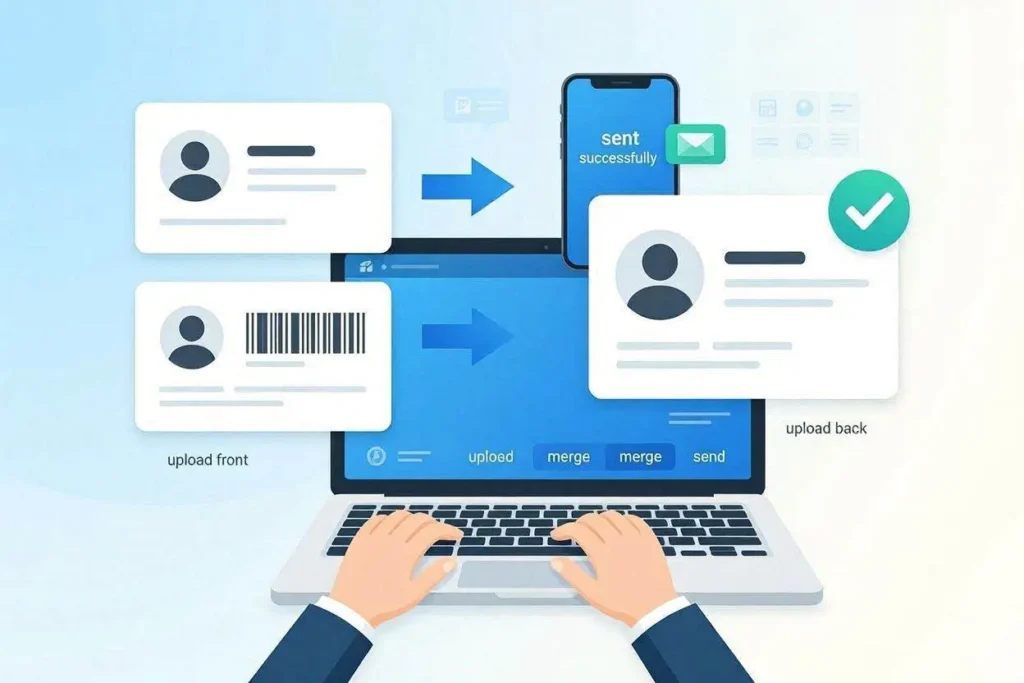
You have two photos a front shot and a back shot but how do you merge them into a single file without Photoshop, without downloading a sketchy app, and without paying anything? This guide has the answer, and it takes about sixty seconds to do once you know the method.
Why Do Organizations Ask for Both Sides in One Image?
There are a few practical reasons behind this common request. First, many online portals and HR systems have a single file upload field for ID documents, not two. Second, when reviewers receive dozens or hundreds of applications, having both sides in one file makes the review process faster no flipping between attachments. Third, for record-keeping and archiving, a single document is cleaner and harder to lose than two separate files.
It is especially common in these situations:
- Job applications where HR asks for a government-issued photo ID before issuing an offer letter.
- Bank account opening forms that require KYC documentation.
- Freelance platform verification (Upwork, Fiverr, Payoneer, Wise).
- Visa application supporting documents.
- SIM card registration and mobile number portability requests.
- Apartment rental applications where the landlord wants ID proof.
The Fastest Free Method to Merge ID Card Front and Back
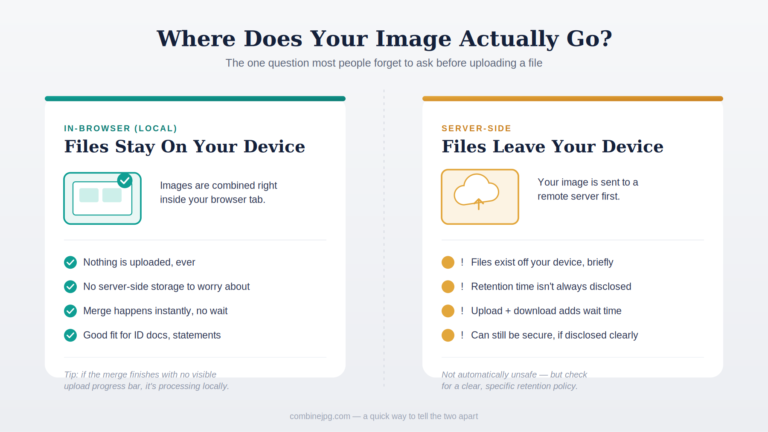
Use CombineJPG’s free ID card merger. It runs in your browser no download, no account, no server upload of your images.
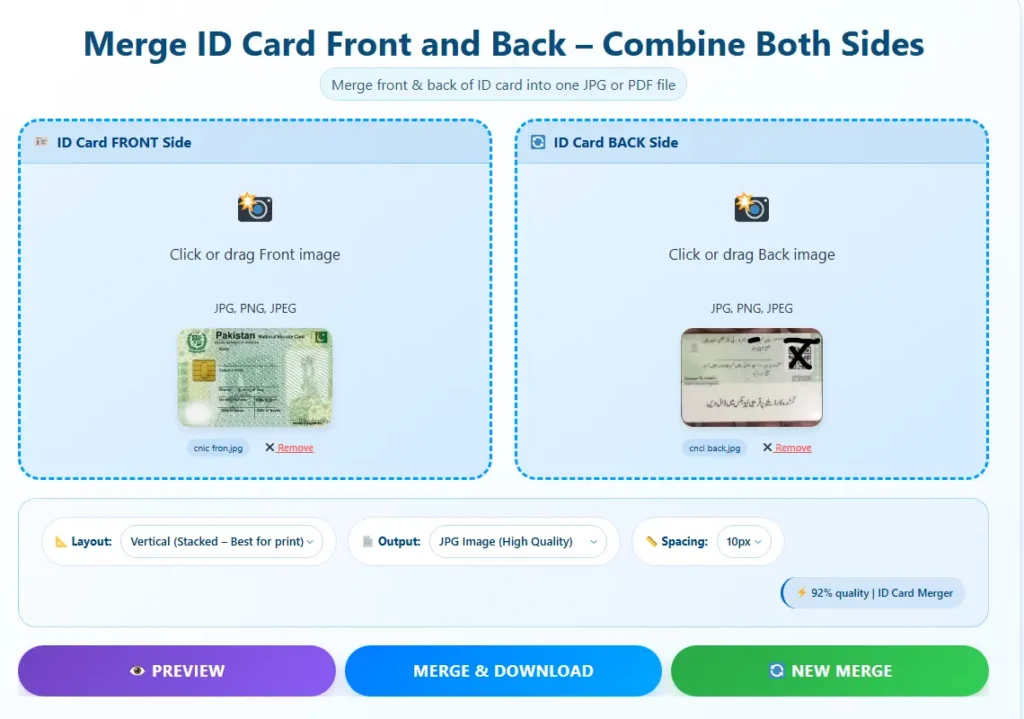
Here is the exact process:
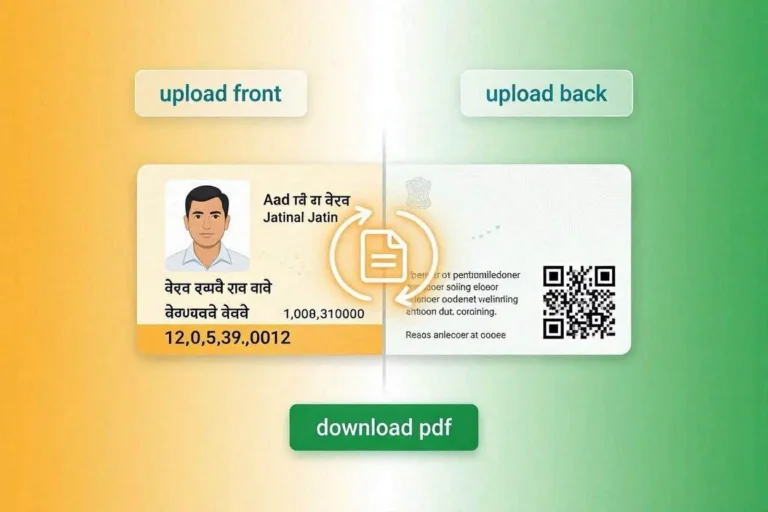
- Open combinejpg.com/merge-id-card-front-and-back in any browser on your phone or computer.
- Upload the front side of your ID card using the front upload box.
- Upload the back side using the back upload box.
- Choose vertical layout (recommended for most submissions) or horizontal.
- Choose JPG or PDF as your output format.
- Click Merge and Download. Done.
The whole process takes under a minute, and the result is a clean, properly formatted image ready to attach to any email, upload to any portal, or send via WhatsApp.
Choosing the Right Output Format
Send as JPG When:
The receiving party asks for an image file. You are submitting via WhatsApp, Telegram, or email as an image attachment. The portal has an image upload field. File size needs to be small (JPG compresses well).
Send as PDF When:
The form or portal specifically asks for a PDF document. You are combining the ID card with other documents in a multi-page package. The institution needs a print-ready formatted document. You are submitting to a government office, embassy, or financial institution that expects formal documents.
Vertical vs Horizontal: Which Layout to Use
Vertical layout stacks the front card on top and the back card below in a portrait orientation. This is the standard format used in most official document submissions worldwide. It is what most bank officers, HR teams, and government portals expect when they ask for “both sides in one image.”
Horizontal layout places the front on the left and the back on the right in landscape orientation. Use this when the recipient explicitly asks for side-by-side layout, or when submitting to a system that displays documents in widescreen format.
Default recommendation: use vertical for anything formal.
How to Send the Combined ID Card Image via Different Channels
Download the merged image or PDF from CombineJPG, then attach it to your email as you would any other file. For job applications and bank submissions, PDF is more professional. For quick KYC requests, JPG is fine.
Download the merged JPG to your phone, open WhatsApp, attach it as a document (not as a photo) to avoid WhatsApp’s automatic compression. Go to attach > Document > and select the file. This preserves the original quality.
Online Portal Upload
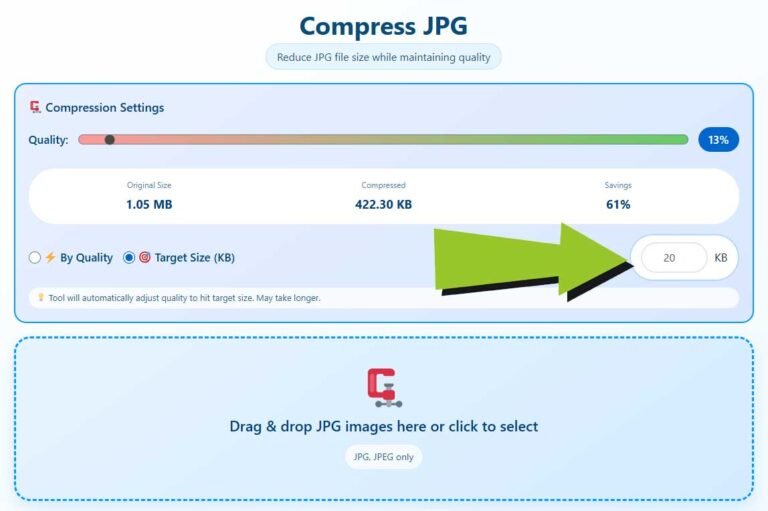
Most portals accept JPG, JPEG, PNG, and PDF. Check the file size limit before uploading most portals cap at 2MB or 5MB. If your merged file exceeds the limit, use CombineJPG’s compress tool to reduce the size without visible quality loss.
Google Form or Microsoft Form
Upload the merged file in the file upload question field. These systems accept most standard image and document formats.
Privacy: What Happens to Your ID When You Use an Online Tool?
The most important thing to look for in an online ID merger is whether the tool uploads your files to a server. Any tool that sends your images to a remote server is a potential privacy risk, especially for identity documents.
CombineJPG processes your images entirely in your browser using JavaScript. When you select your ID card photos, they are loaded into local browser memory and merged there. The resulting file is also generated locally and downloaded directly to your device. No image data is ever transmitted over the internet to any server.
This is worth verifying: open your browser’s Network tab in Developer Tools and watch the activity while you use the tool. You will see zero image upload requests.
What ID Cards Work with This Tool?
Any two-sided identity document works Aadhaar, PAN card, CNIC (Pakistan), NIC, passport photo page, driving license, voter ID, employee ID, student ID, or any other national or institutional identity card.
The tool is not limited to any specific country or card type. As long as you have front and back images in JPG or PNG format, it works. For other image-related tasks like compressing your merged file or converting it to a different format, explore the full CombineJPG tools collection.
Summary
When you need to send ID card front and back in one image, here is your fastest path: go to combinejpg.com/merge-id-card-front-and-back, upload both sides, pick vertical layout and JPG or PDF format, download, and send. The whole thing takes less than a minute and costs nothing.