
SVG to JPG Converter – Vector to Image
Convert SVG vector graphics to high-quality JPG images
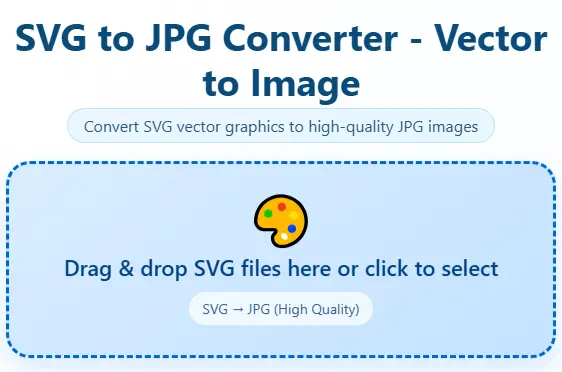
Drag & drop SVG files here or click to select
SVG → JPG (High Quality)Try Our Professional Free Image Tools
Free SVG to JPG Converter — Convert Vector Graphics to Image in Seconds
If you’ve ever tried to upload an SVG file to Instagram, attach it in an email, or drop it into a Word document you already know the problem. SVG just doesn’t work everywhere. It’s a brilliant format for web designers and developers, but the moment you step outside the browser, compatibility falls apart fast.
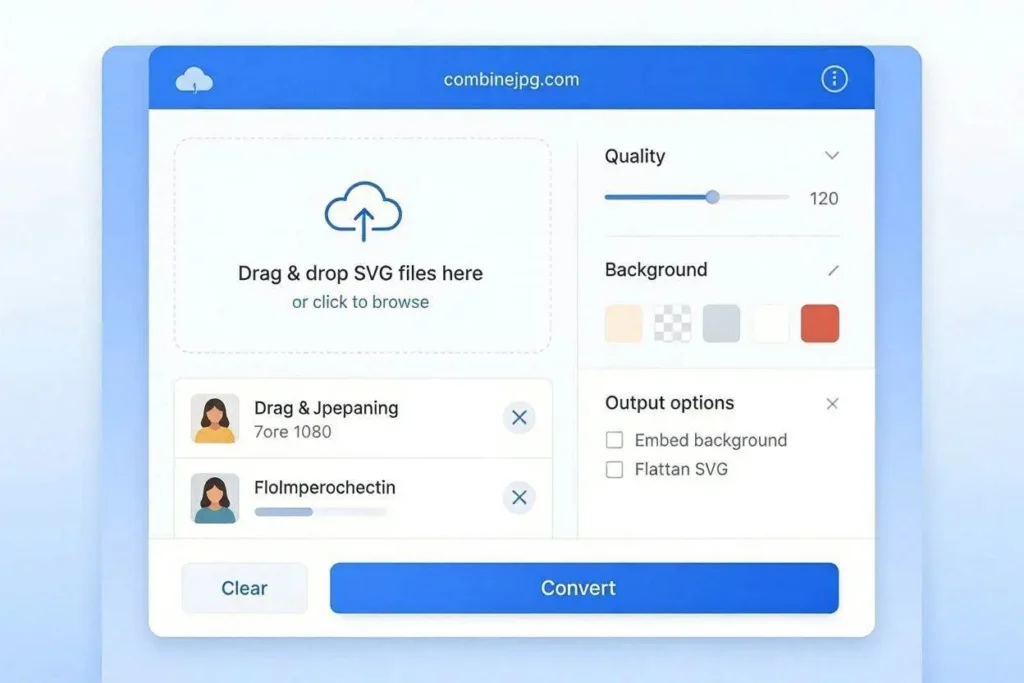
That’s exactly why this tool exists. You upload your SVG, pick your quality and background color, and get a clean JPG back all inside your browser, without your file ever leaving your device. No account. No waiting. No watermark. Just a working JPG in a few seconds.
How to Convert SVG to JPG — Step by Step
The whole process takes under 30 seconds:
- Upload your SVG file — Click the upload area or drag and drop one or multiple SVG files directly onto the page.
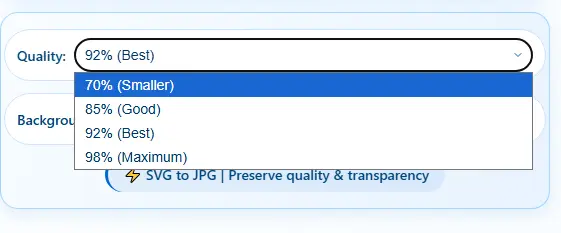
- Choose your quality — Pick from 70%, 85%, 92% (default), or 98%. Higher quality means a larger file. For web use, 85–92% is perfect. For print, go with 98%.
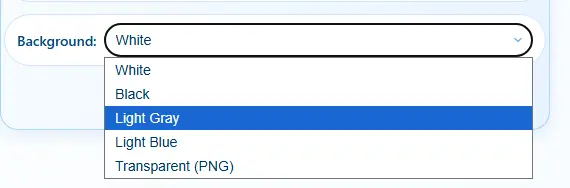
- Set the background color — SVG supports transparency but JPG does not. Choose white, black, light gray, or light blue. If you need transparency preserved, select “Transparent (PNG)” and the tool will save a PNG instead.
- Click “Convert to JPG” — The conversion runs instantly in your browser.
- Download your JPG — Your file downloads automatically. If you converted multiple SVGs, each downloads separately.
That’s it. No settings to figure out, no account to create, no email confirmation to wait for.
SVG vs JPG — Key Differences
Still wondering why you’d ever need to convert? Here’s a quick breakdown of what each format does well and where it falls short:
| Feature | SVG | JPG |
|---|---|---|
| Scales without quality loss | ✅ Yes | ❌ No |
| Works on social media (Instagram, Twitter, LinkedIn) | ❌ Rejected | ✅ Universal |
| Embeds in Word, PowerPoint, Google Slides | ⚠️ Inconsistent | ✅ Always works |
| Supports transparency | ✅ Yes | ❌ No (use PNG) |
| Sends inline in email clients | ❌ Broken in Gmail/Outlook | ✅ Perfect |
| File size (typical logo/icon) | 2–20 KB | 15–120 KB |
| Works in print workflows / prepress | ⚠️ Depends on software | ✅ Widely accepted |
| Editable with text editors / code | ✅ Yes (XML-based) | ❌ No |
| Supported by older phones and apps | ⚠️ Partial | ✅ Near-universal |
The bottom line: SVG is the right format when you’re designing and building. JPG is the right format when you’re sharing, printing, or submitting. Converting between them takes five seconds with this tool.
What Makes This SVG to JPG Converter Different
There are dozens of online converters out there. Here’s why this one is worth using:
🔒 Your Files Never Leave Your Device
Everything runs in your browser using JavaScript and the HTML5 Canvas API. No server upload. No storage. Nothing is sent to any server — ever. This is not a marketing claim; it’s technically how the tool is built.
📦 Batch Convert Multiple SVGs
Upload ten SVG files at once and convert them all in one click. Each file downloads separately with its original filename, just with a .jpg extension. No zipping required unless you ask for it.
🎨 Custom Background Color
Since JPG doesn’t support transparency, you pick what fills the transparent areas: white, black, light gray, or light blue. Choose “Transparent (PNG)” if you need to keep transparency — the tool automatically saves as PNG in that case.
⚙️ Quality Control (70%–98%)
Four quality levels let you balance file size against sharpness. Sending a logo thumbnail in a report? 70% is fine. Submitting artwork to a print shop? Go with 98% and keep every detail.
📱 Works on Mobile Too
The tool works on iPhone, Android, and tablets just as well as on desktop. No app to install. Open the page, upload from your gallery or files app, convert, done.
🚫 No Watermark, Ever
The JPG you download is clean — no logo, no “converted with” badge, no branding. Completely yours to use however you need.
When Do People Actually Need to Convert SVG to JPG?
The need comes up more often than you’d think. Here are the most common real-world situations where this tool saves the day:
Posting to Social Media
Instagram, Facebook, Twitter/X, LinkedIn — none of them accept SVG uploads. If your logo, banner, or graphic is in SVG format, you have to convert it first. A quick export at 92% quality gives you a sharp, upload-ready JPG in seconds.
Adding a Logo to a Word Document or PowerPoint
Older versions of Microsoft Office either don’t support SVG at all, or render it inconsistently across different computers. Converting to JPG first solves the problem completely. The image looks the same on every machine, every version of Office.
Sending Graphics Inside Email
Gmail, Outlook, and Apple Mail all handle JPG inline images just fine. SVG images in emails are a different story — many email clients block them entirely or show a broken image icon. Convert to JPG before embedding and it works reliably everywhere.
Submitting to Print Services
Print-on-demand platforms, local print shops, and design submission portals often require JPG or PNG input. Even if they accept PDF, a high-quality JPG at 98% is clean enough for most print jobs. Export at maximum quality and you’re good.
Sharing Designs with Clients or Non-Designers
Your client doesn’t have Figma, Illustrator, or any vector software. If you send them an SVG file, there’s a chance they can’t open it properly. A JPG opens instantly in any photo viewer, on any phone, on any computer — no software needed.
Using SVG Icons in App Screenshots or Mockups
App store screenshots and marketing mockups are usually built with raster tools. Dropping SVG icons into Photoshop or Canva can cause issues. Converting icons to high-res JPG first keeps things clean.
Things to Know Before You Convert (Most Tools Don’t Tell You This)
Competitors mostly skip the practical stuff. Here are a few things worth knowing before you convert:
SVGs Without Fixed Width/Height May Need a Workaround
Some SVG files — especially those exported from Figma or downloaded as icon packs only define a viewBox attribute without a fixed width or height. When this happens, some converters produce a tiny or blank output. This tool handles it by defaulting to a sensible size, but if you’re getting a small output, open the SVG in a text editor and add width="800" height="600" to the root <svg> tag. That fixes it immediately.
Animations and Interactivity Become Static
SVG supports CSS and JavaScript animations. When you convert to JPG, the output is a snapshot of the SVG in its default (first-frame) state. If your SVG has an animation that starts on hover or on load, the JPG will show the static starting position. This is expected behavior JPG is a static format.
Custom Fonts May Not Render Correctly
If your SVG uses a web font (like a Google Font loaded via a URL), the converter may fall back to a default font because the font URL is not accessible during the conversion process. The fix: open your SVG in Illustrator, Inkscape, or Figma and convert all text to paths/outlines before exporting. That bakes the font shapes directly into the file so no external font is needed.
White Background vs. Transparent: Which Should You Choose?
For logos on light-colored documents or social posts with white backgrounds — white fill is fine. For logos that need to sit on a colored or dark background, the white fill will look wrong. In that case, use “Transparent (PNG)” in the background setting to export a PNG with transparency preserved. You can then control the background in the final destination (Canva, PowerPoint, your website, etc.).
Want a Higher Resolution Output?
By default, the tool converts at the native dimensions defined in the SVG. If you need a larger JPG say, for a banner print at 3000px wide — the best approach is to open the SVG in Inkscape (free software) and export it at your target resolution first, then use this tool to convert if needed. SVGs are resolution-independent, so you can export them at any size from any vector editor without any quality loss.
How This Tool Compares to Other SVG Converters
| Feature | CombineJPG | CloudConvert | Convertio | FreeConvert |
|---|---|---|---|---|
| Files uploaded to server? | No — browser only | Yes | Yes | Yes |
| Free without sign-up | Yes | Limited free tier | 10 files/day free | Limited |
| Watermark on output | None | None | None | None |
| Background color choice | 4 options + transparent | Limited | Not available | Not available |
| Batch conversion (multiple files) | Unlimited | Yes | Yes (with limits) | Yes (with limits) |
| Works offline (no internet needed) | Yes (after page loads) | Needs internet | Needs internet | Needs internet |
| Mobile-friendly | Fully responsive | Yes | Yes | Partial |
| Speed | Instant (no upload) | Depends on server | Depends on server | Depends on server |
Frequently Asked Questions
Is this SVG to JPG converter really free?
Yes, completely. No hidden plans, no daily limit, no “pro version” needed. Convert as many SVGs as you want, any time.
Do I need to create an account?
No. There’s no login, no sign-up, and no email required. Just open the page and start converting.
Is my file private? Will it be stored somewhere?
Your files never leave your device. The conversion runs entirely in your browser using JavaScript. Nothing is sent to any server. No one can see your files except you.
What if my SVG output looks blank or tiny?
This usually happens when the SVG file uses only a viewBox without a fixed width and height. Open the SVG in a text editor and add width="800" height="600" (or your preferred size) to the <svg> tag. Then convert again — it should work perfectly.
Can I convert SVG to PNG instead of JPG?
Yes. In the background color dropdown, select “Transparent (PNG)” and the tool will automatically export a PNG file instead of JPG. This preserves any transparent areas in the original SVG.
How many SVG files can I convert at once?
There’s no strict limit. You can upload and convert multiple SVG files in a single session. Each file converts and downloads individually.
Will the JPG quality be good enough for printing?
For most standard print jobs (business cards, brochures, digital banners), selecting 98% quality gives you excellent output. For large-format printing at very high DPI, you may need to pre-scale the SVG in Inkscape or Illustrator first to your target pixel dimensions, then convert here.
Does it work on iPhone or Android?
Yes. The tool is fully responsive and works in mobile browsers. You can upload SVG files from your phone’s Files app or cloud storage and download the converted JPG directly to your device.
Can I convert an SVG logo with text in it?
Yes as long as the fonts are embedded or converted to paths inside the SVG. If the SVG references an external font URL, the text might fall back to a default font. To avoid this, use a vector editor to convert all text to outlines before converting.
What’s the difference between SVG and JPEG/JPG?
SVG is a vector format it stores images as mathematical shapes that scale to any size without losing quality. JPG/JPEG is a raster (pixel-based) format that is fixed at a specific resolution but is universally supported across all platforms, apps, and devices. Converting SVG to JPG trades infinite scalability for maximum compatibility.
The Simplest Way to Convert SVG to JPG Online
There are plenty of tools that do this conversion, but most of them upload your files to a server, slow you down with free-tier limits, or require an account just to download your own file. This tool doesn’t do any of that.
The conversion happens inside your browser. Your files stay on your device. There’s no account, no limit, no watermark, and no cost. Whether you’re a designer converting a client logo, a developer preparing icons for production, or just someone who needs to get an SVG into an email — this is the fastest way to do it.
Upload your SVG above and see for yourself.