
HTML to JPG Converter – Code to Image
Convert HTML code to high-quality JPG/PNG images
Free HTML to JPG Converter — Turn HTML Code Into an Image Instantly
Writing HTML is one thing. Sharing what it looks like is a whole different problem. You can’t paste code into an email and expect the other person to see a rendered design. You can’t upload an HTML file to Instagram. You can’t drop it into a PowerPoint slide and have it display correctly.
What you actually need is an image — something that looks exactly like the rendered HTML, frozen at a moment in time, ready to go anywhere. That’s what this tool does. Paste your HTML, hit convert, and you get a clean JPG or PNG image back in a few seconds, with zero uploads, zero accounts, and zero cost.
How to Convert HTML to JPG — 5 Simple Steps
Paste your HTML code into the editor. You can type it from scratch, paste from your project, or click “Load Sample” to try it with a ready-made example first.
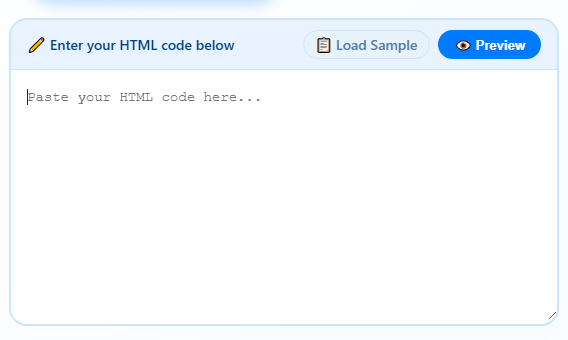
- Preview it (optional but useful) — Click the “Preview” button to see how your HTML renders before converting. This catches layout issues before you download.
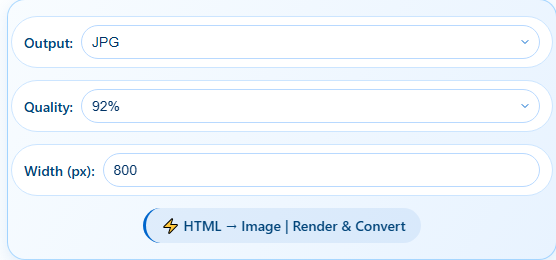
- Choose your output format — Pick JPG for smaller file sizes or PNG if you need a transparent background or sharper text rendering.
- Set width and quality — The default 800px width works for most uses. For social media cards, use 1200px. For quality, 92% is the sweet spot — it keeps the file small without visible compression artifacts.
- Click “Convert to Image” — The image downloads automatically. Open it, share it, embed it — it’s yours.
No waiting for a server. No file size limit. No watermark on the output. The rendering happens inside your browser using html2canvas, which means the whole process is private and instant.
What Exactly Does “HTML to JPG” Mean?
When a browser opens an HTML file, it reads the code and renders it visually applying all the CSS, drawing the layout, setting the fonts and colors. What you see on screen is a visual representation of that code.
Converting HTML to JPG means capturing that rendered visual as a static image file. The same way a screenshot freezes what’s on screen, this tool renders your HTML and saves the output as a JPG or PNG image but with full control over dimensions, quality, and without needing to actually take a screenshot manually.The result is an image that looks exactly like your HTML would look in a browser, but packaged as a standard image file you can share, embed, print, or upload anywhere.
Who Actually Uses This Tool — and Why
Designers Sharing Mockups with Clients
You built an HTML/CSS layout for a landing page or a UI component. The client doesn’t have a browser tab open with your localhost server. Sending them the raw code doesn’t help. Converting the rendered HTML to a JPG and dropping it in an email or a Notion doc gives them an instant, clear visual — no technical steps on their end.
Creating Open Graph (OG) Images for Blog Posts or Products
Every time someone shares your webpage on Twitter, LinkedIn, or WhatsApp, the platform looks for an OG image — the preview thumbnail that shows up in the link preview. Many developers design these cards in HTML/CSS and then need a static image to set as the og:image meta tag. Converting the HTML template to JPG here is the fastest way to get that image without setting up a headless browser or a paid screenshot API.
Capturing Email Template Previews
Email marketing teams design HTML email templates and need to share visual previews with stakeholders or include them in campaign reports. Not everyone wants to open an HTML file. A JPG of the email template is clean, universally viewable, and easy to drop into a slide deck or PDF.
Making Social Media Graphics from Code
If you know HTML and CSS, you can build a graphic entirely in code — a styled quote card, an announcement banner, an event poster — and convert it to a JPG for Instagram, LinkedIn, or Twitter. No Canva needed, no Figma required. Just HTML and this tool.
Documentation and Technical Screenshots
Writing a tutorial or a user guide? You can build the UI component or form in HTML and convert it to a JPG for the documentation — clean, at any resolution, without worrying about browser chrome or window decorations appearing in a regular screenshot.
Archiving Web Designs Visually
Web designs change over time. Converting HTML to JPG at a specific point creates a visual record of what the page looked like — useful for brand audits, competitive analysis archives, or legal documentation of a website’s content.
HTML to JPG vs Manual Screenshot — What’s the Difference?
A lot of people ask: why not just take a screenshot? Here’s why the converter is the better option for most situations:
| Factor | HTML to JPG Converter | Manual Screenshot |
|---|---|---|
| Control over output width | Set exact px | Depends on screen |
| Browser chrome / taskbar in output | Content only | Often included |
| Works without a live server | Paste raw HTML code | Needs a rendered page |
| JPG quality control | Choose 70–98% | OS-dependent |
| Reproducible output | Same every time | Varies by display |
| Speed for multiple outputs | One click | Repeat manually |
| Works on mobile | Yes | Cropped/partial |
| Output format choice (JPG or PNG) | Both options | Depends on OS |
Features of This HTML to JPG Converter
Live Preview Before Converting
Hit the Preview button to see how your HTML renders before you commit to a download. Catch layout issues, missing styles, or broken elements before they end up in your image.
Custom Output Width
Set the pixel width of your output image — from 200px to 2000px. Default is 800px. Use 1200px for OG images. Use 600px for email template previews. The tool scales the rendered HTML accordingly.
JPG or PNG Output
Choose JPG for smaller file sizes and photos. Choose PNG for sharper text, transparent backgrounds, and lossless quality. The tool supports both in one click.
Quality Control
Four JPEG quality levels from 70% to 98%. For web sharing, 85–92% is the ideal balance between file size and visual sharpness. For print or high-resolution use, go to 98%.
No Upload, Complete Privacy
The conversion runs entirely in your browser. Your HTML code is never sent to any server. Nobody can read your code, your layout, or your content. What stays in your browser stays private.
Sample HTML Loader
Not sure where to start? Click “Load Sample” to see a working example. Modify it, preview it, convert it it’s a good starting point for testing the tool before converting your real code.
Practical Tips Most Tools Don’t Mention
External Images May Not Load
If your HTML includes <img> tags that point to external URLs (e.g., src="https://example.com/photo.jpg"), those images may not appear in the converted JPG. This happens because of browser security restrictions (CORS). The fix: use base64-encoded images instead of external URLs. In your HTML, replace the src attribute with a data URI like src="data:image/jpeg;base64,/9j/4AAQ...". Most image tools and code editors can convert images to base64. Alternatively, host images on your own domain or use a CDN that sends the correct CORS headers.
Google Fonts and External CSS Won’t Always Render
If your HTML references a Google Font via a <link> tag, the font may fall back to a system default in the converted image. The safest approach is to use inline styles with a web-safe font stack (Arial, Georgia, system-ui) for any HTML you’re converting here. If a specific font is important, embed it as a base64 @font-face rule inside a <style> block in your HTML.
JavaScript-Rendered Content Won’t Show Up
This tool captures the initial render of your HTML — it does not execute JavaScript. If your HTML depends on JS to populate data, animate elements, or render components (like a React or Vue app), those elements won’t appear in the output. Stick to pure HTML and CSS for best results. If you need to convert a JS-rendered page, take a full-page screenshot from your browser using DevTools or a browser extension instead.
For Best Results, Use Inline CSS
HTML that uses external stylesheet links (<link rel="stylesheet" href="styles.css">) will not load those styles during conversion because the CSS file isn’t accessible. Move all your styles inline or into a <style> block inside the HTML itself. This makes the HTML fully self-contained and ensures everything renders correctly.
OG Images: Use 1200×630px
If you’re creating Open Graph images for social sharing, the ideal dimensions are 1200px wide and 630px tall (a 1.91:1 ratio). Set the width to 1200px in the options and add height: 630px; overflow: hidden; to your outer HTML wrapper to get a properly sized card. This ensures your image displays correctly on Twitter/X, LinkedIn, Facebook, and WhatsApp link previews without cropping.
Text Looks Blurry? Try PNG Instead of JPG
JPEG compression doesn’t handle sharp text and thin lines as well as PNG does. If your HTML contains a lot of text, icons, or fine details, switch the output format to PNG. The file will be slightly larger, but every character will be crisp and readable especially important for designs viewed on high-resolution (Retina) screens.
How CombineJPG Compares to Other HTML to JPG Tools
| Feature | CombineJPG | CloudConvert | Convertio | CoolUtils |
|---|---|---|---|---|
| Files sent to a server? | No — browser only | Yes | Yes | Yes |
| Live preview before converting | Yes | No | No | No |
| Free without account | Yes | Limited free tier | 10/day free | Free (online) |
| Paste raw HTML code (no file needed) | Yes | File upload only | File upload only | File upload only |
| Custom output width | 200–2000px | Limited | No | Yes |
| JPG + PNG output | Both | Both | Both | Both |
| Watermark on output | None | None | None | None |
| Mobile-friendly | Fully responsive | Yes | Yes | Partial |
The biggest difference: every competitor on this list requires you to upload an HTML file to their servers. CombineJPG lets you paste raw HTML code and converts it entirely in the browser — no file ever leaves your device.
Frequently Asked Questions
Is this tool completely free?
Yes no limits, no paid plan, no account required. Convert as many HTML snippets as you need.
Is my HTML code private?
Completely. The conversion runs inside your browser using JavaScript. Your code is never sent to any server, never stored, and never read by anyone else. It stays on your device the entire time.
Why does my image look different from what I see in my browser?
This happens most often because of external resources — fonts loaded from Google Fonts, CSS from an external stylesheet, or images from external URLs that the tool can’t access due to browser security restrictions. Move all styles inline or into a <style> block, use base64 images, and avoid external font links for the best match to what you see in a browser.
Can I convert a full webpage (URL) to JPG?
This tool works with HTML code you paste directly not live URLs. For converting a live URL to a JPG screenshot, you’d need a browser extension or a full-page screenshot tool. This converter is built for HTML code and templates you’re working on, not live websites.
What width should I use for social media (OG images)?
For Open Graph images used in link previews on Twitter/X, LinkedIn, and Facebook, the standard is 1200px wide by 630px tall. Set the width to 1200px and add a fixed height of 630px in your HTML’s outer container styles.
Why is the text blurry in my JPG output?
JPEG compression handles text and sharp edges less cleanly than PNG. Switch the output format to PNG and the text will be noticeably crisper — especially on screens with high pixel density like MacBook Retina displays or modern Android phones.
Can I use this on iPhone or Android?
Yes. The tool is fully responsive and works in Safari on iOS and Chrome on Android. You can paste HTML, preview it, and download the converted image directly to your phone.
Does it support CSS Flexbox, Grid, and animations?
Flexbox and Grid are supported and render correctly in most cases. CSS animations capture the initial (static) state of the element not the animated state. This is expected, since a JPG is a static image. If you need to capture a specific frame of an animation, add a CSS rule like animation-play-state: paused; animation-delay: -Xs; to freeze it at your desired point.
What does the “Load Sample” button do?
It fills the editor with a working HTML example a styled gradient card with some text. It’s useful for testing the tool or as a starting template you can modify before pasting your own code.
Can I convert HTML email templates with tables?
Yes. HTML emails are often built with tables for layout compatibility across email clients. This tool renders table-based layouts without issues. Just make sure all styles are inline (not in an external CSS file) since that’s standard practice for HTML emails anyway.