How to Compress JPG to 20KB Online – (No Quality Loss)

There are hundred of online image compressor tools available some of them are limited features and some are paid to do basic task.I have also tried those tools no one satisfy me what i want most of the compress jpg tools compress photo randomly no care what user wants and how must file compression need.
You’re also trying to upload a photo somewhere. Maybe it’s for:
- An online job application
- A college admission form
- A visa application (US, UK, Canada, Schengen)
- A freelance platform profile
- An ID card or badge maker
- Or simply to save space on your phone
You click “upload” and BAM – error message.
“File size must be less than 20KB.”
Your photo is 3MB. Or 500KB. Or even 100KB. But 20KB? That feels impossible.
You try a few online tools. They either:
- Leave an ugly watermark
- Turn your photo into a blurry mess
- Ask for your email (spam incoming)
- Take forever to process
- Or worse – upload your private photos to who-knows-where
I get it. It’s frustrating.
But here’s the truth: Compressing an image to 20KB is absolutely possible – and you can do it without losing quality that matters.In this guide, I’m going to show you exactly how to compress JPG to 20KB using a tool I personally trust: Combine JPG.
No signup. No uploads. No privacy nightmares. Just fast, secure, and free compression that works every single time.
Why 20KB Anyway? Who Needs Such a Small File Size?
You might be wondering: “Why would anyone need a photo that’s only 20KB? That’s tiny!”
You’re right. It is tiny. But that’s exactly why so many platforms require it. Here are the most common reasons people search for “how to compress image to 20KB” every single day:
📄 Online Job Applications
Companies around the world use applicant tracking systems. Many of these systems limit photo or document sizes to save server space. 20KB is a common threshold.
🎓 College & University Admissions
Whether you’re applying to a university in the US, UK, Canada, Australia, or India, many online admission portals have strict file size limits – often between 10KB to 50KB for profile photos.
🛂 Visa & Passport Applications
US visa application, UK visa, Schengen visa, Australian visa – many of these government portals require digitally compressed photos. Some specifically ask for under 20KB.
🆔 ID Cards & Badges
Employee ID cards, student ID cards, conference badges – these almost always use small file sizes because they’re displayed at low resolution anyway.
📱 Saving Phone Storage
If you have thousands of photos on your phone, compressing them to 20KB each can free up gigabytes of space. Great for old photos you want to keep but don’t need in full quality.
🌐 Slow Internet Areas
Not everyone has 5G or fiber internet. In many parts of the world, uploading a 5MB photo takes minutes. A 20KB photo uploads in a fraction of a second.
📧 Email Attachments
Email servers often have attachment limits. Compressing images to 20KB means you can send dozens of photos in one email without hitting the limit.
So no – 20KB isn’t random. It’s a practical, global standard for systems that need to handle millions of users efficiently.
The Real Challenge: Can You Really Compress a 2MB Image to 20KB?
Let’s be honest with each other.
If your original image is 2MB (that’s 2,000KB) and you want it to become 20KB – you’re removing 99% of the file size.
That’s massive compression. Something has to give, right?
Yes and no.
Here’s the secret that most “gurus” won’t tell you:
You don’t need high resolution for every use case.
That beautiful 12-megapixel photo from your iPhone? It’s overkill for:
- A tiny profile thumbnail
- An ID card photo displayed at 150×150 pixels
- A visa application preview
The human eye cannot tell the difference between a 500KB photo and a 25KB photo when it’s displayed as a small thumbnail on a screen.
However and this is important – bad compression algorithms will destroy your photo. You’ll see:
- Blocky artifacts (those weird squares)
- Blurry edges
- Weird colors
- Text that becomes unreadable
So the real question isn’t “can it be done?” – it’s “how do you do it WITHOUT destroying quality?”
That’s exactly what I’m going to show you next.
How to Compress JPG to 20KB Online (Step-by-Step Guide)
I’ve tested dozens of compression tools. Most are garbage. Many are unsafe.
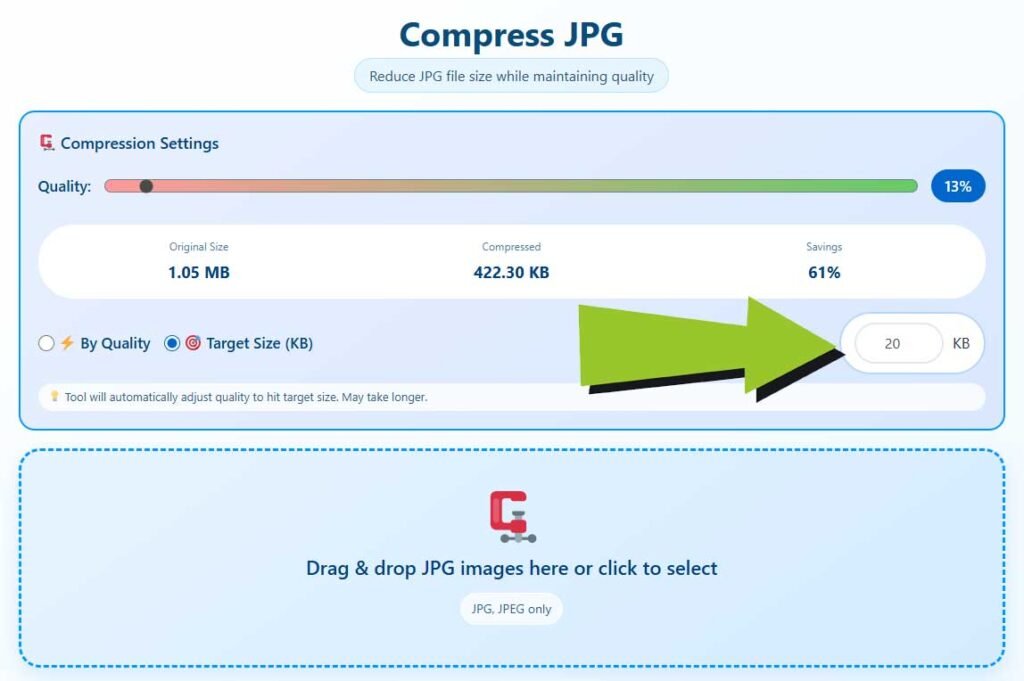
The tool I personally use and recommend is Combine JPG. Here’s why:
- ✅ 100% browser-based – your files never leave your device
- ✅ No upload required – nothing gets sent to any server
- ✅ No registration – just open and use
- ✅ No watermarks – clean output every time
- ✅ Privacy first – built by a cybersecurity expert
- ✅ Works offline – once loaded, you don’t even need internet
Here’s exactly how to use it:
Step 1: Open Combine JPG
Go to combinejpg.com on any device – Windows, Mac, Linux, Chromebook, or even your phone and click on Compress JPG
No app to download. No software to install.
Step 2: Select Your Image
Click the upload area and select your photo. Or simply drag and drop it.
Supported formats: JPG, JPEG, PNG (PNG files are usually larger, so JPG works best for 20KB)
Step 3: Adjust Compression Settings
This is where the magic happens.
Use the compression slider or quality selector. As you move it, you’ll see the estimated file size update in real-time.
Target: 20KB or slightly under (19KB to 20KB is perfect)
Step 4: Preview Before Download
Don’t just trust the number – look at your image.
Is your face still clear? Are the edges sharp enough? For most use cases (profile photos, thumbnails, ID cards), even high compression looks perfectly fine.
Step 5: Download Your Compressed Image
Click download. That’s it.
Your new 20KB image is now saved to your device, ready to upload anywhere.
Total time: Less than 30 seconds.
Pro Tips to Get the Best 20KB Result
Sometimes, compressing directly to 20KB from a huge file can be tricky. Here are some professional tricks:
✂️ Tip 1: Crop First, Then Compress
If your original image is 5MB but has a lot of empty background, crop it first. Less area = smaller file size.
Use any cropping tool to cut out just the face/object you need. Then compress the cropped version.
📐 Tip 2: Resize Dimensions First
A 4000×3000 pixel image is massive. For most use cases, you don’t need that.
Resize your image to something reasonable first – say 400×400 pixels or 500×500 pixels. Then compress to 20KB.
Smaller dimensions = much easier to reach 20KB without quality loss.
🖼️ Tip 3: Start with JPG, Not PNG
PNG files are lossless and much larger. JPG files are designed for compression.
If your original is PNG, convert it to JPG first. You’ll be amazed at the size difference – sometimes 80% smaller just by changing format.
🔁 Tip 4: Two-Pass Compression
If your image is still above 20KB after one pass, run it through again.
Sometimes compressing in two smaller steps (e.g., 500KB → 100KB → 20KB) gives better results than trying to do it all at once.
👁️ Tip 5: Don’t Obsess Over “Lossless”
I see this mistake all the time.
People refuse to use any compression because they “don’t want to lose quality.”
But here’s the reality: If the final use is a small thumbnail or profile photo, you literally cannot see the difference.
Save your lossless originals for printing. For web uploads? 20KB is perfectly fine.
Why Most Online Compressors Are Dangerous (And How Combine JPG Fixes This)
This is important. Please read this section carefully.
When you use most “free” online image compressors, here’s what’s actually happening behind the scenes:
❌ They upload your file to their server
That means your photo – maybe your face, your passport, your ID card – is now sitting on some stranger’s server in who-knows-where.
❌ They store your file (even if they say they don’t)
Most privacy policies are full of loopholes. “We don’t store your files” often means “we don’t store them forever” – but they might keep them for hours, days, or weeks.
❌ They sell your data
Yes. This happens. Your photos and usage patterns can be sold to advertisers or data brokers.
❌ Your files can be hacked
If that server gets breached, your personal photos are now in the hands of criminals.
Combine JPG is fundamentally different.
Because the tool was built by a cybersecurity expert, it works completely differently:
- ✅ Your files never leave your browser – everything happens locally on your device
- ✅ No server upload – nothing is ever sent over the internet
- ✅ No storage – your file exists only in your browser’s memory until you save it
- ✅ Works offline – once the page loads, you can disconnect from the internet and still compress images
This is how online tools should work. But almost none of them do.
Combine JPG is the exception.
Use Cases: Who Needs 20KB Images Every Day?
Let me break down the real people who search for “compress image to 20KB” daily:
👨💼 Job Seekers
Freelancers on Upwork, Fiverr, LinkedIn. Corporate job portals. Government job sites worldwide. Almost every professional platform has photo size limits.
👩🎓 Students
College applications. Scholarship portals. Student ID submissions. Exam registration forms. University dashboards.
🧳 Travelers
Visa applications for US, UK, Canada, Australia, Schengen, UAE, Saudi, and dozens of other countries. Passport renewal portals. ETA applications.
👔 HR & Admin Staff
Employees who need to upload team photos to company directories. HR personnel processing new hires. Badge makers.
📸 Photographers
Delivering web-optimized previews to clients. Creating thumbnails for galleries. Saving storage space.
🌍 General Users
Anyone with a phone full of photos and limited cloud storage. Anyone with slow internet. Anyone tired of “file too large” errors.
No matter who you are or where you live, 20KB compression is a universal need.
Combine JPG vs Other Tools: A Quick Comparison
| Feature | Combine JPG | Most Free Tools | Paid Software |
|---|---|---|---|
| Completely free | ✅ | ✅ | ❌ |
| No signup required | ✅ | ❌ (often) | ❌ |
| No watermark | ✅ | ❌ (often) | ✅ |
| Your files never leave your device | ✅ | ❌ | ✅ |
| Works offline | ✅ | ❌ | ✅ |
| No ads | ✅ | ❌ | ❌ |
| Built by cybersecurity expert | ✅ | ❌ | ❌ |
| Real-time size preview | ✅ | ❌ | ✅ |
| Batch processing | ✅ | ❌ | ✅ |
The winner is clear.
Frequently Asked Questions (People Also Ask)
Can I compress a 2MB image to 20KB?
Yes, It is possible However, for best results, crop and resize your image first to smaller dimensions (like 400×400 pixels). Then use a quality slider to dial in exactly 20KB. Combine JPG makes this easy.
Is it safe to compress my passport photo online?
It depends on the tool. Most online compressors upload your file to their servers – that’s a security risk. With Combine JPG, your file never leaves your browser. Nothing is uploaded anywhere. That’s as safe as it gets.
Will compressing to 20KB ruin my image quality?
Not for most uses. If you need a passport-style photo displayed as a small thumbnail or profile picture, you won’t see the difference. If you need to print the image at large size, don’t compress that much. Use the right tool for the right job.
What’s the difference between compressing and resizing?
Resizing changes the dimensions (e.g., from 2000×2000 pixels to 500×500 pixels). Compressing changes the file size while keeping dimensions the same. For 20KB, you usually need to do both – resize smaller, then compress.
Can I compress PNG to 20KB?
Yes, but it’s harder. PNG files are naturally larger. Convert your PNG to JPG first (loss of transparency, but much smaller size). Then compress the JPG to 20KB.
Does Combine JPG work on mobile?
Yes. Open combinejpg.com in any browser on iPhone, Android, or iPad. The interface works perfectly on touch screens.
How do I know exactly when I’ve hit 20KB?
Combine JPG shows you the estimated file size in real-time as you adjust the compression slider. You can see exactly when you cross below 20KB.
Is there a limit to how many images I can compress?
No. Compress one image or one hundred. Combine JPG is completely free with no hidden limits.
Final Thoughts: Stop Struggling With File Sizes
You’re not a tech expert. You don’t want to learn Photoshop. You don’t want to read a 50-page manual about image compression.
You just want to upload your damn photo without getting an error message. And that’s exactly what Combine JPG is built for.Fast. Free. Secure. Private. And it actually works.
Next time you see that annoying “file must be under 20KB” message, don’t panic. Don’t waste time searching for sketchy tools. Don’t give your email address to some random website.
Just head over to combinejpg.com and fix it in 30 seconds.Your photo will be ready before you finish reading this sentence.
Ready to Compress Your Image to 20KB?
Click here to try Combine JPG now – it’s completely free, no signup required.
This tool was built with privacy as the #1 priority. Your images never leave your browser. No uploads. No servers. Just fast, secure compression.