
Passport Photo Maker – Create a Compliant Passport or Visa Photo From Home
Getting a passport or visa photo taken used to mean a trip to the pharmacy, a photo booth, or a studio, plus a wait in line and a few dollars or pounds spent for something you could technically do yourself with a phone camera and a plain wall. The problem was never taking the photo it was getting the size, background, and framing exactly right. Passport offices and embassies are strict about this, and a photo that’s even a few millimeters off, or has a shadow in the background, is often enough to get an application sent back.
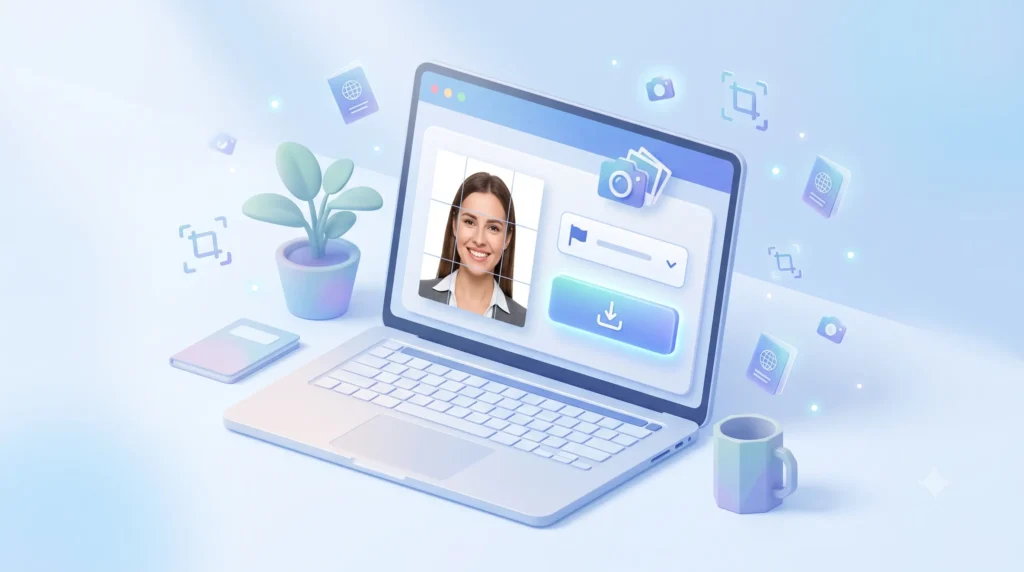
This tool exists to solve that specific headache. Upload a photo, pick the country or document type you need it for, crop it to the correct dimensions, and download a print-ready file all inside your browser, without installing anything or creating an account.
What This Tool Actually Does
This isn’t a generic image cropper with “passport photo” in the title — it’s built specifically around the way passport and visa photos need to be prepared, with a few things included that most free tools leave out or charge for:
- Country and document size presets. Choose from USA, UK, Canada, Australia, Schengen/EU visa, India, and Pakistan, each pre-loaded with the correct dimensions in millimeters or inches. If your country isn’t on the list, a custom size option lets you type in the exact measurements from your own government’s guidelines.
- A visual crop frame with alignment guides. Instead of guessing whether your head is positioned correctly, the crop area shows an oval guide along with head-top and chin reference lines, so you can see roughly where your face should sit before you download anything.
- Drag-to-position and zoom controls. Once your photo is uploaded, you can pan it around inside the frame and zoom in or out with a slider until the framing looks right, rather than being locked into a single automatic crop.
- A Smart Auto-Fit button. For a typical head-and-shoulders photo, this instantly zooms and centers the image to a sensible starting position, which you can then fine-tune manually. It’s meant as a quick starting point, not a substitute for checking the result yourself.
- Background color replacement, with both automatic and manual control. You can select a target background — white, off-white, light grey, or light blue — and let the tool clean up a plain background automatically, or adjust a sensitivity slider yourself if the automatic result doesn’t look right on your particular photo. You can also choose to keep the original background untouched.
- A free 4×6 inch print sheet generator. Once your photo is ready, one click arranges multiple copies of it onto a single print-ready sheet at 300 DPI, sized correctly for standard photo paper.
- Everything processed locally. Your photo is cropped, adjusted, and rendered directly in your browser. It isn’t uploaded to a server to be processed, which matters for something as personal as an ID photo.
How to Use This Tool — Step by Step
Getting from a raw photo to a finished, print-ready passport photo takes about a minute:
- Pick your country or document type from the dropdown at the top. This automatically sets the correct output size and a sensible default background color for that country — for example, white for the US, light grey for the UK. If your country isn’t listed, switch to Custom Size and enter the width and height in millimeters yourself.
- Upload your photo. Click the upload box or drag a JPG or PNG file into it. A photo taken against a plain wall, with even lighting and a neutral expression, will give you the cleanest result.
- Line up the crop. Your photo appears inside the frame with an oval guide overlay. Drag the image to reposition it and use the zoom slider to size it correctly, or click Smart Auto-Fit for a quick starting position and adjust from there. The Guides button toggles the alignment overlay on or off if it’s getting in the way.
- Set the background. Choose a background color from the options panel, and decide whether you want it applied automatically or fine-tuned with the sensitivity slider — useful if your original background isn’t perfectly plain. If your photo’s background is already correct, you can leave it as-is with the “Keep Original” option.
- Download your photo. Click the download button to generate a high-resolution JPG, sized exactly to your selected country’s requirements at 300 DPI, ready for online submission or printing.
- Generate a print sheet (optional). If you want physical copies, click the print sheet button to lay out multiple copies of your photo on a single 4×6 inch sheet, ready to print at home or take to a photo shop.
- Start over anytime. The Start Over button resets everything if you want to try a different photo or a different country’s requirements.
Why Passport Photos Get Rejected
Before getting into how the tool works, it helps to understand what actually goes wrong with most self-taken passport photos, because the same handful of mistakes come up again and again:
- Wrong background color. Most countries want plain white, but a few — the UK is a good example — expect a light grey or cream tone instead of pure white. Using the wrong shade is a common and completely avoidable rejection reason.
- Incorrect head size or position. Passport and visa photos aren’t just about the overall image size; the size of your head within the frame matters too. Crop too tight or too loose and the photo gets flagged even if the paper size is technically correct.
- Shadows and uneven lighting. A shadow cast on the wall behind you, or across half your face, is one of the most frequent reasons photos bounce back from processing.
- Old photos. Most passport authorities want a photo taken within the last six months. Reusing an old headshot, even a good one, is a common mistake.
- Accessories that aren’t allowed. Glasses, hats, and anything covering the hairline or eyebrows can cause a rejection depending on the country.
None of these are hard to fix once you know about them, which is why the sections below walk through both the technical requirements and some practical advice for taking the photo itself.
How to Take a Good Passport Photo at Home
You don’t need a professional camera. A phone camera from the last five or six years is more than sharp enough. What actually matters is the setup:
- Find a plain wall. A blank white or light-colored wall works best. Stand about two feet away from it so no shadow falls directly behind you.
- Use natural light if you can. Face a window during the day rather than relying on a single overhead bulb, which tends to create shadows under the eyes and chin. If you’re using indoor lighting, try to light your face evenly from both sides.
- Keep a neutral expression. Mouth closed, eyes open, no smiling. This trips people up more than expected because it feels unnatural, but it’s the standard across almost every country’s guidelines.
- Face the camera straight on. Not tilted, not turned to the side. Hold the phone at eye level rather than shooting from above or below.
- Take a few shots. Since you’re not paying per photo, take five or six and pick the sharpest one with the most even lighting before uploading.
Once you have a photo you’re happy with, the tool takes care of the technical part — cropping it to the exact millimeter or inch size your document requires, adjusting the background where appropriate, and preparing a print-ready file.
Passport and Visa Photo Sizes by Country
Requirements vary more than people expect, and using the wrong preset is one of the fastest ways to get a photo rejected purely on a technicality. Here’s a quick reference for some of the most commonly requested sizes:
- United States – 2 x 2 inches (51 x 51mm), plain white or off-white background, no glasses.
- United Kingdom – 35 x 45mm, background must be light grey or cream rather than pure white.
- Canada – 50 x 70mm, plain white or light-colored background.
- Australia – 35 x 45mm, plain white background.
- Schengen/EU Visa – 35 x 45mm, light and plain background, white or light grey.
- India – Typically 2 x 2 inches (51 x 51mm), white background.
- Pakistan – Commonly 1.5 x 1.5 inches, though it’s worth double-checking current NADRA or passport office guidance, since requirements here have shifted over the years.
These are the general standards, but government requirements do get updated from time to time, so it’s always worth a quick check against the official source for your country before you submit anything, especially for a first-time application.
What Makes This Tool Different
There are a lot of passport photo tools online, and most of them do the basics reasonably well — resize, crop, download. Where they tend to fall short is in the details: hidden paywalls after the first download, watermarks unless you pay, photos uploaded to a server rather than processed on your device, or background editing that’s locked behind a premium tier. Based on how the most popular tools in this space currently operate, here’s an honest side-by-side:
| Feature | This Tool | Typical Free Passport Photo Tools |
|---|---|---|
| Cost to download final photo | Free, no limit | Often free for preview, paid to download full quality |
| Watermark on download | None | Common on free tiers |
| Account or sign-up required | No | Sometimes required |
| Where photos are processed | Locally in your browser | Frequently uploaded to a server |
| Background color control | Auto and manual, adjustable sensitivity | Usually auto-only, or missing entirely for US/UK/Canada |
| Print sheet (multiple copies on one page) | Included, free | Often a separate paid feature |
| Daily usage limit | None | Common on free plans |
| Multiple country size presets | Yes, plus custom mm entry | Varies, custom sizing often missing |
A couple of these points are worth expanding on. Several tools that support US, UK, and Canadian passport photos deliberately skip automatic background editing for those countries, since those governments are stricter about digital alterations to a photo. That’s a reasonable and honest approach, and this tool follows the same philosophy background replacement is available, but it’s presented as a convenience for tidying up an already plain background, not as a way to fake a studio backdrop, and the country notes make clear when to double-check against the official guidance.
The other point worth calling out is local processing. Because the cropping and background adjustment happen directly in your browser rather than on a remote server, your photo isn’t sitting in someone else’s storage after you close the tab. For something as personal as an ID photo, that’s a meaningful difference, not just a marketing line.
Frequently Asked Questions
Can I use a photo I already have, or does it need to be a new one?
You can use an existing photo, but most passport and visa applications require the photo to be recent usually within the last six months. If your appearance has changed noticeably since the photo was taken, it’s safer to take a new one.
Will this work for a visa photo too, or only passports?
Both. Visa photo requirements are usually the same size as the destination country’s passport photo requirements, which is why sizes like 35 x 45mm cover both passport and Schengen visa applications.
Do I need a professional camera?
No. A modern phone camera is sharp enough. What matters more is lighting and a plain background a great camera pointed at a cluttered room still won’t produce an acceptable photo.
Can I print the photo myself, or do I need a photo lab?
Either works. The print sheet option arranges multiple copies of your photo onto a single 4×6 inch sheet at the correct print resolution, so you can print it at home on photo paper or take the file to a local print shop.
What if my country isn’t listed in the presets?
Use the custom size option and enter the exact width and height in millimeters from your country’s official guidelines. The crop and background tools work the same way regardless of which size you choose.
Is it actually free, or is there a catch later?
There’s no paywall, no watermark, and no limit on how many times you use it. It’s supported the same way the rest of the site’s tools are free to use, with no account required.
A Final Note
Passport and visa applications get rejected for photos more often than people realize, and almost always for reasons that are easy to avoid once you know what to look for: the right background shade, the right head size within the frame, even lighting, and a recent photo. Getting those details right the first time saves a second trip, a second wait, and in some cases a second fee. Upload a photo, pick your country, and you should have a compliant, print-ready result in under a minute.