How to Convert Scanned Image to Word for Free (100% Accurate OCR)

Type each word is so time consuming now a days in the this advance ai age to convert scanned images to Word is not just a fun it is necessary for all students who take the screenshot of white board included me i was also take the screen shot each time when teach fill the board too fast then most option was to take the picture and then type manually and now there is hundred of ai tools has come in market which can solve your problem ocr Whether you are a student digitizing handwritten notes, a lawyer managing paper contracts, or a business professional handling invoices, manually retyping text is a waste of time.
The secret to doing this quickly and accurately lies in OCR (Optical Character Recognition) technology. In this blog post, we will show you how to use a high-quality Image to Text tool to transform your static images into editable DOCX files for free.
What is OCR and Why Do You Need It?
OCR (Optical Character Recognition) is a smart technology that reads the text inside an image and converts it into text on ms word files and other supported files. Without OCR, a scanned document is just a collection of pixels you cannot search for words, copy sentences, or edit the layout.
By using an Image to Text converter, you can:
- Save Hours of Work: No more manual typing.
- Edit Scanned Documents: Update old records easily in Microsoft Word.
- Enhance Searchability: Turn physical archives into searchable digital libraries.
- Go Paperless: Reduce your environmental footprint by digitizing your workflow.
How to Convert Scanned Image to Word Using CombineJPG.com
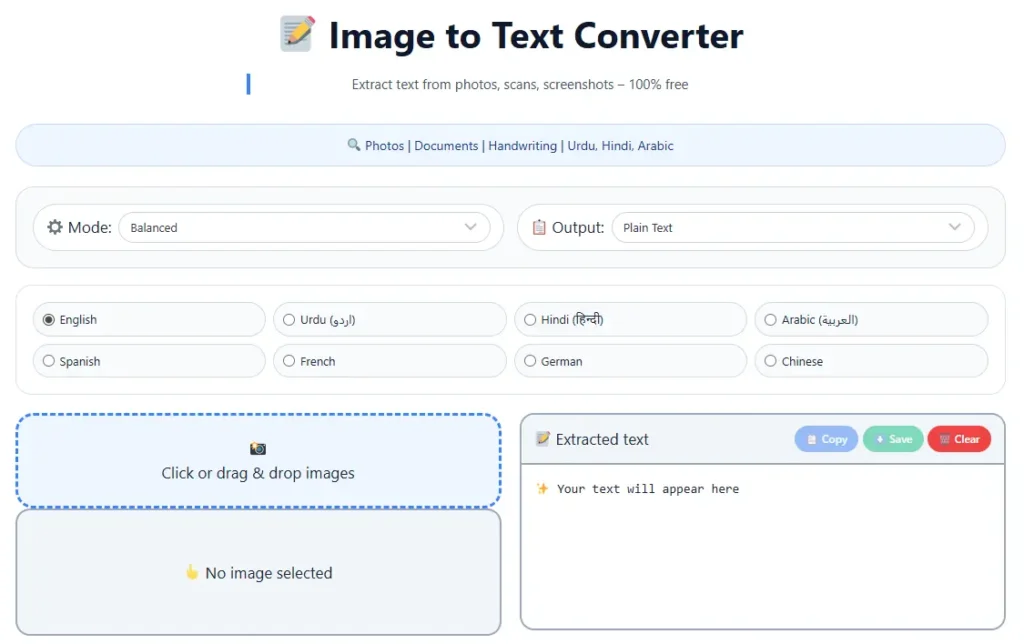
If you are looking for the most reliable way to handle your documents, our specialized tool is designed for precision. Follow these simple steps to convert your images:
Step 1: Prepare Your Image
Ensure your scanned image is clear. If you have multiple images, you might want to Combine JPG to JPG first to keep your documents organized.
Step 2: Upload to the Image to Text Tool
Navigate to our official Image to Text Converter. Simply drag and drop your JPG, PNG, or WebP files into the upload box.
Step 3: Let the OCR Work Its Magic
Our AI-powered OCR engine scans the pixels, identifies characters, and extracts the text in seconds. It supports multiple languages and maintains high accuracy even with complex fonts.
Step 4: Download as Word
Once the extraction is complete, you can copy the text or download it directly as a .docx file.
Why Use CombineJPG Tools for Document Management?
At combinejpg.com, we provide a full suite of tools to manage your visual and textual data. If your scanned file is in a modern format, you can use our WebP to JPG converter before starting the OCR process.
For those who prefer a professional document layout, many users first Combine JPG to PDF to create a single file and then use OCR to make that PDF editable. If you are worried about storage, our Compress JPG tool ensures your images are high-quality but small in size.
Comparison: Online OCR vs. Manual Typing
| Feature | Online OCR Tool (CombineJPG) | Manual Typing |
| Speed | Seconds per page | 10–20 minutes per page |
| Accuracy | Up to 99% (AI-powered) | Prone to human typos |
| Cost | Free | Costs time/labor |
| Formatting | Preserves basic layout | Requires manual formatting |
| Effort | Low (Click & Convert) | High (Tiring) |
Pro Tips for the Best OCR Results
To get the most out of an Image to Text converter, follow these best practices:
- High Resolution: Always scan your documents at 300 DPI or higher.
- Good Lighting: If you are taking a photo with a smartphone, ensure there are no shadows or glares.
- Correct Format: If your image is in a transparent format, use Combine JPG to PNG to ensure the text stands out against a solid background.
- Straighten the Page: OCR works best when the text lines are horizontal and not tilted.
Frequently Asked Questions (FAQs)
Is it safe to upload my private documents to an Image to Text tool?
Yes. At combinejpg.com, we prioritize user privacy. All uploaded files are automatically deleted from our servers after processing, ensuring your sensitive data remains yours alone.
Can I convert handwritten notes to Word?
Yes, modern OCR technology can recognize many handwriting styles. However, the accuracy depends on how neat the handwriting is.
Does the tool support multiple languages?
Our Image to Text tool is equipped with advanced language models that can recognize English, Spanish, French, Urdu, and many other global languages.
What if my image file is too large?
You can use our Compress JPG tool to reduce the file size without losing the clarity needed for text recognition.
Can I convert PNG images to Word?
Absolutely. Our tool supports JPG, PNG, and WebP formats for seamless conversion.
Conclusion
Converting scanned images to Word for free is no longer a technical challenge. With the right OCR tools, you can transform your workflow and unlock the data trapped inside your images.
Ready to digitize your documents? Try our Image to Text Converter now