How to Optimize Web Images: A Guide to Converting WebP and Compressing JPGs

Many of you and included my self try to open webp but failed to open in computer and other device so I built CombineJPG.com because I was tired of WebP images not opening on my phone or PC. While WebP is great for websites, it’s a headache for everything else. My tools give you the best of both worlds: fast web speed and the easy, universal compatibility of JPG.
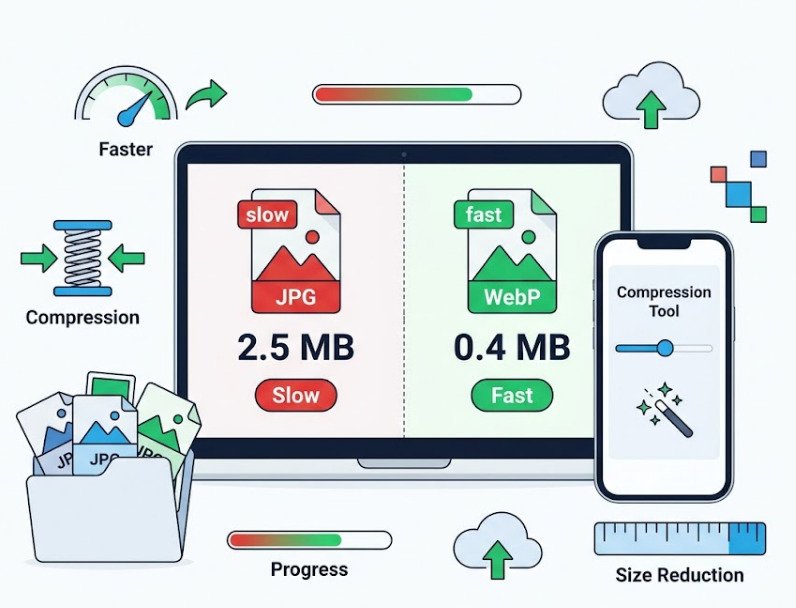
Managing digital assets efficiently requires a mix of the right formats and the right sizes. At CombineJPG.com, we provide specialized tools like WebP to JPG and Compress JPG to help you stay ahead.
Why WebP is Dominating the Web (and Why You Might Need to Convert It)
WebP is a modern image format developed by Google that provides superior lossless and lossy compression for images on the web. While it’s great for site speed, it can be a headache for offline use.
- Pros: Smaller file sizes, supports transparency.
- Cons: Limited compatibility with older software and some offline viewers.
This is why many professionals use a WebP to JPG converter to ensure their files work across all platforms.
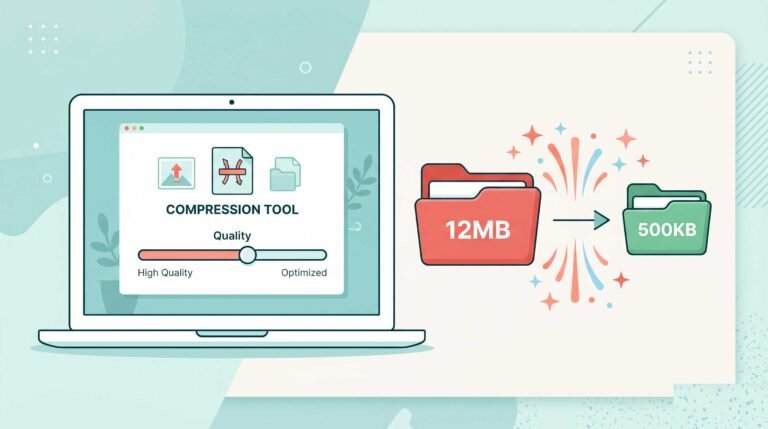
I remember a university project where I had to submit a portfolio of 50 images. The total size was huge, and the portal kept crashing. By using a Compress JPG tool to hit that ‘sweet spot’ of 80% quality, I reduced the folder size by 60% without losing any detail. That experience is exactly why I’ve made these tools free and unlimited for everyone
Comparison: WebP vs. JPG vs. PNG
| Feature | WebP | JPG | PNG |
| Compression | Superior (Lossy/Lossless) | Good (Lossy) | Excellent (Lossless) |
| Transparency | Yes | No | Yes |
| Ideal Use | Web Performance | Photography | Logos/Graphics |
| Browser Support | High (Modern) | Universal | Universal |
The Art of Image Compression: Quality vs. Size
High-resolution images are beautiful, but they can be heavy. A 10MB JPG can slow down your website or get rejected by email servers. Using a Compress JPG tool allows you to reduce the file size by removing unnecessary metadata while keeping the visual quality intact.
How to Optimize Your Workflow on CombineJPG
For a truly professional workflow, you often need to use multiple tools in sequence:
- Step 1: Convert your web-sourced images using WebP to JPG.
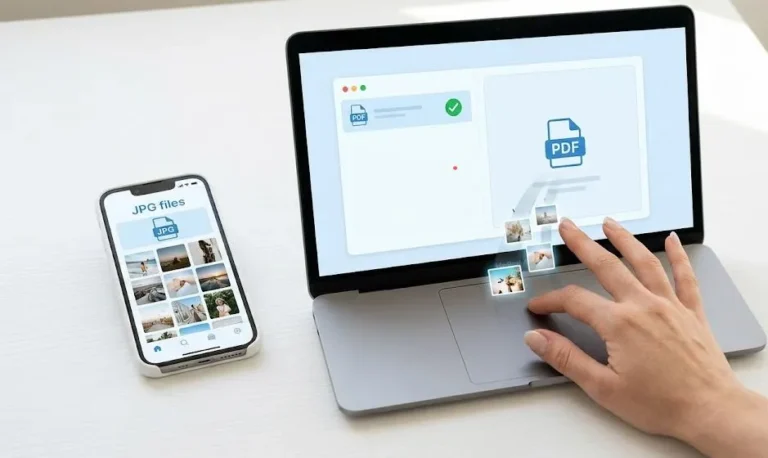
- Step 2: If you have multiple images for a document, use our Combine JPG to PDF feature.
- Step 3: If the final file is too large, run it through the Compress JPG tool.
Interlinking the Digital Ecosystem
Documentation doesn’t stop at images. Often, you need to extract information from these optimized files. As discussed in our previous guide on how to convert scanned images to Word, OCR technology works best on clear, high-contrast images.
Similarly, if you are organizing files for a portfolio, understanding why JPG merging is important for job applications can give you a competitive edge.
Frequently Asked Questions (FAQs)
Does converting WebP to JPG lose quality?
Since JPG is a lossy format, there is a minor change, but our converter ensures the highest possible quality retention during the process.
What is the best compression level for JPGs?
Generally, a 70-80% compression level is the “sweet spot” where the file size drops significantly without noticeable pixelation.
Can I convert WebP to PNG instead?
Yes, if you need transparency, you should use our JPG to PNG tool after converting from WebP.
Is there a limit to the file size I can compress?
Our tool is optimized to handle large images, but for the best experience, we recommend uploading files under 20MB.
Conclusion
Optimizing your images is more than just changing a file extension; it’s about making your digital life easier. Whether you’re dealing with stubborn WebP files or bulky JPGs, the right tools make all the difference.
Ready to optimize your images?