7 Simple Ways to Combine JPG Files into One (Best Way to Merge Images)

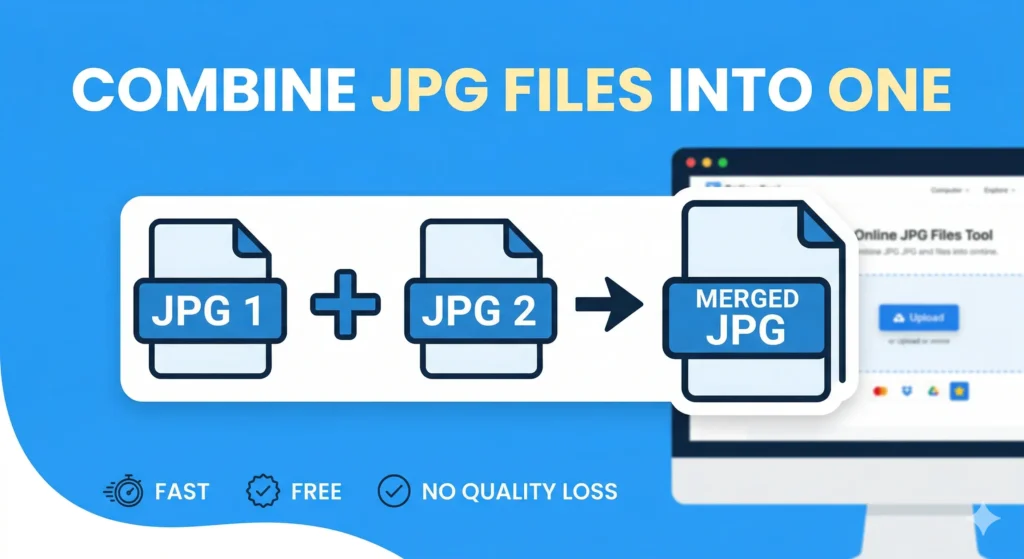
7 Simple Ways to Combine JPG Files into One.Managing digital files can be a hassle, especially when dealing with dozens of important images in your device in different location. Whether you’re a student, a creative professional, or someone applying for a job, knowing how to combine JPG files efficiently can save you hours of manual work.
In this comprehensive blog post, we will explore the best methods to merge images, why it’s crucial for digital organization, and how to use specialized tools to get the job done without losing quality.
1. Why Should You Merge JPG Files?
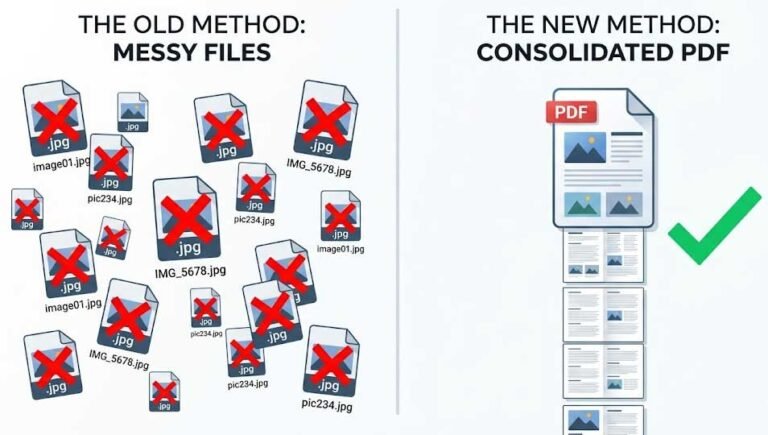
Before we dive into the “how,” let’s look at the “why.” Merging multiple images into a single file isn’t just about aesthetics; it’s a productivity hack.
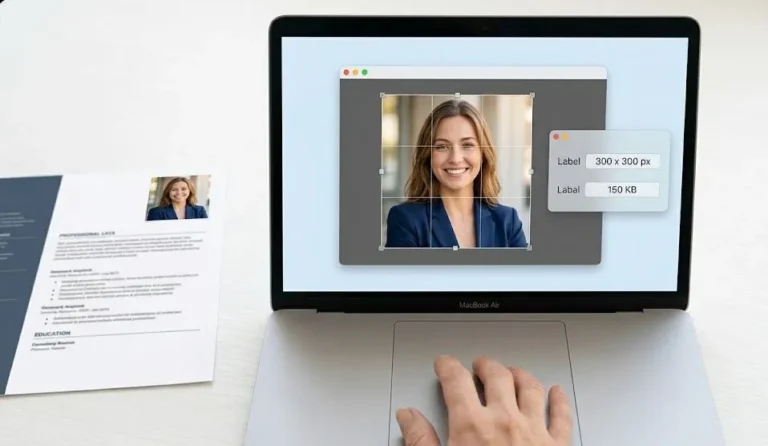
- Streamlined Document Submission: When applying for government jobs on portals like sjpjobs.com or applykrdo.com, you often need to upload all certificates as a single image or PDF.
- Social Media Panoramas: Photographers often stitch multiple JPGs to create seamless wide-angle shots.
- Digital Forensic Evidence: For researchers working on cyber security projects, merging terminal logs or screenshots into a continuous sequence is vital for reporting.
- Email Efficiency: Instead of attaching 10 separate images, sending one combined file ensures nothing gets lost in the thread.
2. The Fastest Way: Using an Online JPG Merger
For most users, the easiest method is using a dedicated web-based tool. It requires no installation and works on any device (Windows, Mac, Android, iOS).
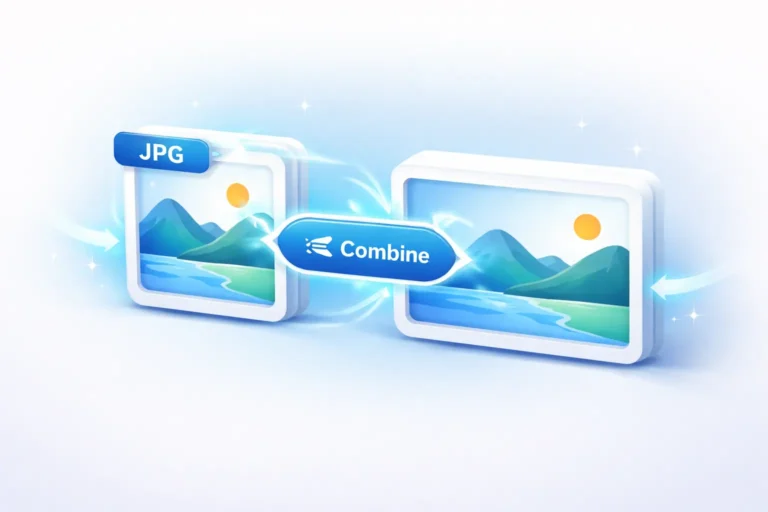
To get instant results, the most reliable method is to Merge JPG Online using our specialized tool. It is designed to handle high-resolution files while maintaining a 1:1 quality ratio.
How it works:
- Upload: Select your JPG, PNG, or BMP files.
- Order: Drag the thumbnails to arrange them in the correct sequence.
- Merge: Click the process button to stitch the images together.
- Download: Save your new file instantly.
3. How to Combine Images for Job Applications
In Pakistan, many recruitment portals (like applykrdo.com) have a single-file upload limit. If you have a front and back copy of your CNIC, you must join them.
Pro Tip: When merging documents for official use, always ensure the text remains legible. A professional photo joiner will keep the DPI (Dots Per Inch) high so that your application doesn’t get rejected due to blurry documents.
4. Merging JPGs on Windows (Offline Method)
If you don’t have internet access, you can use the built-in “Photos” app or “Paint” in Windows:
- Open the first image in Paint.
- Increase the canvas size by dragging the corners.
- Use “Paste from” to add the second image.
- Align them and save.
Note: This method is time-consuming and often reduces image quality compared to automated online tools.
5. Mobile Methods: Merging on Android and iPhone
Mobile users often need to combine screenshots or gallery photos on the go. While there are many apps available, they are often cluttered with ads.
- Browser Method: Using a tool like Combine JPG in your mobile Chrome or Safari browser is often faster than downloading a 50MB app.
- Layout Apps: Apps like Instagram’s Layout can work for collages, but they often crop your images, which is not ideal for documents.
6. Technical Insights: Maintaining 100% Image Quality
When you join JPG files, the software has to decide how to handle the pixels at the seams.
- Lossless Merging: Look for tools that don’t re-compress the data.
- Resolution Matching: If you merge a $1920 \times 1080$ image with a $1080 \times 1080$ image, the tool should automatically adjust the canvas so no part of the image is cut off.
$$Total\_Width = Width_1 + Width_2$$
(For side-by-side merging)
7. Security and Data Privacy in 2026
As a Digital Specialist, I cannot stress enough the importance of security. When you upload your personal documents to any “Free JPG Merger,” ensure the site has:
- SSL Encryption (HTTPS): To protect your data during upload.
- Auto-Deletion: Files should be wiped from the server within 24 hours.
- No Registration: Avoid sites that ask for your email address to “unlock” the download.
Frequently Asked Questions (FAQs)
Can I combine JPG files into a PDF?
Yes, many users prefer PDF for documents. Our tool at combinejpg.com offers an option to export your merged images directly into a high-quality PDF format.
Is there a limit to how many JPGs I can join?
Technically, no. However, for the best performance, we recommend merging up to 20 images at a time to ensure the resulting file size is manageable for email attachments.
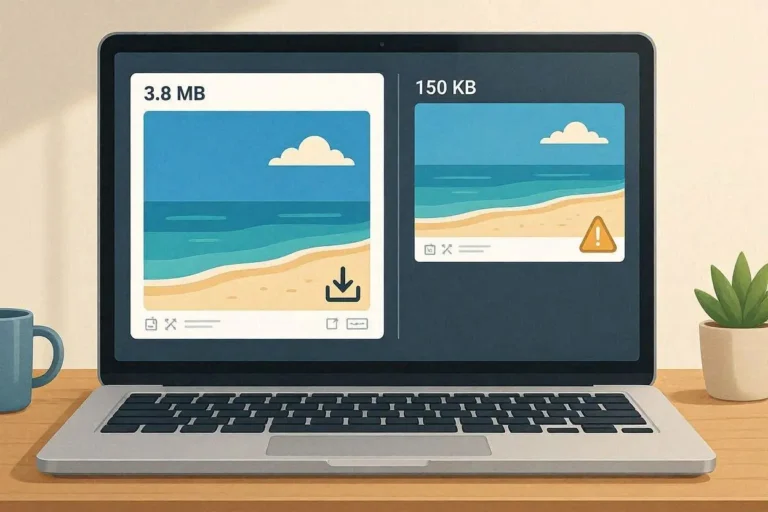
Will the file size be too large?
If you use a tool with smart compression, the file size will be optimized. This is especially helpful when uploading to sites like mergejpg.com or other utility portals where file size limits are strict.
Conclusion: Stick to the Simplest Solution
While there are many ways to combine JPG files, the most efficient way in 2026 is using a fast, secure, and free online tool. It saves you the trouble of learning complex software and ensures your images look professional every time.