How to Create a Photo Collage Without Photoshop (Free & Online)

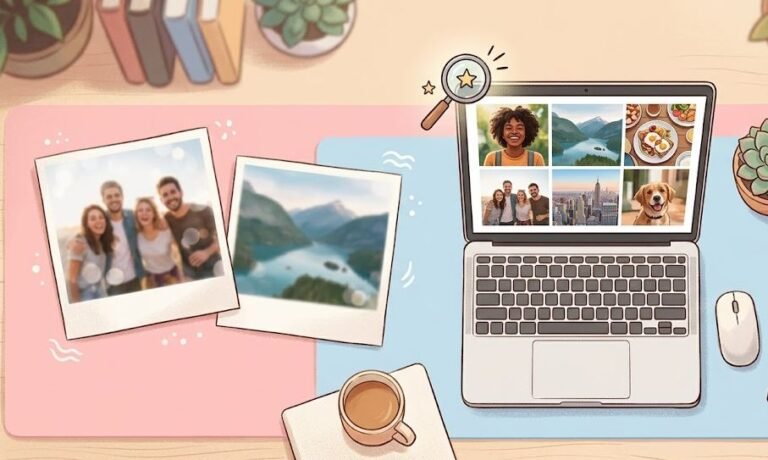
If you are unskilled person in photoshop and searching how to create a photo collage without photoshop then this blog post will guide you after checking this you will be able to create college photo without using photo.You have a multiple amazing photos on your phone. It can be your dog being cute, a sunset from last weekend, or a batch of cookies that turned out way better than expected. You want to put them all in one picture. A collage!
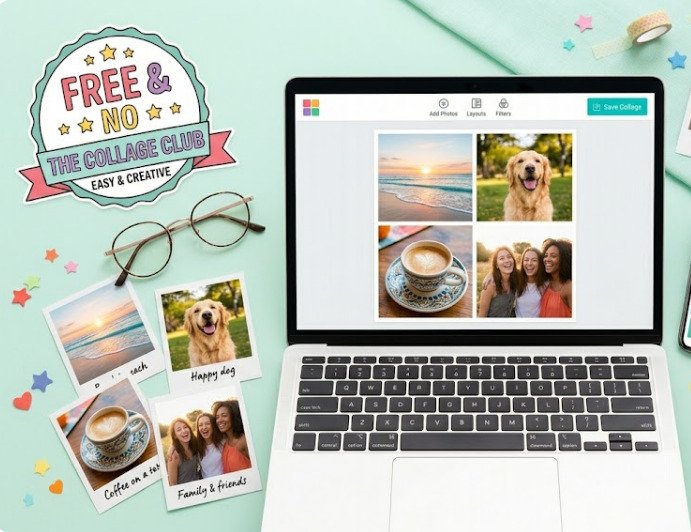
Now! You do not need a design degree or an expensive subscription to make something beautiful. In fact, there are easier, faster, and totally free ways to create a photo collage without Photoshop that will make your friends think you hired a professional.
Ready to have some fun? Check in simple steps
What You Need Before Making a Collage
Before goin to explain the methods you should must grab these three things:
- Your Photos (2 to 9 is a sweet spot): Pick images that share a similar vibe. If you are making a birthday post, don’t throw in a blurry receipt from the grocery store.
- A Vibe (Color/Theme): Are these bright and poppy? Moody and dark? Vintage film style? Knowing your “feel” helps you arrange them better.
- A Destination: Where will this collage live? Instagram? A printed gift? A desktop wallpaper? This decides the shape (square, portrait, or landscape).
Got it? Great. Now, we make the actual collage photo which exactly you are searching for.
3 Easy Methods to Create a Photo Collage for Free
Here are three ridiculously easy ways to get the job done, starting with the absolute best option for beginners.
The old methods has been gone now forget pirating software or watching 30 minutes long YouTube tutorials. Here we will provide the 3 simple ways to get the job done and suggest you the best option where you can easily done this within few clicks.
Method 1: The “Lazy Genius” Browser Tool
If you want to create a photo collage without Photoshop in under 60 seconds, this is your hero. There is a brilliant, no-nonsense website called CombineJPG.com. It does literally one thing: it stitches photos together. No ads popping in your face. No “free trial” scams.
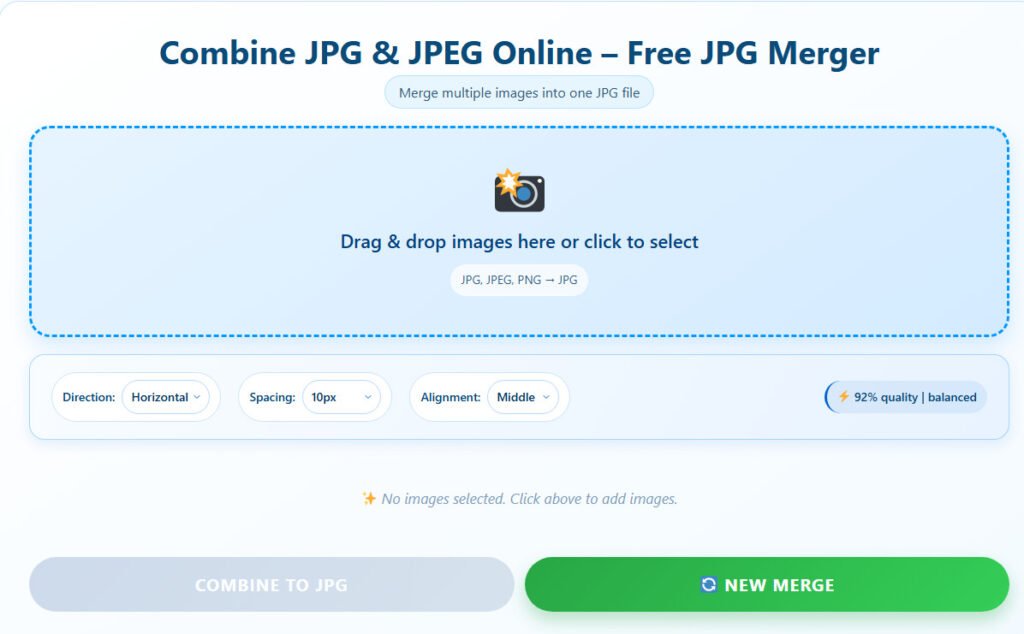
Here is your step-by-step playbook:
- Step 1: Open your browser (Chrome, Safari, whatever you use) and go to CombineJPG.com.
- Step 2: Drag and drop your photos right into the browser window. Boom. They appear.
- Step 3: Choose your layout. Side-by-side (horizontal)? Stacked (vertical)? Or a classic grid?
- Step 4: Click the “Combine” button.
- Step 5: Download your new collage.
It works on phones, tablets, and laptops. The images don’t get compressed into a pixelated mess. This method is perfect for travel panoramas, before-and-after photos, or comparison charts. It’s so simple it almost feels like cheating.
Method 2: The Mobile App (For Instagram Addicts)
Sometimes you want to add sparkles, borders, or funky backgrounds. For that, you need a phone app. While there are a million out there, Canva and PicsArt (both free) are the queens of the castle.
How to do it on your phone:
- Step 1: Download Canva or Layout (by Instagram).
- Step 2: Tap the “Create New” button and pick a “Collage” template.
- Step 3: Tap the grid squares to swap photos in and out. Pinch to zoom in on a specific face.
- Step 4: Look for the “Spacing” slider. Slide it down to zero if you want the photos to touch (no white gaps). Slide it up for a scrapbook look.
- Step 5: Hit “Export” and save it to your camera roll.
Apps are great because you can tweak the collage while sitting on the couch watching Netflix.
Method 3: The Google Slides Trick (Work/School Hack)
Are you at work right now? Or on a school Chromebook where you can’t download apps?
This is last 3rd method for those who cant download any app on pc or laptop and just use Chromebook so Don’t sweat it. Google Slides is a secret collage machine.
Here is the sneaky trick:
- Step 1: Open Google Slides and start a blank presentation.
- Step 2: Delete the stupid text boxes so you have an empty white board.
- Step 3: Go to File > Page Setup and make the slide the size of your collage (e.g., 8.5 x 11 inches for a print).
- Step 4: Drag your photos from your folder directly onto the slide.
- Step 5: Move them around! Resize them by pulling the corners. Layer them on top of each other.
- Step 6: Once you love the layout, go to File > Download > PNG image.
Congrats! You just made a custom collage using the same software kids use for book reports. It is shockingly effective for product mockups or family photo walls.
Also Read: How to Create a Before and After Photo Comparison Online
Tips for a Beautiful Collage Layout
You have the tools. But how do you make it pretty? Here are three designer secrets that require zero talent:
- The “One Hero” Rule: Pick one photo to be the largest one. Make the rest small supporting actors. Your eye needs a place to rest.
- Leave Some Breathing Room: Don’t pack every square inch. Blank space (white or black borders) makes photos look expensive.
- Match the Lighting: If three photos are sunny and one is dark indoors, the dark one will look like a sore thumb. Use a free filter app to brighten the dark one before collaging.
Best Collage Ideas for Different Occasions
Not sure what to make? Steal these prompts.
- For Birthdays: A “Then vs. Now” collage. Photo of them as a baby. Photo of them blowing out candles today. Instant tears.
- For Travel: A digital “Passport Stamp” grid. Put a tiny photo from each city you visited into a 3×3 grid. Caption it: “3 Countries. 9 Memories.”
- For Products (Etsy sellers): A single side-by-side collage. Left side: The product flat. Right side: A person using the product. It sells way better than a single image.
- For Pets: A collage of your dog’s “Zoomies” blurs. Use the Google Slides trick to overlap the motion shots.
Final Words
Photoshop is also great for those who know about it specially for Hollywood movie posters. But for the other 99% of us who just want to share a vacation reel, a silly pet moment, or a family Christmas card? You don’t need it.
You can create a photo collage without Photoshop using a free browser tool like CombineJPG.com (60 seconds), a mobile app like Canva (more cute fonts), or even Google Slides (the sneaky office hero).
Stop letting fear of “hard software” stop you. Your photos want to be together. Go combine them!
FAQ
Will I lose photo quality using free tools?
Usually, no. Tools like CombineJPG.com keep the original quality. However, some phone apps compress images to save space. Always click “Maximum Quality” or “PNG” in the export settings if you see the option.
Can I add text to my collage without Photoshop?
Absolutely! If you use the mobile app method (Canva), there is a giant “Text” button. If you use CombineJPG, make the collage first, then drag it into a Google Doc or Apple Photos to add a caption over top.
What is the best shape for a collage?
Square (1080×1080 px) for Instagram and Facebook. Portrait (8.5×11 inches) for printing and framing. Horizontal (1920×1080) for a YouTube thumbnail or computer wallpaper. Most tools let you pick the canvas size before you start.