How to Merge CNIC Front and Back Online Free (No App, No Signup)

You are filling out a bank account form, a job application, or a SIM card registration request and somewhere in that form there is a field asking for both sides of your CNIC in a single image. You photograph the front, you photograph the back, and now you are stuck trying to figure out how to put them together without downloading software, paying for a subscription, or handing your ID to some random website.
This blog post guide you through exactly how to merge your CNIC front and back into one clean image or PDF completely free, without any app installation, and without your images ever leaving your device.
Why You Need to Combine CNIC Both Sides
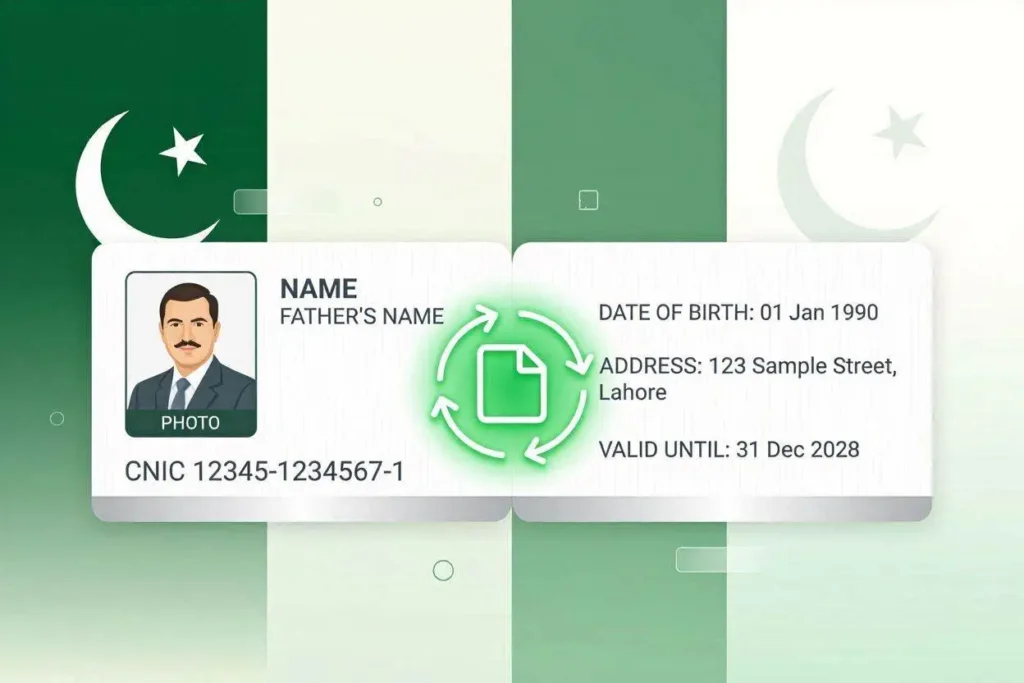
Pakistan’s CNIC, issued by NADRA, is a two-sided card. The front carries your photo, name, father’s name, and identity number. The back shows your date of birth, address, and the validity period. Most official processes require both sides to complete identity verification.
Here are the most common situations where you will need a merged CNIC image:
- Bank KYC forms for account opening or loan applications require front and back submitted as one document.
- Job applications with HR portals that accept only a single image upload per field.
- Mobile SIM registration and biometric verification processes.
- NADRA-linked government services and online portals.
- Freelance platforms like Upwork or Payoneer that ask for government ID verification.
- In all of these cases, you need both sides in one file and you need it fast.
The Fastest Free Way: Use CombineJPG ID Card Merger
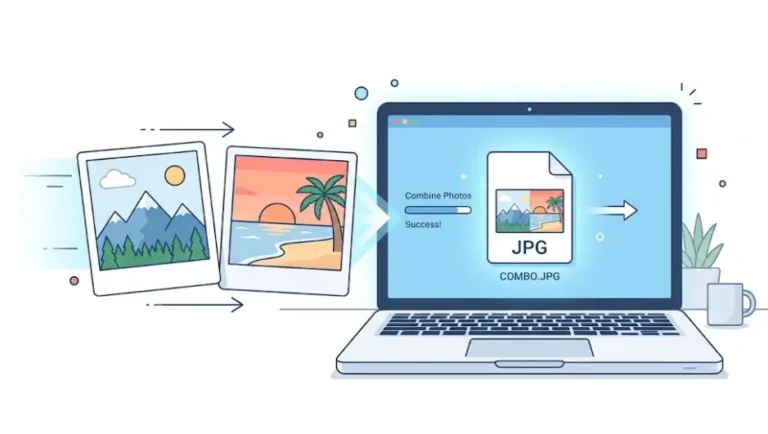
The quickest and safest method is to use CombineJPG’s free ID card merger tool. It runs entirely in your browser, meaning your CNIC images are never uploaded to any server. No one else ever sees them. No account is needed. No watermark is added.
Step-by-Step: How to Merge CNIC Front and Back Online Free
- Step 1: Go to combinejpg.com/merge-id-card-front-and-back in your browser on your phone or computer.
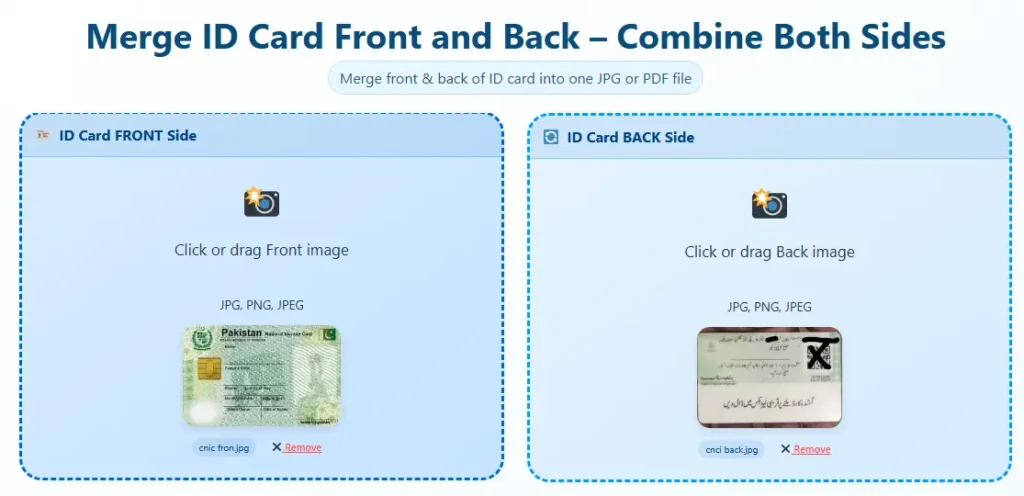
Step 2: Click the front upload box and select your CNIC front photo from your gallery or file manager. The image loads in a preview instantly.
- Step 3: Click the back upload box and select the back side photo.
- Step 4: Choose your layout. Vertical (stacked) is the most widely accepted format for government and bank submissions. Horizontal (side by side) works better for digital portals and screens.
- Step 5: Select your output format. JPG is fine for most digital submissions. PDF is better when the receiving party specifically asks for a document format or printable file.
- Step 6: Click Merge and Download. The merged file is created in your browser and saved to your device in about two seconds.
That is it. No account creation, no email confirmation, no premium paywall to get the result. The whole process takes under a minute even on a slow phone connection.
What Makes This Tool Safe for CNIC Data
This is the question most people have and it is the right one to ask. When you are dealing with a national identity document, privacy matters.
The CombineJPG tool processes all images locally in your browser using JavaScript canvas technology. When you select your images, they are loaded into your browser’s memory and combined there the raw files never leave your device. No file transfer happens, no server stores your images, no database keeps a record of your CNIC number.
You can verify this yourself: open your browser’s developer tools, go to the Network tab, and watch while you use the tool. You will not see any image upload requests because none happen.
Best Layout for CNIC: Vertical or Horizontal?
For most Pakistani bank and government submissions, the vertical layout (front on top, back below) is the standard expectation. This mirrors how a printed copy would look if you physically placed both sides of the card on a single sheet of A4 paper.
Use horizontal layout when you are submitting to an international platform, a corporate HR portal with a landscape document upload, or any situation where the recipient specifically asks for side-by-side format.
When in doubt, go vertical. It is the safe default.
Download as JPG or PDF — Which Should You Choose?
JPG format: Best for WhatsApp submissions, email attachments, and digital KYC portals. The file size is small, it opens on any device, and it displays correctly in all browsers and apps.
PDF format: Required when the institution asks for a printable document, when you need to combine the ID page with other pages in a document package, or when the portal explicitly accepts only PDF files. The PDF output from this tool is A4 sized and print-ready.
Common Questions About Merging CNIC Images
Can I merge CNIC on my phone without any app?
Yes. Open your phone browser, go to combinejpg.com/merge-id-card-front-and-back, and follow the steps above. It works on Android and iPhone without installing anything.
Does the tool work for old CNIC formats?
Yes. Whether your card is the original green CNIC, the renewed version, or a Temporary Certificate of Residence, the tool accepts any JPG or PNG image regardless of the card design.
My images are different sizes. Will they align properly?
Yes. The tool automatically normalizes both images to the same width before stacking or placing them side by side, so the merged result looks clean and proportional even if your front and back photos were taken at slightly different distances.
What if the image is blurry or rotated?
Make sure your photos are taken in good lighting and the card is flat when photographed. If the image is rotated, use CombineJPG’s free image rotation tool to fix the orientation before merging.
Other Pakistani Documents This Tool Supports
The same tool works for any two-sided identity document issued in Pakistan or elsewhere. You can use it to combine your passport bio page and address page, your driving license front and back, or any other document where you need both sides in one file.
For situations where you need to combine multiple documents into a single PDF for example, attaching your CNIC and your degree certificate together check out CombineJPG’s JPG to PDF tool which lets you stack multiple images into one downloadable PDF.
Final Word
Merging your CNIC front and back takes less than a minute when you use the right tool. No apps, no subscriptions, no privacy risk. Just upload both sides, pick your format, and download. The next time a bank portal or HR team asks for your ID as a single file, you will know exactly where to go.