How to Convert Image to Text Online Free (OCR – No Signup)

At this page you will learn how to convert image to text online free.I’ve noticed many times that students often take photos of whiteboards or lecture notes, only to end up manually typing everything out later. This is a massive waste of time. That is exactly why I developed this OCR tool on CombineJPG.com. I wanted to create a way for you to extract editable text from any image in seconds completely free, with no annoying signups required.
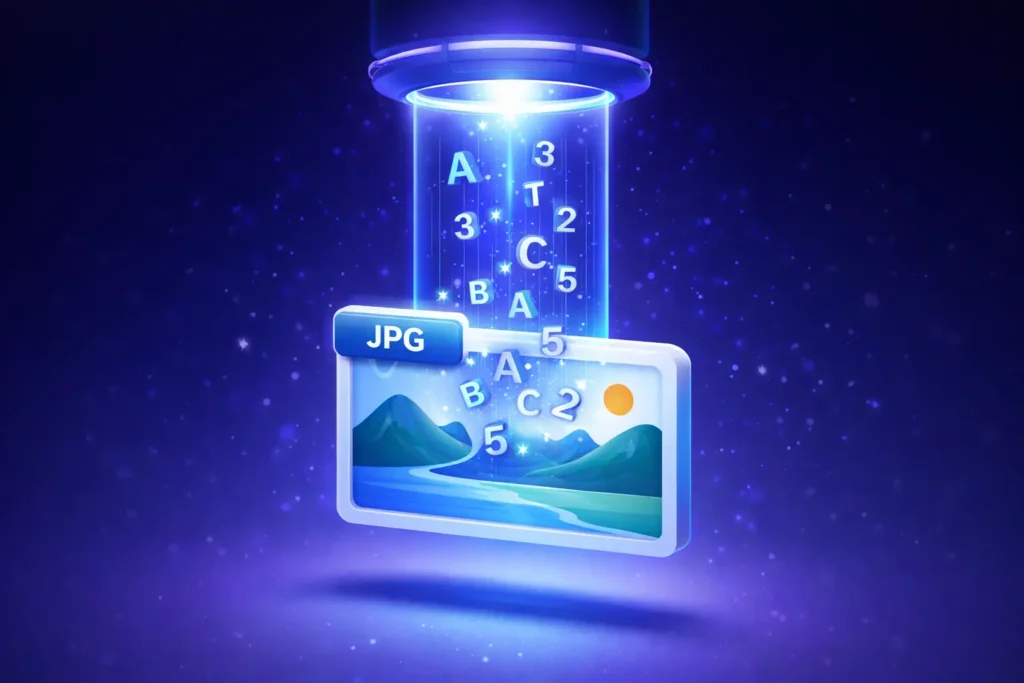
Extract text from images instantly with our free Image to Text OCR tool. Learn how to convert scanned photos, screenshots, and documents into editable text without losing formatting.
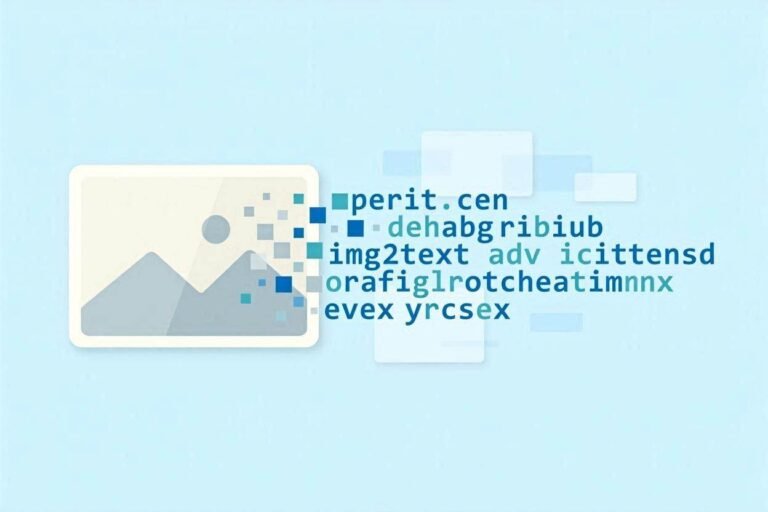
Have you ever found yourself manually typing out text from a screenshot or a scanned document? It’s a tedious and time-consuming process. Whether you are a student trying to copy notes from a photo or a professional extracting data from a receipt, an Image to Text (OCR) tool is your best friend.
At CombineJPG.com, we provide a seamless way to convert images into editable text formats. Our tool uses advanced Optical Character Recognition (OCR) technology to recognize characters within an image and turn them into digital text. The best part? It’s completely free and works directly in your browser.
Why Use an Image to Text Converter?
The ability to pull text out of a picture has endless benefits. In today’s digital world, “Searchable Text” is much more valuable than a static image.
- Edit Scanned Documents: If you have a physical paper but need to change the wording, converting the scanned image to Word is the fastest solution.
- Save Time: Stop typing manually. OCR can process a full page of text in less than 3 seconds.
- Data Organization: Extracting contact details from business cards or lists from posters helps in keeping your digital life organized.
- Accessibility: Converting images to text makes content readable for screen readers, helping visually impaired users.
Step-by-Step Guide: How to Convert Image to Text on CombineJPG
Converting your files shouldn’t be complicated. Follow these simple steps to get your text:
- Prepare Your Image: Ensure your image is clear. If the file is too large or bulky, you might want to use an Image Resizer first to make it easier to process.
- Upload the File: Drag and drop your JPG, PNG, or BMP file into the upload box on our tool page.
- Click Convert: Hit the “Extract Text” button. Our OCR engine will scan the image for letters and numbers.
- Copy or Save: Once the processing is done, you can copy the text to your clipboard or download it as a .txt or .doc file.
Top Use Cases for Image to Text OCR
1. Converting Handwritten Notes to Digital Text
Students often take photos of whiteboards or notebooks. By using an image-to-text tool, you can convert those notes into a Word document, making them easy to study and search later.
2. Managing Office Paperwork
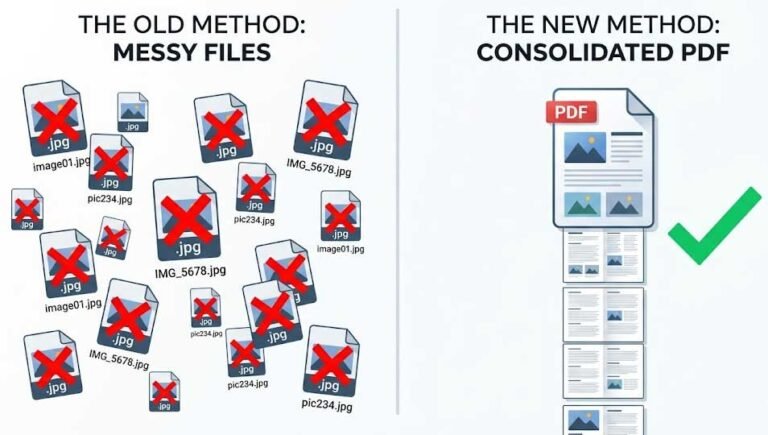
Office workers deal with hundreds of scans daily. Instead of keeping thousands of heavy image files, you can extract the text and then combine JPG to PDF for a much more organized and professional filing system.
3. Translating Content
If you have a photo of a menu or a sign in a foreign language, extracting the text first makes it easy to paste into translation software.
Comparison: CombineJPG OCR vs Competitors
| Feature | CombineJPG.com | Most Other OCR Tools |
| Registration | Not Required | Usually requires Email |
| Daily Limits | Unlimited | 3-5 images per day |
| Privacy | Local Browser Processing | Uploaded to Servers |
| Mobile Speed | Optimized for 4G/5G | Heavy & Slow |
| Cost | 100% Free | Subscription Based |
Benefits of Using CombineJPG’s Free Tool
- High Accuracy: Our OCR engine is trained to recognize various fonts and even slightly blurry text.
- No Installation: You don’t need to download heavy software like Adobe Acrobat or Photoshop.
- Privacy Protected: We value your data. Your uploaded images are processed securely and are never stored on our servers.
- Cross-Platform: Whether you are on Windows, Mac, Android, or iOS, the experience is the same.
Frequently Asked Questions (FAQs)
Can I convert a low-quality image to text?
Yes, but the accuracy depends on the clarity. If the text is too pixelated, our tool might struggle. We recommend using a clear screenshot for the best results.
Does it support multiple languages?
Yes! Our tool supports major languages including English, Spanish, French, and more.
Can I convert a JPG directly to a Word file?
Absolutely. Our guide on how to convert scanned image to Word for free explains this process in detail.
Is there a file size limit?
We support large files, but for the fastest experience, keeping images under 5MB is ideal. If your image is huge, use our Image Resizer before uploading.
What happens to my image after conversion?
Your privacy is our priority. Once you close the tab, the image is wiped from the temporary browser cache. We do not keep copies.
Also Read / Related Guides
- 🔗 How to Combine Multiple JPGs into One File – Perfect for creating document collages.
Conclusion
Stop wasting time on manual data entry. Our Image to Text OCR tool is designed to make your life easier, faster, and more productive. Whether you are handling one image or a hundred, CombineJPG.com is your go-to destination for all image processing needs.
Give it a try today and experience the power of free, instant OCR!