How to Resize Image for LinkedIn, Facebook, Instagram (All Sizes)

Why Social Media Image Sizes Keep Changing
You’ve designed the perfect graphic. The colors pop. The text is readable. You upload it to LinkedIn… and half the image gets cropped out. Frustrating, right?
Here’s the truth: every social media platform has its own preferred image dimensions. Instagram wants squares. Facebook wants wide rectangles. LinkedIn wants tiny profile pictures and massive cover photos.
If you don’t resize your images before uploading, the platform will do it for you — and it almost always looks terrible.
In this 2026 guide, I’ll walk you through how to resize image for LinkedIn, Facebook, and Instagram like a pro. No Photoshop required. No expensive subscriptions. Just a free browser tool called CombineJPG Image Resizer that handles bulk resizing in seconds.
Let’s fix your social media image game once and for all.
Why Resizing Matters More Than You Think
You might be thinking: “Can’t I just upload the original photo?”
Technically yes. But here’s what happens when you don’t resize:
1. Platforms Auto-Crop Your Images
LinkedIn, Facebook, and Instagram all have preset cropping zones. If your image doesn’t match their aspect ratio, they’ll chop off the edges — often cutting out faces, logos, or important text.
2. Upload Speeds Suffer
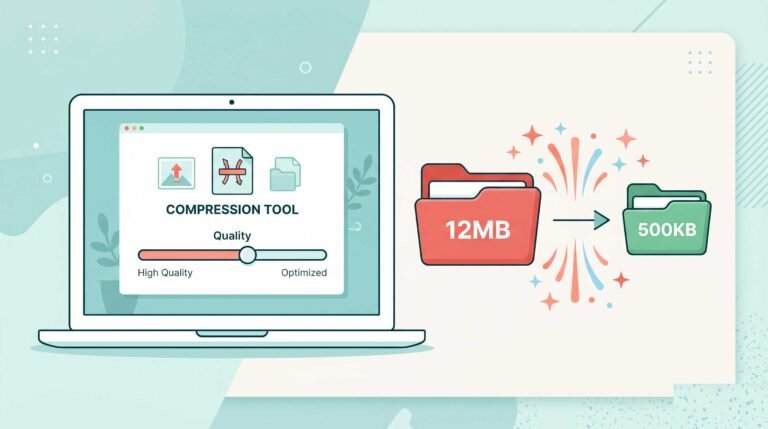
A 10MB photo takes forever to upload on mobile data. Resized images (under 500KB) upload in seconds.
3. Engagement Drops
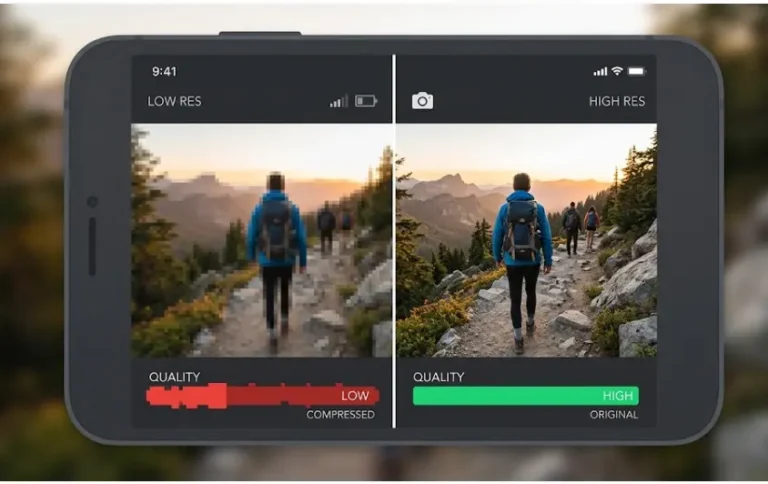
Studies show that properly sized images get 2-3x more engagement than auto-cropped or stretched ones. Blurry or pixelated graphics make you look unprofessional.
4. Storage Space Wastes Away
High-res originals eat up your phone or computer storage. Resizing frees up space without deleting the original.
The Fastest Way to Resize Images for Any Platform
Forget downloading software or watching 20-minute YouTube tutorials. Here’s the three-step method that works every time:
Step 1: Open a Resizing Tool
Head over to CombineJPG’s Free Image Resizer . It works in your browser — no signup, no watermark, no hidden fees.
Step 2: Upload Your Image
Drag and drop your photo. You can upload multiple images at once for batch processing. The tool supports JPG, PNG, and WebP formats.
Step 3: Enter Target Dimensions
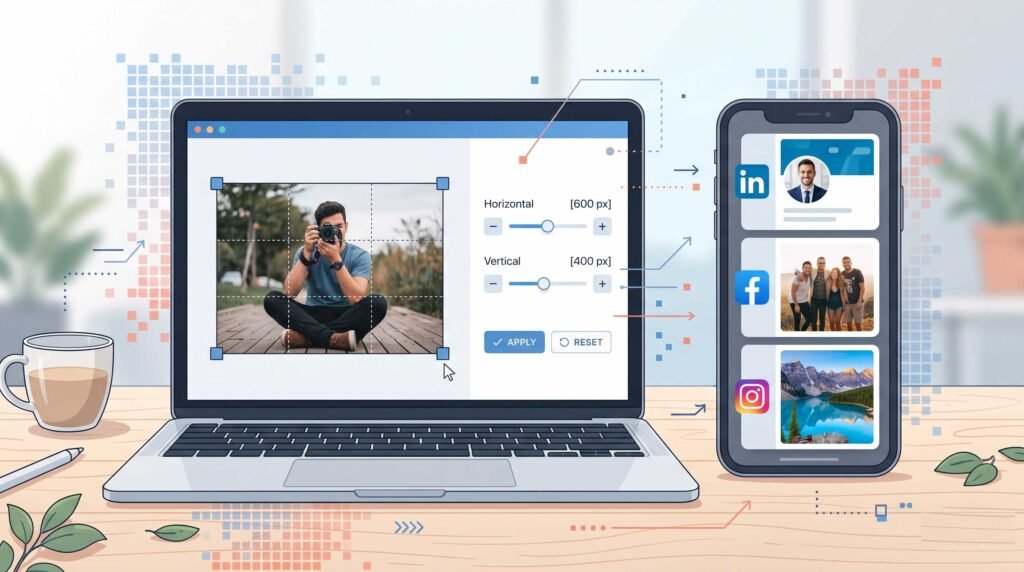
Type in the exact width and height (in pixels) for your chosen platform. Keep the aspect ratio lock enabled to avoid stretching. Then click resize and download.
That’s it. Your perfectly sized image is ready to upload to LinkedIn, Facebook, or Instagram.
Now let me show you the exact dimensions you need for each platform.
How to Resize Image for LinkedIn (2026 Updates)
LinkedIn is a professional network. Your images need to look crisp and clean. Here are the current recommended sizes:
LinkedIn Profile Picture
| Specification | Value |
|---|---|
| Dimensions | 400 x 400 pixels |
| Aspect Ratio | 1:1 (square) |
| Max File Size | 10MB |
| Format | JPG or PNG |
Pro tip: Use a PNG with a transparent background for logo-based profile pictures.
LinkedIn Background Photo (Cover Image)
| Specification | Value |
|---|---|
| Dimensions | 1584 x 396 pixels |
| Aspect Ratio | 4:1 (wide rectangle) |
| Max File Size | 8MB |
Pro tip: Keep important text or faces in the center 1200×300 area. LinkedIn crops the edges on mobile devices.
LinkedIn Post Images (Shared Links & Photos)
| Specification | Value |
|---|---|
| Dimensions | 1200 x 627 pixels |
| Aspect Ratio | 1.91:1 (landscape) |
| Max File Size | 5MB |
Pro tip: This is the most important size for engagement. LinkedIn prioritizes posts with properly formatted images.
LinkedIn Company Page Logo
| Specification | Value |
|---|---|
| Dimensions | 300 x 300 pixels |
| Aspect Ratio | 1:1 (square) |
How to Resize Image for Facebook (2026 Updates)
Facebook has multiple image types — profile, cover, post, event, and more. Here’s your cheat sheet:
Facebook Profile Picture
| Specification | Value |
|---|---|
| Dimensions | 170 x 170 pixels (displays) |
| Upload Size | 2048 x 2048 pixels (recommended) |
| Aspect Ratio | 1:1 (square) |
Pro tip: Upload a high-res square image (2048×2048). Facebook will scale it down automatically for better quality.
Facebook Cover Photo
| Specification | Value |
|---|---|
| Dimensions | 820 x 312 pixels |
| Aspect Ratio | 2.7:1 (wide) |
| Display | Desktop: 820×312, Mobile: 640×360 |
Pro tip: Avoid placing logos or text near the bottom 100 pixels — the profile picture will cover that area.
Facebook Post Image (Link Share)
| Specification | Value |
|---|---|
| Dimensions | 1200 x 630 pixels |
| Aspect Ratio | 1.91:1 (landscape) |
| Max File Size | 8MB |
Pro tip: This is the golden size for shared links. Use it for blog posts, product pages, and news articles.
Facebook Event Cover Image
| Specification | Value |
|---|---|
| Dimensions | 1920 x 1080 pixels |
| Aspect Ratio | 16:9 |
Facebook Story
| Specification | Value |
|---|---|
| Dimensions | 1080 x 1920 pixels |
| Aspect Ratio | 9:16 (vertical) |
How to Resize Image for Instagram (2026 Updates)
Instagram remains the most format-picky platform. But once you know the sizes, it’s easy.
Instagram Feed Post (Square)
| Specification | Value |
|---|---|
| Dimensions | 1080 x 1080 pixels |
| Aspect Ratio | 1:1 (square) |
| Max File Size | 30MB (but keep under 1MB for speed) |
Pro tip: This is still the most popular format. Use it for products, quotes, and portraits.
Instagram Feed Post (Portrait)
| Specification | Value |
|---|---|
| Dimensions | 1080 x 1350 pixels |
| Aspect Ratio | 4:5 (vertical) |
Instagram Feed Post (Landscape)
| Specification | Value |
|---|---|
| Dimensions | 1080 x 566 pixels |
| Aspect Ratio | 1.91:1 (wide) |
Instagram Story
| Specification | Value |
|---|---|
| Dimensions | 1080 x 1920 pixels |
| Aspect Ratio | 9:16 (full vertical) |
Pro tip: Leave a 250-pixel safe zone at top and bottom. Instagram’s interface (clock, battery, reply bar) overlays those areas.
Instagram Reels Cover
| Specification | Value |
|---|---|
| Dimensions | 1080 x 1920 pixels |
| Aspect Ratio | 9:16 |
Instagram Profile Picture
| Specification | Value |
|---|---|
| Dimensions | 320 x 320 pixels |
| Aspect Ratio | 1:1 (square) |
Quick Reference Table: All Social Media Image Sizes (2026)
| Platform | Image Type | Dimensions (px) | Aspect Ratio |
|---|---|---|---|
| Profile | 400 x 400 | 1:1 | |
| Cover | 1584 x 396 | 4:1 | |
| Post | 1200 x 627 | 1.91:1 | |
| Profile | 170 x 170 (display) | 1:1 | |
| Cover | 820 x 312 | 2.7:1 | |
| Post Link | 1200 x 630 | 1.91:1 | |
| Story | 1080 x 1920 | 9:16 | |
| Square Post | 1080 x 1080 | 1:1 | |
| Portrait Post | 1080 x 1350 | 4:5 | |
| Story | 1080 x 1920 | 9:16 | |
| Reels | 1080 x 1920 | 9:16 |
Save this table. Bookmark it. You’ll come back to it constantly.
How to Resize Multiple Images at Once (Bulk Resizing)
What if you have 50 product photos for an Instagram campaign? Or 100 event pictures for a Facebook album? Resizing them one by one is torture.
Here’s the solution: CombineJPG’s bulk image resizer .
Step-by-Step Bulk Resize:
- Go to the image resizer tool
- Select all your images (up to 100+ at once)
- Enter your target dimensions (e.g., 1080×1080 for Instagram square)
- Click “Resize All”
- Download a ZIP folder with all resized images
Time saved: Hours. Literally.
This is perfect for:
- E-commerce product catalogs
- Wedding or event photographers
- Social media managers scheduling posts
- Real estate agents with multiple property photos
Common Resizing Mistakes (And How to Avoid Them)
Mistake #1: Ignoring Aspect Ratio
If you force a square image into a rectangle, it stretches. Always keep the aspect ratio lock enabled unless you specifically want to crop.
Mistake #2: Uploading Tiny Images
A 200×200 photo blown up to 1080×1080 looks like pixelated garbage. Always start with a high-resolution original (at least 2000×2000) before resizing down.
Mistake #3: Using the Wrong Format
- Photos → JPG (smaller file size)
- Logos & graphics with text → PNG (sharper edges)
- Web animations → WebP (modern browsers)
Mistake #4: Forgetting Mobile Views
What looks good on a 27-inch monitor might get cropped on an iPhone. Test your resized images on both desktop and mobile before posting.
Privacy & Security: Is Online Resizing Safe?
Some people worry: “If I upload my image to a website, does someone else see it?”
With CombineJPG , here’s the truth:
✅ Client-side processing – Your images never leave your browser for most operations
✅ No permanent storage – Files are deleted within 60 minutes
✅ SSL encryption – All transfers are secure
✅ No signup required – No email, no personal data
For sensitive business logos or private family photos, this is as safe as it gets.
Pro Tips for Better Social Media Images
1. Always Lock the Aspect Ratio
Unless you deliberately want a cropped or stretched look, keep this setting ON. It prevents distorted faces and warped logos.
2. Use Preset Sizes When Available
CombineJPG offers one-click presets for popular platforms. No need to memorize pixel dimensions.
3. Compress After Resizing
Resizing changes dimensions but not necessarily file size. Use a separate compression tool to reduce KBs without losing quality.
4. Test One Image First
Before resizing a whole batch, test one image. Upload it to the platform and check how it displays on both desktop and mobile.
5. Keep a Master Copy
Never overwrite your original high-res images. Save resized versions as copies. You might need the original for print or future projects.
CombineJPG vs Other Resizing Tools
Why use CombineJPG instead of Canva, Photoshop, or iloveimg?
| Feature | CombineJPG | Canva | Photoshop | iloveimg |
|---|---|---|---|---|
| Free | ✅ Yes | ⚠️ Limited | ❌ Paid | ✅ Limited |
| Bulk Resize | ✅ Unlimited | ❌ No | ✅ Yes | ❌ Limited |
| No Signup | ✅ Yes | ❌ Required | ❌ Required | ⚠️ Optional |
| Target File Size | ✅ Yes | ❌ No | ✅ Yes | ✅ Yes |
| Privacy | ✅ Local | ❌ Cloud | ⚠️ Local | ❌ Cloud |
CombineJPG wins for speed, privacy, and bulk processing — and it’s completely free.
Advanced: How to Resize for Multiple Platforms from One Image
Here’s a workflow used by professional social media managers:
- Start with a master image at 2000×2000 pixels (square)
- Resize for LinkedIn post → 1200×627 (landscape crop)
- Resize for Facebook post → 1200×630 (same, slightly different)
- Resize for Instagram square → 1080×1080 (center crop)
- Resize for Instagram portrait → 1080×1350 (vertical crop)
Use CombineJPG’s bulk resizer to create all four versions in one go. Name them clearly (e.g., post_linkedin.jpg, post_instagram_square.jpg).
Final Checklist Before Uploading to Social Media
Run through this list for every image:
✅ Dimensions match platform requirements (use table above)
✅ Aspect ratio lock was enabled (no stretching)
✅ File size is under 1MB for fast loading
✅ Format is correct (JPG for photos, PNG for logos)
✅ Important text/faces are in the safe zone (not near edges)
✅ You tested on both desktop and mobile preview
✅ You kept the original master copy somewhere safe
Do this checklist once, and your social media images will always look professional.
Recommended Tool from CombineJPG
Bookmark this page right now:
👉 CombineJPG Image Resizer – Free, bulk resize for LinkedIn, Facebook, Instagram, and 20+ other platforms.
Why you’ll love it:
- Resize 100+ images in seconds
- No registration or watermark
- Works on phone, tablet, or computer
- Target exact file size (e.g., 100KB)
- Aspect ratio lock prevents distortion
Conclusion: Stop Guessing, Start Resizing
You now know exactly how to resize image for LinkedIn, Facebook, and Instagram with perfect dimensions every time. No more blurry covers. No more cropped faces. No more rejected uploads.
The process is simple:
- Look up the correct dimensions from the table above
- Open CombineJPG’s free resizer
- Upload, resize, download, and post
In 2026, social media success depends on visual quality. Don’t let bad image sizes hold you back.
Got a batch of 50 photos to resize? The bulk feature is waiting for you. Try it now — it’s free, fast, and surprisingly satisfying to see all those perfectly sized images download in seconds.