How to Remove Pages from a PDF – 6 Real Methods That Actually Work (2026)

When you open a PDF file and find blank pages sitting right in the middle or a cover sheet that should not go to the client or page 4 has an old version of a chart and the whole report needs to go out in 10 minutes.
I literally open the google trend and hundred of people are searching how to delete pages from pdf and then go back and start search the valid method blog post or tool and find some tools and manual method which really help the user to solve the issue remove unnecessary pages from pdf,I also check the some blog post and these were providing not enough solution.
This guide covers 6 real, tested methods to remove pages from a PDF. No subscriptions, no hidden steps, no frustrating tool that stops working after one file.Whether you are on Windows, Mac, or a phone one of these will work for you right now.
Why People Remove Pages from PDFs
Before we jump into the 6 methods, here are the most common situations where and when you actually need this:
- Blank pages from a scanner: Flatbed scanners often insert empty pages between sections. Annoying but very easy to fix.
- Confidential pages in a shared report: You want to send a document but one page has internal data that should not go to the client.
- Wrong draft version included: Someone accidentally exported an older version of one page into the final PDF.
- Reducing file size: Many email platforms and upload portals cap PDF size. Cutting unnecessary pages is the fastest way to trim a file.
- Building a new document from parts: You extract specific pages from different PDFs and combine them into one clean file.
One thing worth knowing before you start removing a page from a PDF is non-destructive in the sense that you are always creating a new version. The original file stays untouched as long as you save under a different name. Always keep a copy of the original before you begin.
Method 1 — The Chrome Browser Trick (No Install Needed)
This is the fastest method for most people. You already have Chrome or Edge installed. No third-party tool, no account, no upload.
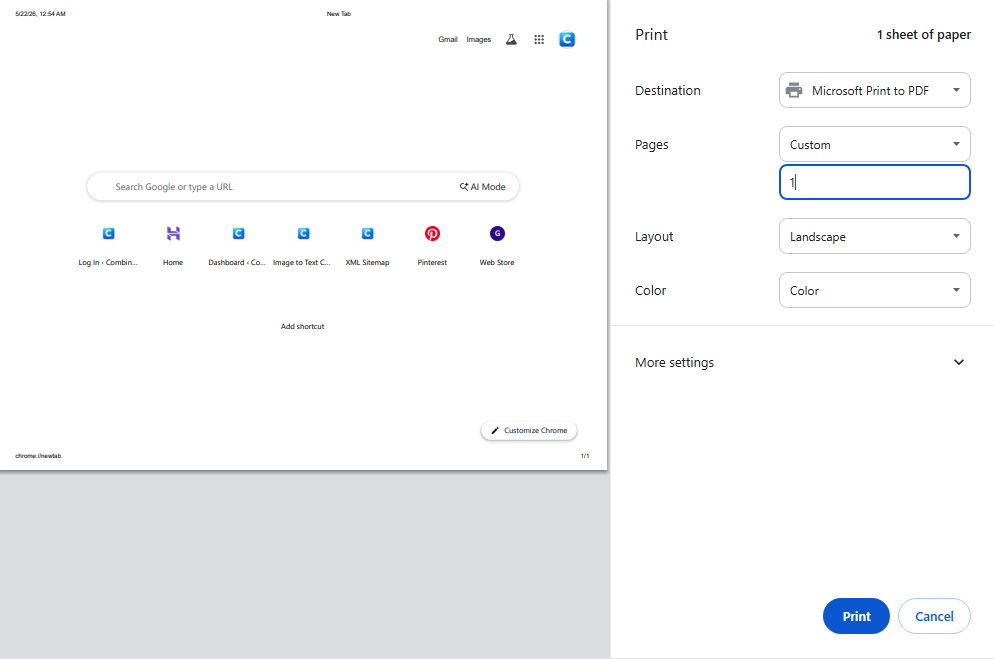
How it works:
- Open your PDF file in Google Chrome. Drag it directly into a browser tab, or right-click the file and choose Open with → Google Chrome.
- Press Ctrl + P on Windows or Cmd + P on Mac to open the Print dialog.
- In the Destination dropdown, select Save as PDF.
- Find the Pages field. Type only the pages you want to keep. For example, if your PDF has 10 pages and you want to remove page 4, type:
1-3, 5-10 - Click Save and choose where to store the new file.
That is it. Your new PDF has exactly the pages you typed — nothing more.
Example: 12-page document, remove pages 5 and 9 → type 1-4, 6-8, 10-12 in the Pages field.
Best for: Quick one-off fixes, confidential documents you do not want to upload anywhere, Windows and Mac users alike.
Limitation: You cannot visually click on thumbnails to select pages. You need to know the page numbers beforehand. For long documents with many pages, Method 2 below gives you a more visual experience.
💡 Related: If you need to add image pages back into a PDF after cleaning it up, check out our guide on how to combine JPG images into a single PDF file.
Method 2 — Free Online PDF Tools (Visual, Click-to-Delete)
If you prefer clicking on page thumbnails rather than typing page numbers, online tools are the better option. These platforms show you a visual grid of every page and let you click to mark which ones to delete.
The three most reliable free options right now:
- iLovePDF (ilovepdf.com/remove-pages) – Clean interface, supports page ranges, 1 free task per hour
- Smallpdf (smallpdf.com/delete-pages-from-pdf) – Very visual, supports drag-to-reorder, generous free tier
- Adobe Acrobat Online (adobe.com/acrobat) – Reliable but pushes toward a paid subscription
Steps for any of these tools:
- Go to the website and click Upload PDF or drag your file into the upload box.
- Wait for the page thumbnails to load. You will see every page as a small preview image.
- Click on the pages you want to delete. Selected pages usually highlight in red.
- Click Delete Pages and then Download the new file.
Privacy warning: When you upload a PDF to any online tool, your file travels to their servers. Most reputable tools delete files within 24 hours but if your document contains salaries, legal contracts, medical records, or any sensitive personal information, do not upload it. Use Method 1 or Method 3 instead.
Best for: Non-sensitive documents, users who prefer a visual interface, quick multi-page selection.
Method 3 — Adobe Acrobat Desktop App
If you work with PDFs daily and already have Adobe Acrobat installed, this is the most precise and full-featured way to handle page removal.
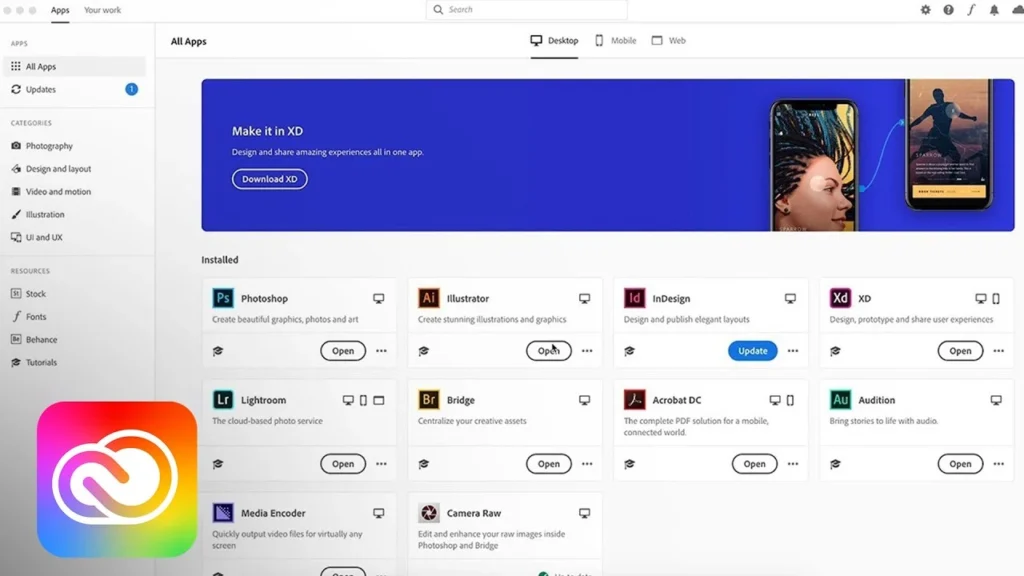
Steps:
- Open your PDF in Adobe Acrobat.
- On the right-side panel, click Organize Pages. Or go to Tools → Organize Pages from the top menu.
- All pages appear as thumbnails. Right-click on any page and select Delete, or click to select multiple pages and press the Delete key.
- Save with Ctrl + S on Windows or Cmd + S on Mac. Use Save As if you want to keep the original file unchanged.
Acrobat also lets you extract specific pages into a separate PDF handy if you want to split a document rather than just delete pages from it.
Best for: Regular PDF users, complex documents with images and layouts, anyone who needs to both delete and rearrange pages.
Limitation: Acrobat is paid software. If you only need to remove pages occasionally, one of the free methods here will do the job just fine.
Method 4 — Preview on Mac (Built-In, Completely Free)
Mac users have a powerful PDF editor hiding in plain sight. The Preview app that comes pre-installed on every Mac lets you remove pages without installing anything — and it is surprisingly capable.
Steps:
- Open your PDF with Preview. Double-click the file, or right-click → Open With → Preview.
- If the sidebar is not visible, go to View → Thumbnails to show the page panel on the left side.
- Click on the page you want to remove in the thumbnail sidebar. Hold Cmd to select multiple pages at once.
- Press the Delete key on your keyboard.
- Save with Cmd + S. If you want to keep the original, use File → Export as PDF to save a new version.
Preview also lets you drag and reorder pages in the sidebar — making it useful not just for deletion but for rearranging entire documents.
Best for: Mac users who want a free, private, offline solution with a visual interface.
💡 Related: Once your PDF is clean, you might also want to combine image files. Here are 7 simple ways to combine JPG files into one image — no software installation needed.
Method 5 — Google Drive Workaround
This is a workaround rather than a dedicated page-removal tool, but it is useful when your PDF is already in Google Drive and you do not want to download it.
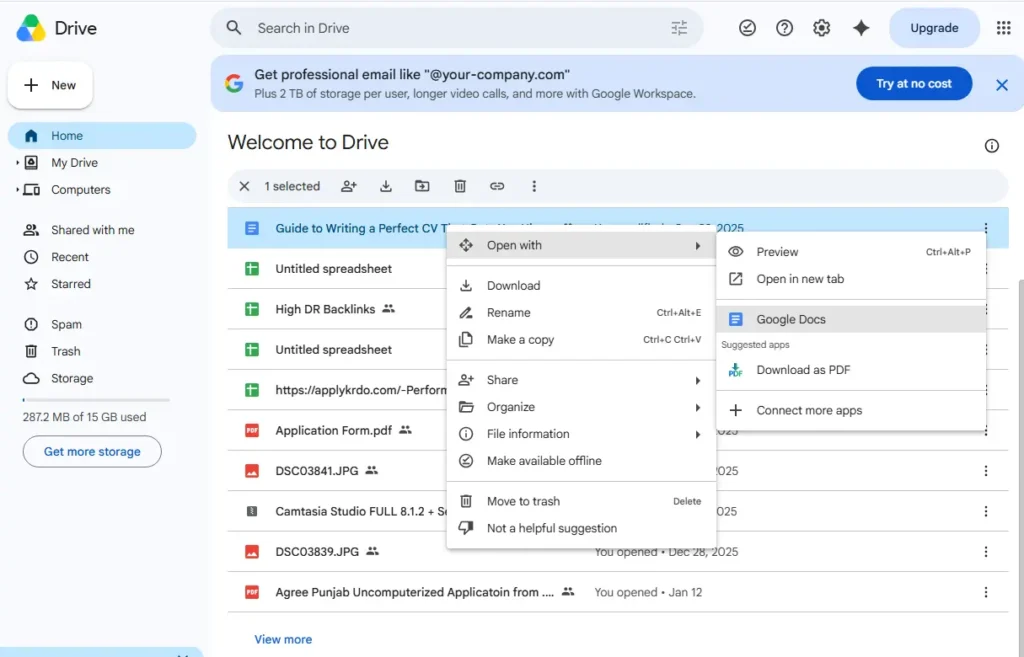
Steps:
- Find your PDF in Google Drive.
- Right-click the file → Open with → Google Docs. Google will convert it to an editable Docs file.
- Scroll to the page you want to remove. Delete all content on that page, including blank lines and page breaks, until the page disappears.
- Go to File → Download → PDF Document (.pdf) to export it back as a PDF.
Important warning: Converting a PDF to Google Docs and back can noticeably change the formatting — especially for PDFs with multi-column layouts, tables, or embedded graphics. This method works well only for simple, mostly text-based documents.
Best for: Simple text PDFs already stored in Google Drive, users who do not want to install or open any extra app.
Method 6 — Python Script for Bulk Processing
If you have 50 PDFs and need to remove the same page from all of them — or if you want to automate this as part of a larger workflow — Python is the cleanest solution.
Install the library: pip install pypdf
Script to remove a specific page:
from pypdf import PdfReader, PdfWriter

reader = PdfReader("input.pdf")
writer = PdfWriter()

# Keep all pages EXCEPT page index 3 (the 4th page — counting starts at 0)
for i, page in enumerate(reader.pages):
    if i != 3:
        writer.add_page(page)

with open("output.pdf", "wb") as f:
    writer.write(f)
Change i != 3 to any condition you need — for example i not in [0, 4, 7] to remove the 1st, 5th, and 8th pages.
Best for: Developers, bulk processing, automated document pipelines.
Quick Comparison — Which Method Is Right for You?
| Method | Cost | Visual Thumbnails | File Stays Private | Works on Mobile |
|---|---|---|---|---|
| Chrome Print Trick | Free | No | Yes | No |
| iLovePDF / Smallpdf | Free (limited) | Yes | No | Yes |
| Adobe Acrobat | Paid | Yes | Yes | Yes |
| Mac Preview | Free | Yes | Yes | Mac only |
| Google Drive | Free | No | No | Yes |
| Python Script | Free | No | Yes | No |
Common Questions
Does removing a page change the quality of the remaining pages?
No. The remaining pages stay exactly as they were — images, fonts, and layout are all preserved. The only change is the page count and a slight reduction in file size.
Can I undo removing a page?
Only if you kept the original file. PDF tools do not maintain version history the way Word or Google Docs does. The safest habit is to always work on a copy and keep the original in a separate folder or cloud backup before making any changes.
Where do blank pages come from?
Usually from Word or PowerPoint. When a document uses section breaks or odd/even page settings, exporting to PDF sometimes forces a blank page to maintain the page layout. Deleting it is completely safe — it has no content.
Can I remove pages from a password-protected PDF?
Not directly. You need the document password to unlock editing restrictions first. Once the PDF is unlocked, you can delete pages using any of the methods above.
Can I remove the same page from 50 PDFs at once?
Yes but only with a script or a professional batch tool. The Python method above handles this cleanly. You can loop through a folder of PDFs and apply the same page-removal logic to every file automatically.
Final Thoughts
Removing pages from a PDF does not need to be complicated. For a quick fix, the Chrome print trick is all you need it is free, private, and takes under a minute. For visual selection across many pages, use iLovePDF or Smallpdf. Mac users should try Preview first since it is the best free option with a visual interface. And if you regularly process large numbers of PDFs, the Python script is worth learning — it will save you hours.
Once your PDF is clean and trimmed, you might also want to combine JPG images into a PDF to add new pages, or check out our guide on how to share high quality photos without compression before sending your final document to anyone.