How to Make a YouTube Thumbnail Without Photoshop (Free & Easy)

Make the perfect YouTube thumbnail is too much time consuming and you need have the professional expertise in photoshop, Your YouTube thumbnail does one job make someone click. Before a viewer reads your title, before they check your channel name, they see your thumbnail. That half-second decision is what separates a 3% click-through rate from a 12% one. Before that many of you and also included my self hire some professional photoshop expert to make the eye catchy thumbnail/
So, the good news is that you do not need Photoshop. You do not need design experience. You need the right free tools and a basic understanding of what works. This guide covers both.
What Makes a Thumbnail Actually Work?
High-performing thumbnails are not random. They follow a pattern that triggers curiosity or emotion fast enough to stop the scroll.
Here is what the best ones have in common:
- One clear subject a face, a product, a result. Not three things competing for attention.
- Bold, short text 3 to 5 words maximum. If it cannot be read on a phone screen in one second, it is too small or too long.
- High contrast the subject should visually stand apart from the background.
- Strong expression if you are in the thumbnail, show real emotion. Surprise, disbelief, excitement. Neutral faces are invisible.
- Warm, bright colors red, yellow, and orange thumbnails consistently pull higher click-through rates than dark ones.
The thumbnails that kill CTR are the ones with dark backgrounds, tiny text, five competing elements, or the auto-generated YouTube screenshot that catches someone mid-blink.
YouTube Thumbnail Specs You Need to Know
Before you start designing must get these right things:
| Spec | Requirement |
|---|---|
| Dimensions | 1280 x 720 pixels (minimum) |
| Aspect Ratio | 16:9 |
| File Format | JPG, PNG, or GIF |
| Maximum File Size | 2MB |
| Resolution | 72 DPI |
Always create at 1280×720 or larger. YouTube scales it down automatically. Going too small makes your thumbnail look blurry on large screens and TVs.
The Best Free Tools for YouTube Thumbnails
1. Canva
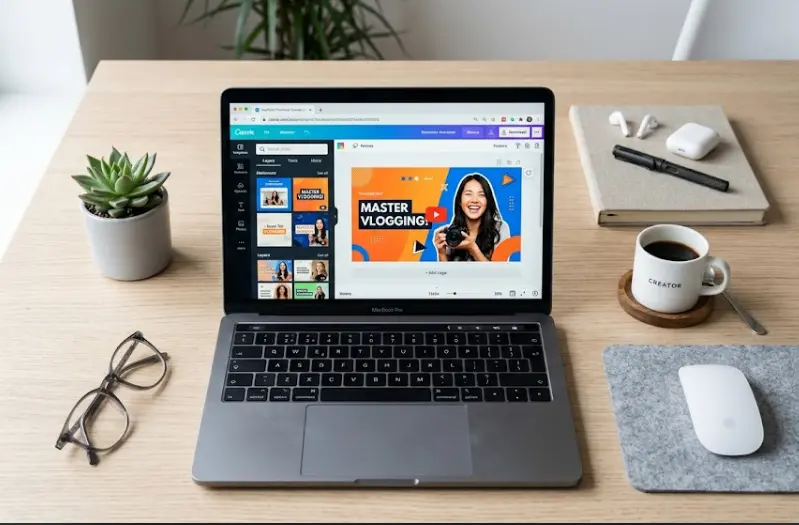
The most popular choice for unprofessional and beginners. Canva has YouTube thumbnail templates, free stock photos, text tools, and background removal. Most creators use it as their main design tool, and the free tier is more than enough.
2. Adobe Express
Adobe’s free tool is strong for thumbnails. Clean templates, solid font selection, and good export options.By using this tool you can also make attractive thumbnail for your youtube video by doing just simple steps
3. CombineJPG.com
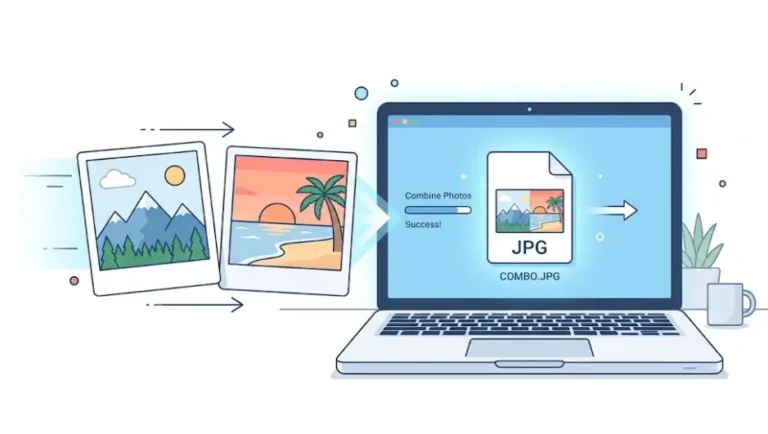
This one is specifically useful when your thumbnail needs to combine multiple images a before/after, a face next to a product, a reaction shot next to a clip. Upload your photos, arrange them side by side or in a grid, and download the merged result in seconds. No account needed.
If you are making split comparison thumbnails or want to place your face next to something, CombineJPG’s before and after photo comparison tool handles this cleanly without any design software.
4. Snappa
Built specifically for social media graphics. Simple interface, good for quick thumbnails.
5. PicMonkey (Free Tier)
Better than average for photo editing and compositing. Worth trying if you want more control over the image itself.
Step-by-Step: Make a Thumbnail in Canva
- Go to canva.com and create a free account
- Click Create a design → type “YouTube thumbnail” → select the template size
- Pick a template or start from a blank canvas
- Upload your photo — your face, a product shot, or a relevant image
- Add text — bold sans-serif font, 3 to 5 words only
- Change the background color or add a solid shape behind your text for contrast
- Add a circle, arrow, or border to direct the viewer’s eye
- Download as JPG and confirm the file is under 2MB
The whole process takes 10 to 15 minutes once you have done it a few times.
How to Combine Multiple Images for Your Thumbnail
A lot of the most-clicked YouTube thumbnails use a split layout a face on one side, a result on the other. Or a before/after. Or a product comparison.
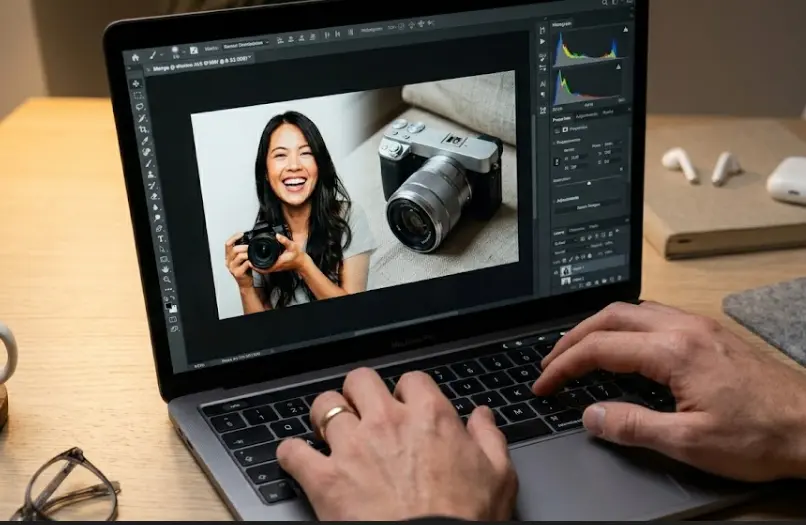
For this, CombineJPG.com is the fastest option. Upload both images, set the layout, and download the combined version. Then bring that into Canva to add your title text on top.
This approach works especially well for:
- Reaction thumbnails your face on the left, the thing you are reacting to on the right
- Before/after thumbnails transformation content, home projects, fitness, tutorials
- Comparison thumbnails two products, two options, two outcomes side by side
If you also work with image editing beyond just combining — resizing, cropping sections, or separating parts of an image the image splitter tool on CombineJPG is worth bookmarking.
Text and Font Rules That Matter
- Use thick, bold fonts. Thin or decorative fonts disappear on small screens.
- Add a dark outline or drop shadow behind white text so it stays readable on any background.
- Never use more than 5 words. Viewers decide in half a second.
- Numbers work well: “5 Mistakes” outperforms “Common Mistakes” consistently.
- Avoid full all-caps on sentences longer than three words. It slows readability.
Color Psychology for YouTube Thumbnails
This is not overthinking it — color genuinely affects click behavior.
- Red urgency, energy, tension. Heavy use by news, reaction, and opinion channels.
- Yellow eye-catching, positive, approachable. Works well for education, family, and lifestyle.
- Blue trust, professionalism, calm. Common in tech, finance, and business content.
- Orange friendly, energetic, warm. Good for food, travel, and personal brand channels.
- Black dramatic, premium, bold. Effective for reveals, luxury topics, or cinematic content.
Common Thumbnail Mistakes
Using the auto-generated YouTube thumbnail.
- YouTube picks a random frame from your video. It is almost always a bad one. Always upload a custom thumbnail.
Text too small to read on mobile
- More than 60% of YouTube views happen on phones. If your text looks fine on a monitor but is hard to read on a phone, it is too small.
- Dark or low-contrast image
Dark thumbnails disappear on YouTube’s dark mode, which a large portion of users have enabled. Bright thumbnails stand out.
- Misleading thumbnails
Clickbait still exists, but YouTube’s algorithm now penalizes videos with high click-through rates and low watch time. The thumbnail and the video need to deliver the same promise.
- Same thumbnail layout every video.
Your audience should recognize your thumbnails at a glance. Varying your layout randomly makes it harder to build visual identity.
Tools for Every Part of the Process
If you want to go further than basic thumbnails, here is a useful resource on the full picture: best free image editing tools covers what is actually worth using and what to skip — helpful when you are deciding which tools to keep in your workflow.
Frequently Asked Questions
What size should my YouTube thumbnail be?
1280×720 pixels, 16:9 aspect ratio, under 2MB. JPG format works for most cases.
How long does making a thumbnail take?
Once you have a template you reuse, around 10 to 15 minutes. When starting out, allow 30 to 45 minutes.
Does thumbnail quality actually affect views?
Yes, significantly. YouTube has stated that 90% of top-performing videos use custom thumbnails. CTR directly affects how much the algorithm recommends your content.
Can I make thumbnails on my phone?
Yes. Canva has a mobile app that works well. CombineJPG.com works in the mobile browser for combining images. The whole process can be done on a phone.
Final Words
A thumbnail is not decoration. It is the difference between someone clicking your video or scrolling past it. Spending 15 to 20 minutes on a good thumbnail can move your click-through rate significantly — more than almost any other single change you can make to a video.
Use Canva for your main design work. Use CombineJPG when you need to merge multiple images into one layout. Follow the design principles here and you will be ahead of most channels on the platform.
No Photoshop required.