
Combine JPG Online – Join Multiple Images into One
Combine multiple JPG, JPEG, or PNG images into one JPG file. Arrange your images, choose a layout — horizontal, vertical, or grid — and download the result for free. No sign-up required.
Drag & drop images here or click to select
JPG, JPEG, PNG → JPGTry Our Professional Free Image Tools
Combine JPG – Merge JPG Files into One (100% Free)
Looking for a fast and reliable way to combine jpg to jpg online? Then you have come to the right place. Our powerful jpg merger online free allows you to take multiple images and turn them into a single, high-resolution file in just a few clicks. Whether you need to merge jpg files into one for a professional report, a social media collage, or a scanned document, our tool does the work without any software needed.
With combinejpg.com, there are no watermarks, no hidden fees, and absolutely no registration required. We support batch processing, meaning you can combine multiple jpg into one without the hassle of uploading files one by one. Our tool is optimized for speed and quality, ensuring your images stay crisp and clear after the merge.
Need to merge JPG to JPG? You’re not alone. Thousands of users search for “merge JPG to JPG” every day because they want to combine multiple images into a single JPG file not a PDF. Whether you’re creating a photo strip, a before-and-after comparison, or a simple collage, our JPG to JPG merger does exactly that. Just upload your images, choose horizontal or vertical layout, and download one clean JPG file. No quality loss. No watermarks. Completely free.
How to combine JPG into one file? It’s easier than you think. Many people think they need expensive software like Photoshop to merge images, but that’s not true. With CombineJPG, you can combine JPG into one file in under 30 seconds. Upload your images, drag to reorder, and click merge. Our tool creates a single JPG file containing all your images — stacked vertically or placed side by side. Perfect for scanned documents, photo albums, or social media posts.
How to Merge 2 JPGs into One Online (Fast JPG Joiner)
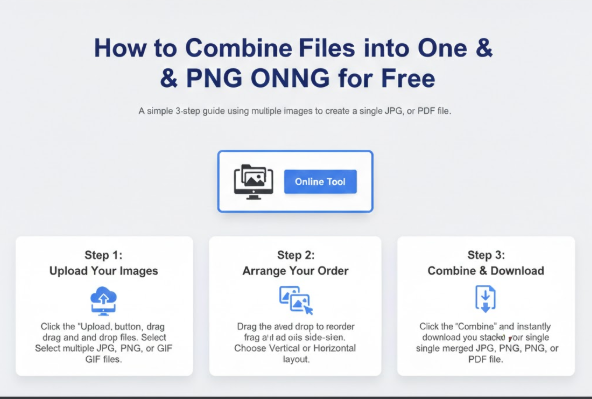
Looking for the fastest way to merge 2 jpgs? Our tool is designed to combine jpg files into a single image instantly. Follow these three simple steps:
Step 1: Upload Your Images
Click the “Upload” button or simply drag and drop your files into the box above. You can merge images to jpg by selecting multiple files from your computer, tablet, or smartphone.

Need to combine photos into one JPG? Upload your images above – works as a JPG combiner and merger.
Step 2: Arrange Your Order
Once uploaded, you can drag the thumbnails to reorder them. This gives you full control over how you combine pictures into one jpg.
Step 3: Choose Layout & Merge
Select whether you want to merge your images side-by-side or stacked on top of each other. Click “Combine” and your file is ready for instant download.


Looking for a JPG merge online free tool that actually works without limits? You found it. Most “free” tools only let you merge 3-5 images or force you to sign up. Not us. You can merge JPG online free with unlimited images, unlimited file sizes, and zero registration. Just upload, arrange, and download. No watermarks. No hidden fees. No daily limits. Try it once — you’ll never use another tool.
How to Combine JPG Files Side by Side?
How to merge JPG side by side? If you want to put two images next to each other like a “before vs after” photo or a product comparison you need a tool that supports horizontal merging. Our JPG merger side by side feature does exactly that. Simply upload your images, select the “Horizontal” layout, and click merge. The result? A single JPG file where your images sit perfectly next to each other. No cropping, no resizing, no hassle. This is the fastest way to put JPG side by side online for free.
Need to merge JPG images for a comparison or a collage? Our tool allows you to combine JPG side by side or vertically in seconds. Whether you want to join JPG files for a project or simply merge images to JPG, our platform ensures high-quality output without any software installation.
Why CombineJPG.com is the Best JPG Combiner & Joiner Tool
While there are many options online, our tool stands out because it was built for the user. Here is why thousands of people trust us to combine jpg to jpg online:
- 🔒 100% Privacy & Local Processing: Your images are merged right in your browser. Unlike other tools, files are never uploaded to any server. We delete everything automatically.
- 💎 No Quality Loss: Unlike other tools that compress your files, we maintain the original resolution of your images. Merge JPG into one without losing clarity.
- 📐 Flexible Layouts: Whether you need to join JPEG images horizontally for a banner or vertically for a document, we provide side-by-side or stacked layouts.
- ⚡ Fast & Free: Drag and drop to combine JPG photos instantly. No registration, no watermarks, no daily limits. Just upload, arrange, and download.
- 🖥️ Universal Compatibility — Our tool is browser-based and works perfectly on Chrome, Safari, and Firefox across Windows, Mac, iOS, Android, iPhone, and tablet.
How to merge 2 JPG into 1? This is one of our most common use cases. People often need to merge two images — like a front-and-back scan of an ID card, or two screenshots from a conversation. Our tool handles this perfectly. Upload both images, choose your layout (vertical or horizontal), and click merge. In 5 seconds, you’ll have 2 JPG merged into 1 clean file. Free, fast, and private.
CombineJPG.com Vs Other Online Mergers
When looking for the best jpg merger online free, it’s important to compare features. Here is how CombineJPG.com stands out against the competition.
Why choose our online JPG merger over others? Because we prioritize your privacy and experience. Most online JPG mergers store your files on their servers for days. But here everything runs inside your browser. Your images are never sent to any server processing happens locally on your own device. We have no limits. Most add watermarks. We don’t. If you’re searching for a reliable online JPG merger that respects your time and data.This tool handles that in a few clicks.
Feature Comparison Table
| Feature | CombineJPG.com | Other Online Mergers |
|---|---|---|
| Cost of JPG Merger | 100% Free | Often limited or paid |
| Registration | Not Required | Sometimes required |
| Privacy | Process in your browser | Varies / Often stored |
| Output Formats | JPG, PNG, PDF | Mostly JPG only |
| Batch Upload | No Limits | Often limited to 20 files |
| Merging Speed | Instant | Server-dependent (Slow) |
| Free JPG Merger | 100% Free | Often Paid/Limited |
Need to combine JPEG images? Our tool supports both JPG and JPEG formats (they’re the same thing, just different extensions). You can upload JPEG files directly no conversion needed. Whether you want to join JPEG images horizontally for a banner or merge JPEG files vertically for a document, our tool gives you full control. Combine JPEG images online for free, right now.
Common Uses for Merging Images
Our users use jpg merger online free for a variety of creative and professional tasks:
- Scanned Documents: Merge JPG documents or combine multiple scanned pages into a single, easy-to-read image file.
- Social Media Collages: Combine pictures into one jpg to create stunning posts for Instagram or Facebook.
- Product Displays: Merge different angles of a product into one gallery image for your e-commerce store.
- Comparison Photos: Use the horizontal merge feature to create “Before and After” shots side-by-side.
If you’ve been asking yourself how do I merge JPG files into one?, follow this simple process: Upload, Arrange, Choose layout, Merge. That’s it. No technical skills needed. Our JPG merger online free works for everyone students, teachers, business owners, and casual users.
Pro Tips for JPG Merging & Conversion
Whether you want to merge images to JPG for a presentation, a scanned document, or a social media post, our tool handles it in seconds. Our JPG merger is so flexible that whether you need to combine two images side by side or stack dozens of photos vertically, the process stays fast and high quality. To get the best results, always arrange your images in the correct order before clicking the combine button.
Frequently Asked Questions (FAQ)
How can I combine JPG to JPG online for free?
To combine jpg to jpg online, simply upload your images to our tool, arrange them in your preferred order, and click “Merge.” Our tool is 100% free, requires no registration, and produces a high-quality single image instantly.
How do I merge JPG files into one without losing quality?
Our jpg merger online free uses advanced processing to ensure that when you merge jpg files into one, the original resolution is preserved. Unlike other tools that compress images heavily, we maintain the clarity of each individual photo.
Is it possible to join JPEG images horizontally?
Yes! Our tool allows you to join jpeg images horizontally (side-by-side) or vertically (stacked). This is perfect for creating “before and after” comparisons or combining screenshots for documentation.
Can I combine multiple JPG into one on a mobile device?
Absolutely. CombineJPG.com is a fully responsive jpg joiner tool. Whether you are using an Android, iPhone, or tablet, you can combine multiple jpg into one directly in your mobile browser without downloading any apps.
How many pictures can I combine into one JPG?
There is no strict limit to how many you can combine pictures into one jpg. Our batch upload feature allows you to select several files at once, making it the most efficient way to merge images to jpg for large projects.
What is the best JPG combiner for large files?
CombineJPG.com is the leading jpg merger online free that acts as a powerful jpg combiner. It allows you to merge jpg files of any size without losing quality.
How to combine 2 JPG into 1 JPG?
Simply upload both images, choose your layout (side-by-side or vertical), and click combine. Our jpg joiner handles it in seconds.
How do I put JPG images side by side?
Upload your images to our JPG merger, choose the horizontal alignment option, and click ‘Merge’. It’s the easiest way to put JPG side by side.
Is there a limit to how many JPGs I can merge?
No, our jpg combiner supports multiple uploads, allowing you to join jpg files in any order you like.
How to merge JPG files into one without losing quality?
Our JPG merger online free preserves original resolution. When you merge JPG files into one, we maintain 92-100% quality with no compression loss.
Can I combine JPEG files online for free?
Yes! Use our JPEG combiner to merge JPEG images into one file. Supports horizontal and vertical layouts. Free, no watermark, no registration.
Global Support: Merge images in your language: Unir JPG (ES), Gabung JPG (ID), Juntar JPG (PT), JPG Zusammenfügen (DE).