How to Convert JPG to PDF on Your Phone – iPhone and Android (Free, No App)

You took photos of a form, scanned a receipt, or photographed multiple pages of a document and now you need to send them as one PDF. Not five separate image files need only one clean PDF.

This comes up constantly. Job applications, visa submissions, bank forms, university applications they all want PDFs. And most people are doing this from their phone. I have also try too many time to convert jpg file into one single pdf but most of the tools are paid if some free that provide the watermark and paid so here in this blog post we will cover all possible free method which actually work for unlimited file conversion.
Why PDF Instead of JPG?
- Keeps all pages in one file: No multiple attachments to confuse the recipient.
- Preserves appearance: Looks identical on any device or printer.
- Professional standard: When someone asks for ‘your documents,’ they mean a PDF.
- Universally accepted: Virtually every form and portal accepts PDF.
Convert JPG to PDF From Your Phone — No App Required
Use the free Combine JPG to PDF tool at CombineJPG.com.
On iPhone (Safari)
- Step 1: Open Safari and go to combinejpg.com/combine-jpg-to-pdf/
- Step 2: Tap the upload area and choose photos from your Camera Roll. Select multiple images at once.
- Step 3: Drag to reorder the photos if needed — important for multi-page documents.
- Step 4: Tap ‘Combine to PDF’ and download the file.
- Step 5: The PDF saves to your Files app. Share it via email, WhatsApp, or upload directly to the form.

On Android (Chrome)
The process is identical open Chrome, navigate to the tool, upload your photos, combine, and download. The PDF saves to your Downloads folder. The whole workflow takes under 2 minutes even for 10+ photos.
Getting the Pages in the Right Order
The tool shows thumbnails of each uploaded image so you can drag and reorder before combining. For scanned documents, put page 1 first and continue in sequence. For ID card scans, front page before back page.
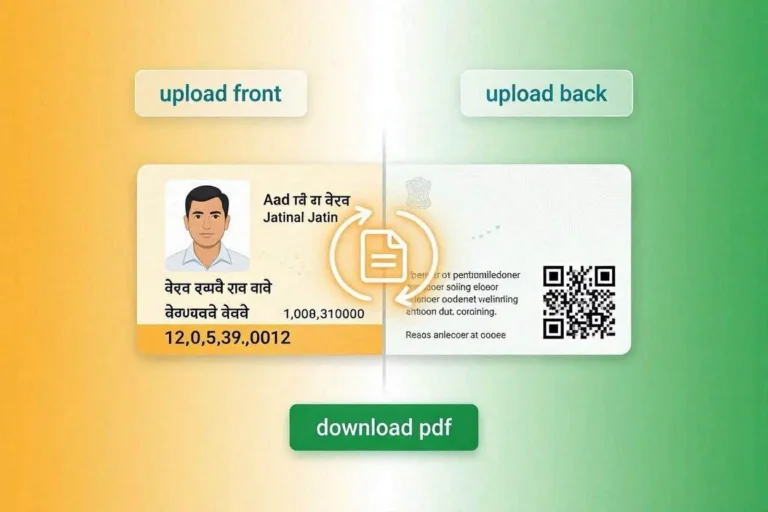
If you need to combine front and back of an ID card specifically, the Merge ID Card tool does this with perfect layout in one click.
Complete Workflow for Official Document Submissions
- Step 1: Photograph clearly: Use natural light. Keep the paper flat. Hold your phone directly above the document not at an angle.
- Step 2: Check quality: Zoom in to make sure text is readable. If blurry, retake it.
- Step 3: Rotate if needed: Use the Rotate Image tool to fix any sideways photos.
- Step 4: Compress if needed: For portals with file size limits, compress photos first using Compress JPG before converting to PDF.
- Step 5: Combine into PDF: Upload all prepared photos to Combine JPG to PDF in the correct order and download your final document.
iPhone Built-In Methods — Alternative Options
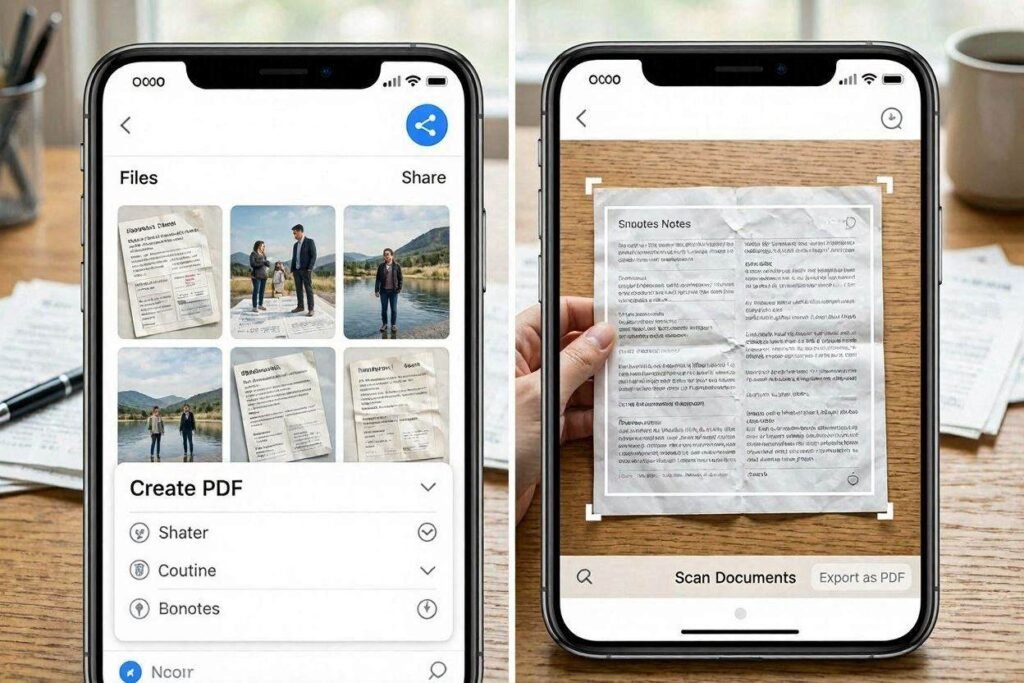
- Files App: Select multiple images in Files app, share icon > Create PDF. Works but no control over order or quality.
- Notes app scanner: Scan documents with the Notes camera — auto-detects document edges and exports as PDF. Good for crumpled or imperfect documents.
For any serious document submission where quality, order, and multi-page support matter, the browser-based tool is faster and more reliable.
Frequently Asked Questions
Can I convert multiple photos to one PDF?
Yes that is the main purpose. Upload all your photos and they merge into one multi-page PDF.
Is there a page limit?
No hard limit. You can combine dozens of photos into one PDF.
My phone takes HEIC photos but the form wants JPG for the PDF — what do I do?
Convert your HEIC files to JPG first using the HEIC to JPG Converter, then combine them into a PDF.