
Merge & Combine JPG Files Into One Image Online
Join two or more JPG images into a single picture. Choose Horizontal, Vertical or Grid layout, arrange the order, and download one JPG. Free, no sign-up, and your photos never leave your device.
Drag & drop images here or click to select
JPG, JPEG, PNG → one JPG · Processed in your browser, nothing is uploadedTry Our Professional Free Image Tools
Easily combine JPG files into one image online with Combinejpg.com.Our free JPG merger allows you to join multiple pictures side by side, stacked, or in a grid. There is nothing to install, no sign-up needed, and no watermark on your download. Because everything runs 100% in your browser, your private photos never leave your device
Whether you want to combine two JPGs for a before-and-after, join a set of product shots, or merge a few screenshots into one picture, the steps are the same.
How to Merge JPG Files into One Image Online
To merge JPG files into one image, upload your pictures, drag them into order, choose a Horizontal, Vertical or Grid layout, then click Merge. The tool joins them into one new JPG that downloads straight to your device, free, with no sign-up and no watermark.
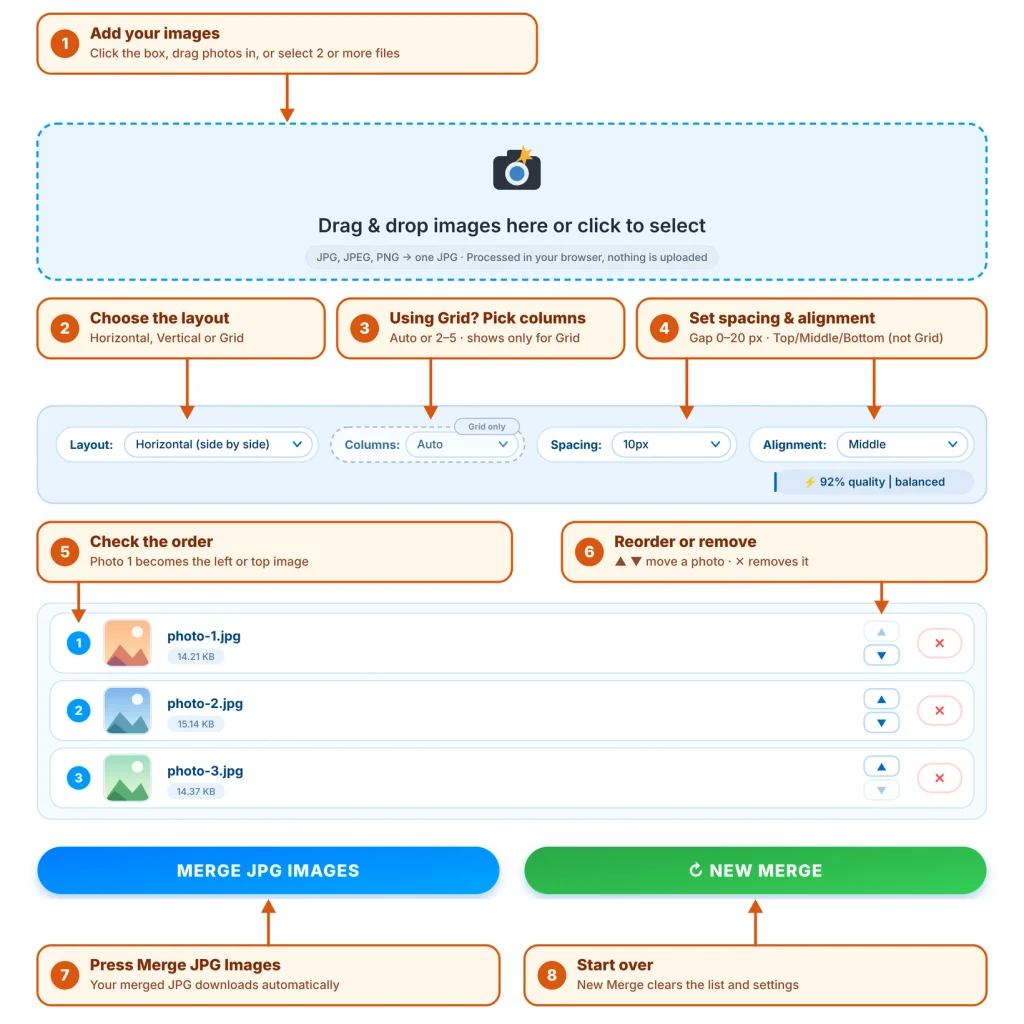
- Upload your images. Click the upload area or drag and drop two or more JPG, JPEG or PNG files from your computer, phone or tablet.
- Arrange the order. Drag the thumbnails until the sequence is right. The first image becomes the leftmost or topmost picture in the result.
- Choose a layout and settings. Select Horizontal for side by side, Vertical for stacked, or Grid and pick 2 to 5 columns. Adjust spacing, alignment and output quality if you want.
- Merge and download. Click “Merge JPG Images”. Your combined JPG is created in your browser and downloads automatically. Use “Start Over” to begin a new merge.
How to Put 2 or More JPGs on One Page
Putting several JPGs on one page means placing them on a single canvas and saving that canvas as one image. Pick the layout that matches what you want people to see.
Side by side (Horizontal)
Horizontal places your images in a row from left to right. It suits before-and-after photos, product comparisons and two screenshots you want to read together. If the images have different heights, the Alignment setting (Top, Middle or Bottom) decides how they line up, and the Spacing setting adds a gap of 0 to 20 pixels between them.
Stacked (Vertical)
Vertical places your images in a column from top to bottom. Use it for step-by-step screenshots, a chat conversation, or scanned pages you want in reading order. The result is one tall picture that scrolls naturally on a phone.
Grid (2×2 and multi-column)
Grid arranges your images in rows and columns. Choose Auto and the tool picks a sensible number of columns, or set 2, 3, 4 or 5 yourself. Four photos in two columns make a 2×2 collage, six photos in three columns make a 3×2 contact sheet, and a wider grid works for a larger set of product shots.
Each layout produces one JPG, so you can share, print or upload it like any other picture.
JPG vs. JPEG: Are They the Same Image Format?
Yes. JPG and JPEG are the same image format. Both names refer to the standard from the Joint Photographic Experts Group. The shorter “.jpg” extension exists because older Windows systems limited file extensions to three letters. Renaming a file from one to the other changes nothing about the picture.
JPEG uses lossy compression: it discards fine detail that is hard to see in order to keep files small. That matters when you merge, because the combined picture is encoded once more when it is saved. Every image keeps its original pixel dimensions on the canvas, and the only loss is that single, light re-compression. At the default 92% quality it is virtually invisible for typical photos, and the quality slider goes up to 100% if you want the least possible loss.
Merging JPG to JPG also keeps things simple: the output is a standard JPG that opens in any photo app, browser, chat or document, with no conversion to another format. PNG files are accepted as input and are saved into the same JPG result.
Key Features and Layout Customization
- Drag-to-reorder thumbnails. Every uploaded image appears as a thumbnail. Drag it to change its position before you merge.
- Three layouts. Horizontal for side by side, Vertical for stacked, and Grid with Auto or 2 to 5 columns.
- Adjustable spacing. Add a gap of 0, 5, 10, 15 or 20 pixels between images, or keep them edge to edge.
- Alignment control. Top, Middle or Bottom alignment decides how images of different sizes line up in a row or column.
- Output quality slider. The default is 92% (balanced). Raise it toward 100% for printing or archiving, or lower it for a smaller file to share.
- Works on any device. Use it in Chrome, Safari, Firefox or Edge on Windows, Mac, Android and iPhone.
Browser-Based Privacy: Why Zero-Server Processing Matters
Your images are never uploaded. CombineJPG merges photos with your browser’s built-in image processing (HTML5 canvas) on your own device. Files are read into your browser’s memory, combined there, and saved straight to your downloads. No copy is sent to or stored on our servers.
This matters because photos carry more than pixels: faces, locations, private documents and metadata. With a server-based tool, a copy of every file lands on someone else’s machine under their retention rules. With in-browser processing there is nothing to store, nothing to delete and nothing to breach. Closing or refreshing the tab clears the working memory, and because the merged image is created fresh, metadata such as GPS location in the original files is not carried into it.
You do not have to take our word for it. Open your browser’s developer tools, switch to the Network tab, run a merge, and check for image upload requests. There are none.
CombineJPG vs. Desktop Software and Cloud Converters
| Feature | CombineJPG.com | Desktop software (photo editors) | Typical cloud converters |
|---|---|---|---|
| Cost | Free | Free or paid, depending on the program | Often free with limits, or paid |
| Installation | None, runs in your browser | Required | None |
| Registration | Not required | Usually not required after install | Sometimes required |
| Watermark | None | None | Sometimes added on free plans |
| Where files are processed | In your browser, nothing uploaded | On your device | Usually uploaded to a server |
| Output | One JPG | Any format you export | Varies by tool |
| Effort | About four steps: upload, arrange, choose layout, merge | Canvas sizing, layers and export | Usually simple |
| Batch size | Depends on device memory; about 20–30 high-resolution photos handle smoothly | Depends on your computer | Often capped per task |
What People Use a JPG Merger For
- Before-and-after photos: a horizontal merge puts both states in one frame.
- Product galleries: show several angles of an item as a single image for a store listing.
- Social media collages: use a grid to turn four or six photos into one post.
- Screenshots: stack a conversation or a tutorial into one tall image instead of sending ten.
- Scanned pages: join scanned JPG pages into one picture in reading order.
Tips for Better Merged Images
- Set the order first. Arrange the thumbnails before you click Merge. The order you see is the order of the result.
- Match sizes when you can. In a horizontal row, images with similar heights look cleanest. In a vertical stack, similar widths do. Use Alignment and Spacing to tidy up the rest.
- Watch the total size. A very long stack of large photos creates a very large canvas, and browsers cap canvas size. If a download fails, switch to Grid, use fewer images, or merge in batches.
- Pick quality for the job. Use 100% for printing or archiving, and around 85–92% for sharing online.
- Go easy on phones. Large camera photos use a lot of memory, so on older phones merge in smaller groups.
Frequently Asked Questions
Upload two or more JPG files to CombineJPG, drag the thumbnails into your preferred order, pick a Horizontal, Vertical or Grid layout, and click Merge JPG Images. Your single combined JPG downloads straight to your device. It is completely free, needs no registration, and adds no watermark to the result. The whole process usually takes under a minute, and nothing is uploaded to a server.
Add both images, then choose Horizontal to place them side by side or Vertical to stack one above the other. Drag the thumbnails to set which image comes first, adjust spacing if needed, and click Merge JPG Images. You get one JPG containing both pictures, ready to download. If the two images differ in size, use the Alignment setting (Top, Middle or Bottom) to control how they line up.
Use the Grid layout. Upload your photos, select the number of columns from 2 to 5 (or leave it on Auto), and the tool arranges every image on one canvas in rows. Click Merge JPG Images to save that canvas as a single JPG you can share or print. Four photos in two columns make a 2×2 grid, and six photos in three columns make a 3×2 grid.
Yes. JPG and JPEG are two names for the same image format, so merging JPG files and merging JPEG files works identically. You can upload either extension, mix them in one merge, and the result downloads as a standard JPG that opens on any device, app or website. The only difference is the file extension, a leftover from older systems that limited extensions to three letters.
Resolution is not reduced: each image keeps its original pixel dimensions on the merged canvas. Because the combined picture is saved as a JPG once more, a small amount of re-compression occurs. At the default 92% quality it is virtually invisible, and moving the slider to 100% minimizes it further. For the cleanest result, merge your originals once rather than re-merging a file that was already merged.
The tool sets no fixed cap; your device’s memory is the practical limit. Most modern computers handle about 20 to 30 high-resolution photos smoothly in one merge, while phones and older devices manage fewer. For larger sets, merge in batches, then merge the batch results together. Smaller or compressed photos use less memory, so you can usually fit more of them.
Yes. After uploading, every image appears as a thumbnail that you can drag and drop into a new position. The order you see is the order of the result: left to right in a horizontal layout, top to bottom in a vertical layout, and row by row in a grid. Nothing is merged until you click Merge JPG Images, so you can experiment freely.
Yes. CombineJPG runs in the mobile browser on Android phones, iPhones and tablets, including Chrome and Safari, so there is no app to install. Tap the upload area, choose your photos, arrange them, and tap Merge JPG Images. The merged JPG then saves to your device. Phones have less memory than computers, so merge in smaller batches if you are combining many large photos.
No. Your images are merged entirely inside your own browser, so they are never uploaded to or stored on our servers. The files are read into your device’s memory, combined there, and saved straight to your downloads. When you close or refresh the tab, that working memory is cleared. You can confirm it yourself: open your browser’s developer tools, switch to the Network tab, run a merge, and watch for image upload requests. You will not see any.
You can upload JPG, JPEG and PNG images, and you can mix these formats in a single merge. The merged result downloads as one JPG file. CombineJPG does not export PDF or other formats, so the output stays a regular JPG that works anywhere you would use a photo. If you need a different format afterwards, you can convert the finished JPG with a separate tool.