How to Organize and Rename Photos in Bulk Online 2026


If you are thinking to rearrange the alots of photo with its name which are already with IMG_0023.jpg, DSC_2847.jpg, IMG_0024.jpg and at the time of need if you want to search any specific pic from your computer or mobile then you already know the pain.You spend 20 minutes scrolling just to find one product photo from you device storage. You accidentally upload the wrong image to a listing. You reshoot something you already photographed because you cannot find the original.
This is not a storage problem. It is an organization problem. And the fix is simpler than most people think.If you want to rename each photo manually take too much your time and once you done the rename and reorganize the photo finding any photo takes seconds.
In this blog post we will cover each steps which my help you to arrange and rename photo easily after checking all the methods.
Why a Messy Photo Library Costs You More Than You Think

Most people treat photo organization as a “nice to have.” It is not. It is a time tax you pay every single day.
For product sellers on platforms like Daraz or Amazon, a disorganized photo library means:
- Re-shooting products you already have photos of
- Submitting the wrong photo to a listing and not noticing until a customer complains
- Losing the edited version of an image and having to edit from scratch again
- Wasting 15 minutes before every upload just searching for the right file
For families and personal use, it means vacation photos mixed with receipts mixed with screenshots a folder that nobody wants to open.
A clean naming system solves all of this. No expensive software required.
Also Check: How to Fix Blurry Images Before Merging JPG Files Online
How to Rename Photos in Bulk on Windows
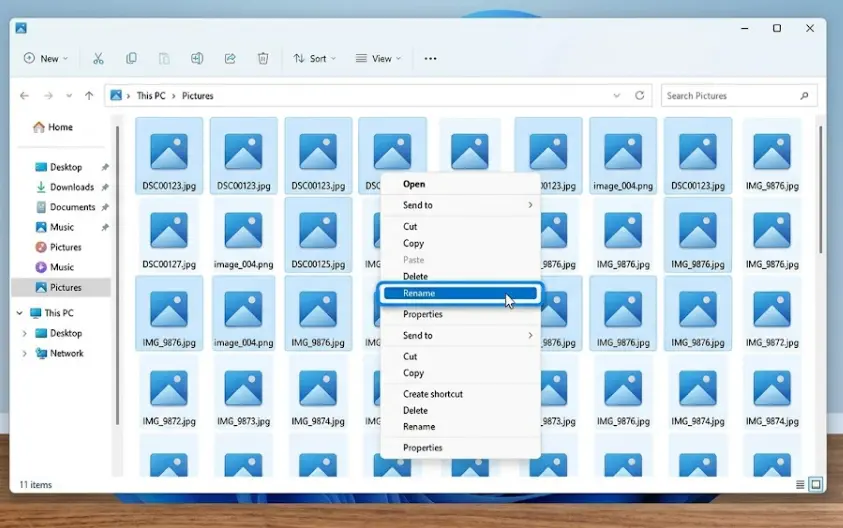
Windows has a built-in bulk rename feature that most people never discover. Here is how it works:
- Open File Explorer and go to the folder with your photos
- Press Ctrl+A to select all photos, or hold Ctrl and click to select specific ones
- Right-click on any selected photo and choose Rename
- Type your new name for example,
ProductShirt2026and press Enter - Windows automatically numbers every file: ProductShirt2026 (1), ProductShirt2026 (2), and so on
That is it. Takes about 30 seconds once you know where to look.
If you need more control date-based naming, custom numbering formats, renaming based on EXIF metadata download Bulk Rename Utility. It is free, runs on Windows, and once you spend 10 minutes learning it, you can do almost anything with file names.
How to Rename Photos in Bulk on Mac
Mac users have it built right into Finder:
- Select the photos you want to rename
- Right-click and choose Rename (this option only appears when multiple files are selected)
- You will see three options: Replace Text, Add Text, or Format
- Choose Format this lets you set a custom base name with sequential numbers automatically added
- Preview the result, then click Rename
For anything more advanced, A-Better-Finder-Rename is the go-to tool for Mac. It handles date-based renaming, EXIF data renaming, and batch operations with a clean interface.
A Simple File Naming System That Actually Works
The best naming system is one you will actually use consistently. Here is a straightforward formula:
Category + Description + Number
Some real examples:
product_shirtwhite_001.jpgproduct_shirtblue_002.jpgwedding_ceremony_001.jpgcv_scan_2026.jpgdegree_certificate_2026.jpg
If you want files to sort chronologically on their own, add the date at the start in YYYY-MM-DD format:
2026-05-15_product_shoes_001.jpg2026-04-30_event_birthday_001.jpg
This format sorts correctly in every file manager on every operating system, without any extra effort.
Also Check: How to Compress JPG to 20KB Online – (No Quality Loss)
How to Set Up a Folder Structure That Lasts
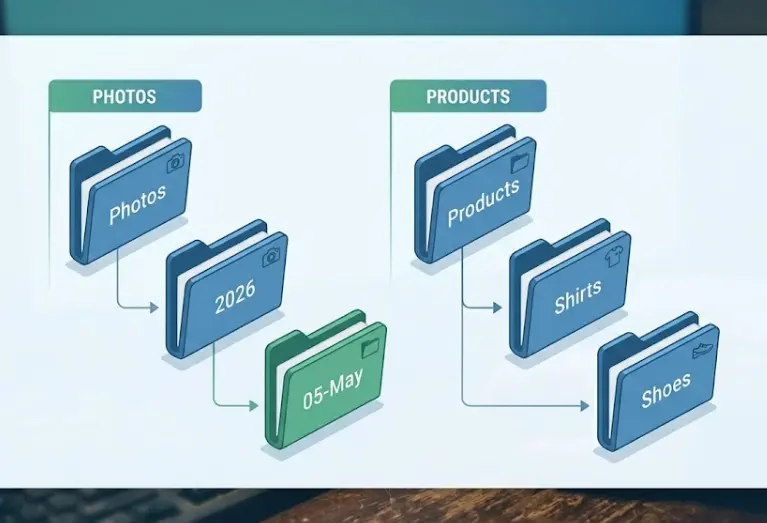
Renaming files is only half the job. Where you put them matters just as much. A folder structure that works for most people:
Photos/
├── 2026/
│   ├── 01-January/
│   ├── 02-February/
│   └── 05-May/
├── Products/
│   ├── Shirts/
│   ├── Shoes/
│   └── Accessories/
└── Documents/
Pick a structure and stick with it. The exact system you choose matters far less than applying it consistently every single time.
Tips Specifically for Product Sellers and Photographers
If you sell products online, name files by SKU or product code from the start:
SKU1234_front.jpgSKU1234_back.jpgSKU1234_detail.jpg
When you need to update a listing, you know immediately which files belong to which product. No guessing, no scrolling.
Keep two versions of every product photo: the original full-resolution file in one folder, and a compressed upload-ready version in a separate folder labeled Upload Ready. Use a tool like combinejpg.com to compress images to the correct file size for platform requirements before uploading. This keeps your originals untouched and your upload workflow clean and repeatable.
Renaming Photos Based on Date Taken
Sometimes you want the filename to reflect when a photo was actually shot, not when it was downloaded or copied. Both major tools handle this:
- Bulk Rename Utility (Windows): Set the naming pattern to pull from the file’s EXIF metadata. It reads the original capture date and uses it in the filename automatically.
- Mac Finder: The Format option can include date elements. For full EXIF-based renaming, A-Better-Finder-Rename reads shoot dates directly from the image metadata.
This is especially useful for photographers who want their archives sorted by shoot date rather than import date.
What About Organizing Photos on Your Phone?
Google Photos handles this automatically it organizes by date and makes searching by subject, location, or people straightforward.
On Android, most file manager apps support bulk renaming directly on the device.
On iPhone, the Files app supports folder organization, but renaming individual files is slow and awkward. If you have a batch renaming job to do, it is almost always faster to transfer files to a computer, rename them there, and transfer back.
The One-Time Setup That Saves Hours Every Month
Photo organization feels like a project you will get to someday. The truth is, the longer you wait, the bigger the backlog gets and the more time it takes to sort out.
Set aside one afternoon. Rename your existing folders. Build your folder structure. From that point on, maintaining it takes two minutes per photo session not two hours.
Use Windows or Mac’s built-in rename tools for basic work. Use Bulk Rename Utility or A-Better-Finder-Rename for anything more advanced. Name files consistently from day one. Keep originals separate from compressed uploads.
That is the whole system. Simple, free, and it works.
Frequently Asked Questions
What is the best free tool for bulk photo renaming on Windows?
Bulk Rename Utility. It is completely free, runs without installation if needed, and handles almost every renaming scenario including EXIF date renaming and custom numbering.
Can I rename photos based on when they were taken?
Yes. Bulk Rename Utility on Windows and A-Better-Finder-Rename on Mac both read EXIF metadata and can rename files based on the original capture date and time.
How do I organize photos without losing anything?
Always work on copies first, or move files rather than deleting originals. Create your folder structure, move files in, then rename. Never delete anything until you have confirmed the renamed versions look exactly right.
Is Google Photos good enough for organization?
For personal photo browsing, yes. For professional or product photography where you need specific filenames and folder structures for uploads and client deliveries, no. Use a manual system for that.