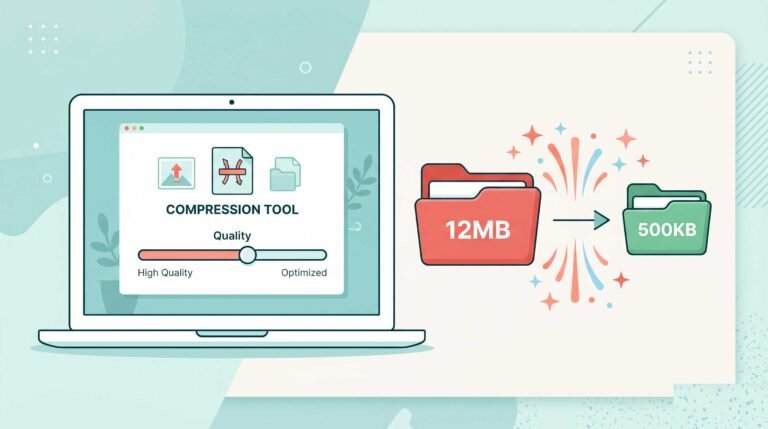
How to share high quality photos without compression

WhatsApp, Instagram, Gmail and some other plateforms they all compress your photos. Here’s how to stop that, on every platform, without any paid apps.
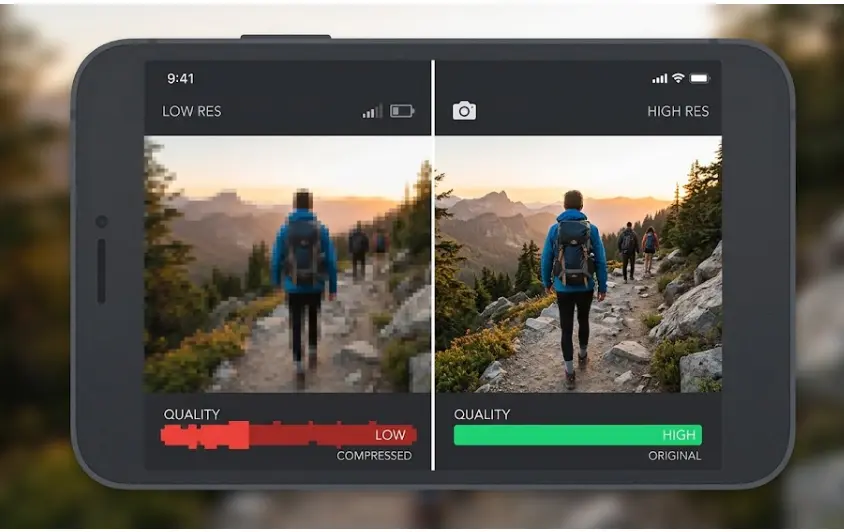
You took a great photo in high resolution and then you shared it on WhatsApp and the person on the other end got a blurry, washed-out version of it.The major reason is that these platform compresses photos automatically before sending it to other user. Here’s how to work around it on every platform.
Why does this happen?
When billions of photos are shared every day, companies reduce file sizes to save bandwidth and server storage and the app or website will work smooth. WhatsApp compresses to speed up delivery for users on slow connections. Instagram compresses to standardize how photos look across all devices. None of them ask your permission it just happens automatically every time you hit send.
WhatsApp: the document trick
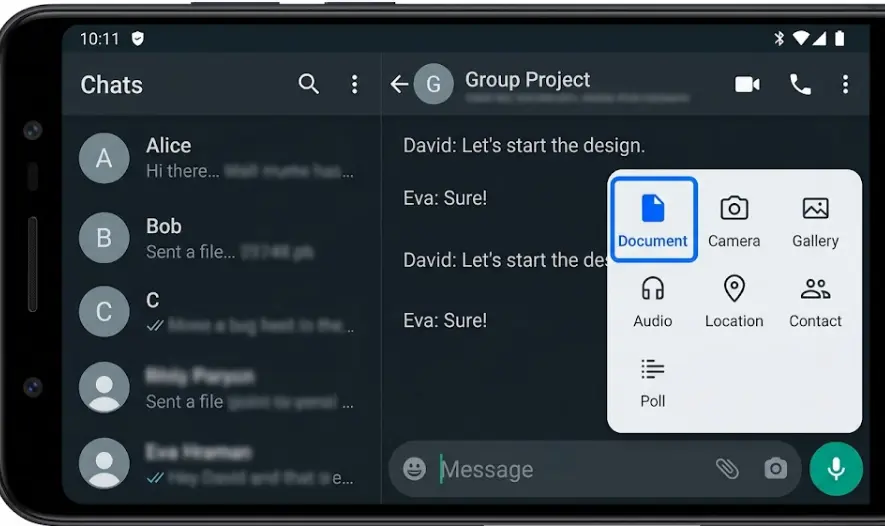
This is the most useful trick in this whole guide. WhatsApp does not compress files sent as documents only photos and videos sent from the Gallery get compressed automatically by whatsapp. So instead of using the Gallery picker, send your photo as a document.
Open the chat
- Any individual or group chat works this method works for both
Tap the attachment icon (paperclip)
- Do not tap the camera or gallery shortcut
Select “Document” not Gallery
- This is the key step. Navigate to your photo file from the document picker
Select your photo and send
- WhatsApp sends it as a file, no compression at all
The receiver will need to tap to download it won’t show as an inline photo preview. But quality is 100% preserved. This works for group chats too.
Before you send, it’s worth compressing the photo on your own terms. Here’s how to compress photos for WhatsApp the right way you control the quality, not WhatsApp’s algorithm.
Instagram: reduce compression before you upload
Instagram will always apply some compression there is no full workaround. But you can minimize quality loss by preparing your photo to Instagram’s exact preferred specs before uploading. When you give Instagram a file at the right dimensions, it does less compression work.
- Export photos at exactly 1080px wide (square) or 1080x1350px (portrait)
- Save as JPG at 80–85% quality starting at the right size means less recompression
- Upload on WiFi widely reported to result in less compression on fast connections
- Never upload screenshots they’ve already been compressed once
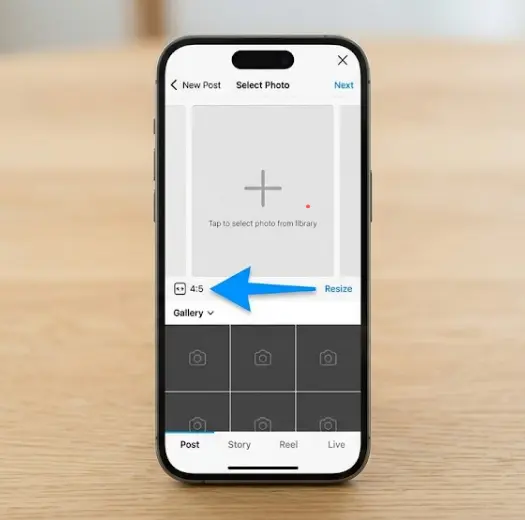
The goal is to give Instagram a file that is already perfectly sized, so it doesn’t need to resize it. Resizing is where most quality is lost. You can use this free image compressor to get your photo to exactly the right dimensions and file size before uploading no signup needed.
Email: skip the attachment, use a link
Gmail limits attachments to 25MB. If your photo file is larger then Gmail compresses or rejects it. The simple fix: upload to Google Drive or Dropbox and share the link instead of attaching the file directly.
- Upload your photo to Google Drive (15GB free storage)
- Right-click the file → “Get shareable link”
- Paste that link into your email
- The receiver downloads the original, full-quality file no compression at all
If you’re sending a resume photo or professional headshot by email, read this guide on how to resize and compress a resume photo to get the right balance of quality and file size before you send.
Best methods compared
- WhatsApp document: 100% original quality. 2GB limit per file. Works for anyone on WhatsApp.
- Google Drive link: 100% original. 15GB free. Best for large batches or client delivery.
- WeTransfer: 100% original. 2GB free. Simple no account needed to receive files.
- AirDrop (Apple): 100% original. No size limit. iPhone to Mac or iPad fastest option in the Apple ecosystem.
- USB cable: 100% original. No limit. Use “File Transfer” mode, not charging mode, on Android.
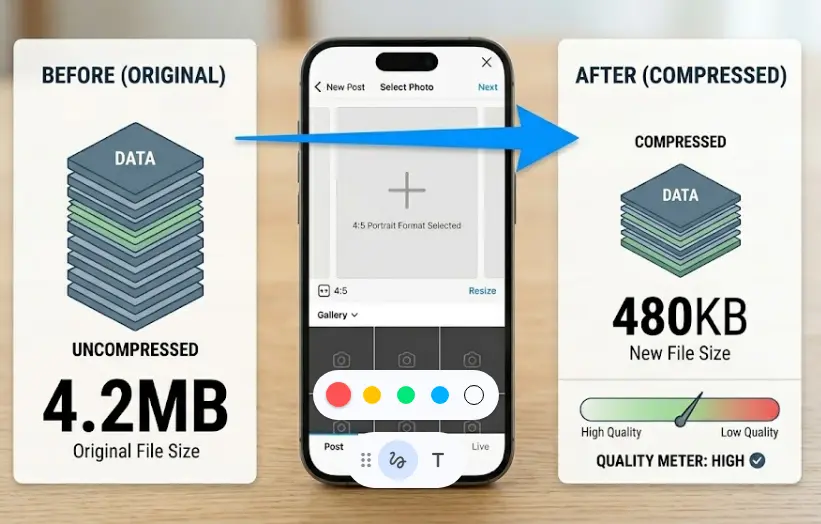
Prepare photos before sharing control the compression yourself
The best strategy is to compress your photo on your own terms, before the app does it badly. When you control the compression, you choose the quality level. When the app does it, you get whatever their algorithm decides.
| Platform | Target size | Width |
|---|---|---|
| WhatsApp display | 300–500KB | 1280px |
| Instagram post | 500KB–1MB | 1080px |
| Email attachment | Under 1MB | 1600px max |
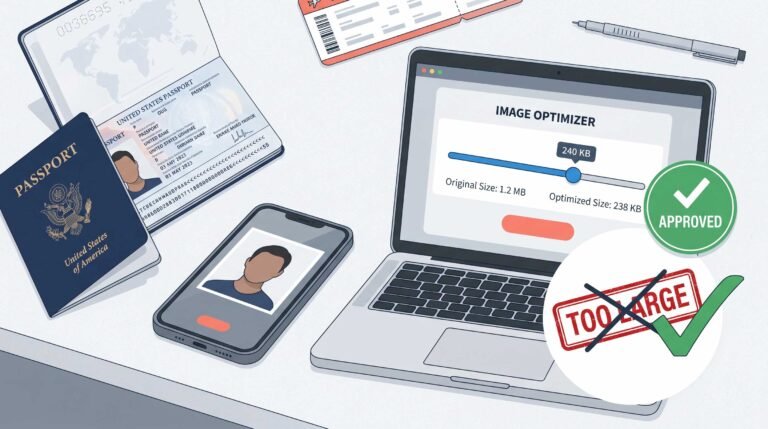
| Passport / ID photo | Under 240KB | 600px (varies by country) |
Use this free online image compressor to hit any of these targets no account, no watermark, no software install. If you’re preparing a photo for an official application, this guide on compressing images for a US passport application covers the exact specs required.
Common mistakes people make
- Sending photos from the WhatsApp gallery instead of the document picker always use Document for quality
- Uploading oversized photos to Instagram this forces more compression, not less
- Attaching large files to email use Drive or WeTransfer for anything over 5MB
- Letting the app compress when you could do it better yourself first
Frequently Asked Questions
Does the WhatsApp document trick work for videos too?
Yes. Send videos as documents and WhatsApp won’t compress them either. The file size limit is 2GB per file, which covers most videos.
Why are my Instagram photos still blurry after following these tips?
Instagram has made compression more aggressive over time. The most important thing is that your photo is exactly 1080px wide before you upload. Uploading a 4000px image forces Instagram to resize it heavily, which loses quality. Resize first, then upload.
Is iCloud photo sharing full quality?
Yes. When you share via iCloud Photo Library or iCloud Drive, photos are sent at full original quality. It’s the best option if both people are using Apple devices.
How do I transfer photos from phone to PC without losing quality?
Connect your phone with a USB cable and choose File Transfer mode (not charging mode) on Android. Or enable Original Quality backup in Google Photos, then download from photos.google.com on your PC you’ll get the original file.